Guide
Complete and sign a checklist
Confirm step by step: Done, Note or Not OK. Sign at the end and finish. How the checklist works on your phone.
What for?
With some instructions, you confirm every step. That makes it clear that everything was done. Your result goes into the log with your name. You report problems right at the step.
Before you start
- The instruction has a checklist. The person who made it switches this on.
- To add photos to a step, you need a connection.
Step by step
-
Open the instruction. If it has several chapters, tap Start first. Then you see Ready?. Enter your name under Your name and tap Start.
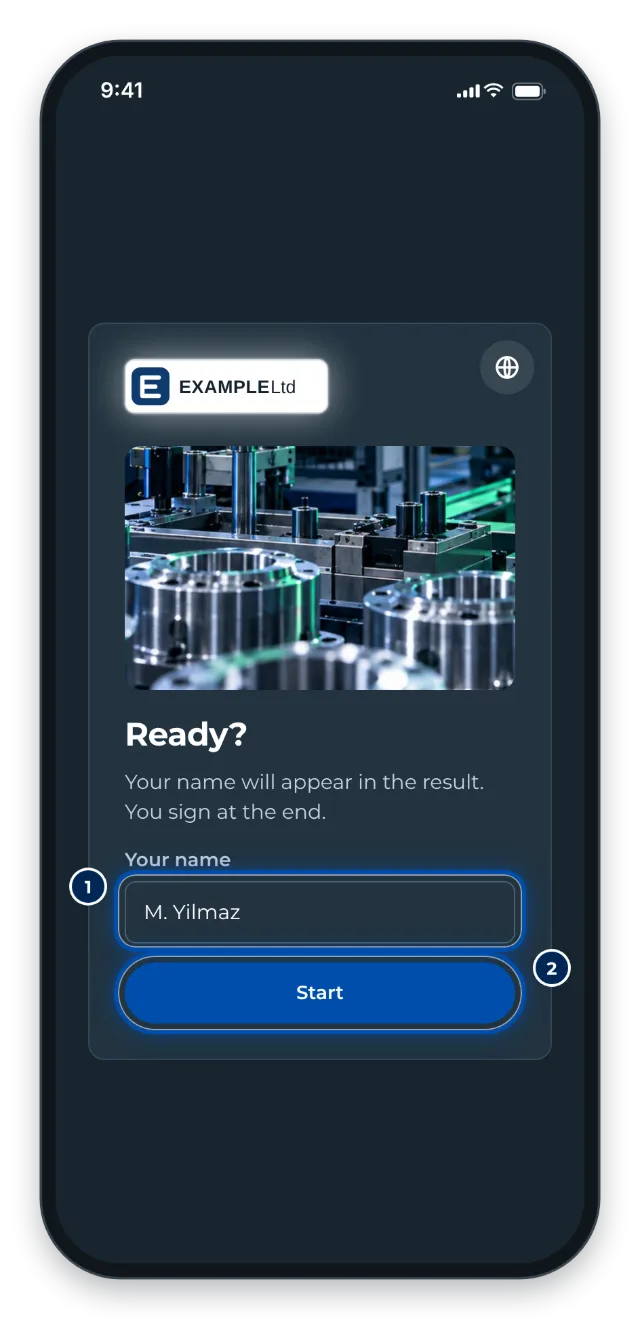
The start of a checklist with the field for your name -
Look at the step. There are three buttons at the bottom:
- Done: everything was fine.
- Note: done, but something was different. Write briefly what, or take a photo. Then tap Save.
- Not OK: there is a problem. Describe it. Add photo lets you attach a photo. Then tap Save.
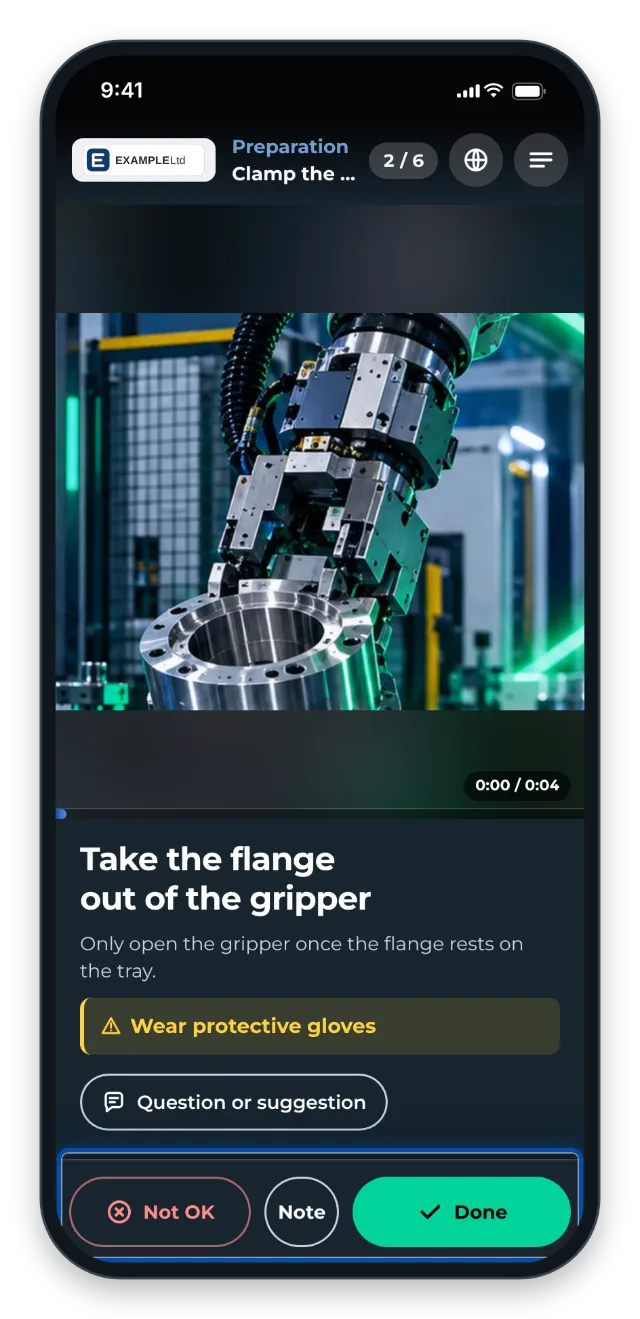
At the bottom are the buttons Not OK, Note and Done 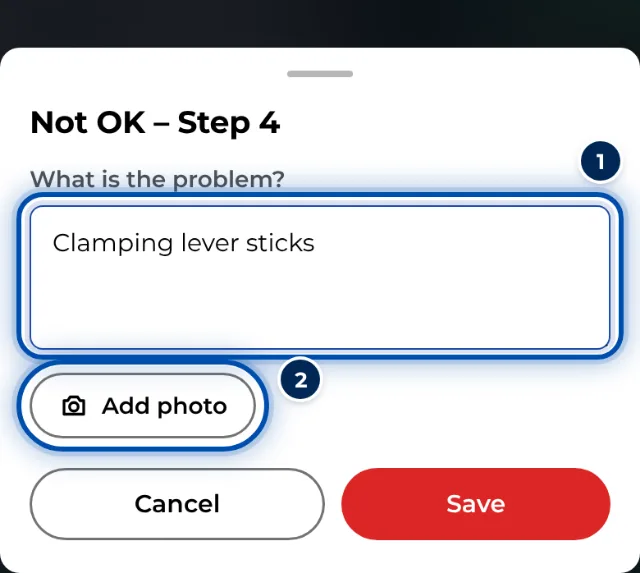
With Not OK you describe the problem and take a photo -
GIRI briefly shows Saved and moves on to the next step. You can only go further once the step has an answer.
-
At the end you see whether everything is OK. If a step is still open, tap Go to the open step.
-
If a signature is required, the Signature field appears. Sign in it with your finger. Clear lets you start again.
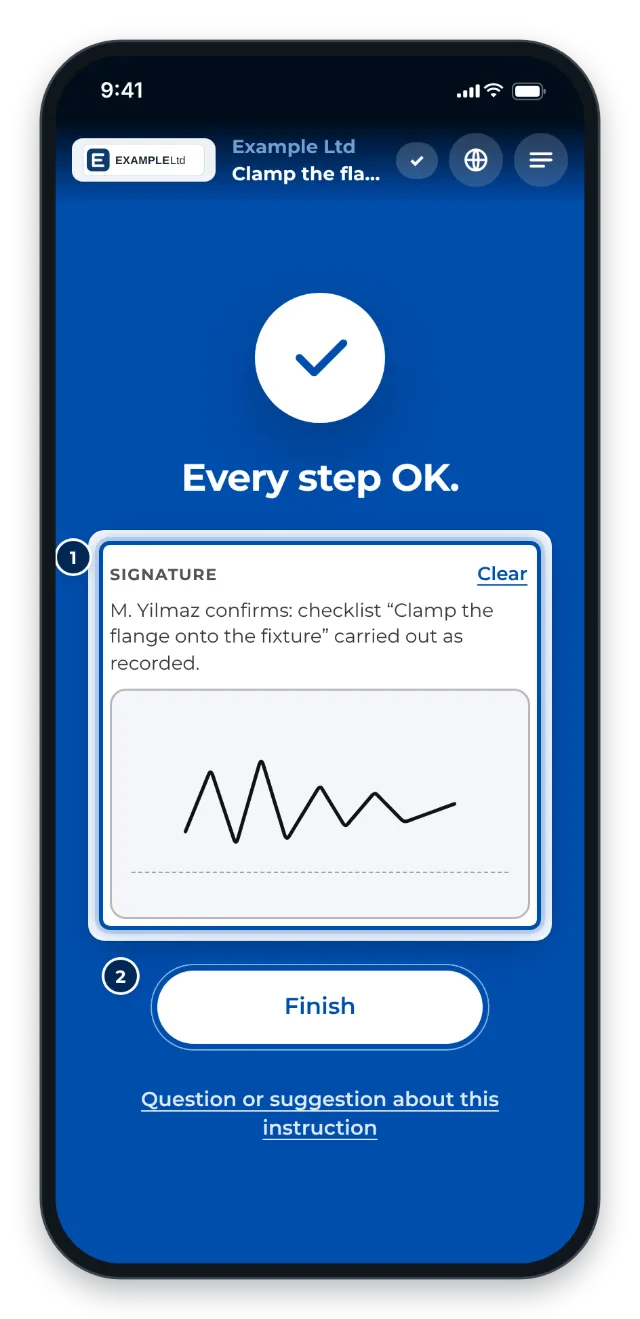
At the end you sign with your finger -
Tap Finish. GIRI shows Completed with your name and the date.
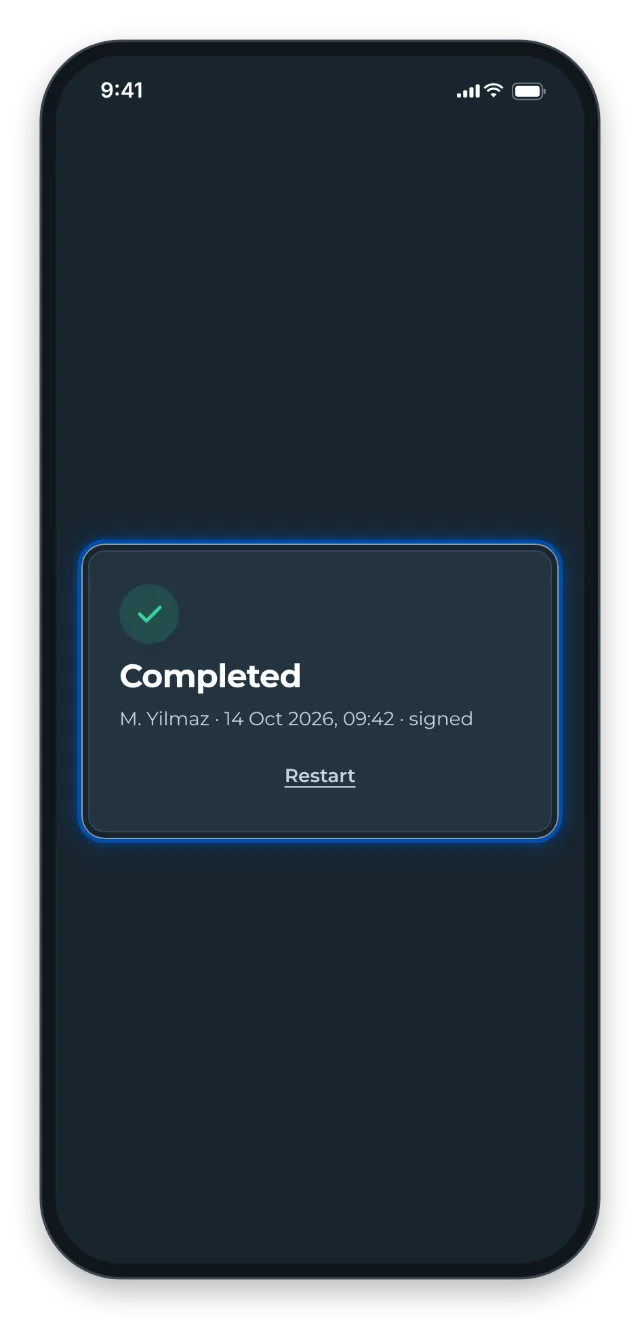
The checklist is completed
Sometimes the button is called Confirm chapter. Then you confirm the whole chapter at its end. Some instructions only ask about certain steps. Just swipe past the others.
Tips
- Interrupted? Your progress stays on the phone. When you tap Start next time, GIRI asks Continue? Tap Continue.
- No connection? The result stays on the phone and is sent once you are back online. Photos for Not OK and Note never arrive without a connection, though. See Using instructions without a connection.
- Your name stays saved on the phone. If you share a device, check the name before you start.
- An idea for doing it better? Use Question or suggestion. It goes to the people who made the instruction, not into the result. See Send a question or suggestion.
- If the instruction is a training, GIRI first asks who is being trained. At the end you always sign.
Common problems
- I cannot get to the next step. The current step is still open. Tap Done, Note or Not OK.
- GIRI says: Please enter your name. Enter your name and tap Start again.
- GIRI asks again when you finish. Some steps are still open. If you finish anyway, the result is incomplete.
- GIRI says: Please sign. The signature is missing. Sign in the field and tap Finish again.