Overview
Start page, instructions and menu at a glance
Where to find what in GIRI: the start page on a PC and on a phone, the Instructions page, the app menu by role, your profile and the BETA label.
The start page shows you what needs doing right now. Under Instructions you find all instructions. Everything else is in the app menu: on a PC behind ≡ at the top right, on a phone behind your profile picture.
The start page on a PC
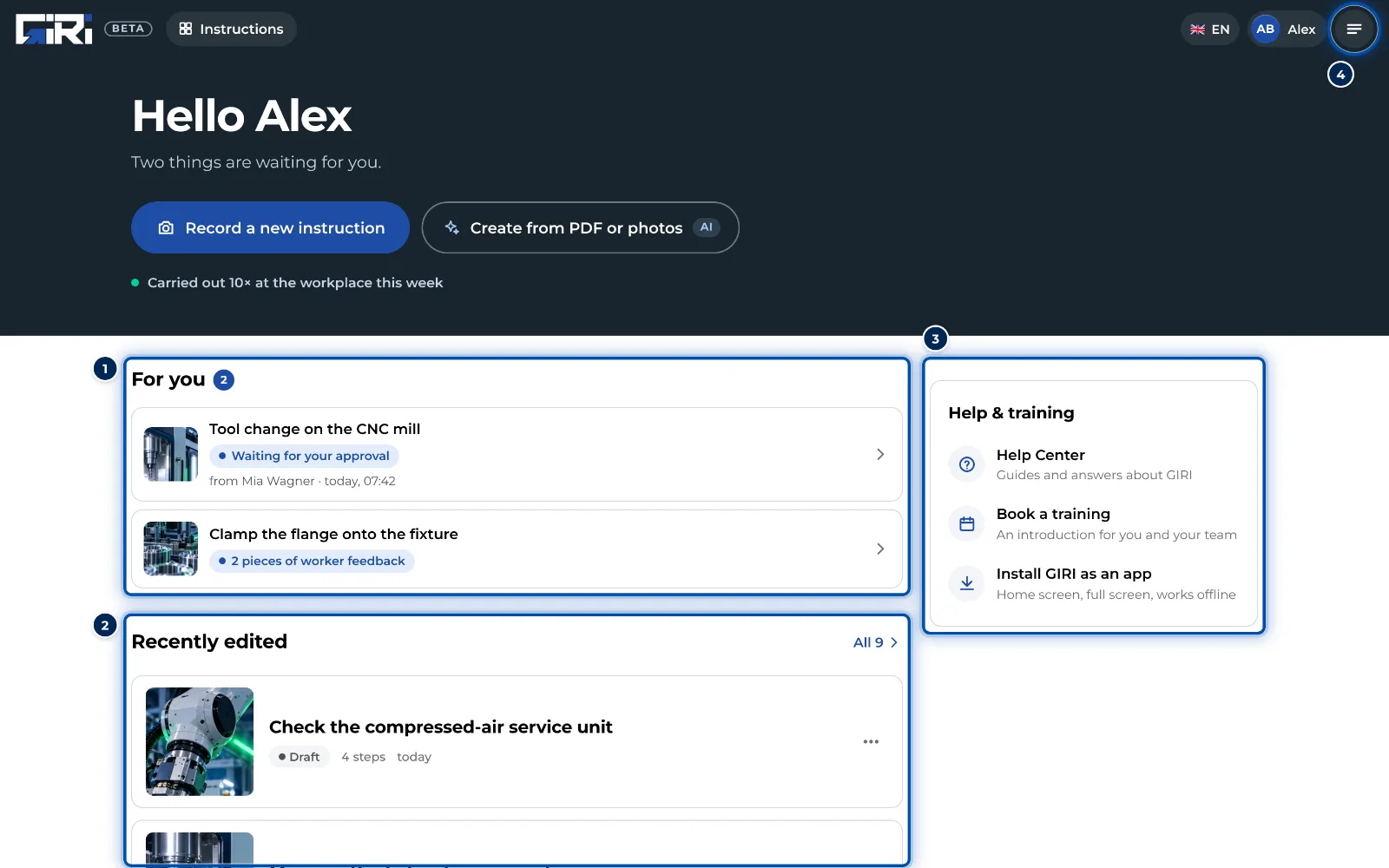
- At the top GIRI greets you by name. With the edit right you see Record a new instruction and Create from PDF or photos there. Without the edit right you see Go to the instructions there.
- For you collects what is waiting for you: instructions marked Waiting for your approval or Sent back, feedback from workers and checklists completed at the workstation.
- Recently edited shows the three instructions changed last. The link next to it leads to all of them.
- On the right is Help & training, with the Help Center, Book a training and Install GIRI as an app. If you have the edit right, First steps above it shows four steps to your first instruction at the workstation, until you have done them or hidden the card.
- In the bar at the top you find the language, your profile and the ≡ menu. As soon as there are instructions of your own, Instructions is there too.
The start page on a phone
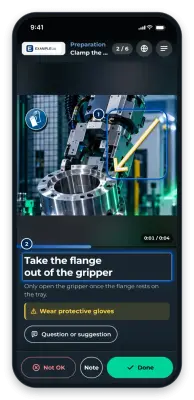
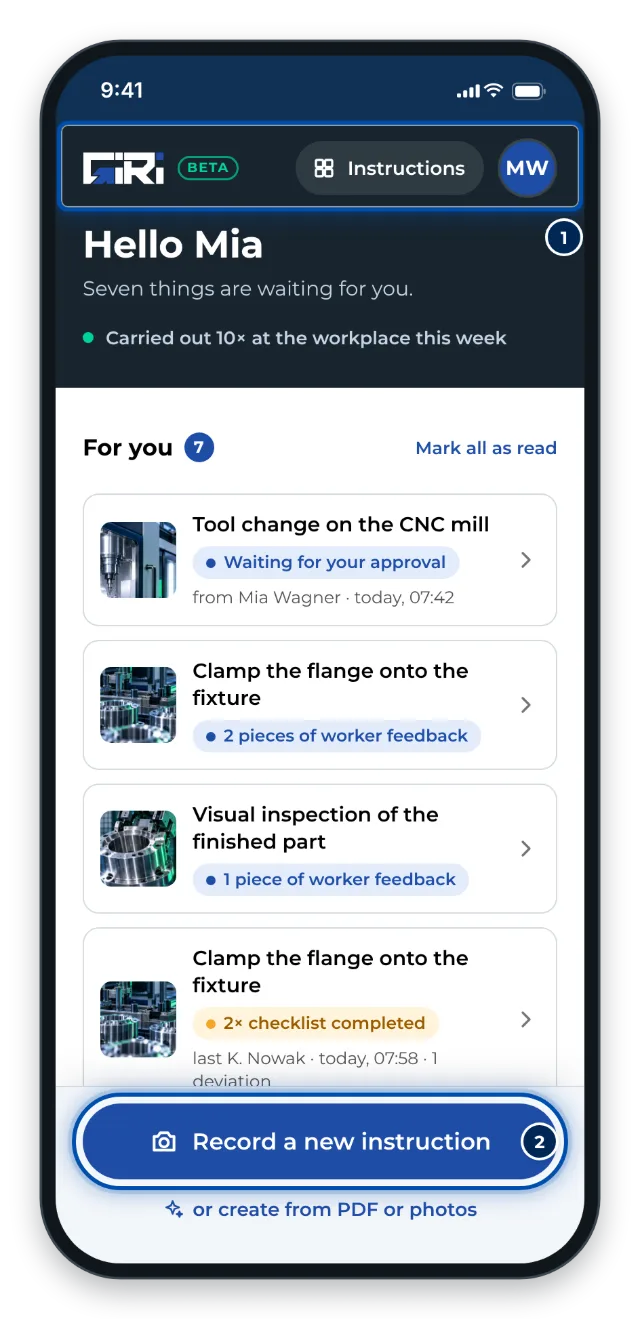
On a phone the start page has the same parts, stacked. At the top are the GIRI logo with BETA, your profile picture and, as soon as there are instructions of your own, Instructions. The Record a new instruction button sits at the bottom, within reach of your thumb. On a phone, help is in the menu behind your profile picture, under Help & contact. If you have the edit right and no instruction of your own yet, GIRI shows Welcome to GIRI with three steps and, if there is one, an example instruction to look at.
The Instructions page
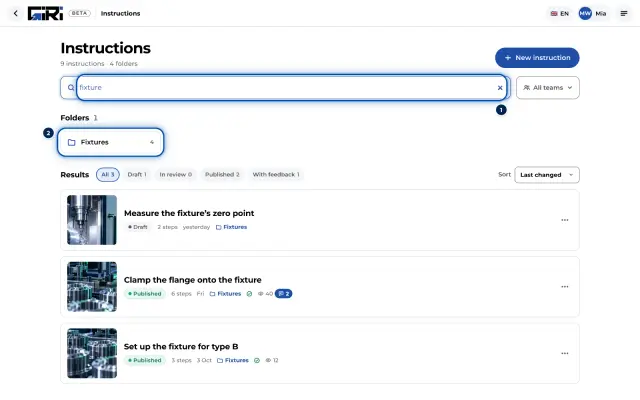
The Instructions page shows every instruction you are allowed to see:
- The search finds instructions and folders, including words inside the steps.
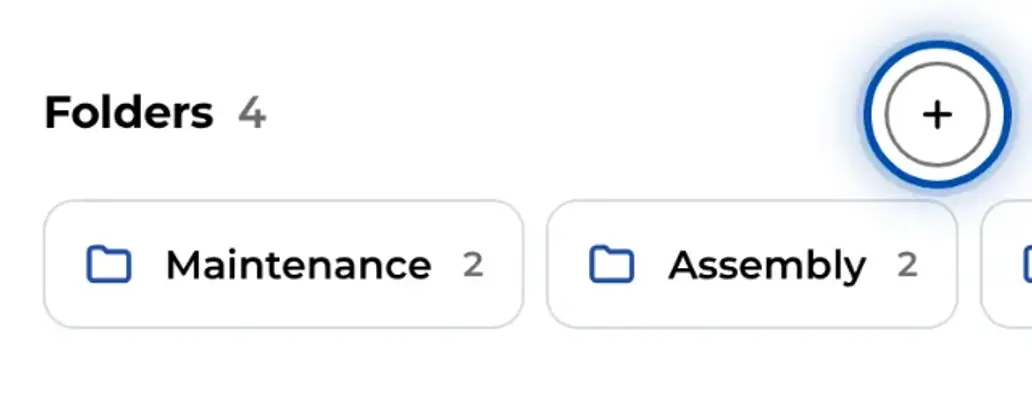
- Under Folders you see the folders worked in most recently. With many folders, Find folder helps.
- Under All instructions you filter by status: All, Draft, In review, Published or With feedback. Next to it is Sort.
- If at least two teams are available to you, you can also filter by team at the top.
- With the edit right you create an instruction with New instruction; with the folder right you create a folder with New folder.
Clicking a card opens the instruction, depending on your rights for review, for editing or as the worker sees it. More actions are in the ⋯ on every card. See Find instructions.
An instruction
On a PC, the title and the status with its version are at the top, for example Draft. Next to them, depending on your rights, are the tabs Edit, Settings and Analytics. On the right is Preview, or Link & QR code for published instructions. On a phone you reach Settings and Analytics via the ⋯ at the top of the step list.
The app menu
On a PC you open it with ≡ at the top right, on a phone with your profile picture. Which sections you see depends on your role:
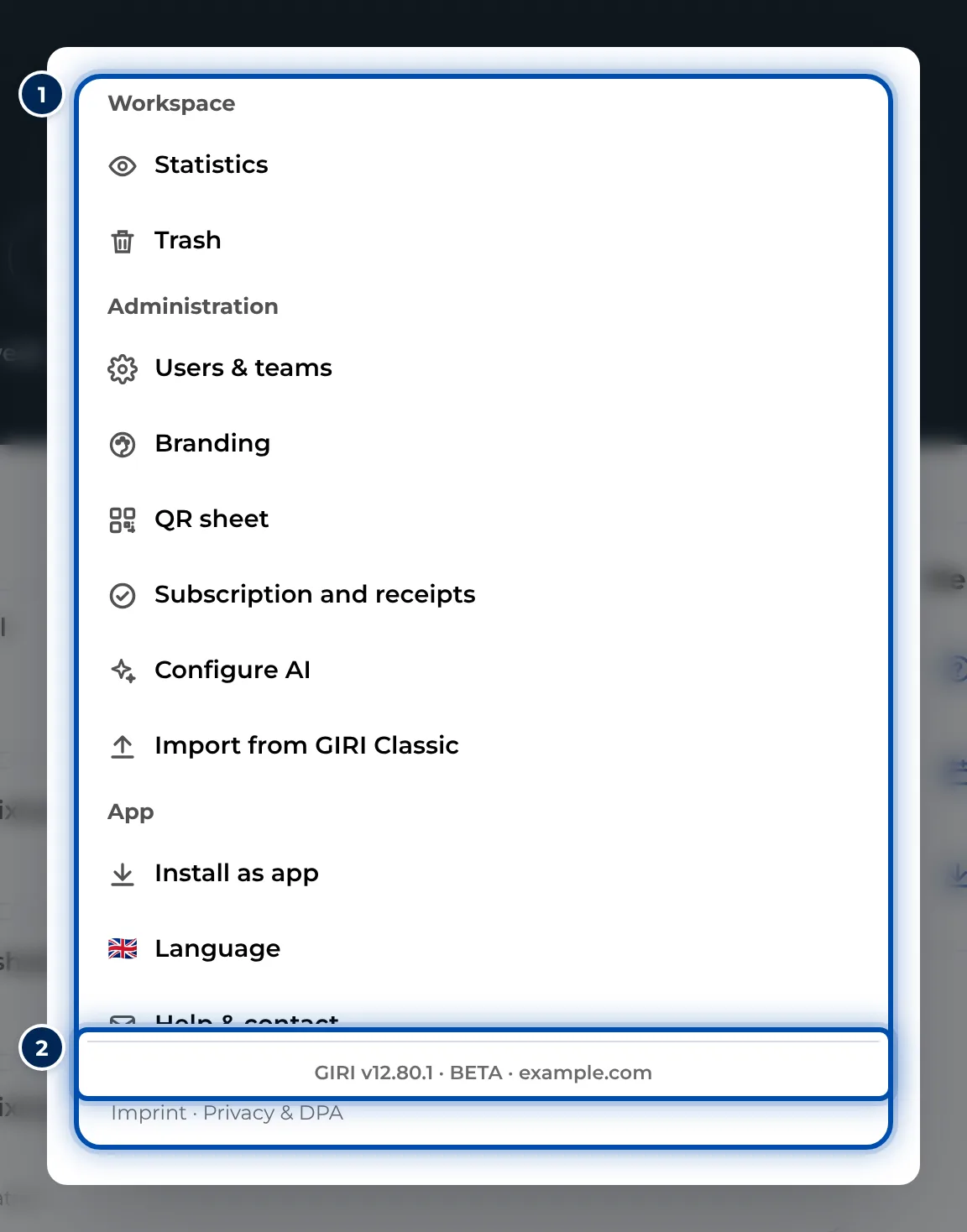
- Workspace: Statistics and Trash, plus Training if GIRI has activated training for your workspace and you may see it.
- Administration: for workspace admins only, with Users & teams, Branding, QR sheet, Subscription and receipts, Configure AI and Import from GIRI Classic.
- App: Install as app, Language, Help & contact and GIRI is in beta. On a phone you also find Sign out here.
At the very bottom are the version number, such as “GIRI v12.80.1 · BETA”, and the ID of your workspace.
Profile
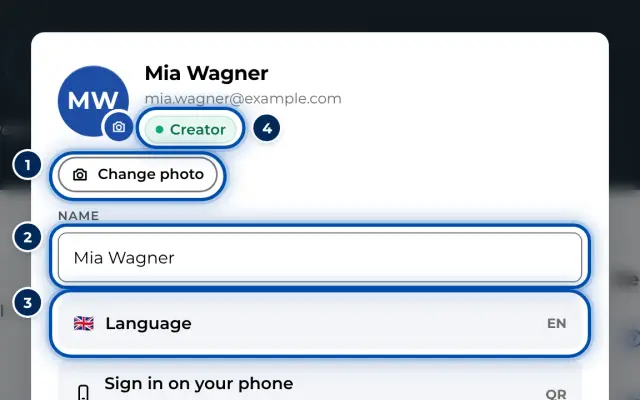
On a PC, click your picture and first name at the top right. On a phone, tap your profile picture and then the row with your name. In your profile you change your photo, name and language, and sign out. See Profile, photo and language.
BETA
Next to the logo it says BETA. Tap or click it and GIRI explains what that means: the app is developed continuously, and your instructions are kept throughout. The same explanation is in the app menu under GIRI is in beta. See How updates arrive.