Guide
Set the preview image
Choose the picture an instruction shows in the list and on the workers' start card, and optionally on the QR sheet and QR poster.
What for?
A good preview image makes an instruction recognisable at a glance, both in the list and at the workstation. If you choose nothing, GIRI uses the first step picture. Often another step shows the machine or the result better, or you have a photo of your own that fits.
Before you start
- The edit right for the instruction.
- For an image of your own: an internet connection, because GIRI uploads it straight away.
- No new approval is needed.
Step by step
-
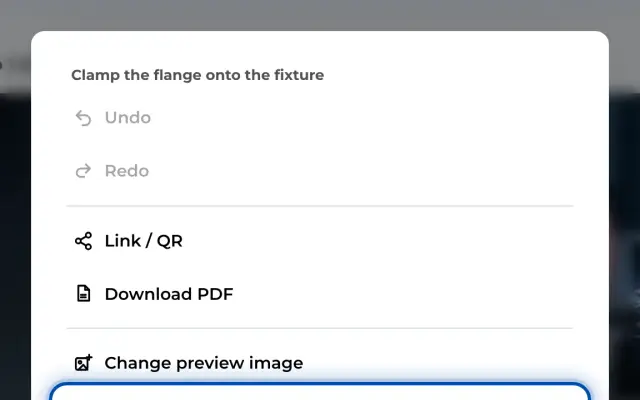
Open the menu: in the list, ⋯ on the card and then Change preview image; with the instruction open, ⋯ and then Change preview image.
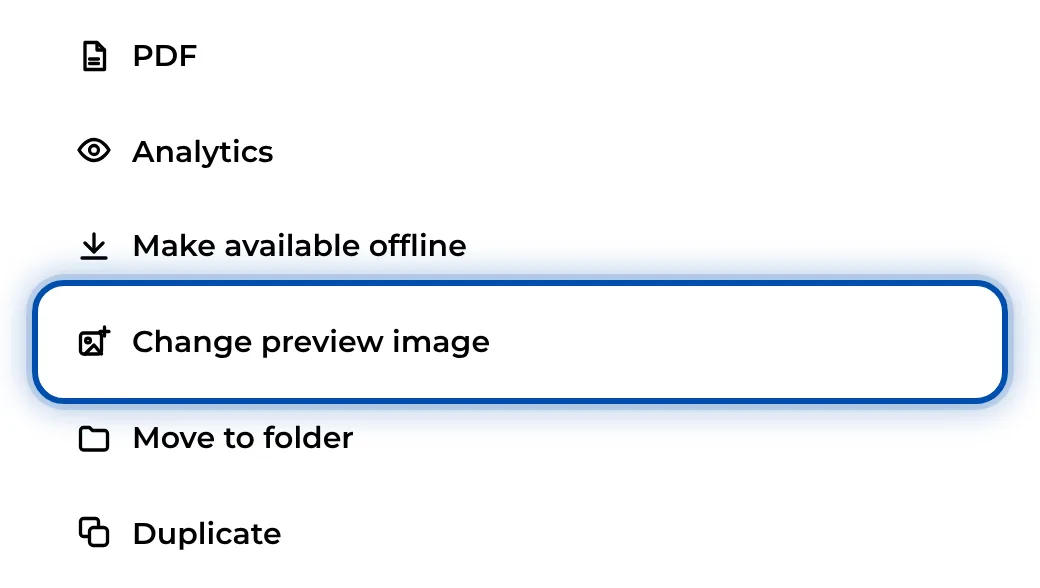
Change preview image in the card’s ⋯ menu -
The Preview image dialog shows every step picture with its number. current marks the current one.
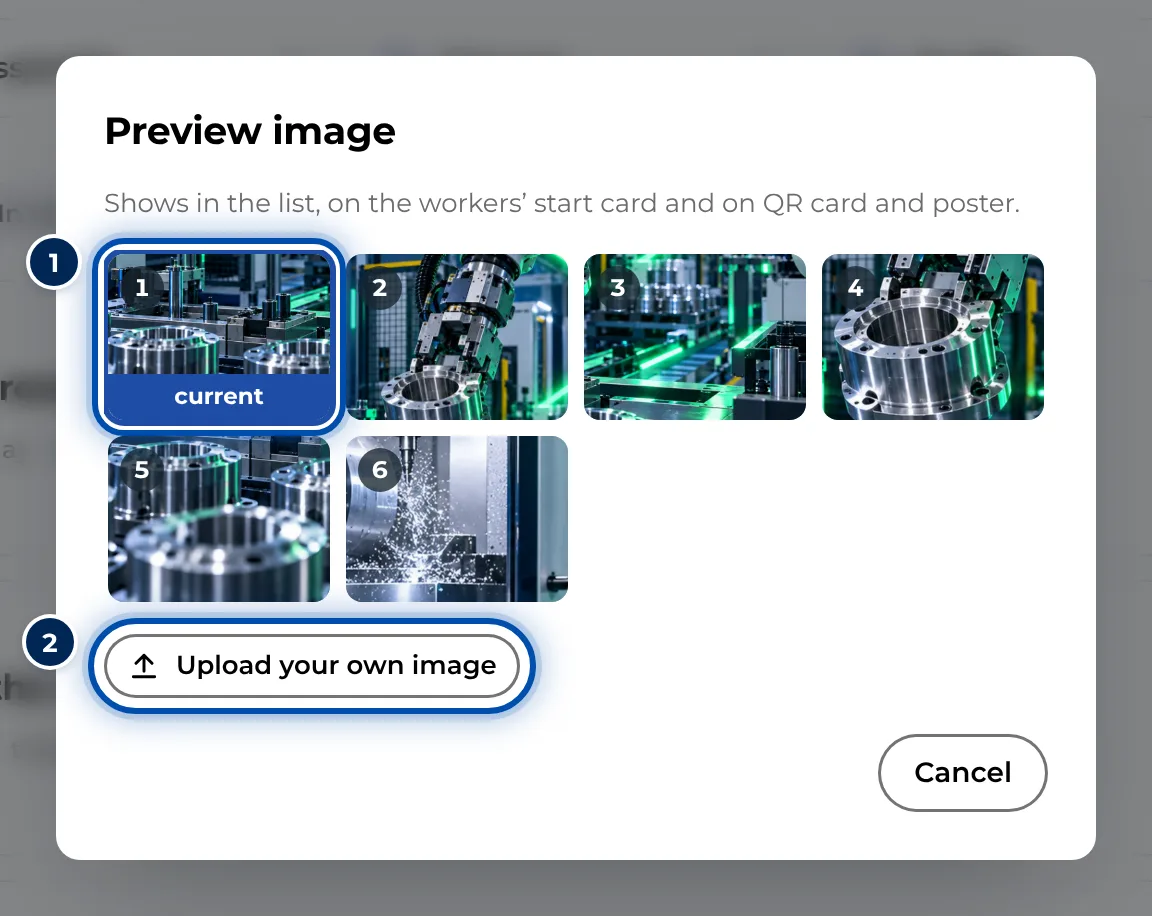
The Preview image dialog with the pictures of all steps -
Click a step picture. GIRI applies it at once and reports Preview image changed.
-
Alternatively, choose Upload your own image and pick a photo from your PC or phone. GIRI scales it down to 1280 pixels at most.
-
To go back to the first picture, use Default (first image). The button appears once you have chosen a picture.

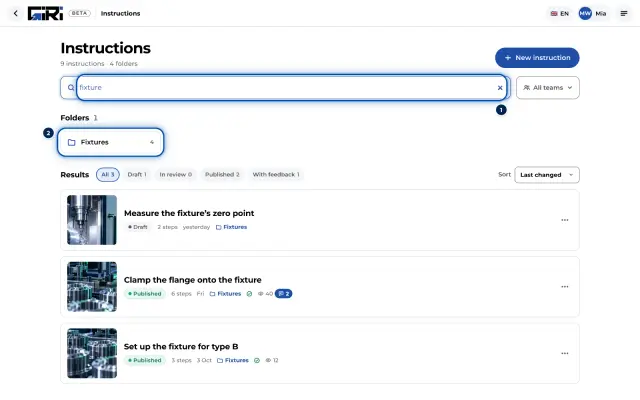
The new preview image on the card in the list
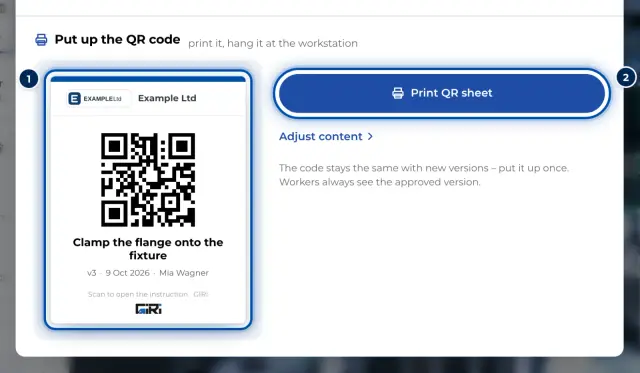
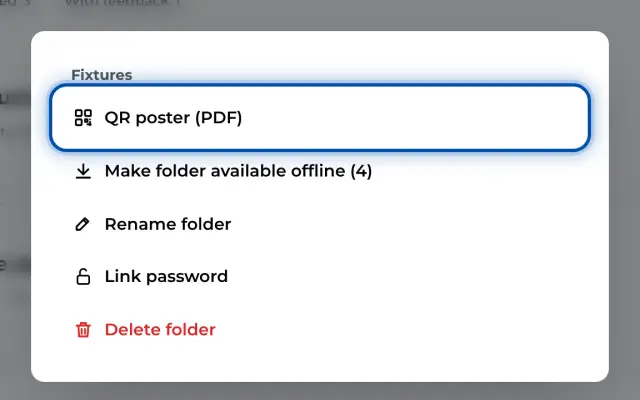
In the list, on the start page and on the start card of the worker view, the preview image appears without markings. On the QR sheet and the QR poster, GIRI prints it with its markings, but only if the picture is switched on there. For the QR sheet, an admin switches on First picture; it is off to begin with. For the QR poster, the First image box in the dialog is ticked by default. Despite these names, GIRI prints the preview image in both cases.
Tips
- Choose an overview of the machine or the finished result rather than a detail. Workers can then tell at once that they are in the right place.
- A photo of the machine itself helps most on the QR sheet at the workstation.
- If many instructions look alike, tell them apart with preview images rather than titles alone.
Common problems
- The dialog shows no step pictures. The instruction has no photos or videos yet. Upload an image of your own.
- The upload fails. Check the connection. The image must be one your browser can open; JPG and PNG always work.
- Workers still see the old picture. A new version is in progress. Once it is approved, workers see the new picture.
- Change preview image is missing from the menu. You don’t have the edit right for this instruction.