Guide
Edit steps: text, warnings, order, deleting
Add a title and description to each step, set warnings, move and delete steps, and bring deleted steps back.
What for?
After recording, you turn the pictures into an instruction that’s easy to follow. Short titles and warnings on the right step mean that workers understand the instruction without much reading.
Before you start
- A role with the right to edit.
- An instruction with steps.
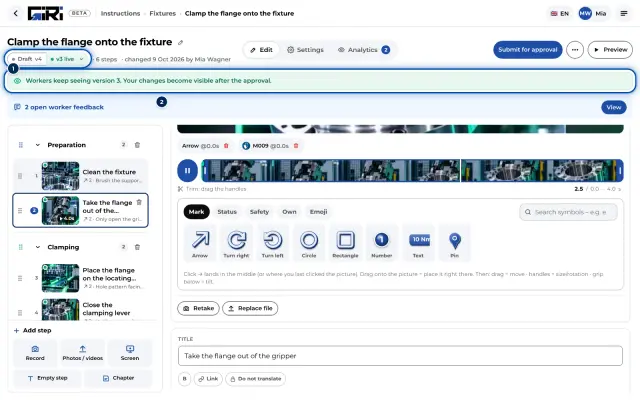
- If the instruction is published, your first change starts a new version. Workers keep seeing the old one until the next approval. See Revise a published instruction.
Step by step
On a PC
-
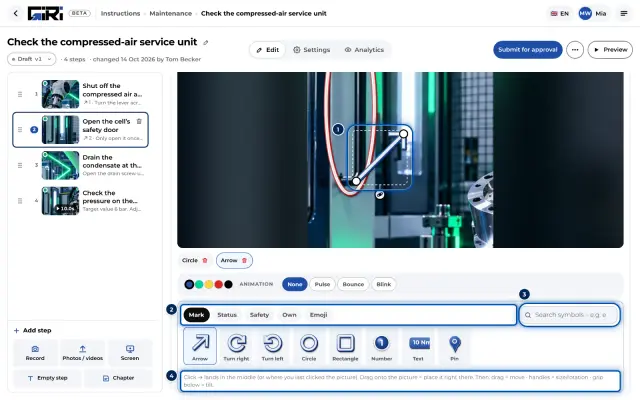
Open the instruction. The list of steps is on the left, the picture and texts of the selected step on the right.
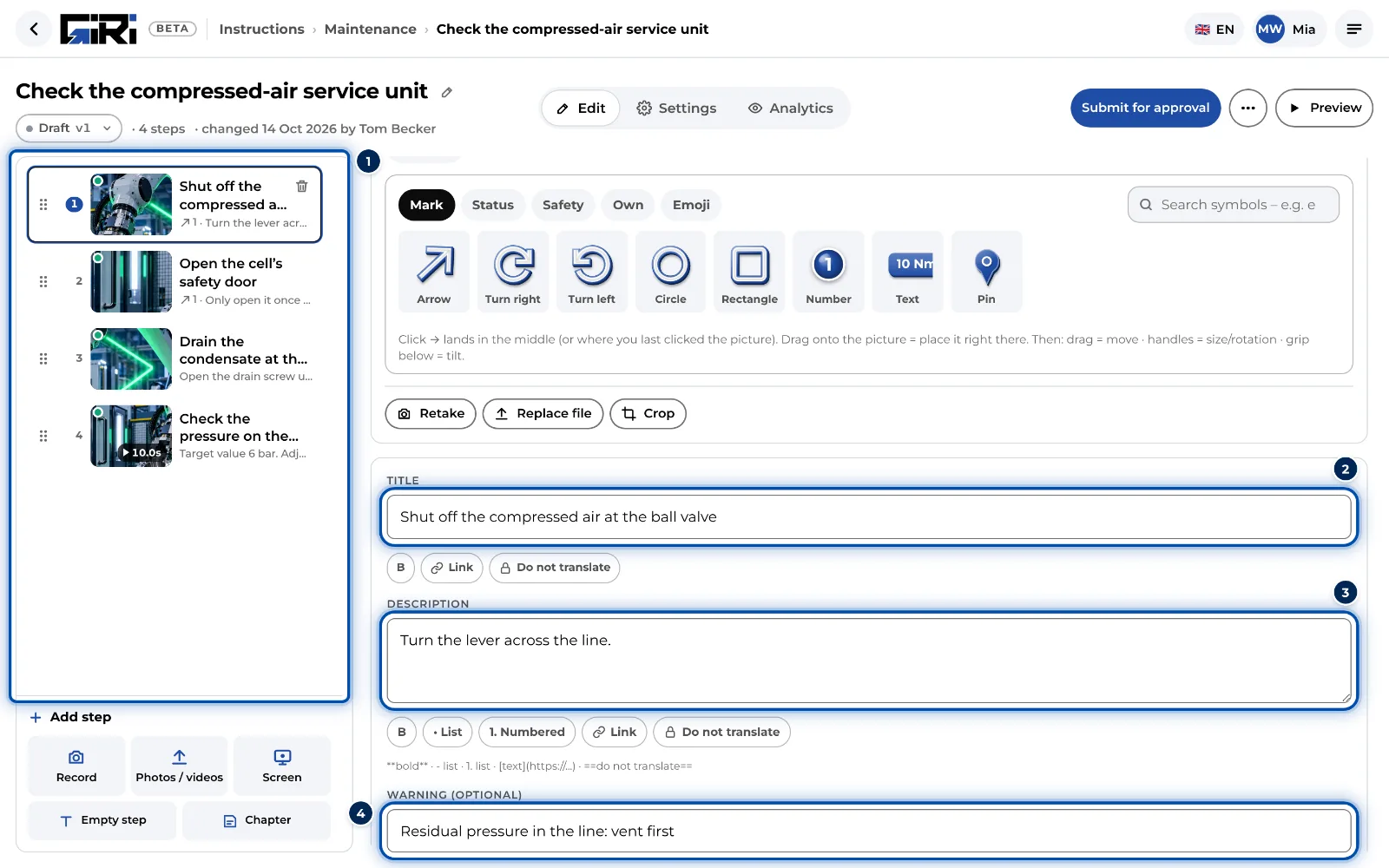
The editor on a PC: steps on the left, picture, title, description and warning on the right -
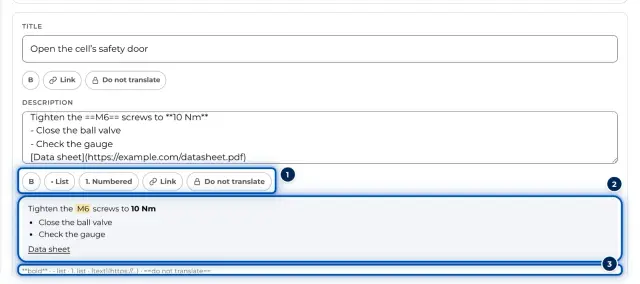
Click a step and write what happens under Title on the right, e.g. “Insert flange”. Under Description you add the tool, torque or other notes if needed.
-
If there’s a hazard at this point, click Add warning and describe it briefly: the hazard and the measure.
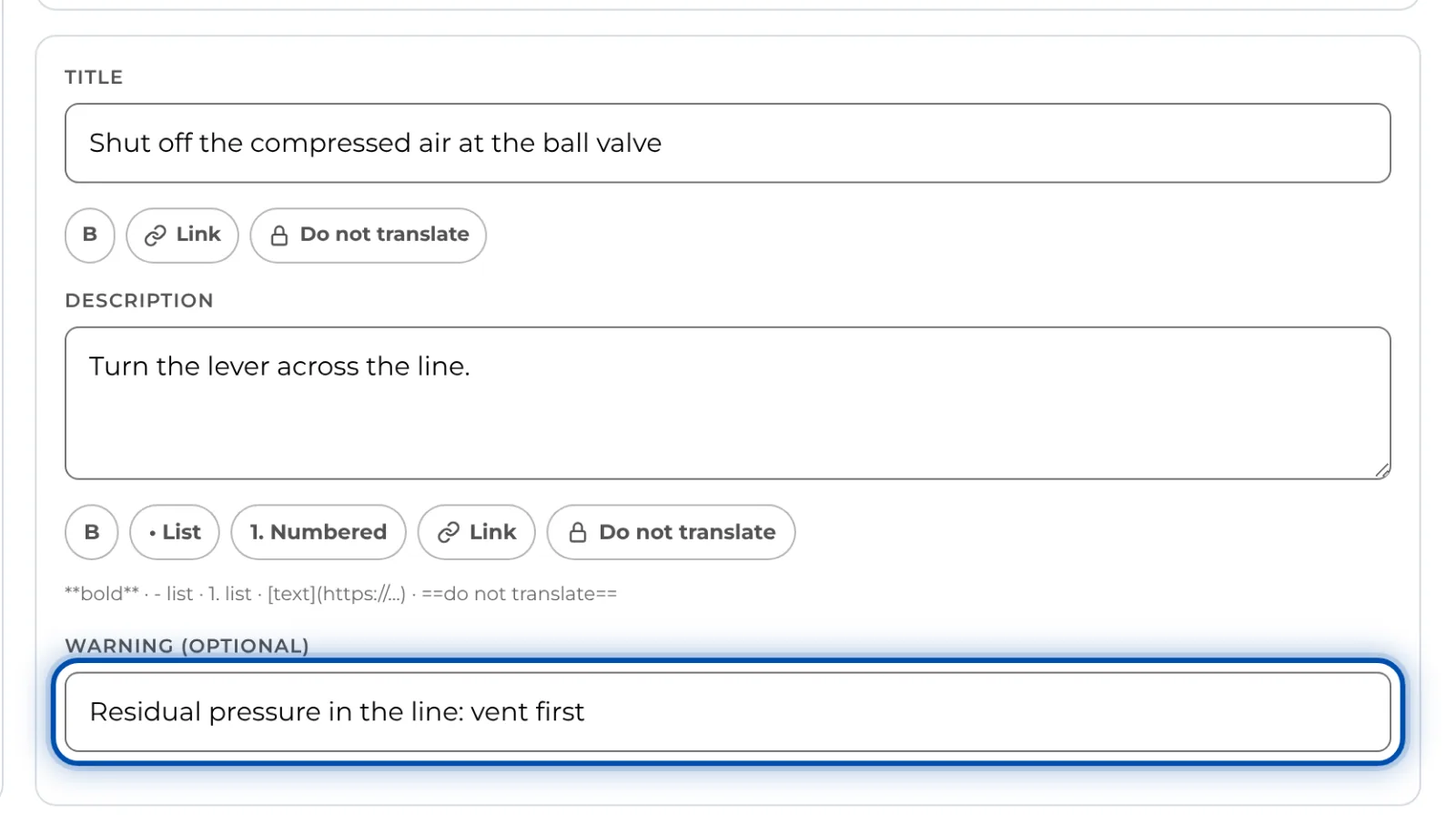
Title, description and warning of a step on a PC -
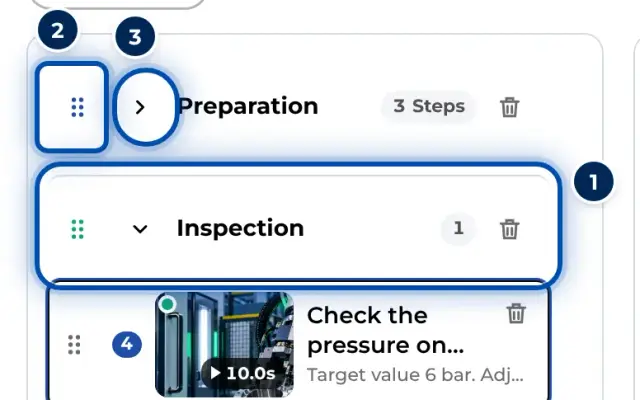
To change the order, drag a step by the handle on the left of its row to its new position. With the keyboard, select the step and press Alt+↑ or Alt+↓.
-
To delete, click the bin icon on the selected step or Delete above the picture, and confirm.
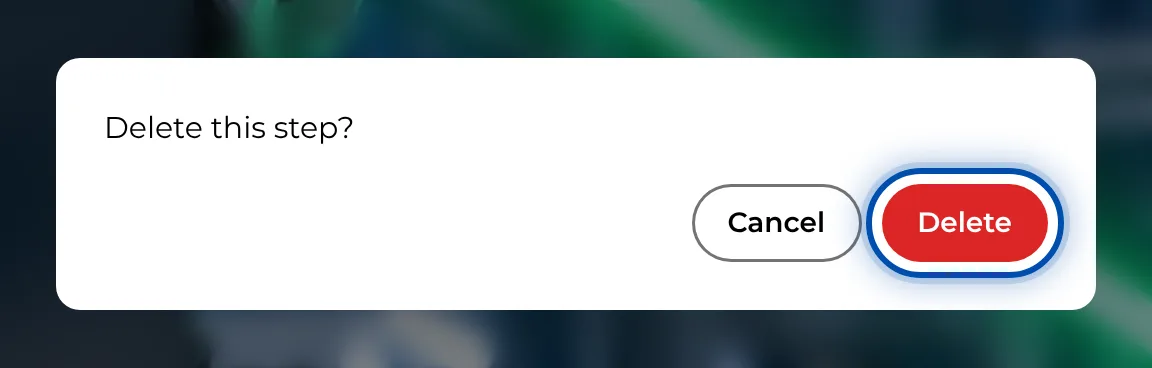
GIRI asks before it deletes a step -
Deleted something by mistake? Open ⋯ at the top right and choose Deleted steps. Restore puts the step back in its old place. Deleted steps stay there until you remove them with Delete permanently.
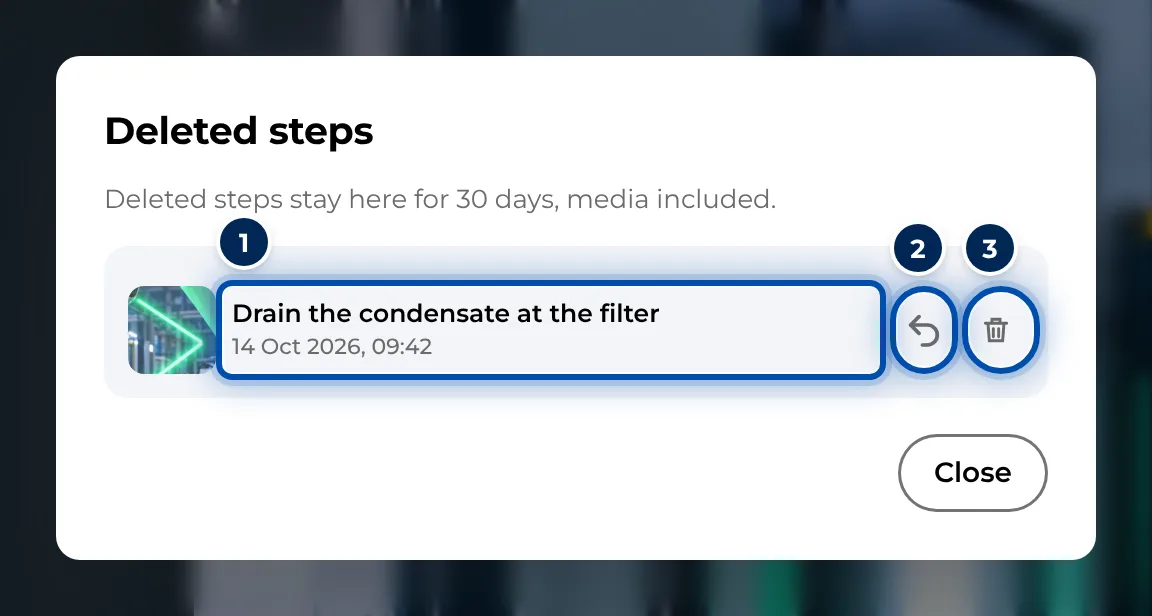
The Deleted steps dialog with Restore and Delete permanently
On a phone
-
Open the instruction. You see the list of steps.
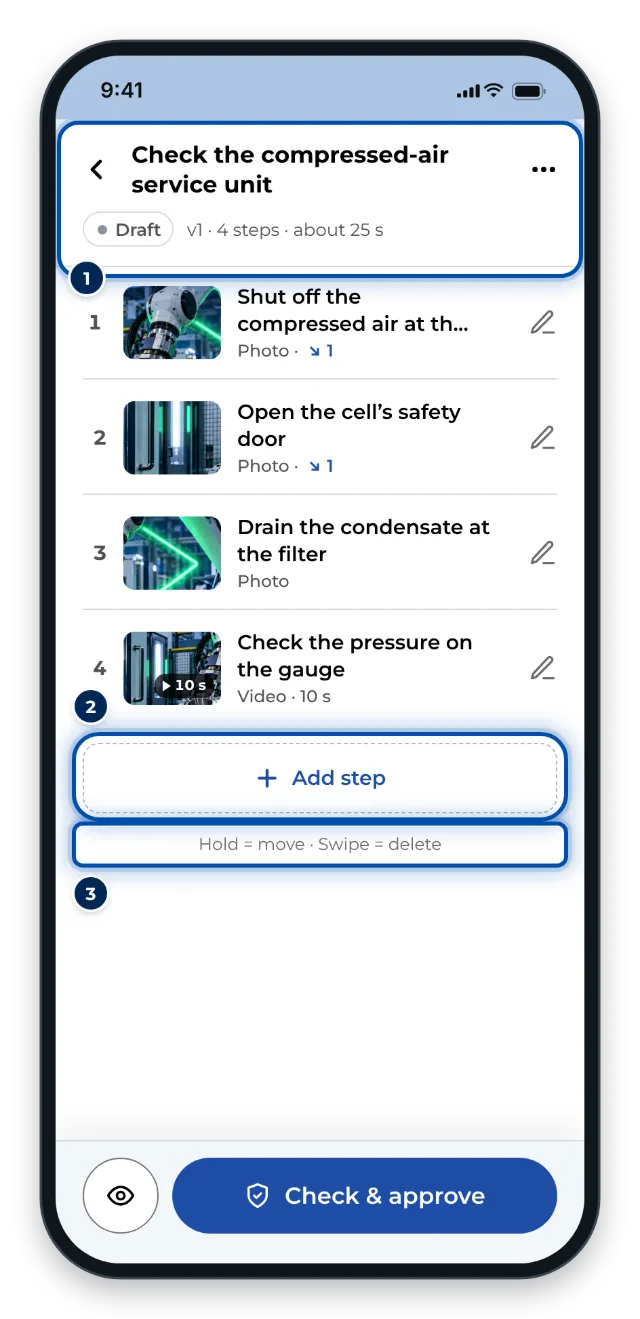
The list of steps on a phone: hold to move, swipe to delete -
Tap a step and then the Text tab at the bottom. Enter the title under Text for this step. Details (tool, torque …) opens the field for the description.
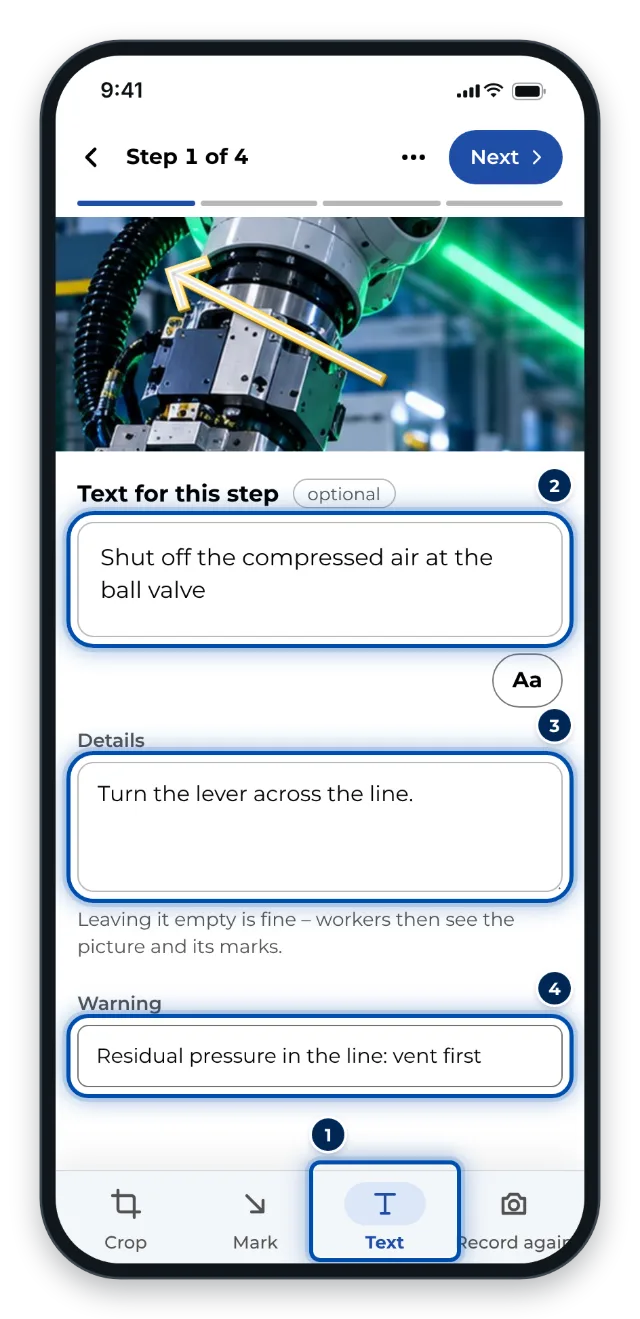
The Text tab on a phone with title, details and warning -
For a warning, tap Add warning.
-
Next takes you to the next step, Steps at the top left back to the list.
-
To move a step, press and hold it in the list and drag it to its new position.
-
To delete a step, swipe it to the left in the list. For a few seconds you can bring it back with Undo, later via ⋯ and Deleted steps. Inside an open step you can also use ⋯ and Delete step.
-
Need a similar step? Open it and choose ⋯ and Duplicate. The copy, with its own picture or video, appears right after it.
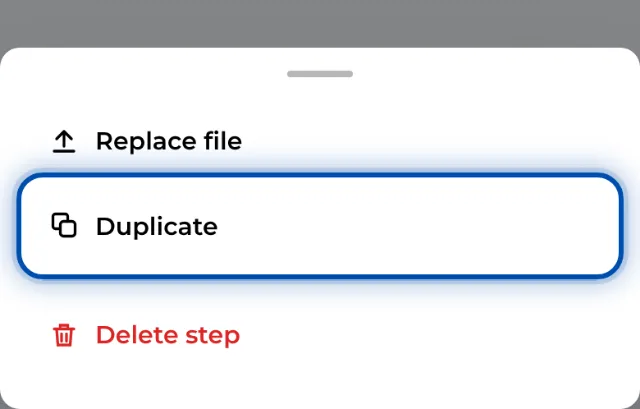
A step’s ⋯ menu on a phone with Duplicate
Tips
- Keep titles short and active: object and verb, e.g. “Insert M6 screw”. Text is optional. Without text, workers simply see the picture or video.
- A warning belongs on the step with the hazard, not collected at the start. Workers see it with a warning sign below the text.
- Changes to texts, order and symbols can be reversed via ⋯ and Undo, and Redo repeats them. On a PC Ctrl+Z (Mac: ⌘+Z) works too, as long as no text field is active.
- In the list of steps on a PC, ↑ and ↓ switch between steps and Enter jumps to the title.
- To swap the picture or video, use Retake or Replace file, on a phone the Record again tab or ⋯.
Common problems
- Duplicate is missing on the PC. Duplicating steps only exists in the phone layout, that is on a phone or in a very narrow browser window. On a PC, import the file again or record the step again.
- The deleted step isn’t at the bottom of the list. Deleted steps are under ⋯ and Deleted steps. The entry only appears when the instruction has deleted steps. Anything you remove there with Delete permanently is gone for good.
- Workers don’t see your changes. For a published instruction, changes only become visible with the next approval. See Submit for approval.