Guide
Chapters and text-only steps
Structure long instructions with chapters and add steps without a picture, so that workers find their way faster.
What for?
Chapters divide an instruction into sections such as preparation, assembly and inspection. Workers then first see a chapter overview and jump straight to where they are. Text-only steps are steps without a picture: for a note, a test value or a step whose picture comes later.
Before you start
- A role with the right to edit.
- An instruction, ideally with a few steps already if you want chapters.
Step by step
On a PC
-
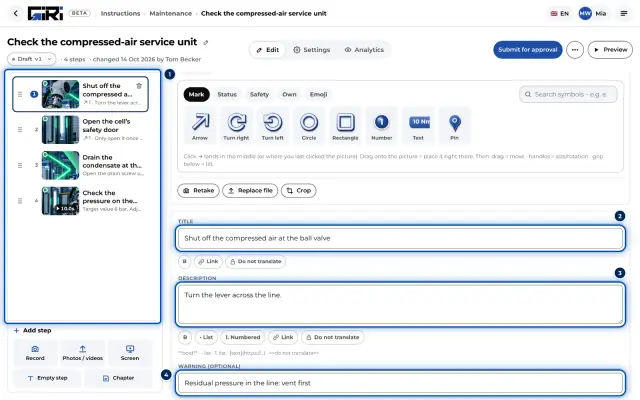
In the list of steps, select the step the chapter should start with.
-
Below the list, under Add step, click Chapter. GIRI asks e.g. New chapter before step 3. Enter a name and confirm. Without a name, GIRI numbers the chapters.
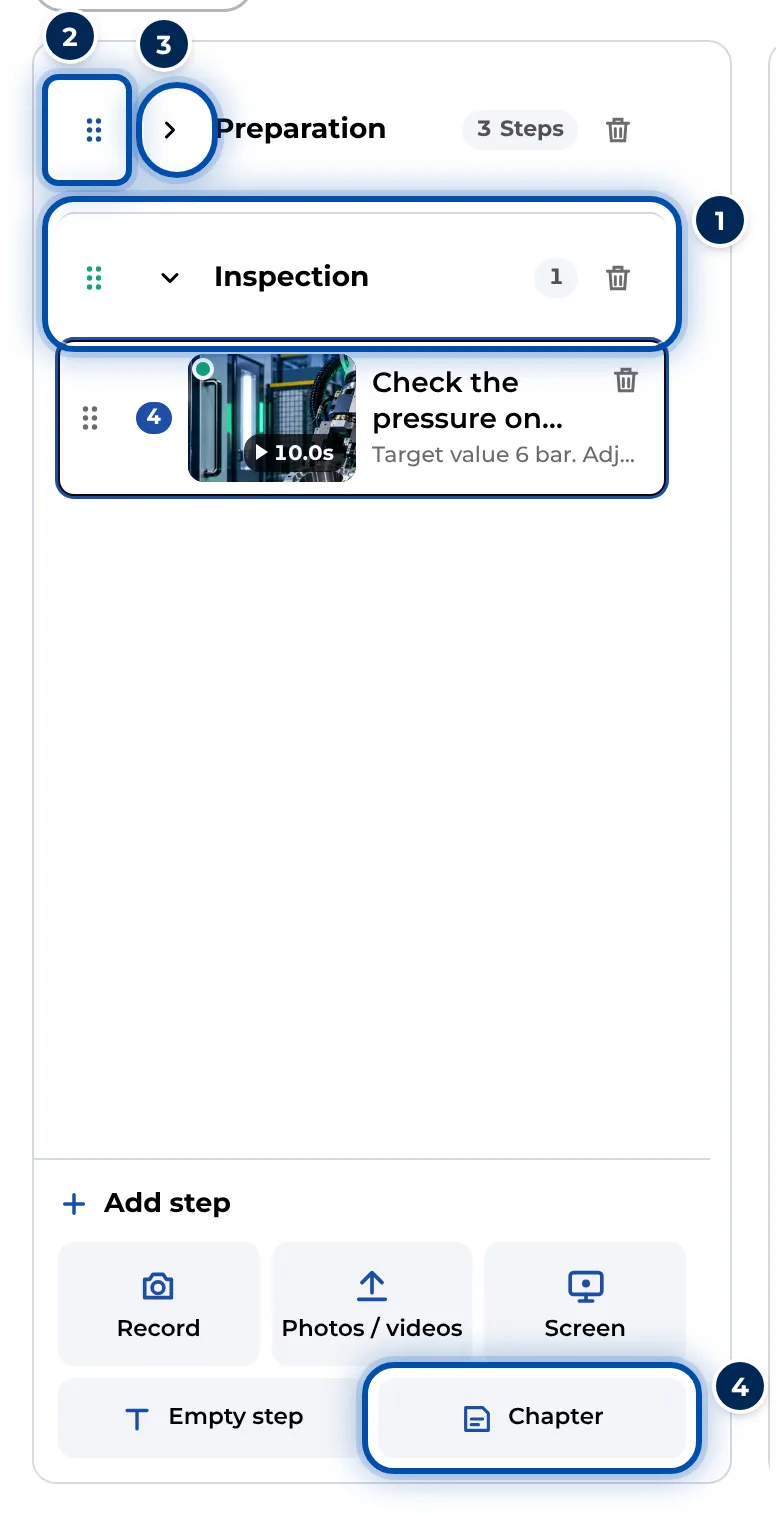
The list of steps on a PC with two chapters, one of them collapsed -
To rename a chapter, click its name in the list and type the new one.
-
A chapter covers all steps up to the next chapter. If you drag a chapter by its handle to another position, its steps move with it. The arrow collapses and expands it.
-
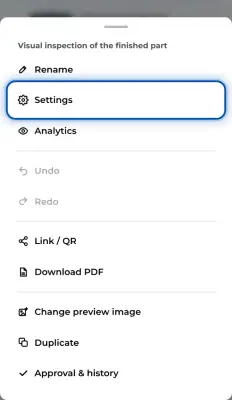
The bin icon in the chapter row removes only the heading. The steps stay and then belong to the chapter before. ⋯ and Undo bring the heading back.
-
For a text-only step, click Empty step under Add step. GIRI adds it at the end and puts the cursor in the title. Drag it to the right place.
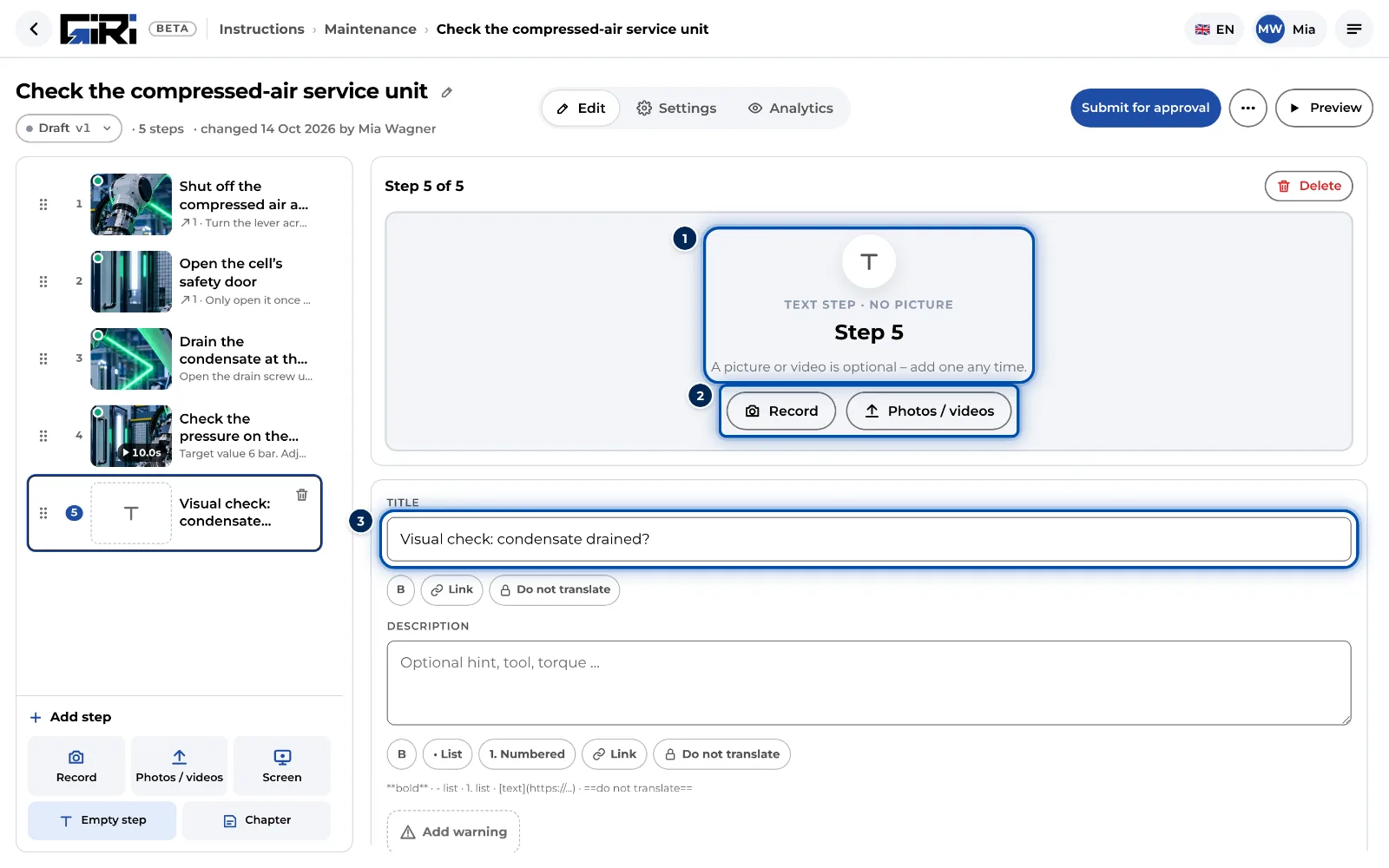
A text-only step in the editor: title and text, a picture or video can be added later -
If the text-only step should get a picture after all, click Record or Photos / videos in the step.
On a phone
-
In the list of steps, tap Add step and then Chapter. Enter a name.
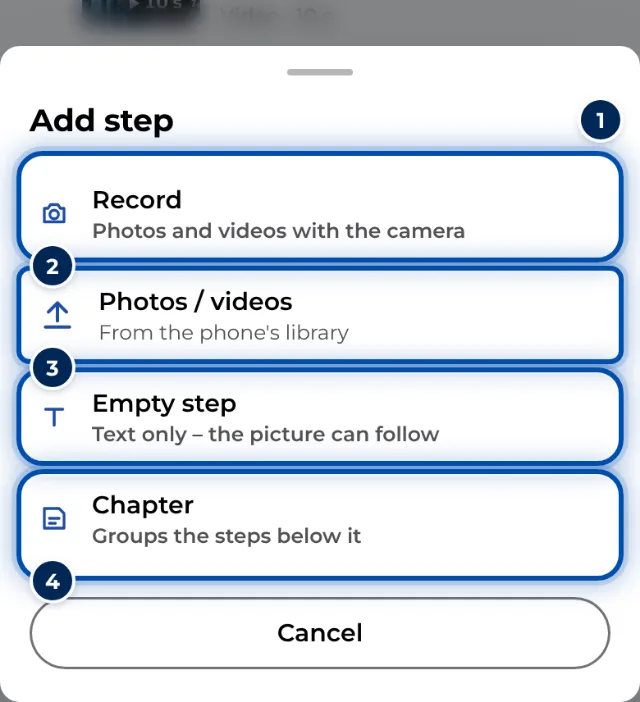
Add step on a phone with Chapter and Empty step -
The new chapter appears at the end of the list. Drag it to the right place, or drag steps below it. To do so, press and hold the chapter or the step.
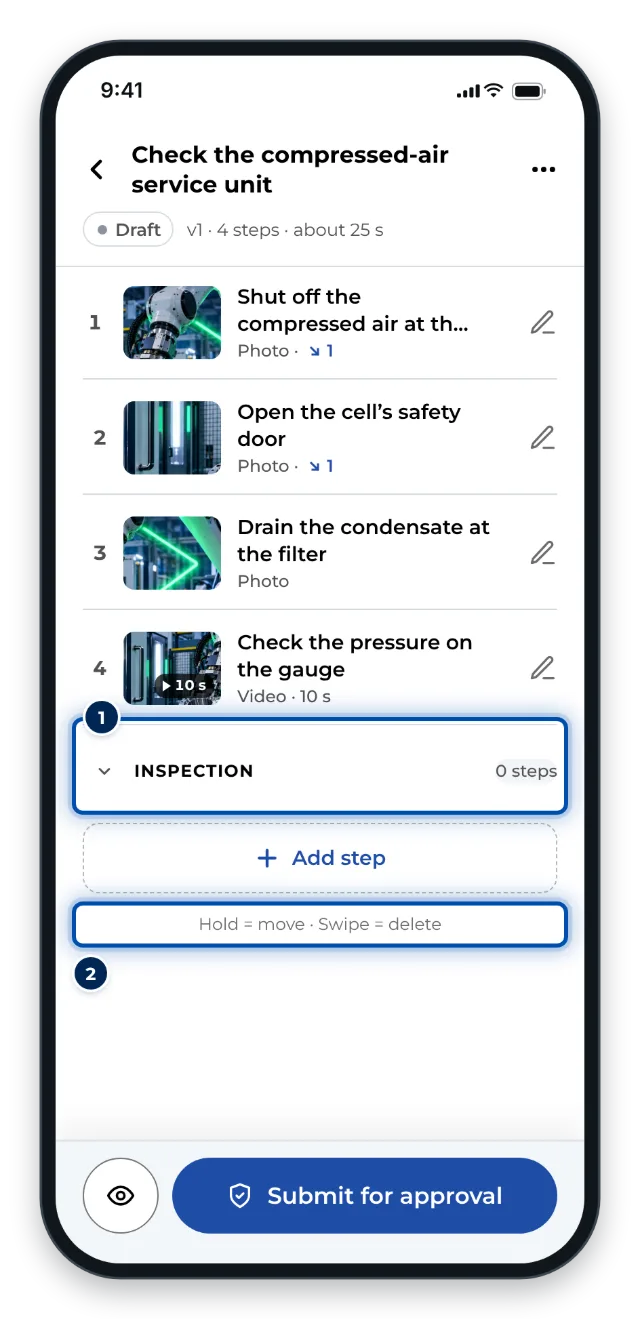
A new chapter at the end of the list of steps on a phone -
To rename a chapter, tap its name.
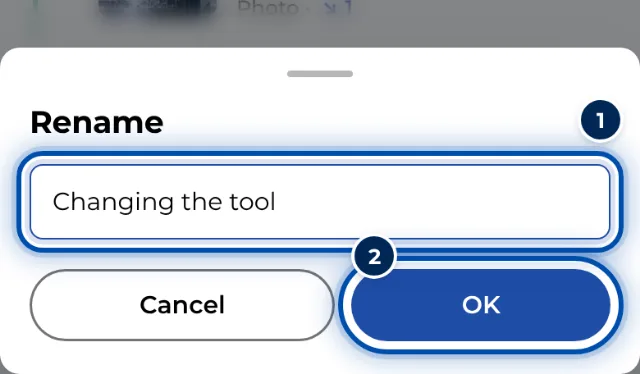
Renaming a chapter on a phone -
To delete a chapter, swipe its row to the left. As on a PC, only the heading goes. Undo brings it back for a short while.
-
For a text-only step, tap Add step and then Empty step. GIRI opens the new step in the Text tab.
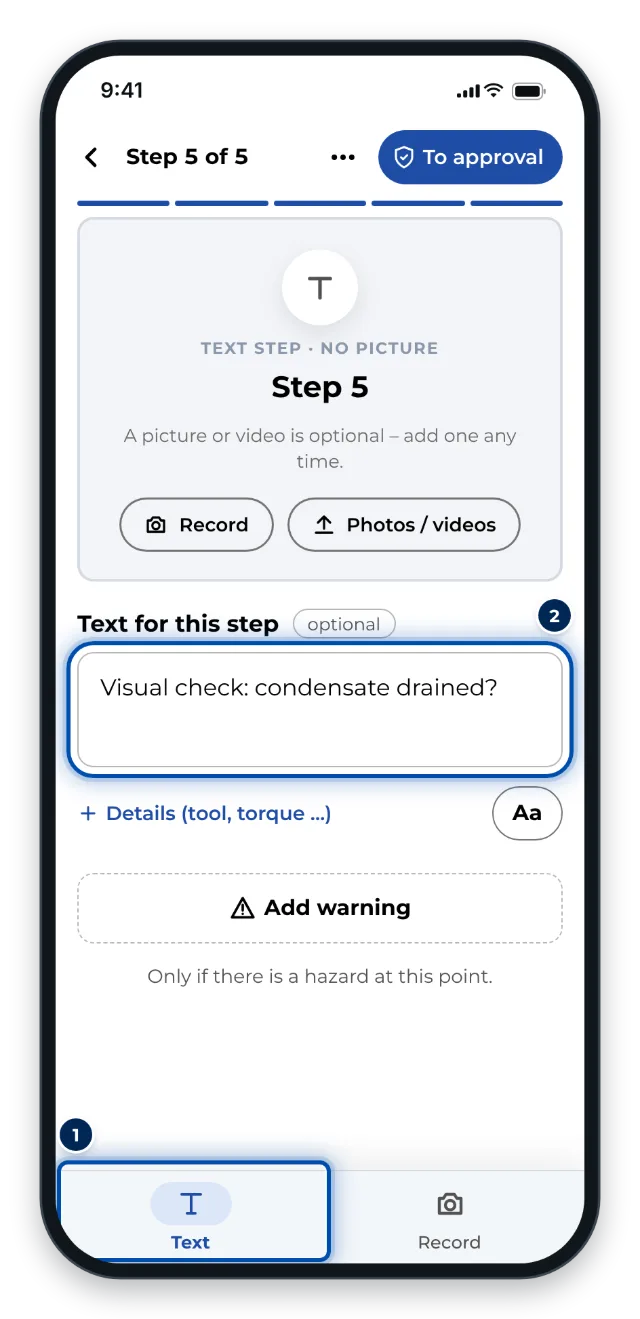
A new text-only step on a phone in the Text tab
What workers see
If the instruction has at least two sections, the worker view first shows the chapter overview with the hint Pick a chapter – or start from the beginning. Steps before the first chapter form a section of their own, Intro. A chapter card appears between the chapters. In the PDF every chapter starts on a new page.
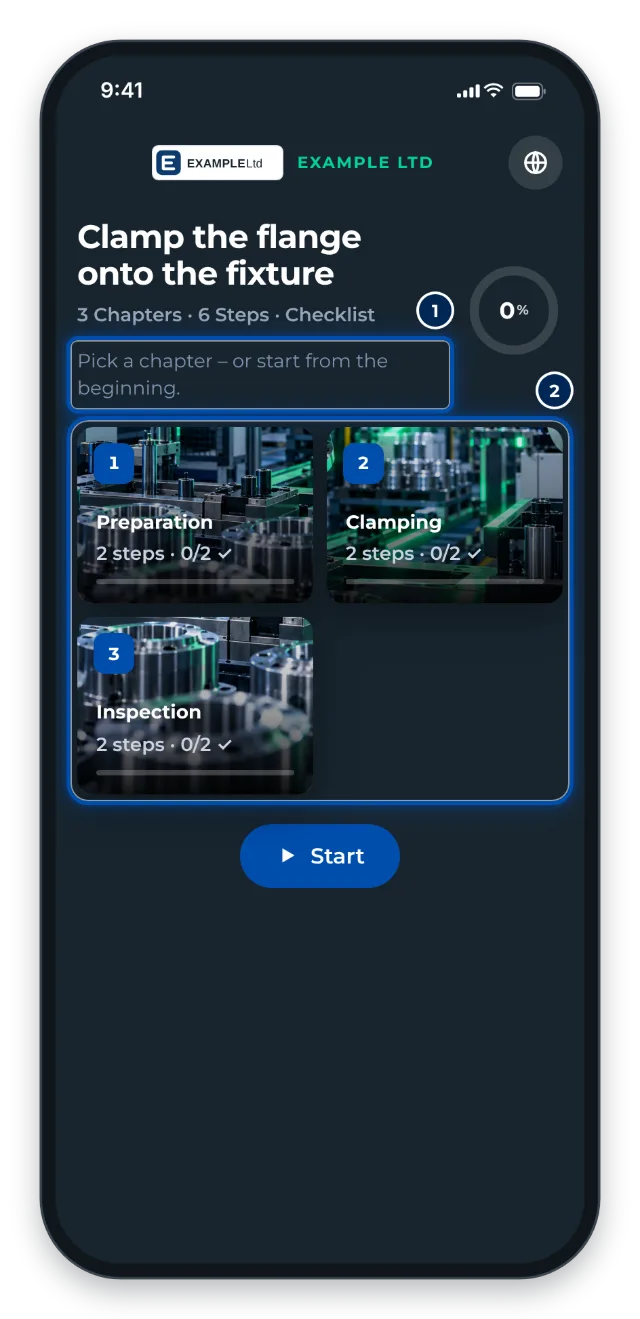
Tips
- Good chapters have 3 to 8 steps and a name of 1 to 3 words, e.g. “Preparation”.
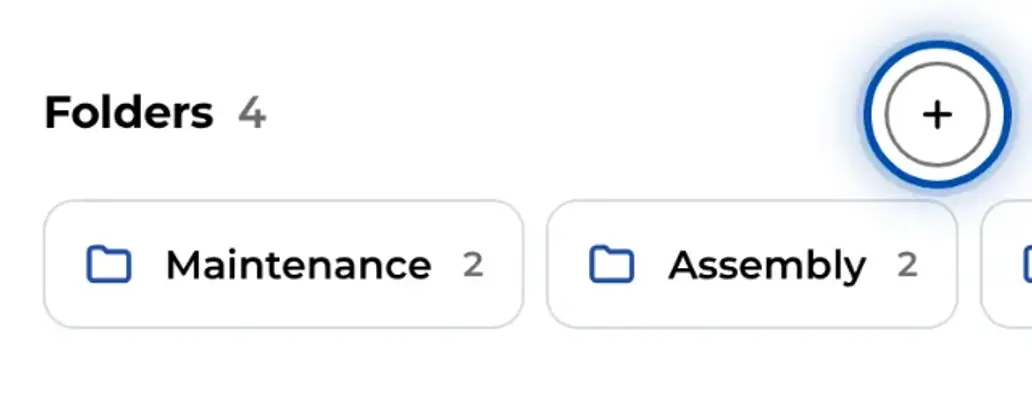
- Structure by tasks on one machine, such as “Set-up”, “Operation” and “Cleaning”. For areas or halls, use folders.
- With a checklist in the Per chapter only mode, workers confirm at the end of each chapter. See Set up checklist and signature.
- Text-only steps don’t count as steps still to be recorded. The camera doesn’t jump to them.
- Steps without any content, that is without text, picture or symbol, are hidden in the worker view.
Common problems
- The chapter is in the wrong place. On a PC, GIRI inserts it before the selected step. Drag it by its handle to the right place.
- Workers don’t see a chapter overview. The overview only appears from two sections on. A single chapter at the very top isn’t enough.
- Workers see Picture coming on a text-only step. That’s how the worker view shows steps without a picture. Check in the preview whether that works for your workers, or add a picture.