Guide
Sign in on your phone with a QR code
Signed in on the PC and now want your phone? The PC shows a QR code, the phone scans it and you confirm with a number. No second email.
What for?
Requesting another code by email on your phone is fiddly, especially if your inbox is only open on the PC. The QR code from the PC is quicker. The two-digit number you type in on the PC makes sure that only your own phone signs in. You are then signed in on both devices.
Before you start
- You are signed in to GIRI on the PC.
- A phone or tablet with a camera, and both devices online.
- The QR code is valid for 3 minutes and works once.
Step by step
On a PC
-
Click your picture and first name at the top right. Your profile opens.
-
Click Sign in on your phone. GIRI shows a QR code and, below it, how long it remains valid.
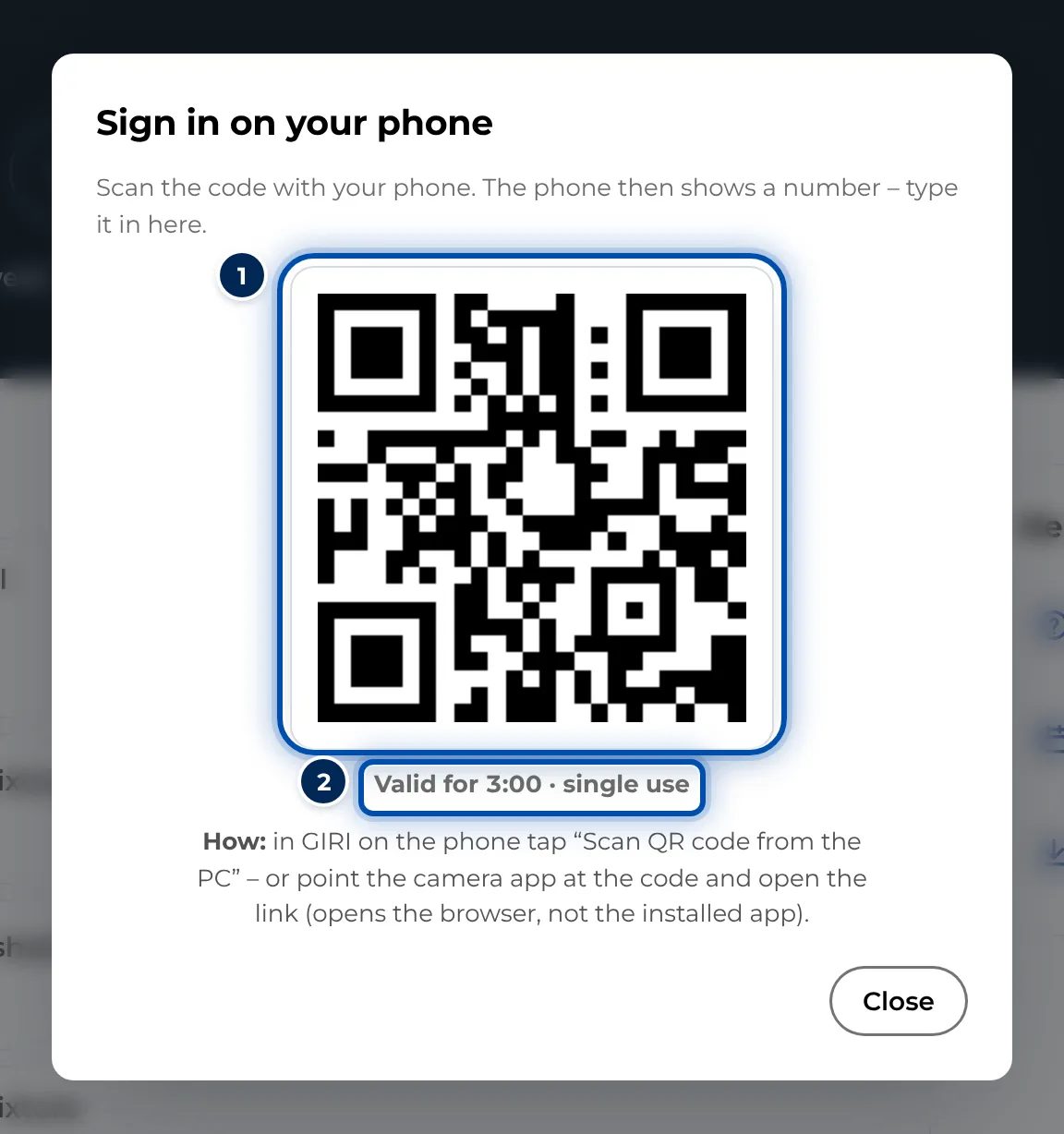
On the PC, GIRI shows the QR code for signing in on the phone
On a phone
-
Open GIRI in the browser or in the installed app. On the sign-in page, tap Scan QR code from the PC and point the camera at the code. You can also scan the code with the camera app and open the link.
-
The phone shows Confirm on the PC with a two-digit number. Below it, it says who you are signing in as.
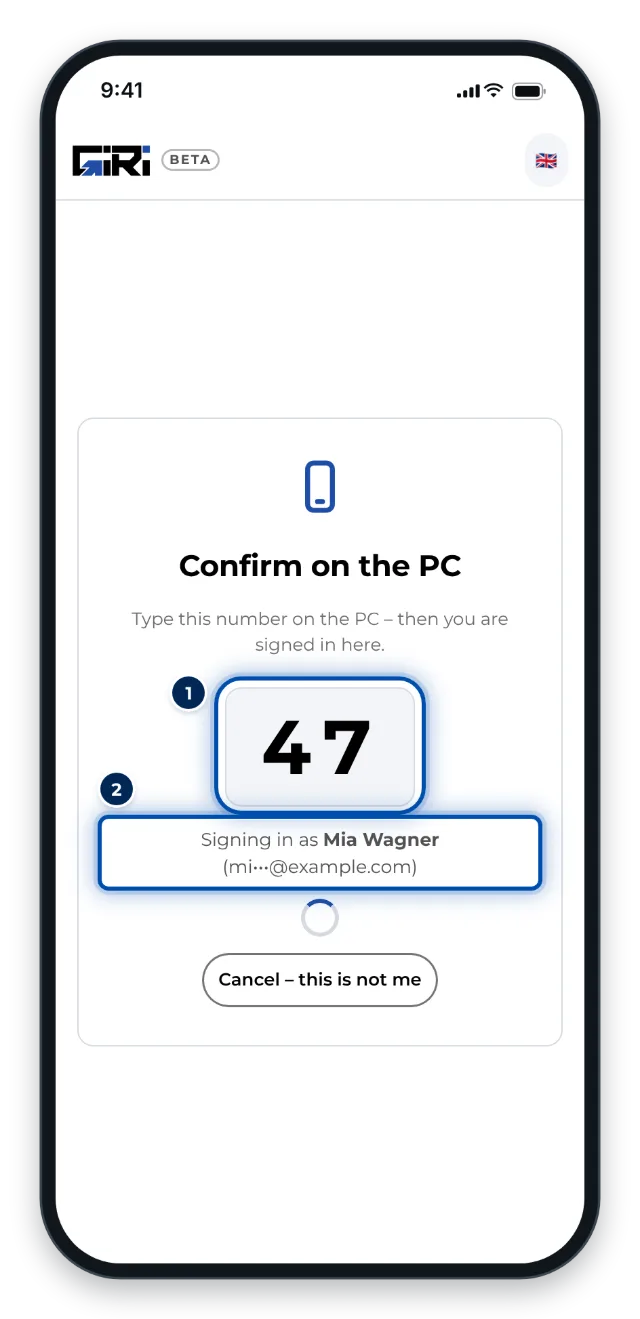
The phone shows the number you type in on the PC
Back on the PC
-
The PC shows which device wants to sign in, for example iPhone · Safari, and asks Which number does the phone show? Type in the number from the phone and click Yes, sign in.
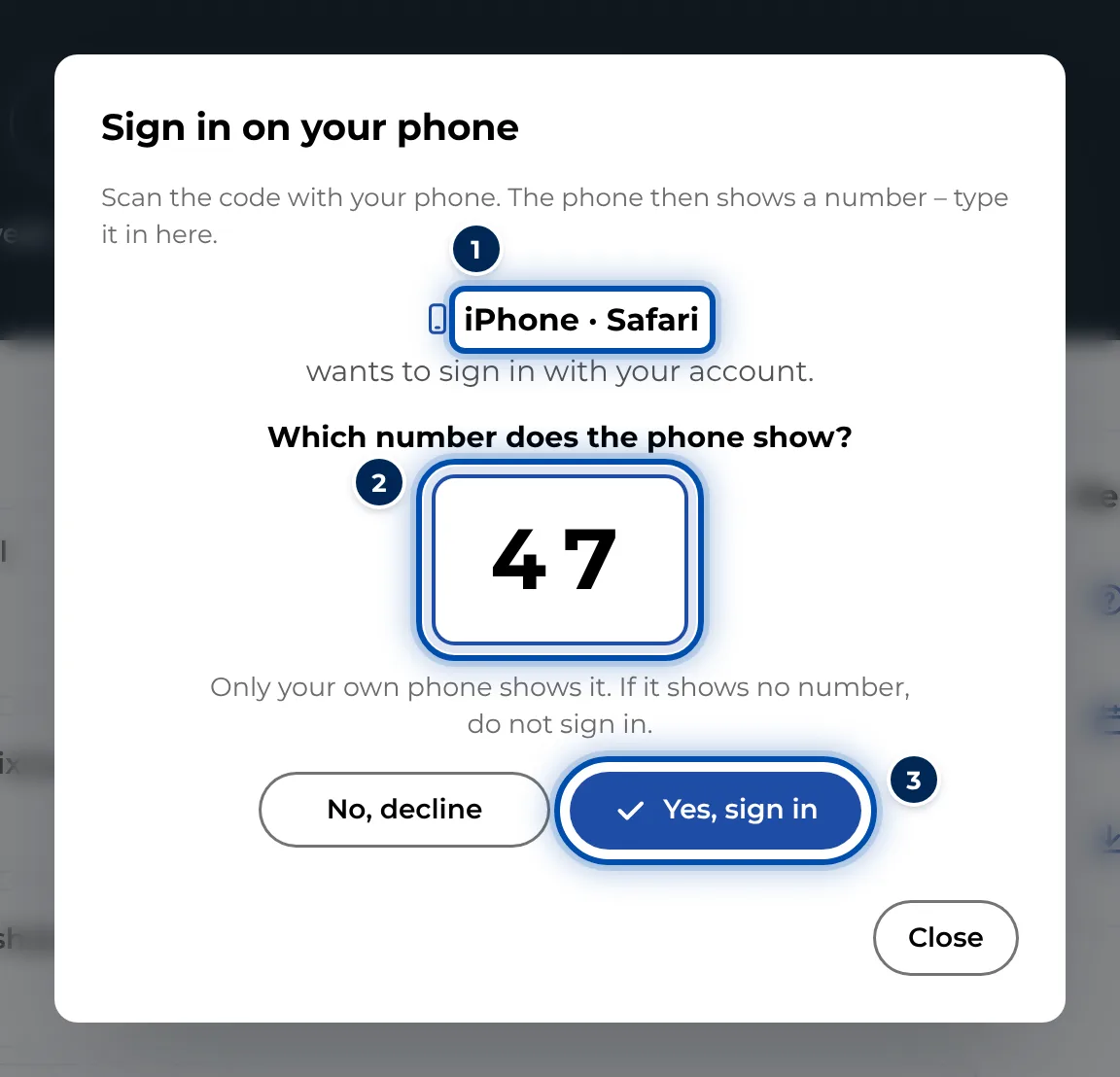
On the PC you type in the number from the phone and allow the sign-in -
The phone signs in and shows the start page. The PC says Done – you are now signed in on your phone too.
Tips
- Only your own phone shows the number. If it shows no number, type nothing and click No, decline.
- If several people share a phone, sign out after work. See Sign out, also on all devices.
- If you installed GIRI on an iPhone, use Scan QR code from the PC inside the app. The camera app opens the link in Safari, not in the installed app.
- If someone else is already signed in on the phone, GIRI asks whether to sign that account out. This only affects the phone.
- If you sign out on the phone later, the PC stays signed in.
Common problems
- The scan button is missing. Scan QR code from the PC only appears on touch devices and in narrow windows. Scan the code with the camera app instead.
- The camera does not open. Allow the browser to use the camera, or scan the code with the phone’s camera app. See Camera or screen recording is blocked.
- The sign-in was cancelled. The PC says The number does not match – cancelled for safety. Show a new code on the PC with Show a new code and scan again.
- The code has expired. A code is valid for 3 minutes and works once. Show a new one on the PC with Show a new code.