Guide
Job-done log and CSV export
See who worked through a checklist and when, with the result of each step, notes, photos and signature, and export it all as CSV.
What for?
When an instruction’s checklist is on, workers confirm every step and GIRI stores every run. That gives you a record for inspections, maintenance or audits, and shows you where workers reported problems.
Before you start
- You see the Analytics tab of an instruction with edit rights for it (Editor, Creator, Team Admin or Workspace Admin).
- Enable checklist is switched on in the instruction’s Settings. See Set up a checklist and signature.
- The instruction is published and workers open it via link or QR code. The Preview saves nothing.
Step by step
-
Open the instruction, click the Analytics tab and then Job-done log. On narrow screens this tab is called Log.

The Analytics tab and, inside it, the Job-done log tab -
Each row is one run with Worker, Started, status, Duration, Version and the number of steps that are OK, Not OK and Open. The status is in progress, with deviation with the number of Not OK steps, or a green ✓ for completed. Steps done with a note or photo count under OK, shown for example as 2 with a note.
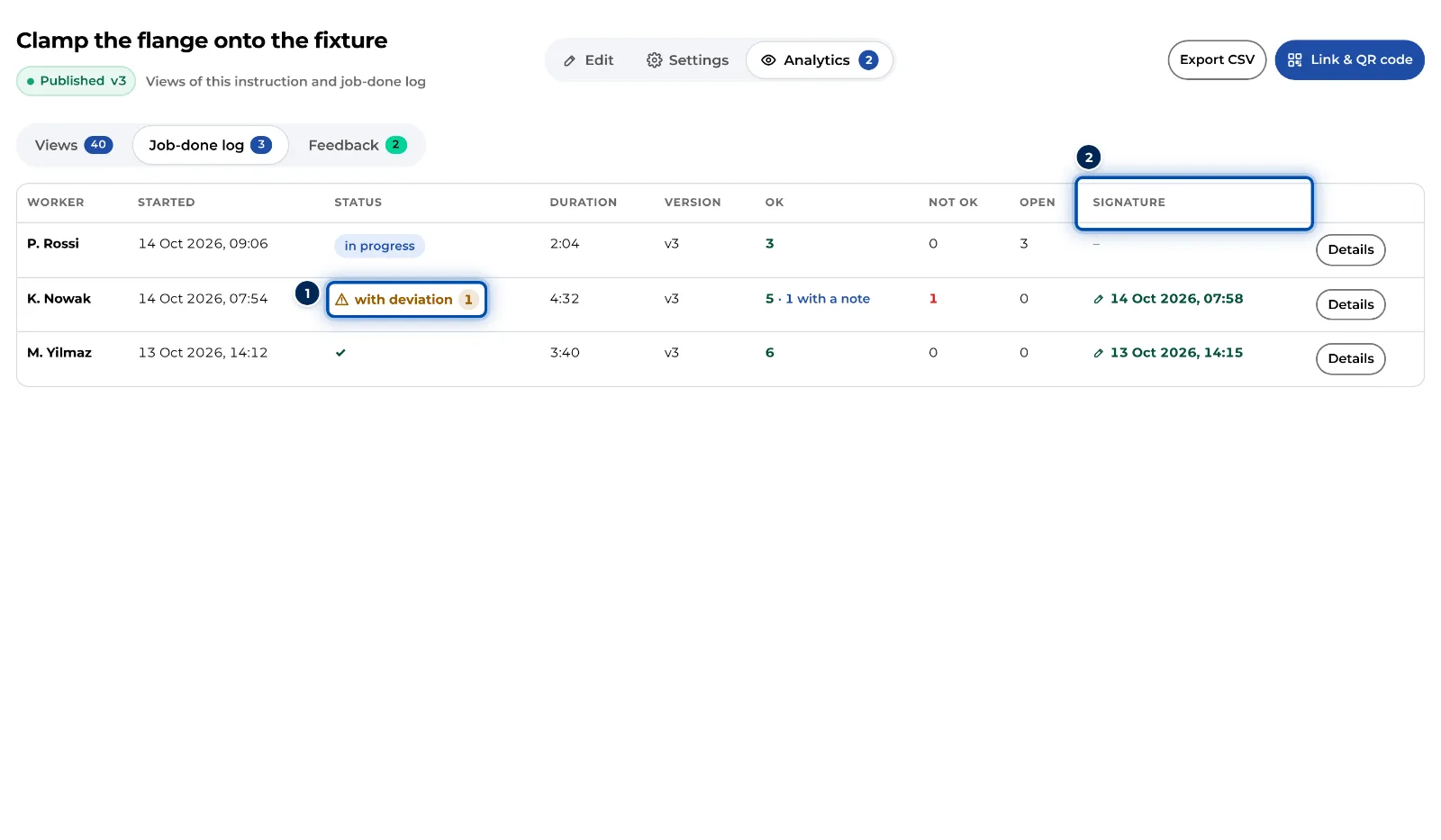
Job-done log with three runs, one of them with a deviation -
If the instruction can be finished with a signature, the Signature column shows when it was signed, or not signed.
-
Click Details in a row. You see every step with its status, Time, note and photo, and below them the signature with its date.
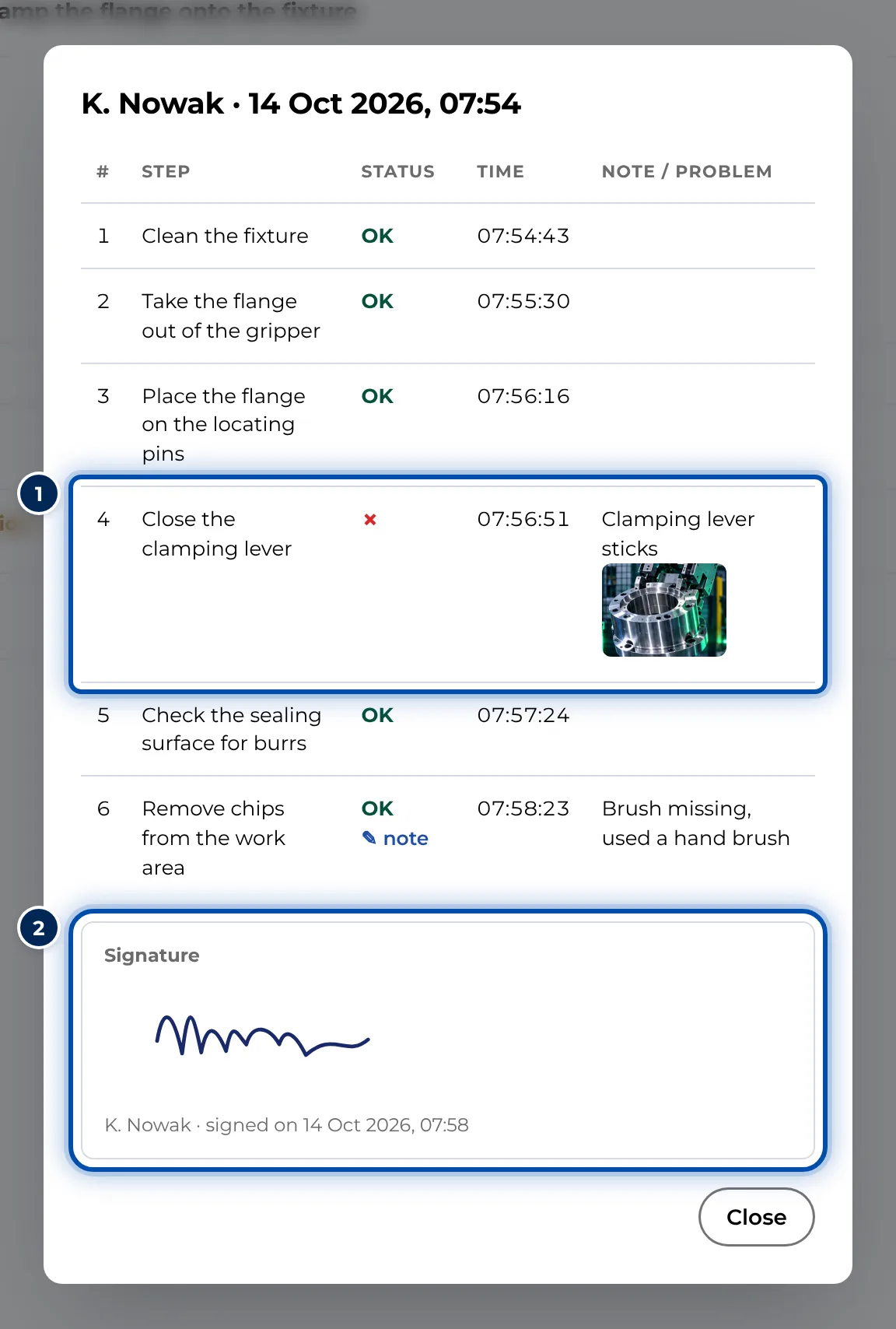
Details of a run with a note on a Not OK step and the signature -
Click Export CSV at the top right while the Job-done log tab is open. The file giri-‹title›-jobdone.csv has one row per run and step with Worker, Started, Version, Step, Title, status, Time, Note / problem and, if used, signed on. The status reads OK, OK+ (done with a note or photo), NOK or stays empty (open).
Tips
- Times in the export are in your local time; the time zone is in the column header. The time of the signature is set by the server, not by the device.
- The name is whatever the worker types at the start. GIRI does not check it, and on the same device it fills in the last name typed. On shared tablets, everyone should therefore check their name.
- If you need records that reliably belong to one person, use training with number and PIN. GIRI activates training per workspace.
- Checklists completed in the last 7 days also appear on the start page under For you. The statistics show deviations across all instructions with the Only with deviation filter.
Common problems
- No runs yet. Check that the checklist is switched on in the instruction’s Settings. Earlier views without a checklist do not appear retrospectively.
- A run stays in progress. It was not finished, for example because answers or the signature are missing. The worker can carry on on the same device. After two days GIRI no longer accepts anything for that run.
- The details show dashes or steps are missing. The details and the export show the steps of the current version. If steps were deleted or added since the run, they no longer match. The Version column shows which version was used.
- A photo is missing. Photos for Not OK and Note taken without a connection never arrive.
- Excel shows everything in one column. The file separates columns with semicolons. In Excel, open it via Data, From Text/CSV, and choose semicolon as the delimiter.