Guide
Create from PDF or photos (AI)
Turn an existing work instruction, as a PDF or photos, into a proposal with steps, chapters and warnings. You review it and take it over.
What for?
Many companies already have their work instructions as PDFs, Word files or on paper. Instead of retyping them, you let the AI pull out the steps, along with a title and picture cut-outs from the document. You then record the steps at the real workstation.
Before you start
- A role with the right to edit.
- A PDF of up to 12 MB, or 1 to 20 photos, e.g. of paper pages. Save Word files as PDF first.
- An internet connection.
- Each workspace can run at most 60 AI analyses within 24 hours.
Step by step
-
On the start page, click Create from PDF or photos. On a phone you’ll find it right below Record a new instruction. If the instruction should go straight into a folder, open Instructions, click New instruction, pick the folder and then Create from PDF or photo.
-
Read the rules in the start window. Under Adapt AI guide you’ll find the instruction for the AI. You can adapt it for your imports.
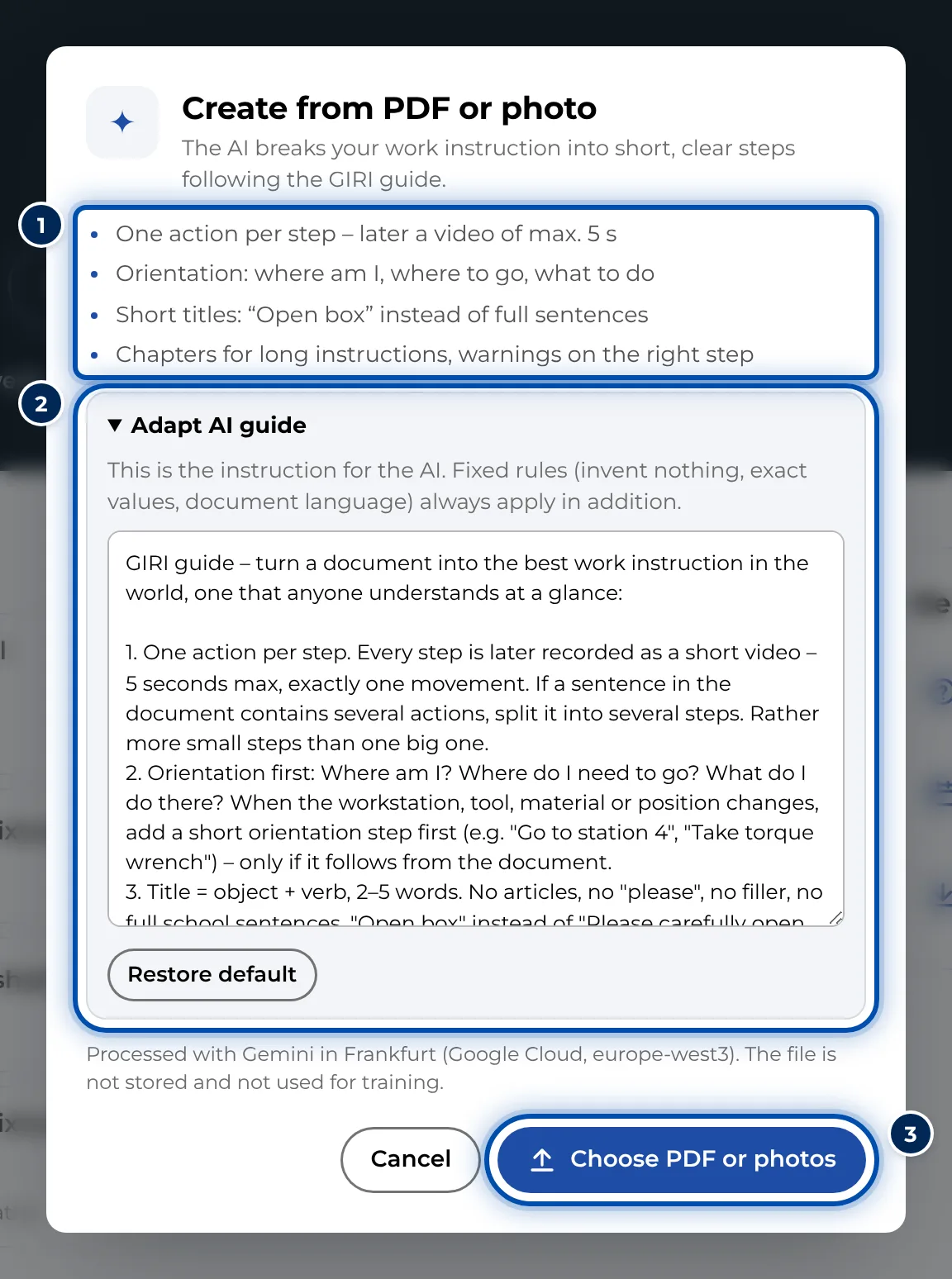
The start window with the rules for the AI and the expandable AI guide -
Click Choose PDF or photos and select a PDF or photos. On a phone you can also photograph the pages right there.
-
Wait while GIRI reads the document, detects the steps and cuts out the pictures.
-
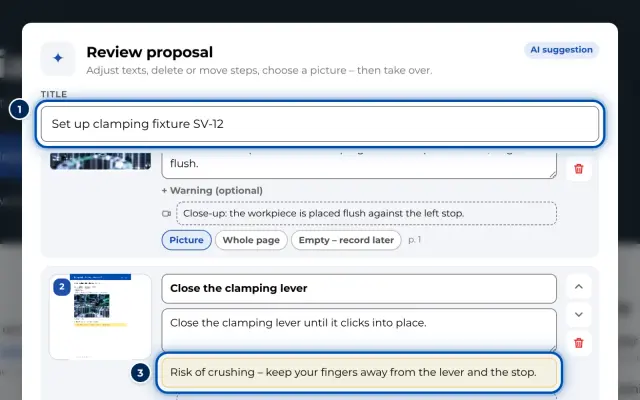
In the Review proposal window, adjust the title and texts, move or delete steps and choose the picture for each step: Picture, Whole page or Empty – record later.
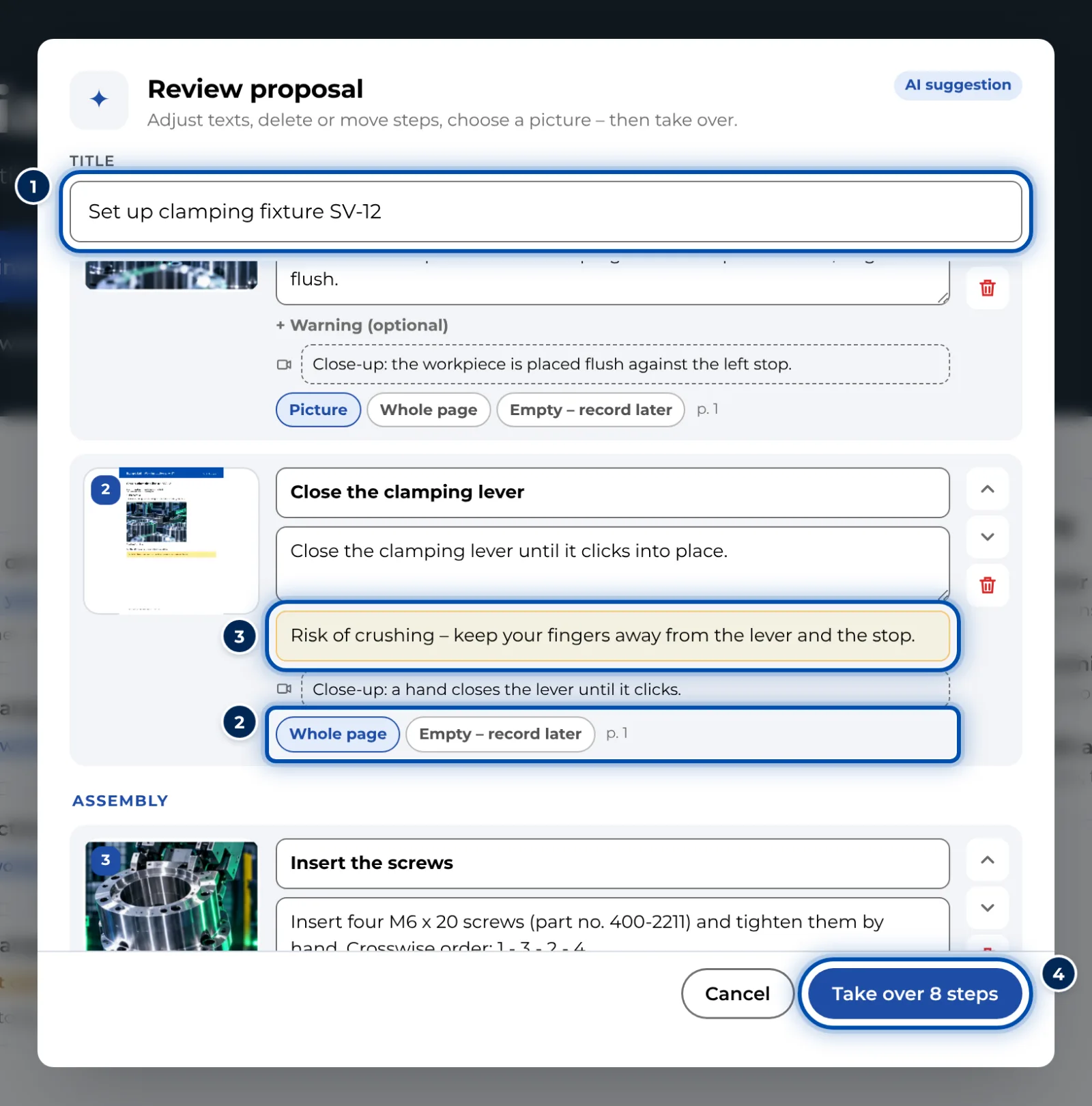
The AI’s proposal: steps with title, description, warning and picture choice -
Click Take over 8 steps. GIRI creates the instruction as a draft and opens the editor.
-
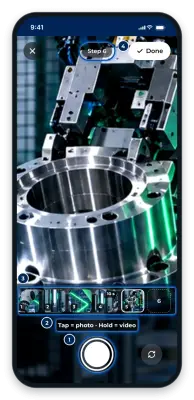
Record the steps at the workstation. Above the list of steps you’ll see e.g. 8 steps still to record. Tap Record now. The camera shows the text of the step at the top and moves on to the next open step after each recording.
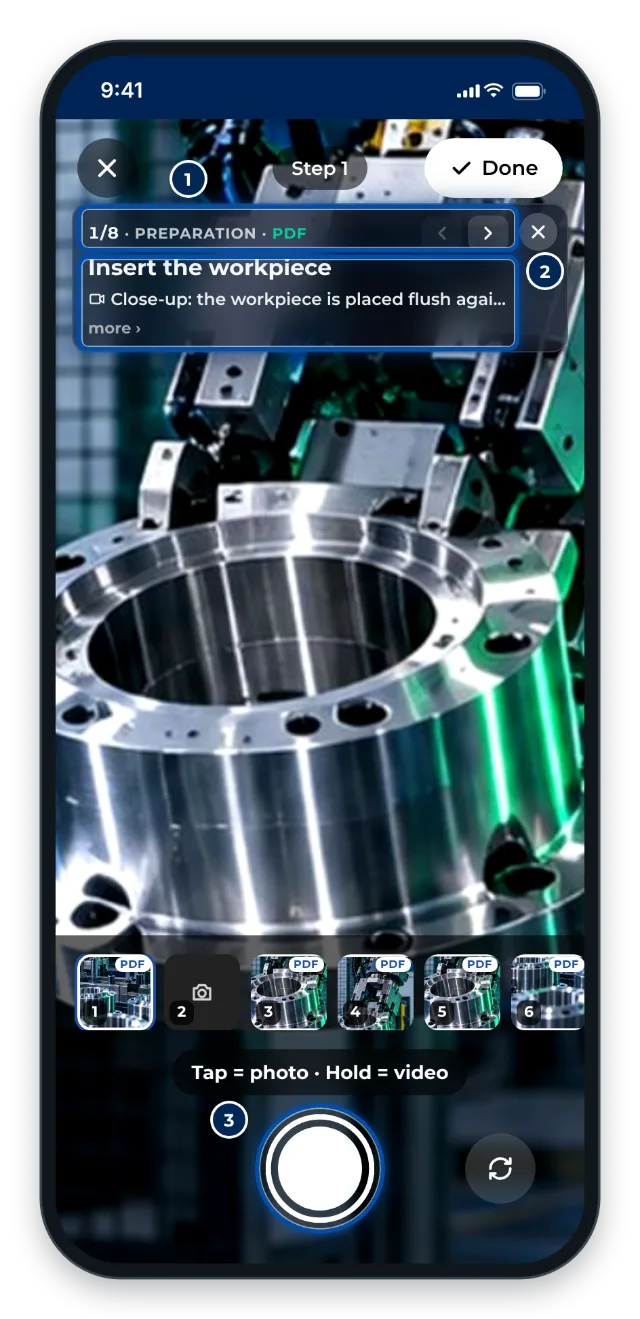
On a phone the camera shows the text of the step to be recorded next at the top -
Pictures from the PDF are placeholders and carry the tag PDF in the list. If a picture from the PDF does the job, click Keep picture in the step.
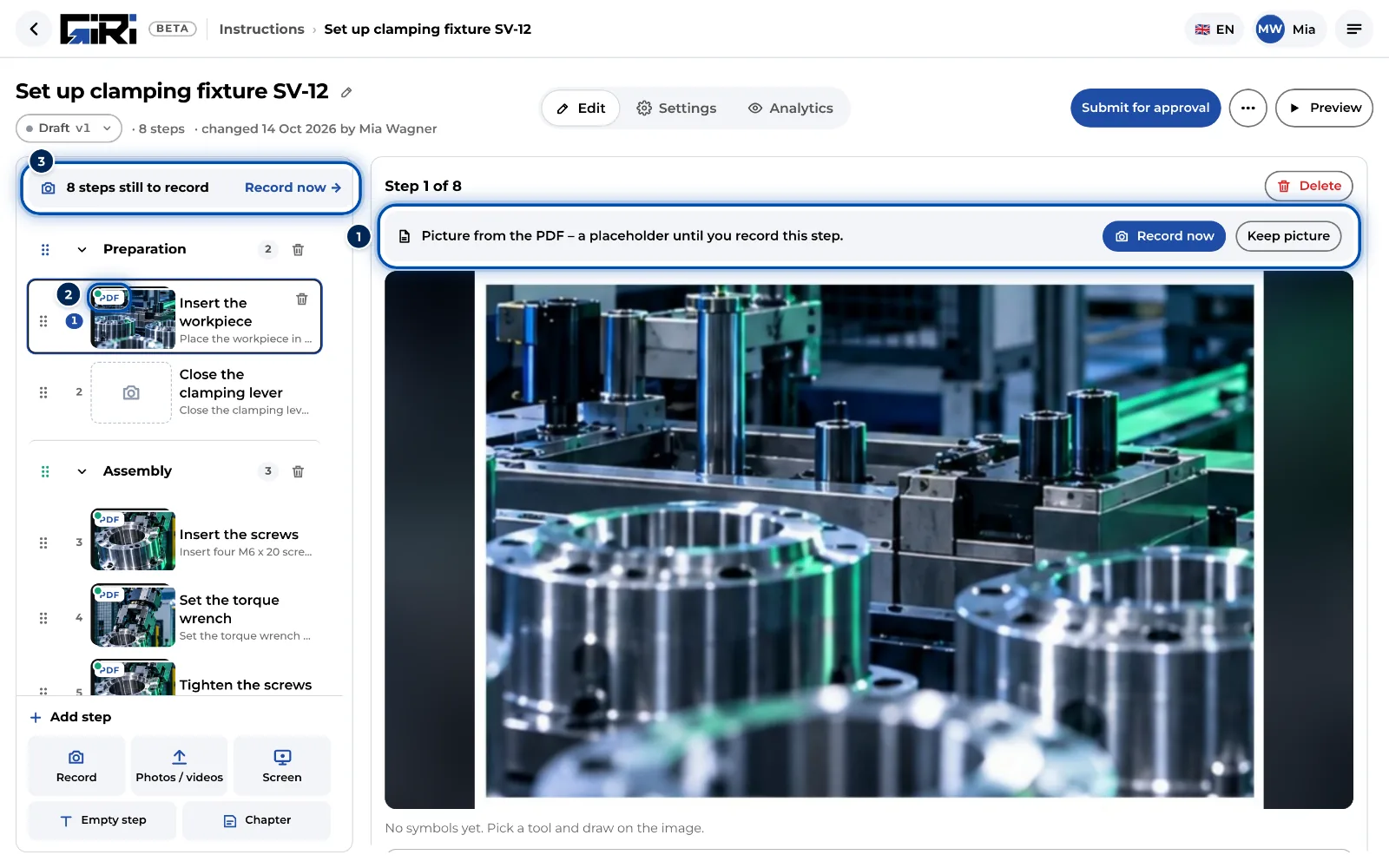
A step with a placeholder picture from the PDF and the buttons Record now and Keep picture
Tips
- The clearer the original, the better the proposal. Use one document per instruction.
- Check values, part numbers and warnings against the original. The AI can make mistakes. The approval works as for any other instruction.
- For each step the AI suggests a recording hint: what the video should show. You’ll see it in the camera and above the text in the editor.
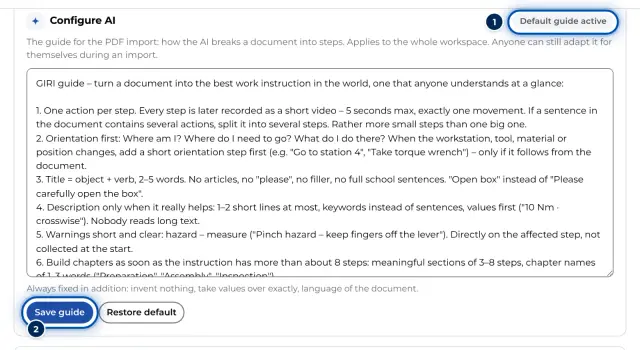
- Workspace admins set the AI guide for everyone, right in the start window with Save as workspace default. More in Configure AI. Your own adaptation is remembered on your device.
- The analysis runs with Gemini in Frankfurt. According to the app, the file is not stored and not used for training. More in AI in GIRI.
Common problems
- GIRI says The file is larger than 12 MB – please split it or choose fewer photos. A PDF can be 12 MB at most. GIRI shrinks photos itself, but with a lot of large photos that isn’t enough. Split the PDF or choose fewer photos.
- GIRI says Daily limit for AI imports in this workspace reached – try again tomorrow. The workspace has already started 60 analyses in the last 24 hours, failed ones included. It works again as soon as the first of them is 24 hours old.
- GIRI says No work steps were found in this document. This happens with a blurry scan, for example. Use a more legible PDF or sharper photos.
- GIRI can’t open a photo in HEIC format. That depends on the browser, often on a PC. Choose the photos as JPG, or start the import directly on the iPhone or iPad.
- Only the PDF arrives, not the photos. GIRI processes either one PDF or photos per import. Import the photos separately.