Guide
Trash and archive
Deleted instructions stay in the trash for 30 days and are then archived. How to bring them back, single steps included.
What for?
Deleted something by mistake? The trash lets you bring back an instruction, link and QR code included; deleted steps come back in the editor. An instruction cannot be deleted permanently in GIRI: archived instructions disappear from the app, but their records, runs and versions are kept.
Before you start
- Deleting: the edit right for the instruction.
- Everyone who is signed in can see the Trash page. Restore and Archive are available to anyone whose workspace role is not Viewer.
- Restoring deleted steps needs the edit right.
Step by step
Delete an instruction
-
In the list, open ⋯ on the card and choose Delete. There is no such item in the editor. Confirm the question. GIRI reports Moved to trash – can be restored for 30 days (menu ≡ → Trash). From now on, the link and QR code no longer open the instruction.
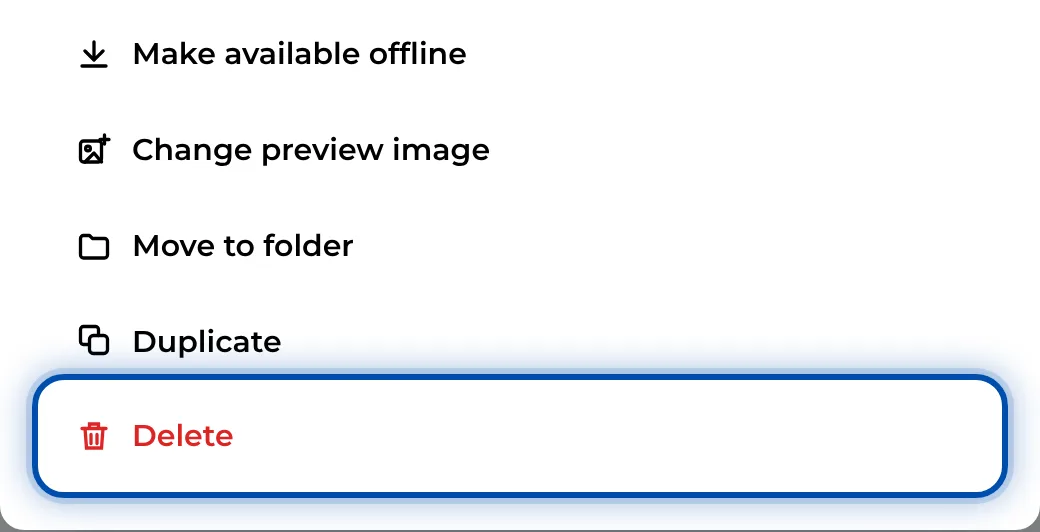
Delete in the card’s ⋯ menu
Restore or archive an instruction
-
Open the menu, via ≡ at the top right on a PC or via your profile picture on a phone, and choose Trash.
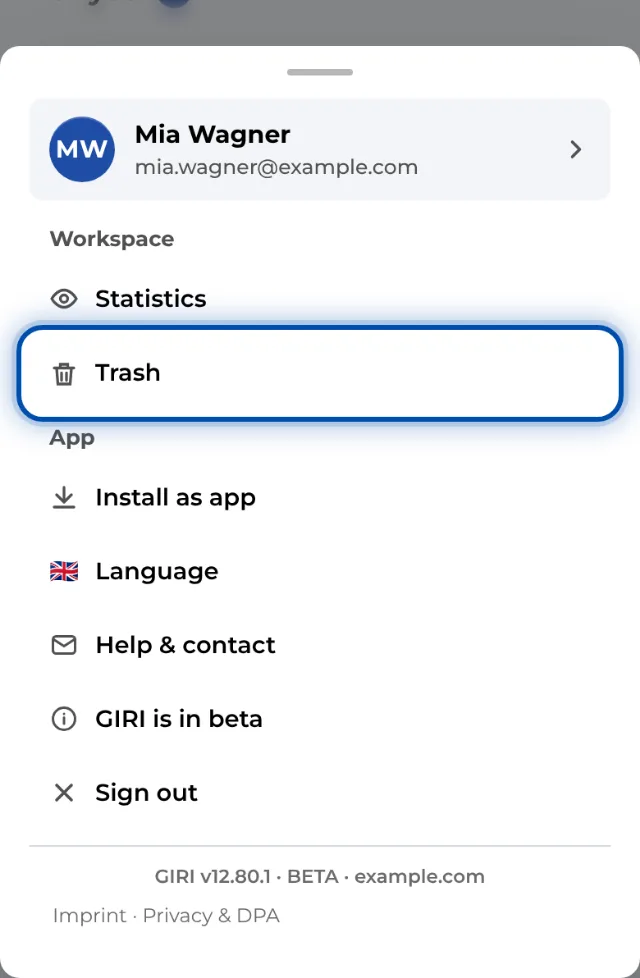
The trash is in the menu under Workspace -
Each card shows when the instruction was deleted and when GIRI will archive it, for example archived in 12 days.
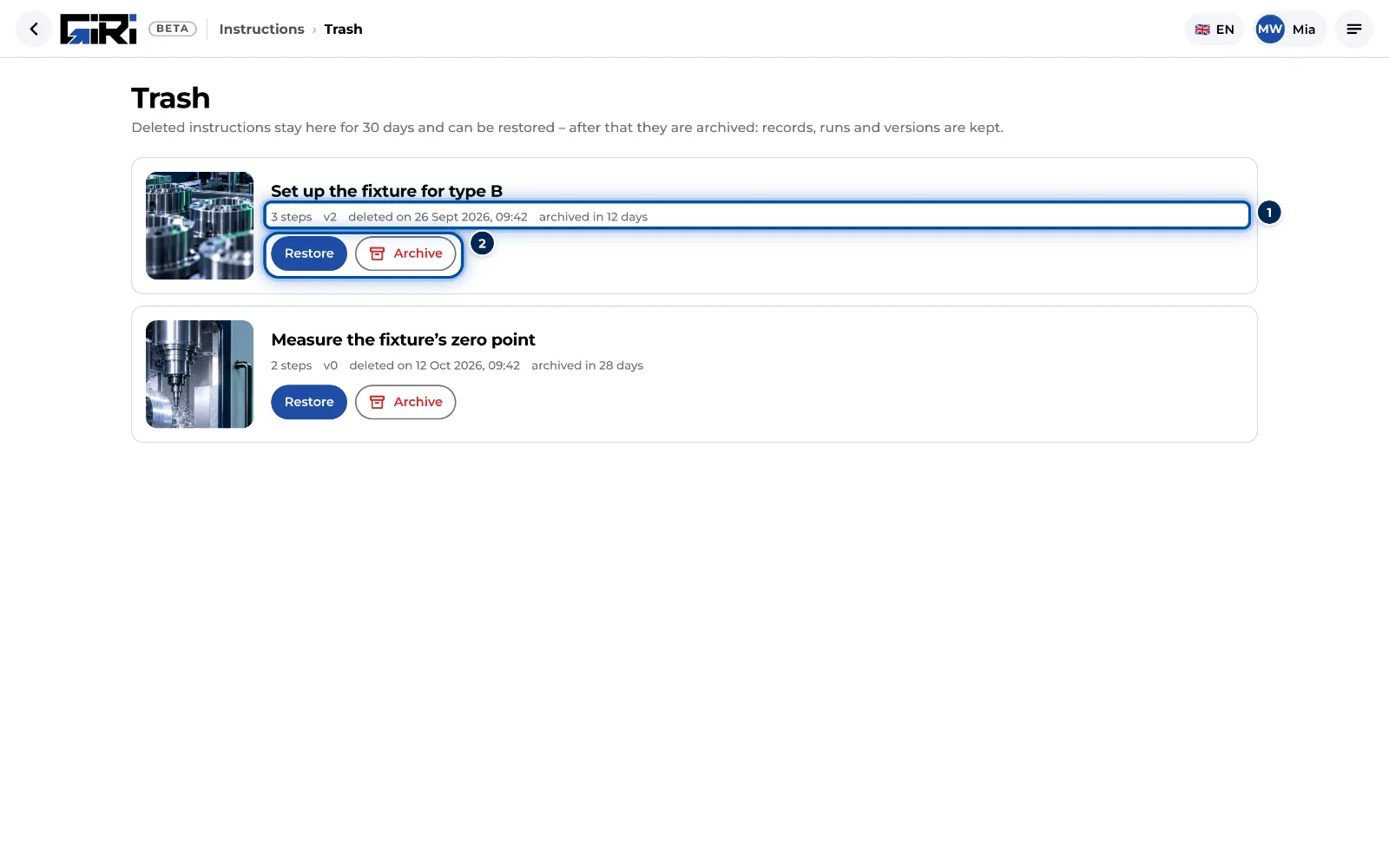
The trash with Restore and Archive -
Click Restore. The instruction is back in the list with the same status. The link and QR code work again.
-
If you no longer need it, click Archive and confirm. The instruction leaves the trash and every list and can no longer be restored in the app.
Restore deleted steps
-
Open the instruction, then the ⋯ menu, and choose Deleted steps. The item only appears when there are deleted steps. After you delete a step on a PC, GIRI reports Moved to trash – bring it back at the bottom of the list. It means this dialog, not the end of the step list.
-
Bring a step back with Restore, the arrow icon. It returns to its old position. Delete permanently, the bin icon next to it, deletes the step together with its picture or video.
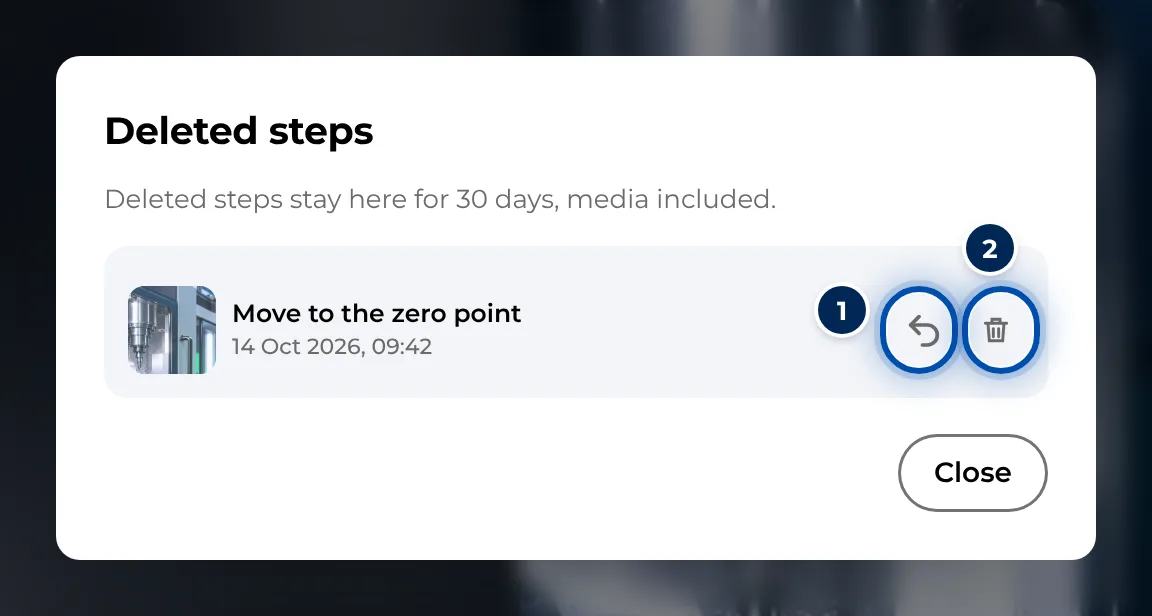
Restoring deleted steps of an instruction
Deleted steps stay there until you restore them or delete them for good. The dialog mentions 30 days, but GIRI does not delete them by itself.
Recordings without an instruction
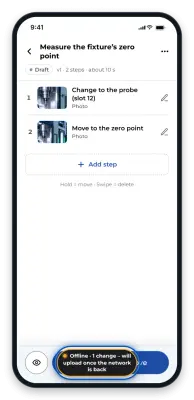
If your device holds recordings that no longer belong to any instruction, the trash shows the Recordings without an instruction on this device section at the bottom. This happens, for example, when the connection dropped while saving. The cards show the length of a video; photos are labelled “Foto”, a word the app does not translate. Append as step adds the recording as the last step. If its instruction no longer exists, GIRI asks where it should go (Which instruction?). Delete permanently removes the recording from this device.
Tips
- If an instruction’s QR code hangs on a machine, remember that it opens nothing once the instruction is deleted. If you only want to change something, revise the instruction instead of deleting it.
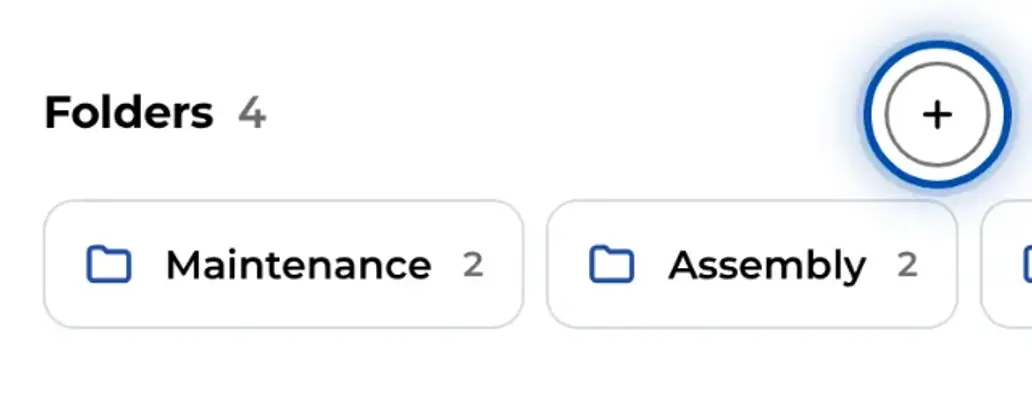
- To delete a whole folder with its contents, use Folder and its … instructions to the trash in the folder menu. The instructions then end up in the trash as well. See folders.
- Restoring a step or deleting it for good changes the content. For a published instruction this starts a new draft.
- If someone deletes an instruction while you are editing it, GIRI tells you with a notice. Anything you still change there is saved with it in the trash.
Common problems
- Restore is missing. Your workspace role is Viewer. Ask someone with the edit right.
- The instruction is not in the trash. After 30 days the trash no longer shows it. Perhaps someone has already restored it: look for it on the Instructions page. The trash does not show you instructions from folders and teams you have no access to.
- No permission – the server refused to archive it. You lack the right for this instruction. Ask someone who has the edit right for it.
- Deleted steps is missing from the menu. This instruction has no deleted steps.