Guide
Trim videos and crop pictures
Set the start and end of a video, or choose a cut-out of a photo, so that workers only see what matters.
What for?
A video often shows more than the one movement, such as reaching for the tool. You cut that off at the start or end. For a photo, you choose a cut-out so that the part is large and clear.
Before you start
- A role with the right to edit.
- To trim, a step with a video. To crop, a step with a photo. Videos can’t be cropped.
Step by step
On a PC
-
Select a step with a video. Below the video you’ll find the timeline with the hint Trim: drag the handles.
-
Drag the left handle to the start and the right handle to the end of the part workers should see. The times of the range are shown below it.

The timeline below a video with the two handles for trimming -
Check the result with the play button to the left of the timeline. Workers only see the part between the handles.
-
For a photo, select a step with a photo and click Crop below the picture.
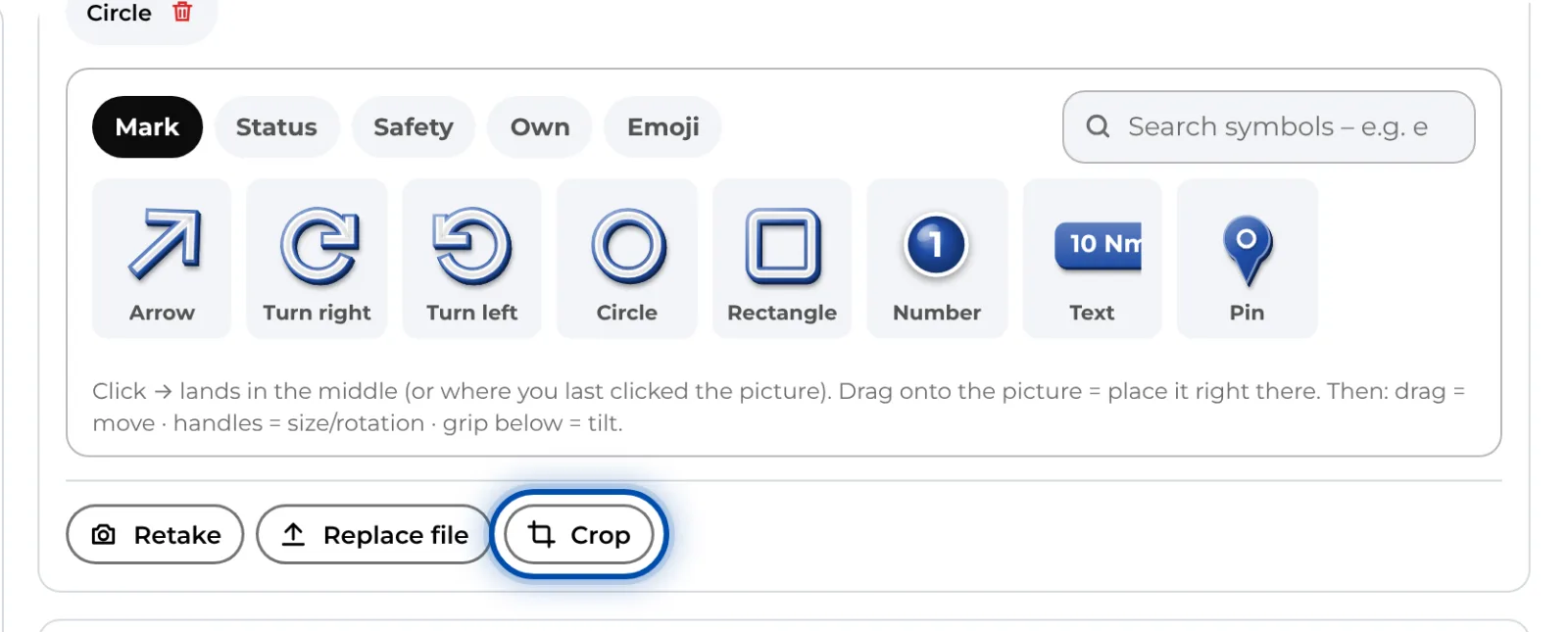
Crop in the bar below the photo -
Move the frame or drag its corners. Dragging outside the frame draws a new one. Whole picture takes the whole picture again.
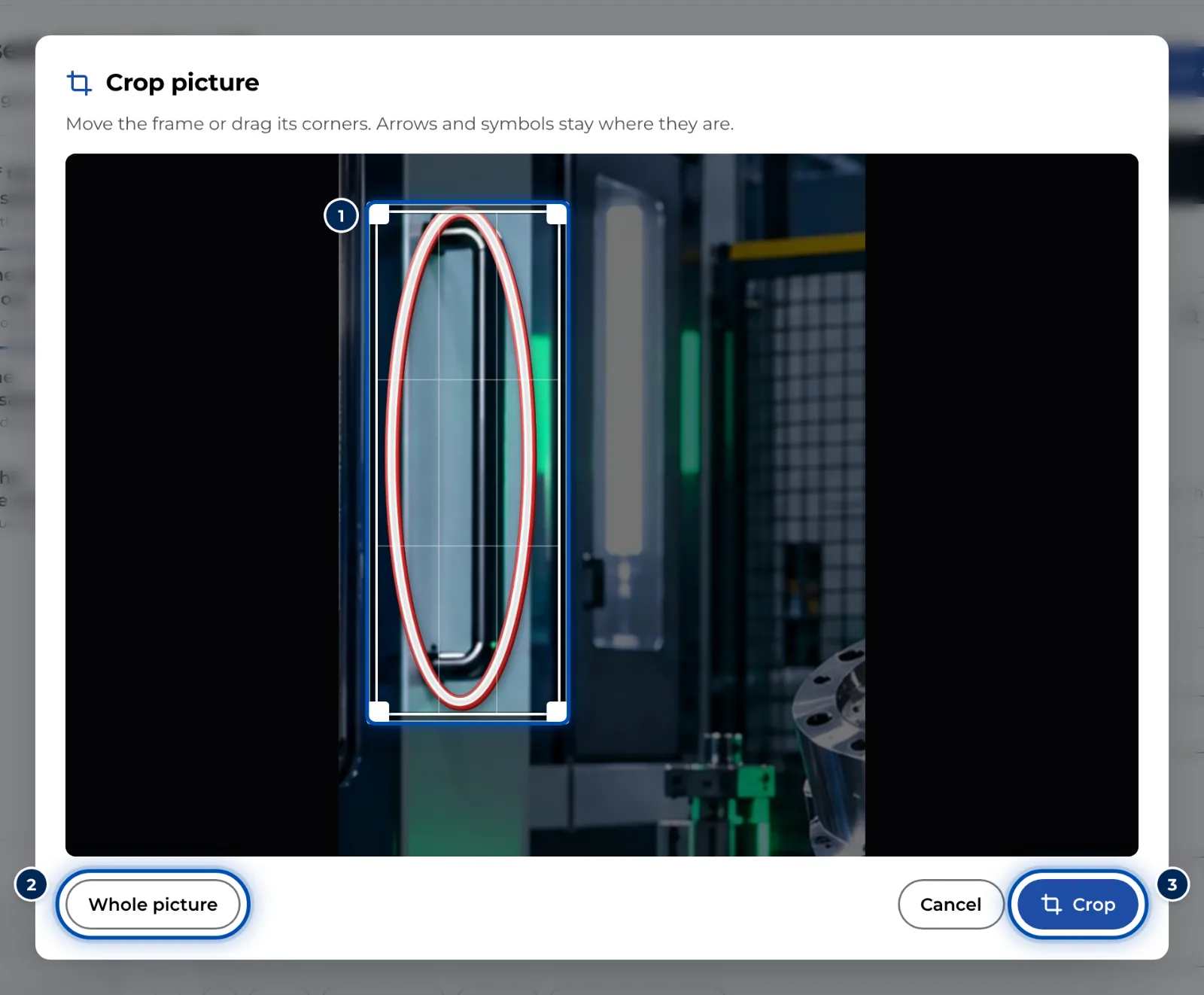
The Crop picture dialog with the frame over the photo -
Click Crop. GIRI replaces the photo with the cut-out.
On a phone
-
Open a step with a video and tap the Trim tab at the bottom.
-
Drag the blue handles to the start and end. Below, GIRI shows Start, Length and End. Reset brings back the whole video.
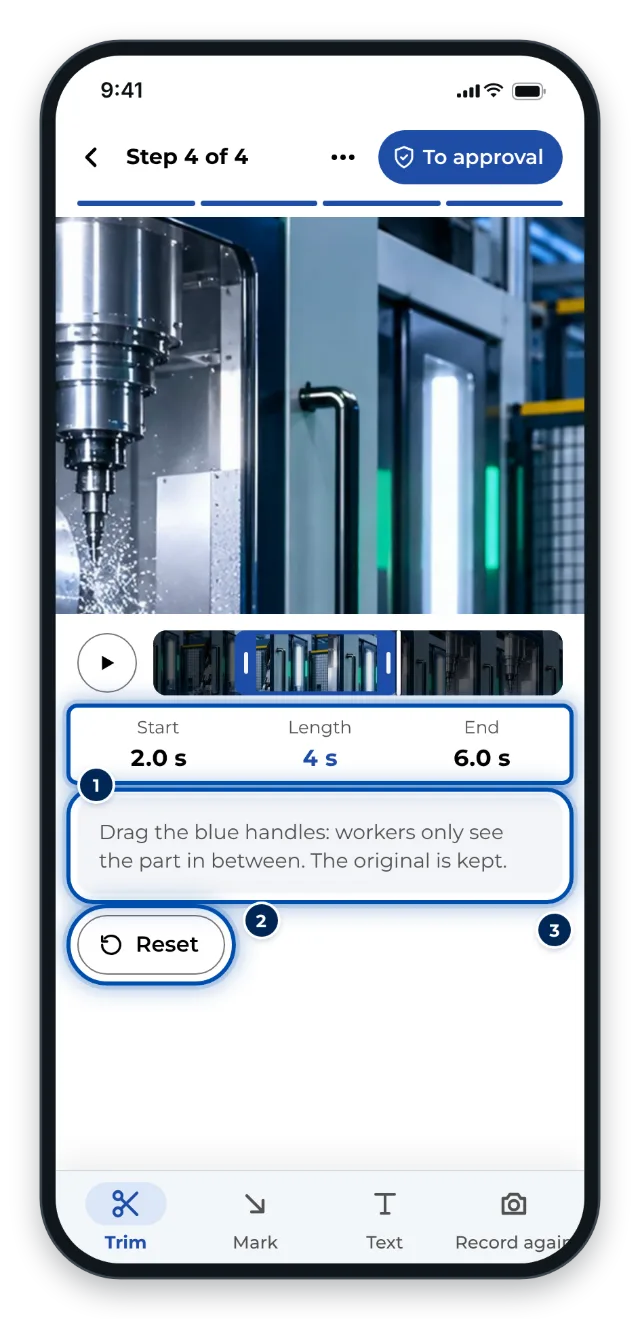
The Trim tab on a phone with start, length and end -
For a photo, tap the Crop tab. The same dialog opens as on a PC.
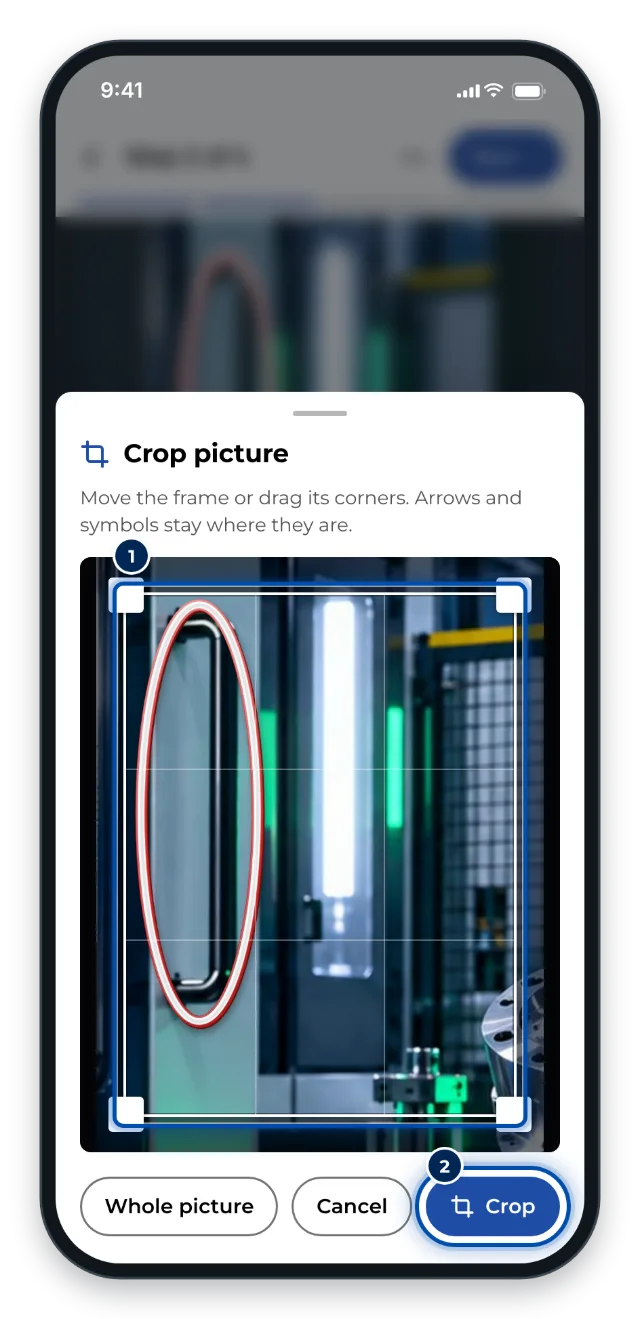
Cropping a picture on a phone with the frame over the photo
Tips
- Trim a video down to the one movement that matters. 3 to 5 seconds are usually enough.
- An imported video starts with its first 15 seconds. If you need more, drag the right handle further to the right.
- If a video has symbols, check after trimming that their markers are still within the part you kept.
- In the crop dialog on a PC, the arrow keys move the frame, and with Shift they change its size.
- For the pictures of a screen recording there’s Crop all: one area for all pictures. See Record your screen.
Common problems
- Crop is missing. The step contains a video. Videos can only be trimmed.
- You cropped away too much. Cropping can’t be reversed. Upload the original photo again with Replace file or record the step again, then crop once more. Check the symbols afterwards.
- A symbol in the video can no longer be seen. Its marker is outside the trimmed part. Drag it into the range between the handles.