Guide
Teams and folder access
Create teams, add members with their team role and decide which teams see which folders and individual instructions.
What for?
Teams let you control who sees which folders and what people may do in them. Assembly sees its instructions, Maintenance sees theirs. A person can be in several teams, with a separate role in each one.
Before you start
- You are a Workspace Admin. Only the workspace admin manages teams and members.
- The people are in the workspace or have been invited, see Invite people and assign roles.
- The folders already exist. Anyone with the folder right creates them in the instructions list, see Create folders and file instructions.
Step by step
-
Open Menu → Users & teams and scroll to the Teams card.
-
Click New team, enter a name such as Assembly and confirm. The new team opens and is ready for members.
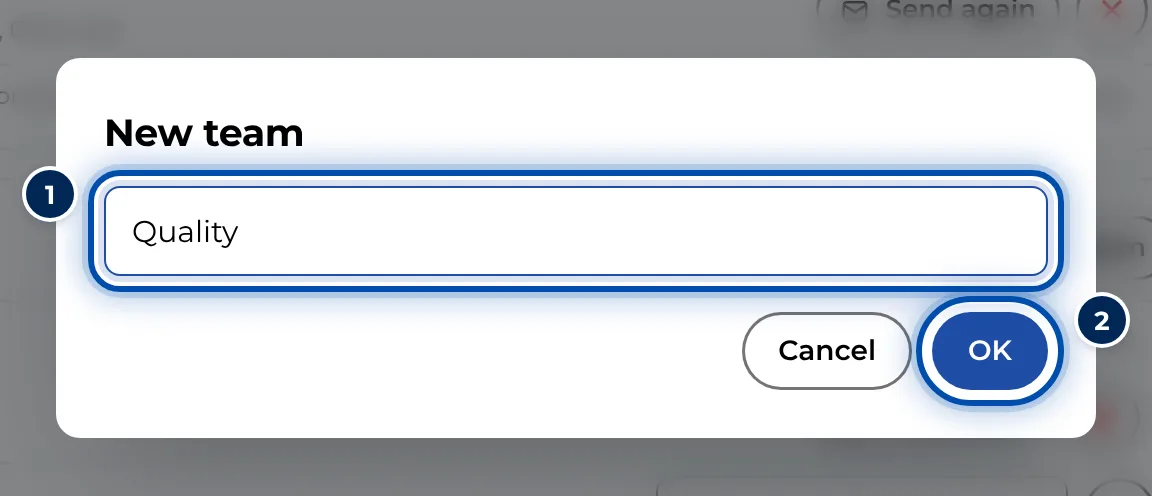
Creating a new team: enter a name and confirm -
Type a member’s e-mail address into the Member email field and click Add member. GIRI suggests addresses from the workspace and from pending invitations. The member’s team role starts as their workspace role; an admin becomes Team Admin.
-
If needed, change the team role in the selector next to the address. You can choose the same eight roles as in the workspace, just without admin. GIRI saves right away.
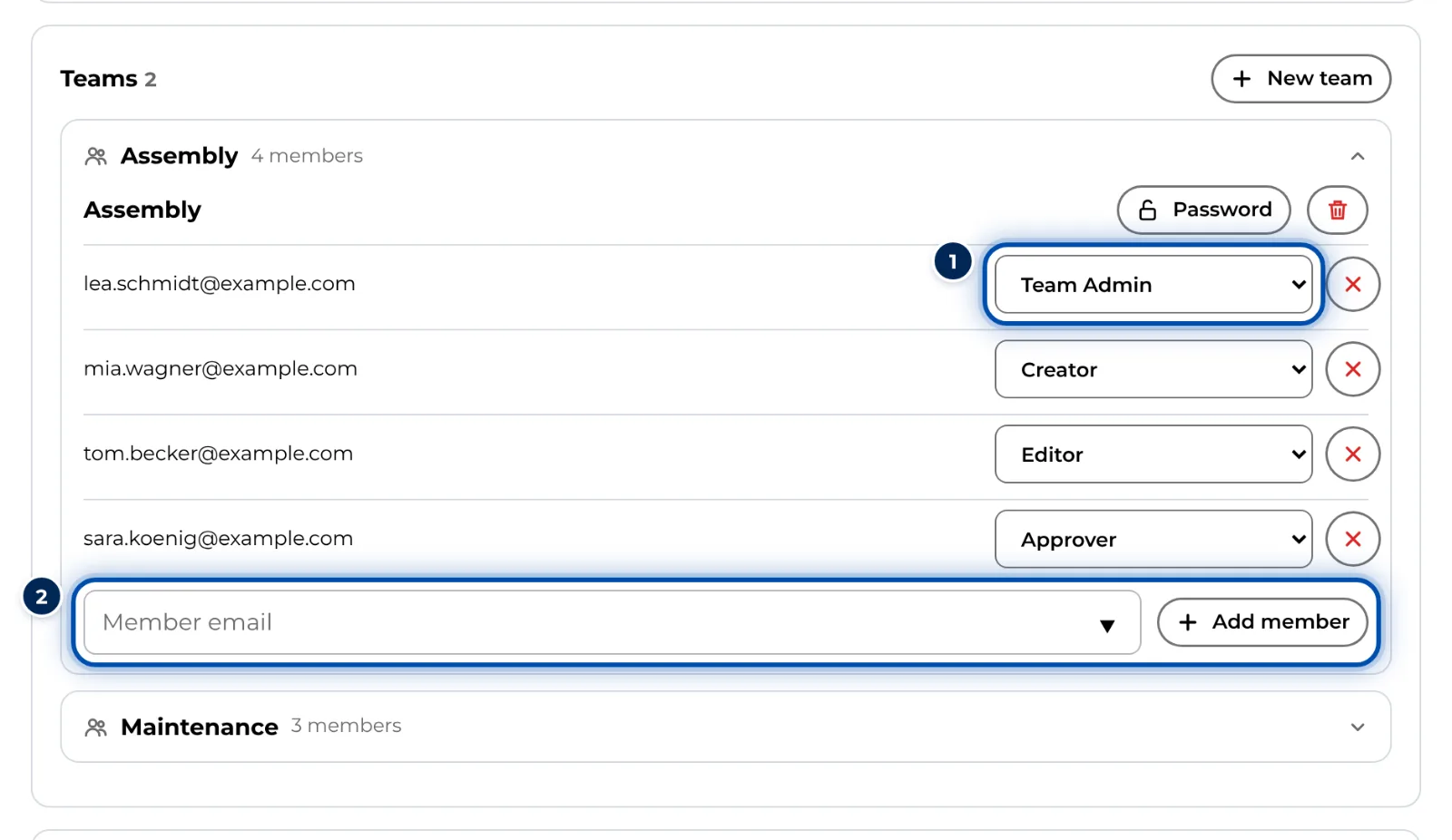
The Assembly team with its members and their team roles -
Scroll to the Folder access card and, for each folder, tick the teams that should see it. A folder without ticks is visible to everyone in the workspace.
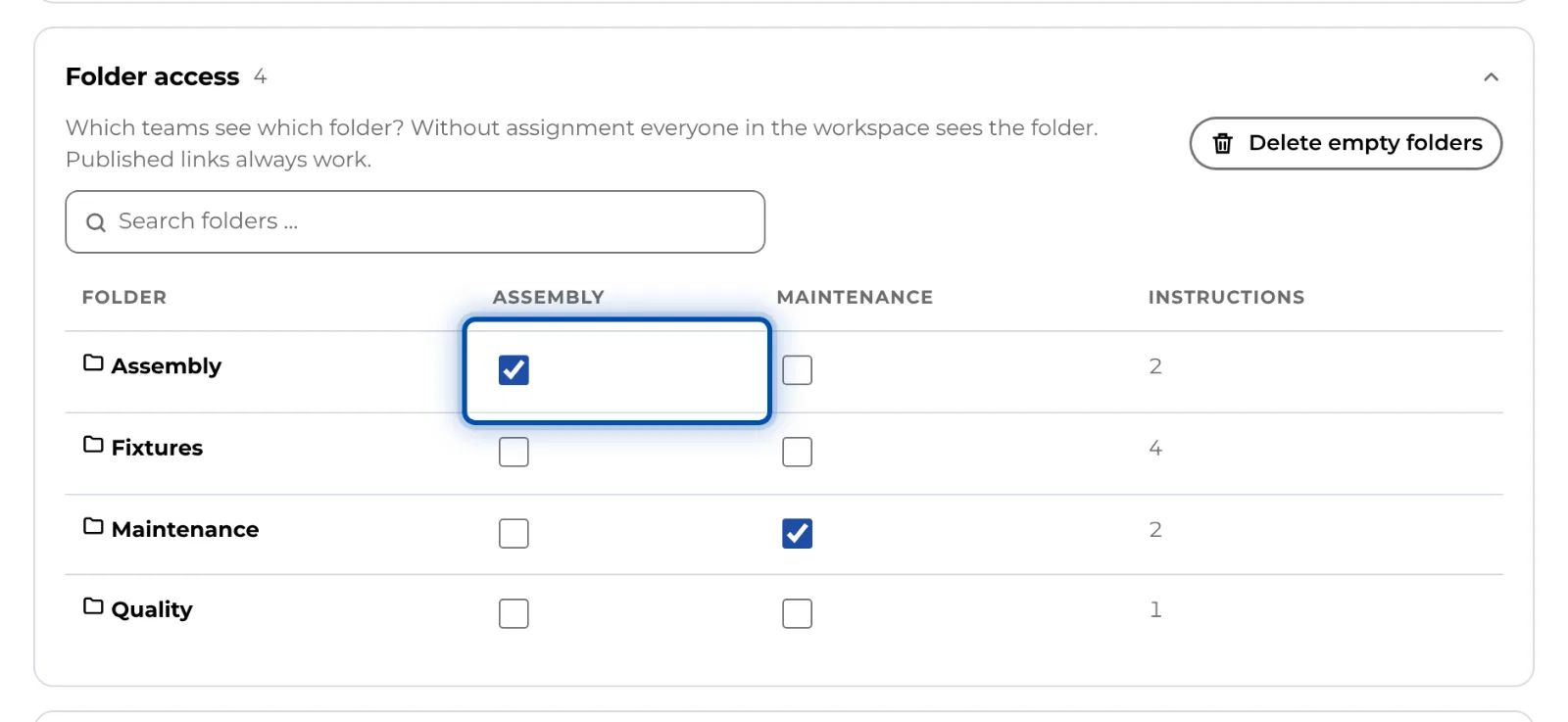
Folder access: folders in rows, teams in columns, ticks for access -
Optional: open Access (teams) to assign individual instructions to additional teams. Greyed-out boxes stand for teams that already see the instruction through its folder. You cannot change them here.
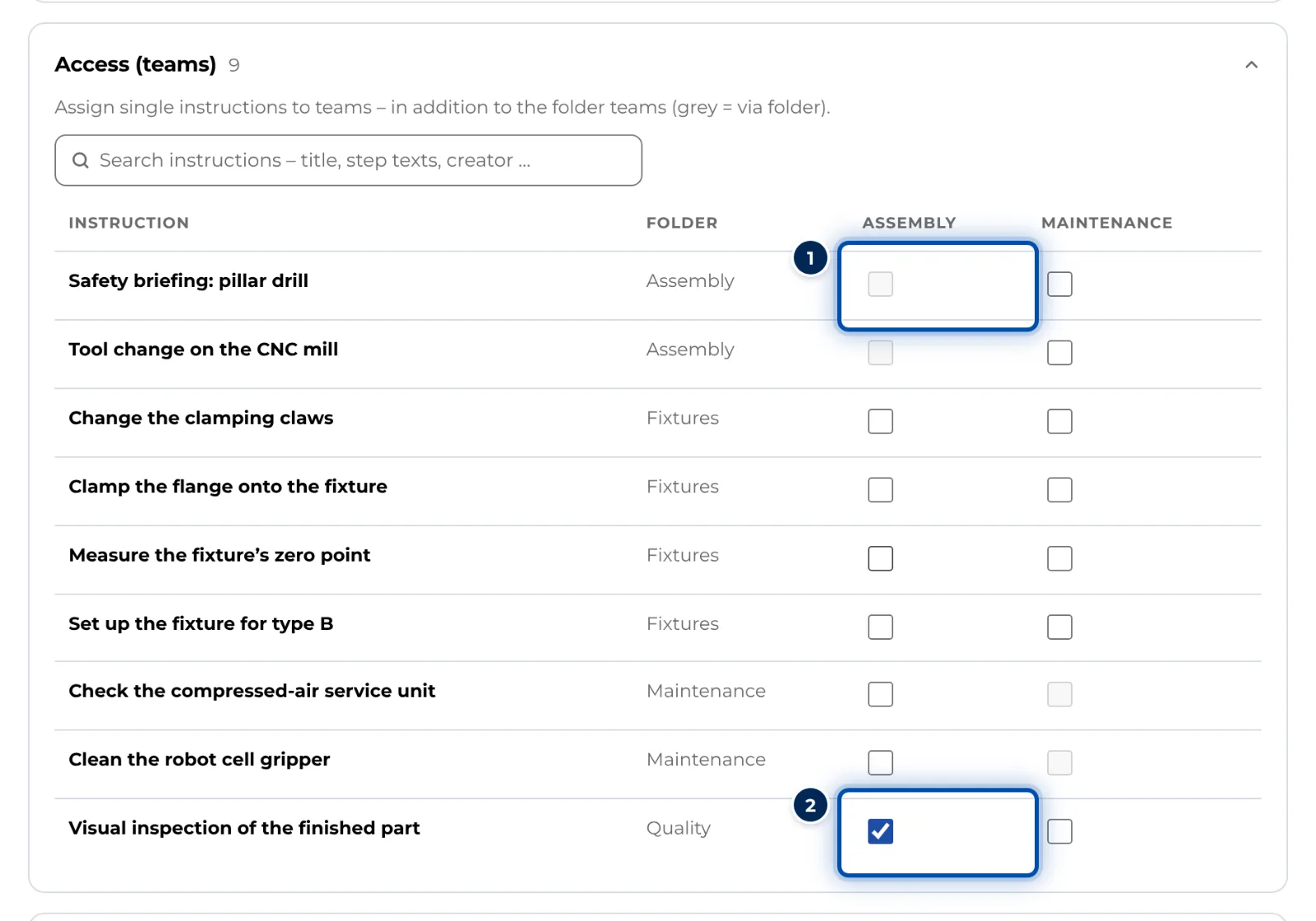
Team access for individual instructions; greyed-out boxes already apply through the folder -
Optional: click Password in the team’s row to set a Link password for all of the team’s instructions. See Protect instructions with a link password.
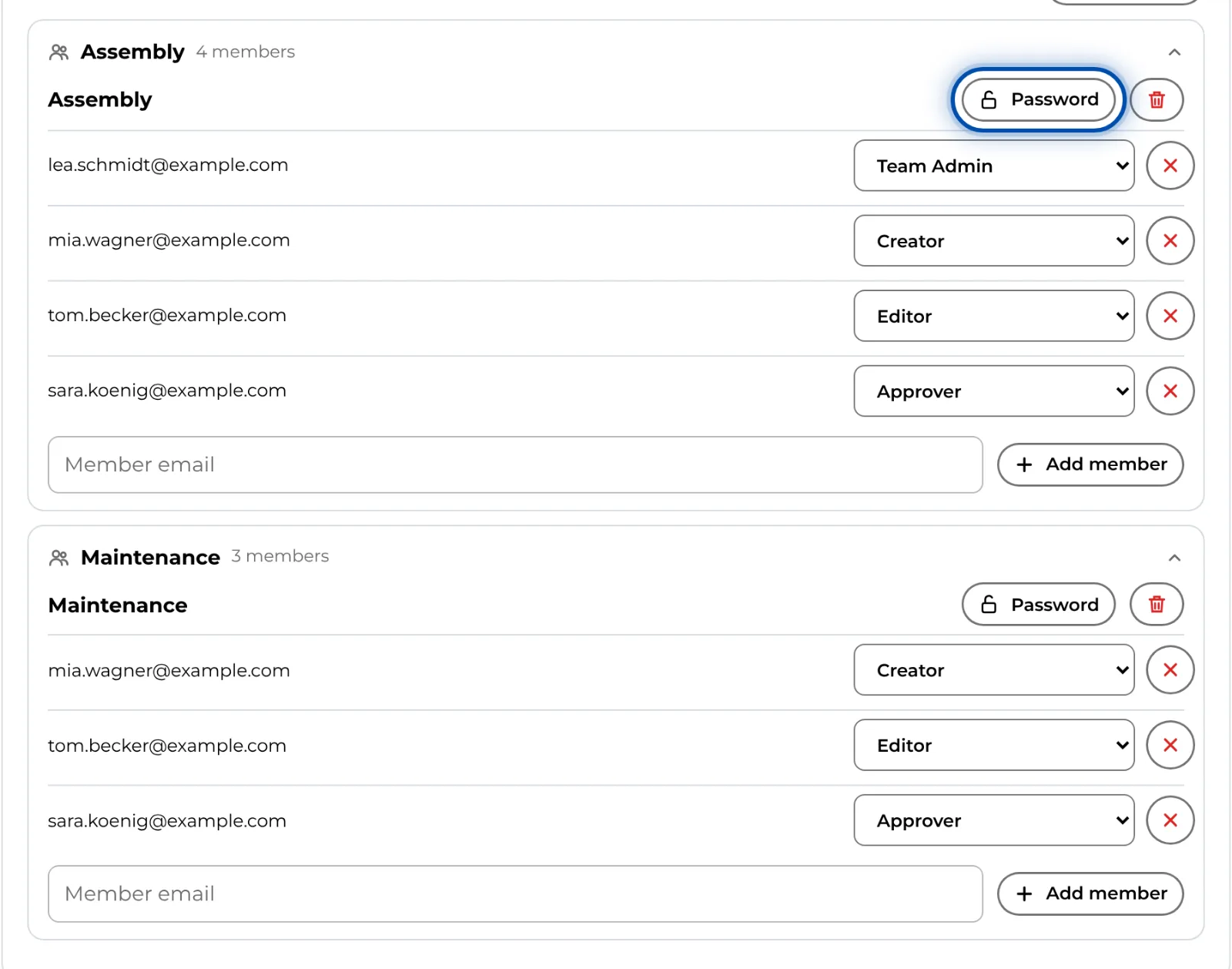
In the admin area, every team has a button for its password
Tips
- In a team’s folders, its members get their team role, not their workspace role. So someone can be Viewer in the workspace and Editor in the Assembly team. See Roles and permissions.
- If you tick a team for an instruction in a folder for everyone, only that team’s members will see it from then on.
- Workers with a link or QR code see published instructions regardless of teams.
- Anyone with the folder right can already choose teams under Who sees this folder? when creating a folder. Later, only the admin changes the assignment here.
- If GIRI has activated training for you, team admins see the training data of the department with exactly the same name as their team. So choose team names that match your departments.
- After an import, Delete empty folders tidies away folders without instructions.
Common problems
- A member cannot see the folder. Check that the address in the team is exactly the address the person signs in with, and that the folder is assigned to the team.
- A member sees the folder but cannot change anything. Their team role is too low, for example Viewer. Change it in the team’s card.
- After deleting a team, everyone sees a folder. If the deleted team was the folder’s only team, the folder is visible to everyone again. Assign another team before you delete one.
- Team admins cannot add members. In GIRI 12 only the workspace admin manages teams and members, even if the role description suggests otherwise. Ask the admin to make the change.