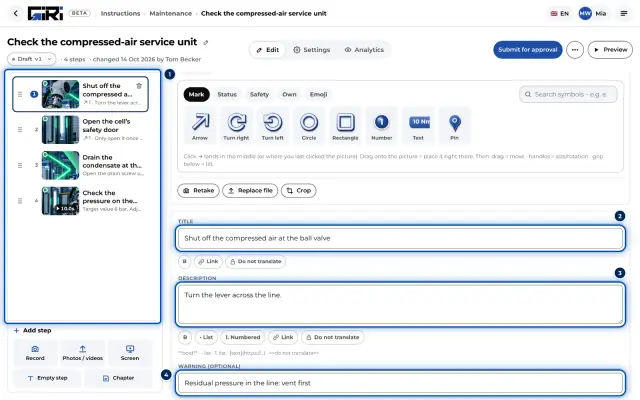
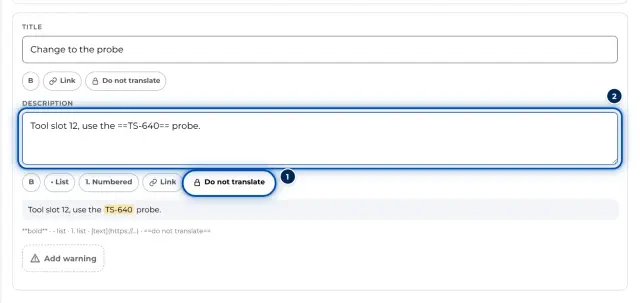
Guide
Format text and protect it from translation
Use bold, lists and links in step texts, and protect technical terms or part numbers from automatic translation.
What for?
Bold values, short lists and links to data sheets make step texts easier to read. Protected terms such as part numbers and machine names appear in every language exactly as in the original.
Before you start
- A role with the right to edit.
- A step whose text you’re editing, see Edit steps.
Step by step
On a PC
-
Select a step and, in the Description field, highlight the word or lines you want to format.
-
Click Bold, List, Numbered, Link or Do not translate in the bar below the field. GIRI adds the matching characters. A preview below shows the result.
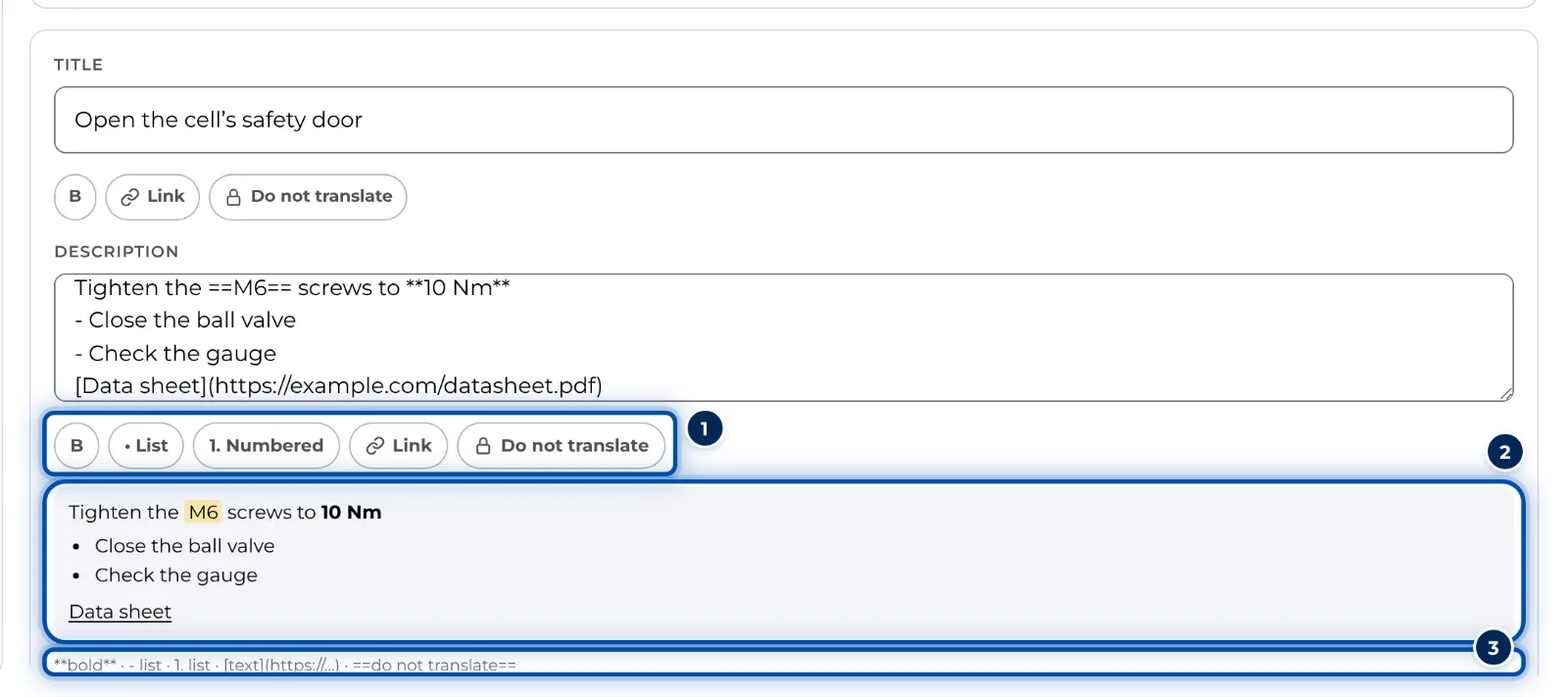
The description of a step with the formatting bar and preview -
For a link, GIRI asks for the Link address (https://…). The highlighted text becomes the link. Without a highlight, the address itself is shown.
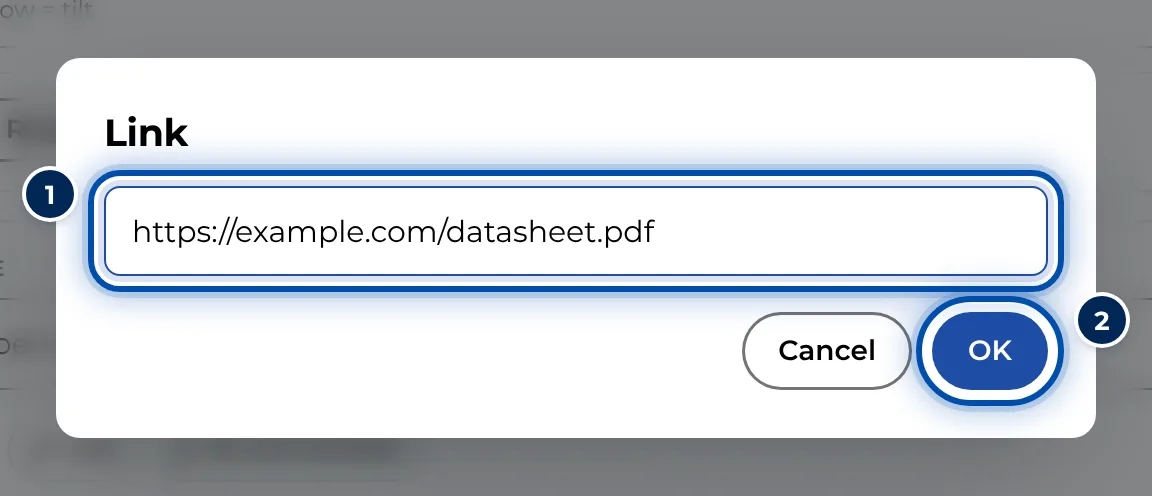
GIRI asks for the link address -
To remove formatting, delete the characters, e.g. the asterisks. For lists, a second click on List or Numbered is enough. Within one line, however, a second click on Bold or Do not translate removes nothing; it adds the characters a second time.
-
The step title offers Bold, Link and Do not translate. Lists only exist in the description.

The small formatting bar below a step’s title
On a phone
-
Open the step and tap the Text tab.
-
Tap Aa (Formatting and “do not translate”). The formatting bars appear below the title and the details.
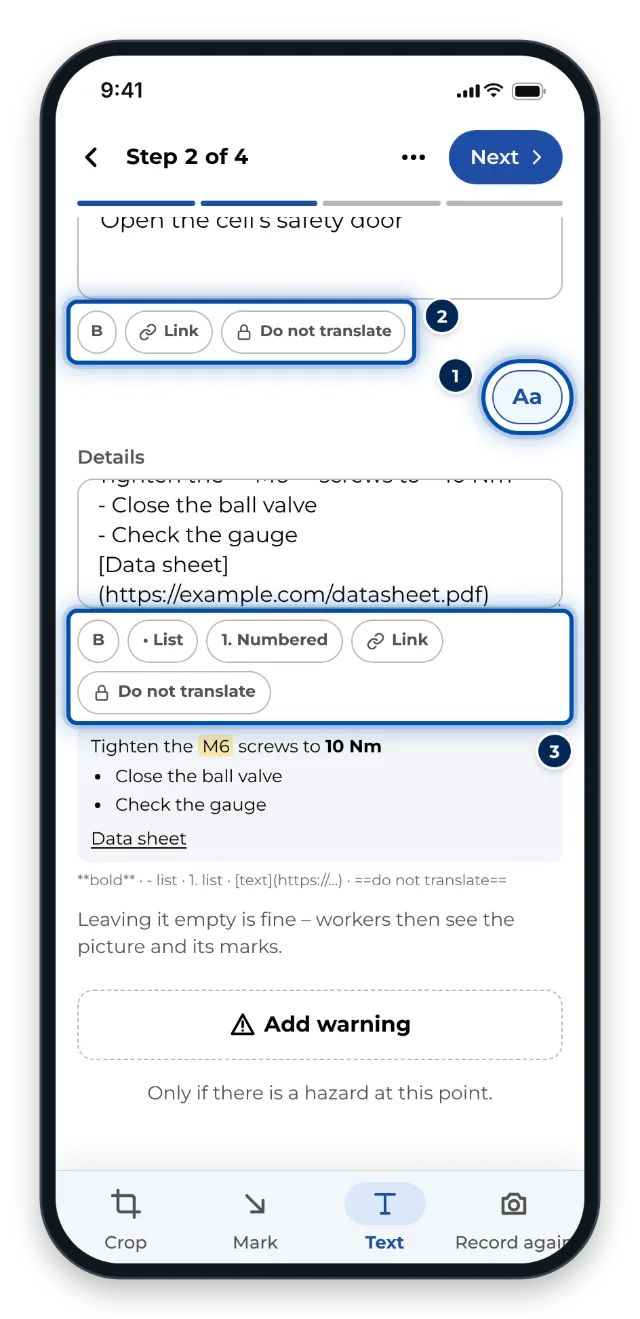
The Text tab on a phone with the formatting bars shown -
Highlight the text and tap the matching button.
The notation
You can also type the characters directly:
| Notation | Result |
|---|---|
**Torque** |
Torque in bold |
- Screw at the start of a line |
a bullet point |
1. Screw at the start of a line |
an item in a numbered list |
[Data sheet](https://…) |
the words Data sheet as a link |
https://… |
the address as a link |
==M6== |
M6, never translated |
- Every line stays a line of its own. GIRI doesn’t show empty lines.
- Bold and Do not translate only work within one line.
- Links only work with addresses starting with
http://orhttps://. They open in a new tab. - There’s no italics, no headings and no underlining. Warnings have no formatting.
- In the PDF the text appears without bold, and links are shown with their address in brackets.
Tips
- Protect part numbers, machine and product names, abbreviations and your in-house terms, e.g.
==M6==or==Press 4==. - Only make the essentials bold, such as values and signal words. Too much bold highlights nothing.
- Link to data sheets or drawings instead of typing out their content.
- In the preview below the field, protected text has a yellow background.
Common problems
- Workers see asterisks or equals signs. Often the characters are doubled because Bold or Do not translate was clicked twice. Delete the extra ones. Other causes: the characters span a line break, or the highlighted text itself contains a
*or=. In a warning the characters always remain visible. - The link can’t be clicked. The address must start with
https://orhttp://and must not contain spaces. - The numbering starts again at 1. There’s an empty line or a line without a number between the items. Write the items directly below each other. GIRI numbers them itself.
- A protected word is translated anyway. The opening and closing
==must be on the same line.