Guide
Create folders and file instructions
Folders sort instructions, for example by line or machine, and decide which teams can see the instructions inside them.
What for?
With many instructions, a proven pattern is one folder per area, such as a hall or a line, one instruction per machine or workstation, and chapters for the topics within it, for example set-up, cleaning and maintenance. Besides visibility, a folder can carry a link password that applies to every instruction inside it. Folders have a single level; there are no subfolders.
Before you start
- Creating, renaming, protecting and deleting folders: a role with the folder right, that is Creator, Team Admin or Workspace Admin. If a folder is limited to certain teams, you need the right in one of those teams.
- Moving instructions: the edit right for the instruction.
- Only the workspace admin can change which teams see an existing folder.
Step by step
Create a folder
-
Open Instructions. In the Folders row, click New folder.
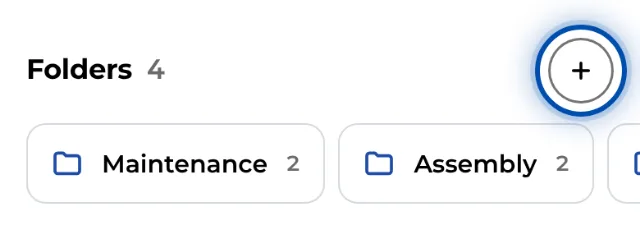
The Folders row with the button for a new folder, here on a phone -
Enter a name under Folder name, for example “Fixtures”.
-
Under Who sees this folder?, choose who sees the folder: Everyone in the workspace or Only certain teams. You can pick from the teams you belong to; admins see every team. If you are not in any team, the question does not appear and everyone in the workspace sees the folder.
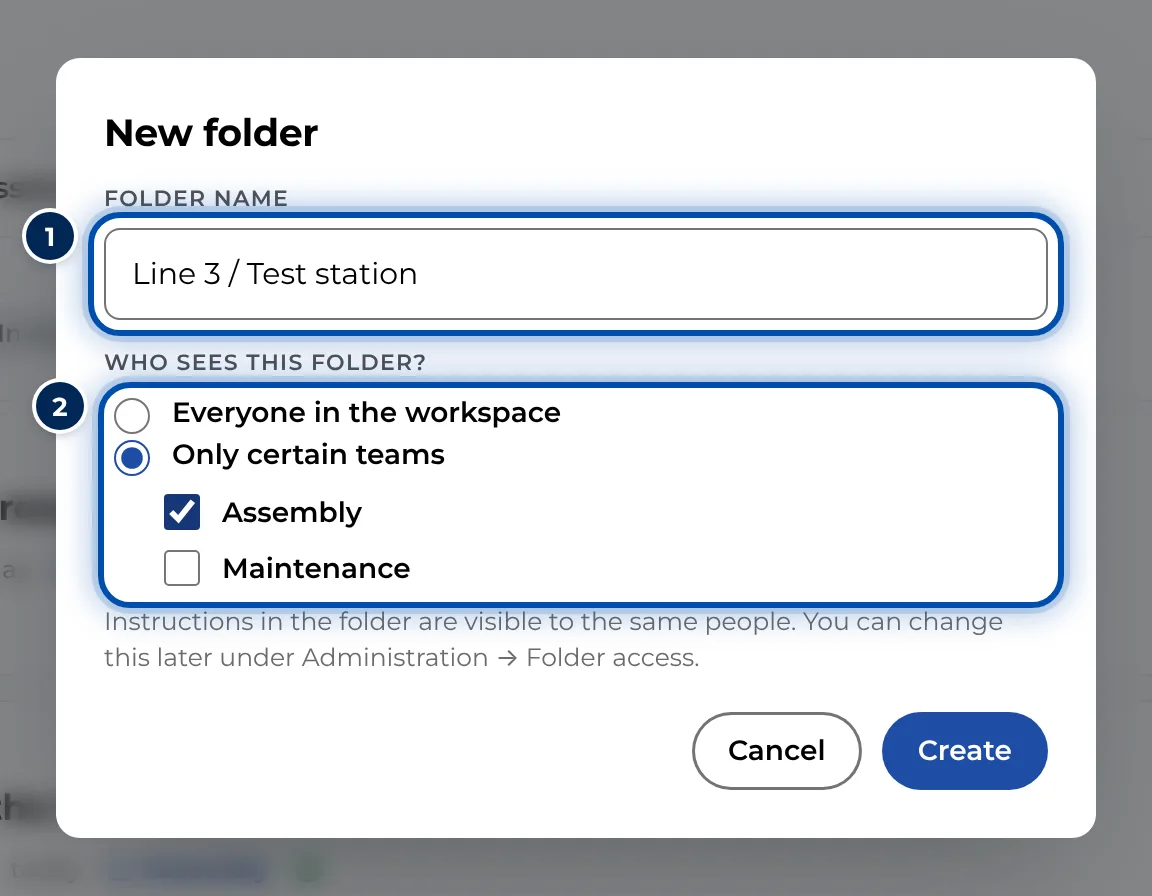
A new folder with its name and the question of who sees it -
Click Create. GIRI opens the new folder.
File instructions
-
New instruction straight into the folder: inside the folder, click New instruction. The folder is already selected. In the same dialog you can pick a different one under Folder.
-
Move an existing instruction: in the list, open ⋯ on its card and choose Move to folder. Pick a folder or No folder. At the very bottom, New folder creates a new one on the spot. With the instruction open, the same works under Settings → Location & access → Change.
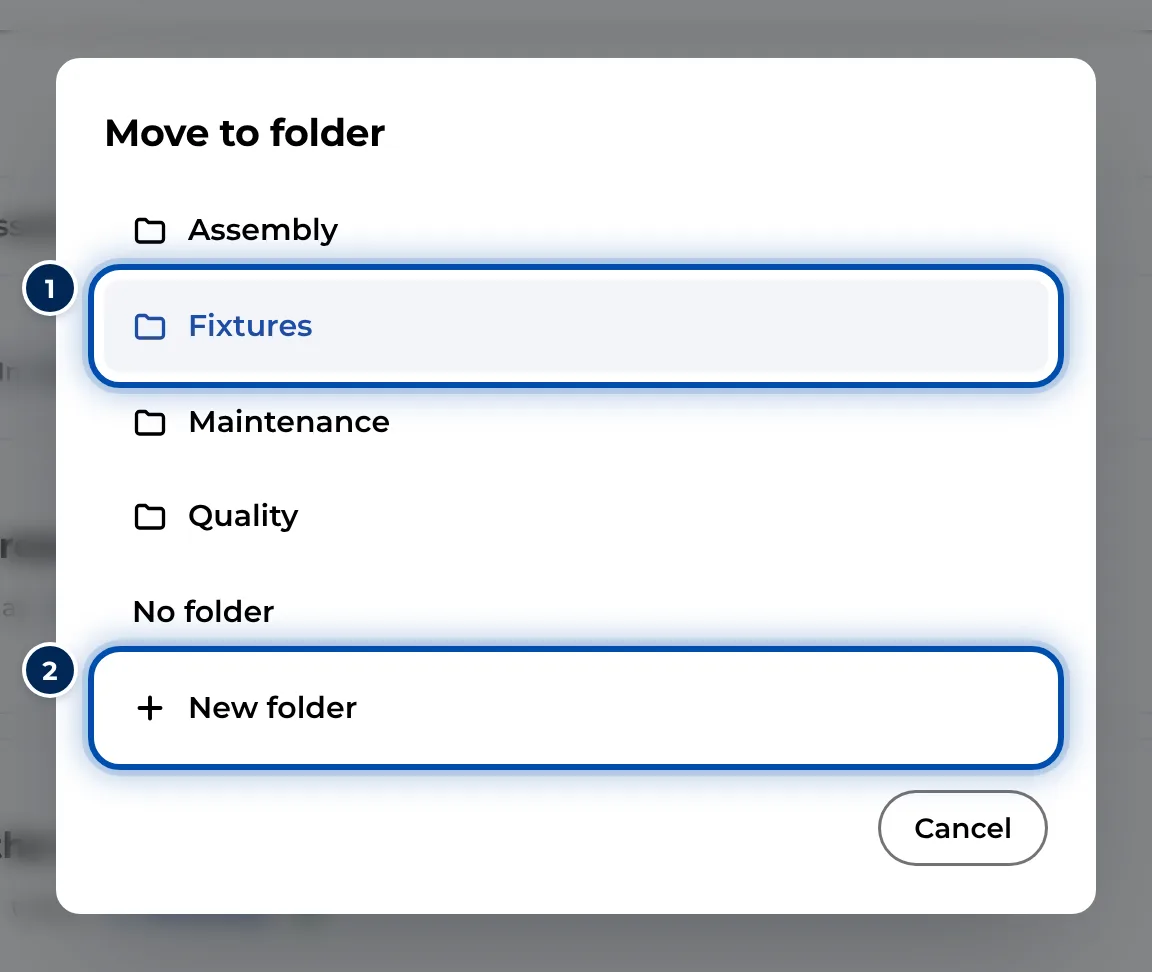
Moving an instruction to another folder
Manage a folder
-
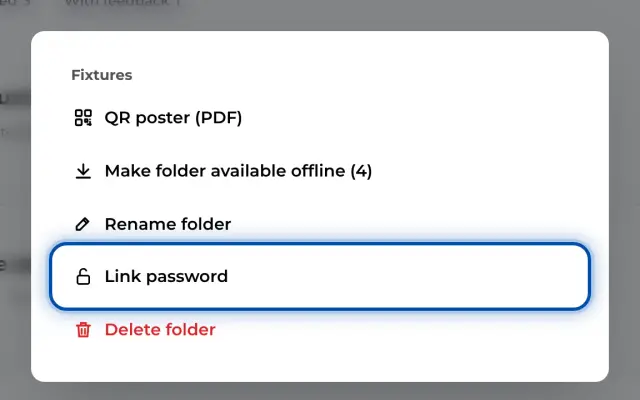
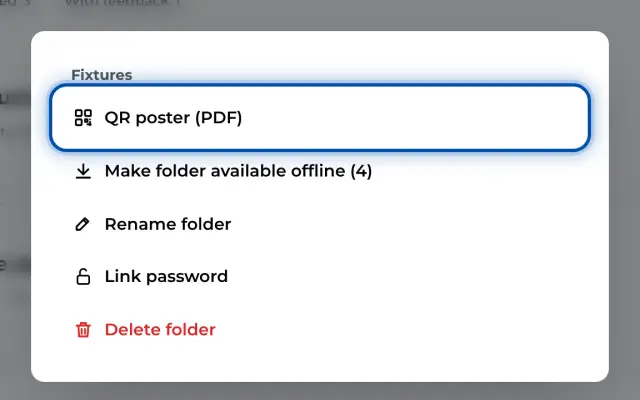
Open the folder and click ⋯ Folder at the top. The menu offers QR poster (PDF) and Make folder available offline (…). With the folder right you also get Rename folder, Link password and Delete folder.
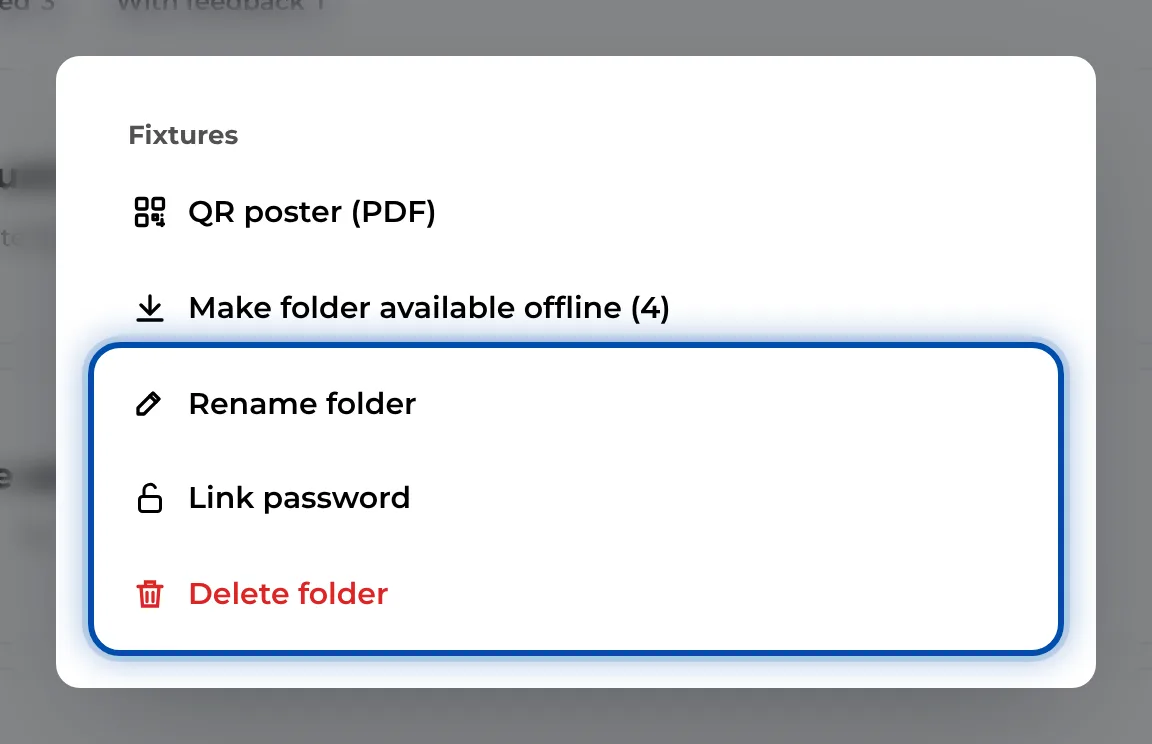
A folder’s menu with QR poster, offline, rename, link password and delete -
When you delete a folder that still holds instructions, GIRI asks: Delete folder only – keep instructions or Folder and its … instructions to the trash. With the second option the instructions end up in the trash.
Tips
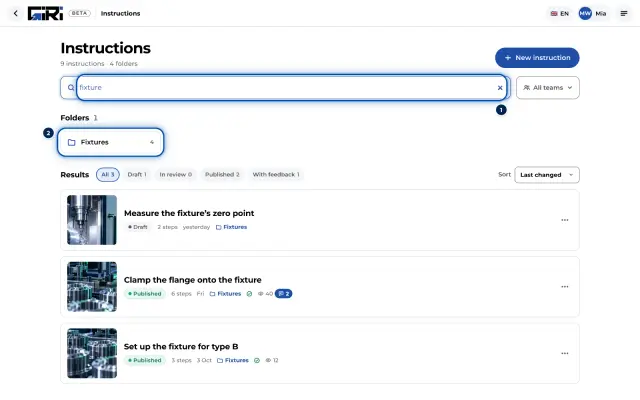
- Name folders after a place or an asset, for example “Line 3 / Assembly”. The search on the Instructions page finds folder names too.
- With many folders, the row shows the eight that were worked in most recently. You reach all the others via Find folder.
- For several topics on one machine, use chapters rather than extra folders. To put a whole folder up at the workstation, use the QR poster.
- You can give a single instruction teams of its own under Settings → Location & access → Access. It is then visible to the ticked teams plus the folder’s teams.
- Admins tidy up under Administration → Users & teams → Folder access: they assign teams there and remove empty folders with Delete empty folders.
Common problems
- New folder is missing. GIRI hides the button during a search, so clear the search box first. Otherwise your role has no folder right, for example Editor or Viewer. Ask your admin.
- You cannot change a folder’s teams. Only workspace admins can, under Folder access. See Teams and folder access.
- More people see the instructions after a folder was deleted. With Delete folder only – keep instructions, the instructions move to No folder. The folder’s team restriction and link password no longer apply to them. Move the instructions to a suitable folder first.
- You cannot create a subfolder. GIRI has a single folder level. Structure your content with folder names and chapters.