Guide
Assign and export training records
Where training records come from, how to match unassigned records to a person and how to export qualification and training records as PDF, Excel or CSV.
What for?
Every confirmed training becomes a record: person, date, version of the instruction, result, signature and how it was confirmed. Records come in by themselves: from the worker view of a training, from a group training or via the SCORM package from an external LMS. In audits and briefings they prove who was trained for what and when. GIRI activates training per workspace; ask at giri@ar-giri.de.
Before you start
- Training is activated for your workspace.
- You are a Workspace Admin. QM and Team Admins (for their department) can read and export records but not assign them.
Step by step
-
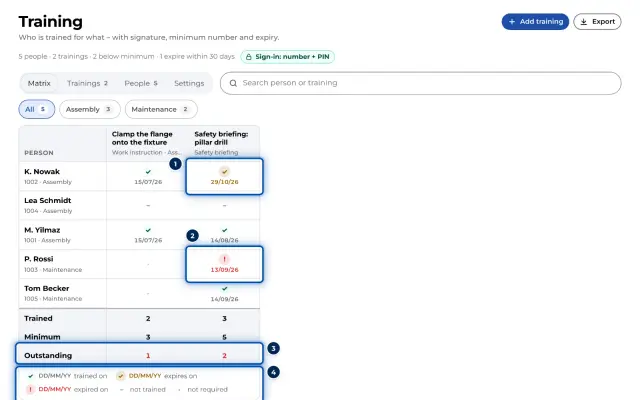
Open the Menu at the top right, choose Training and click a person or a training in the matrix.
-
In the detail, each record shows how it was confirmed: with PIN, personal link, name picked, in a group · trainer Lea Schmidt or from SCORM. If someone signed under a different name, the person’s detail says, for example, signed as “Nowak”.
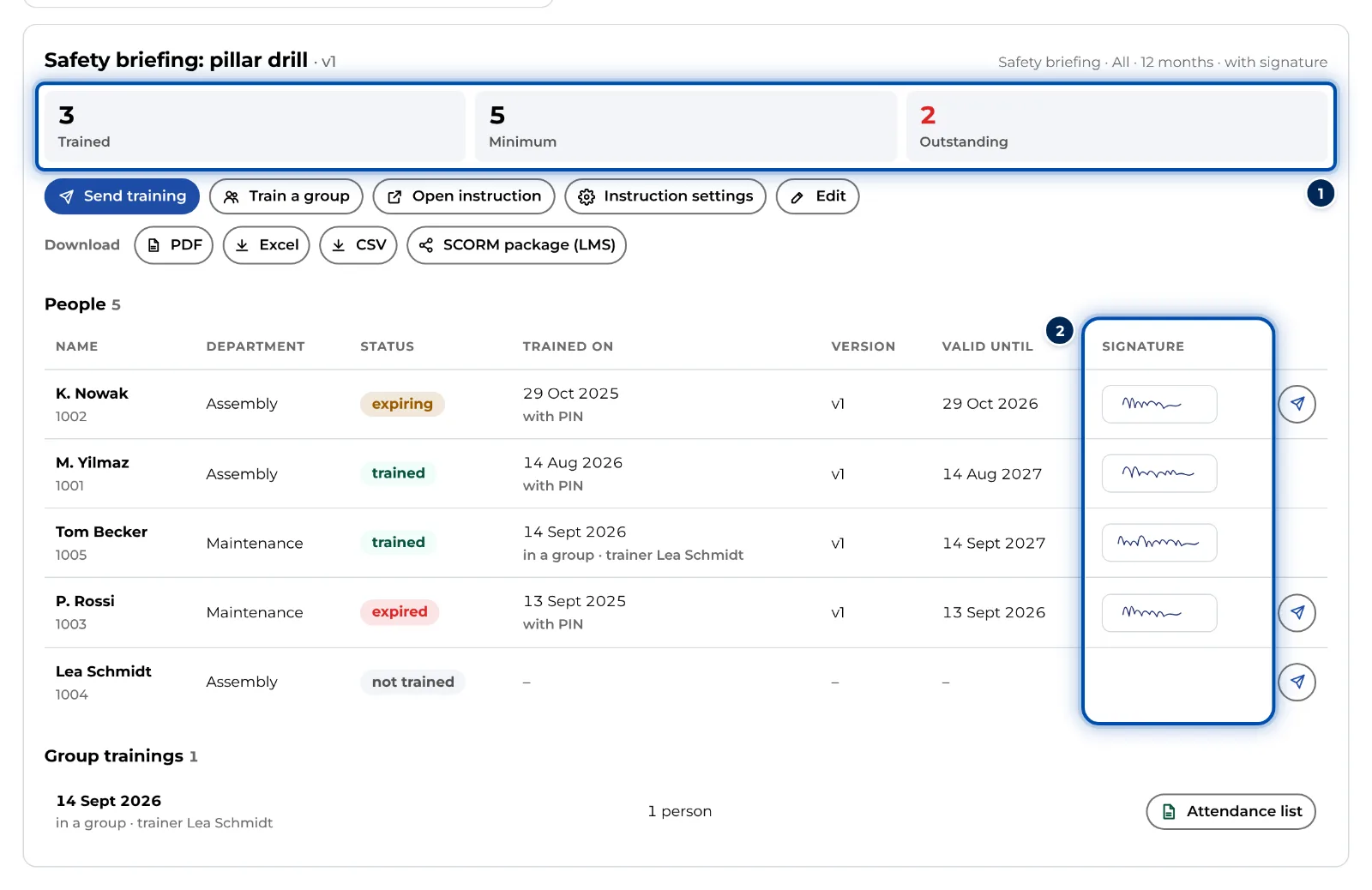
Detail of a training with tiles and the list of people -
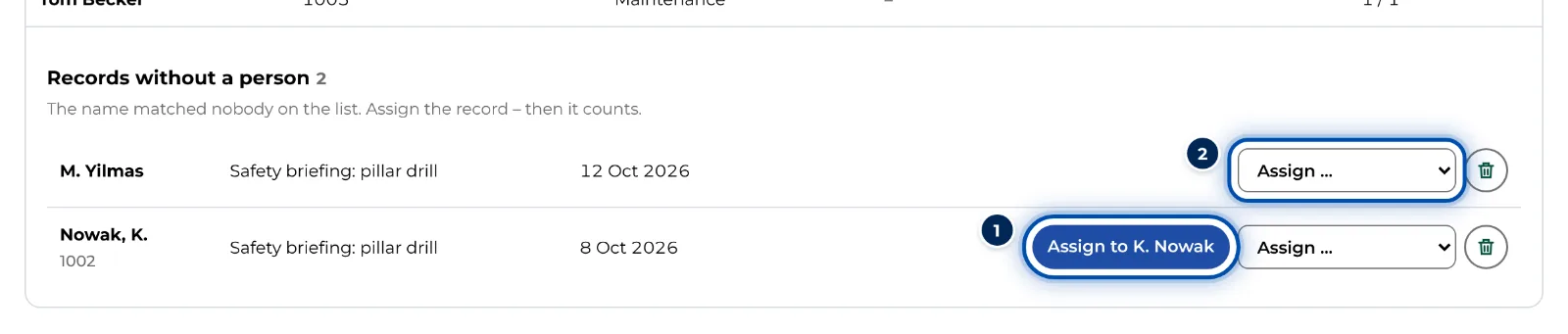
Open the People tab. Below the list you find Records without a person if there are any. This mainly happens when a name typed in with Pick a name matches nobody, and with records from SCORM.
Records without a person, with a suggestion and a drop-down to assign them -
Assign each of these records. If GIRI suggests a person with the same personnel number or name, click the button, for example Assign to K. Nowak. Otherwise pick the person in the Assign … field. A wrong entry can be deleted with the bin icon.
-
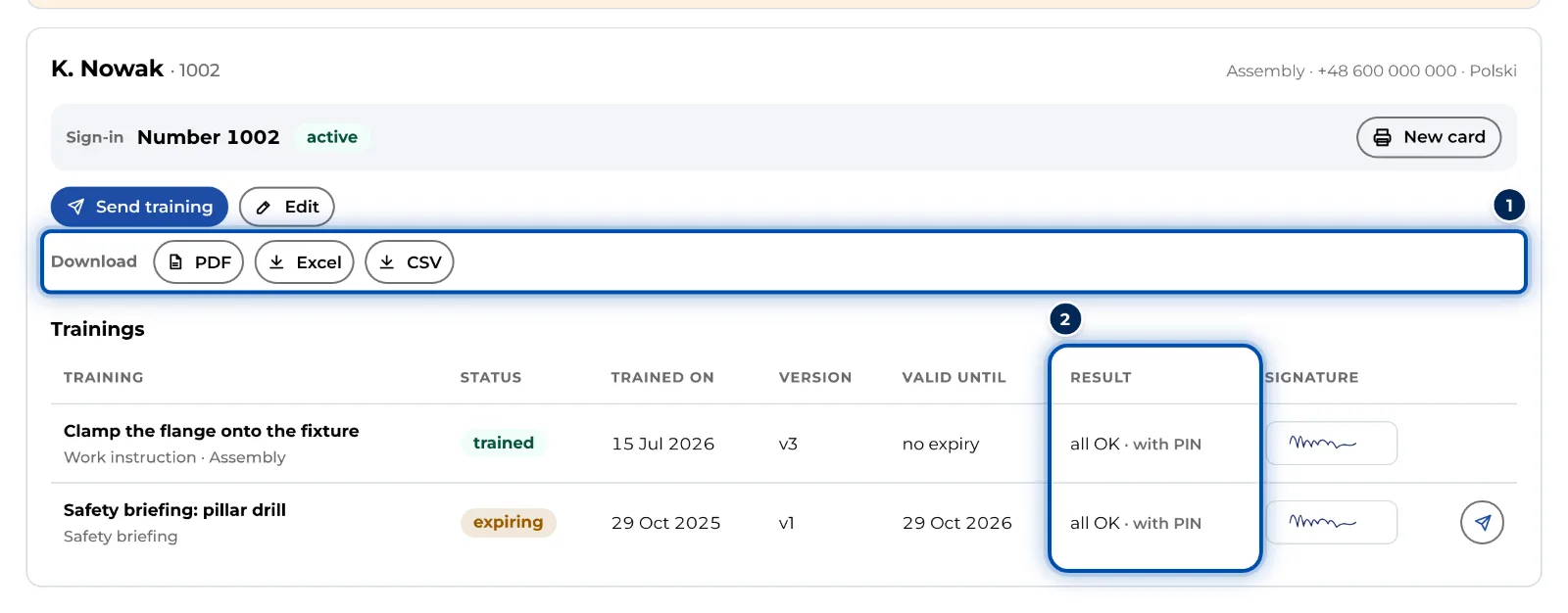
For a person’s record, click their name. Under Download you find PDF (qualification record with all trainings and signatures), Excel and CSV.
Detail of a person with download buttons and their trainings -
For a training’s record, click the training. PDF creates the training record: who is trained, with their signature, and who is not yet. For group trainings, Group trainings below lists an Attendance list for each session.
-
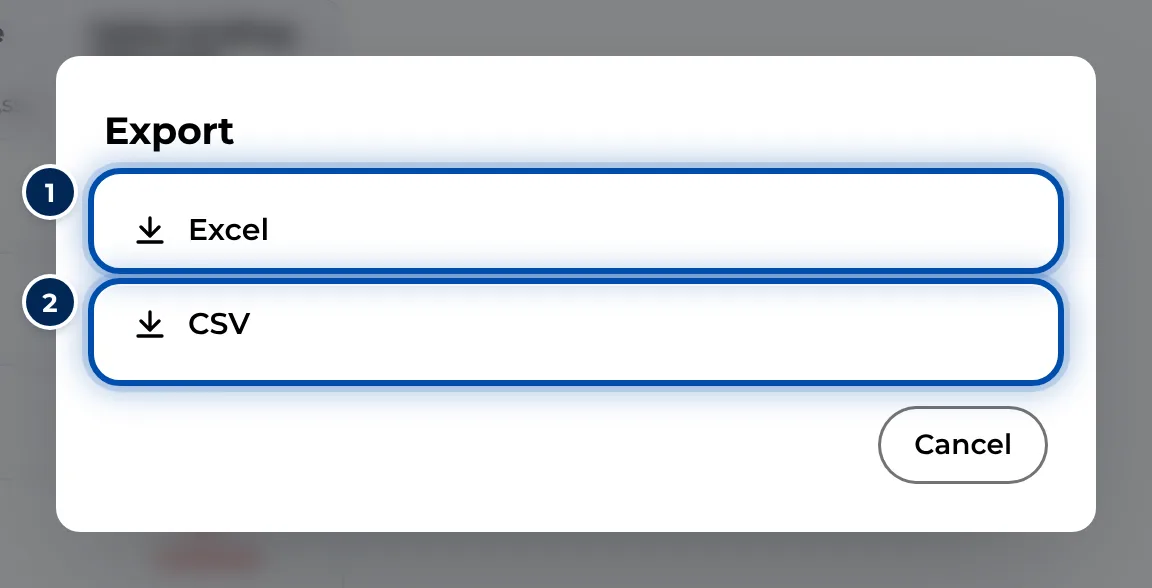
For complete lists, click Export. The Matrix tab gives you the matrix, the Trainings tab the List per training (Excel), the People tab the list of people, each as Excel or CSV.
Exporting as Excel or CSV
Tips
- The PDF explains the ways of confirming and the signature: a simple electronic signature made with a finger. The date is when it was signed; the server also stores its own time.
- With Number + PIN, every record from the worker view reliably belongs to the person signed in.
- The start page shows new records from the last 7 days under For you as Training confirmed.
- Guests of a group training are not on the list of people but in the training’s detail under Guests and contractors.
- If you remove a person from the list or end a training requirement, the records are kept. Only Delete for good – with all records deletes a person’s records.
Common problems
- The assign buttons are missing. You are not a Workspace Admin. QM can see records without a person, Team Admins cannot. Only an admin can assign them.
- The person is not in the drop-down. Add them first, see Add and import people.
- A record sits with the wrong person. Assigned records can neither be moved nor deleted one by one in the app. To prevent this, use Number + PIN, see Pick a name or number + PIN.