Guide
Analytics: views of an instruction
See how often an instruction is opened, for how long, on which device and how far workers get. With CSV export.
What for?
You can tell whether an instruction is really used at the workplace and at which step many people stop. That shows you where to improve it. GIRI counts views without names.
Before you start
- You see the Analytics tab of an instruction with edit rights for it (Editor, Creator, Team Admin or Workspace Admin).
- The instruction is published. GIRI counts every time it is opened in the worker view, for example via link or QR code. The Preview and editing do not count.
- On a PC or a phone.
Step by step
-
Open the instruction and click the Analytics tab in its header. From the list, you can also click ⋯ on the instruction’s card and choose Analytics. On a phone, Analytics is in the ⋯ menu of the open instruction.
-
The key figures sit at the top of the Views tab:
- Views: how often the instruction was opened, next to it of which reloads (the page was reloaded in the browser).
- Avg. time per view: how long the instruction was open on average.
- reached the end: the share of views in which someone reached the end of the instruction.
- Avg. steps seen: how far through the steps workers get on average, compared with the number of steps.
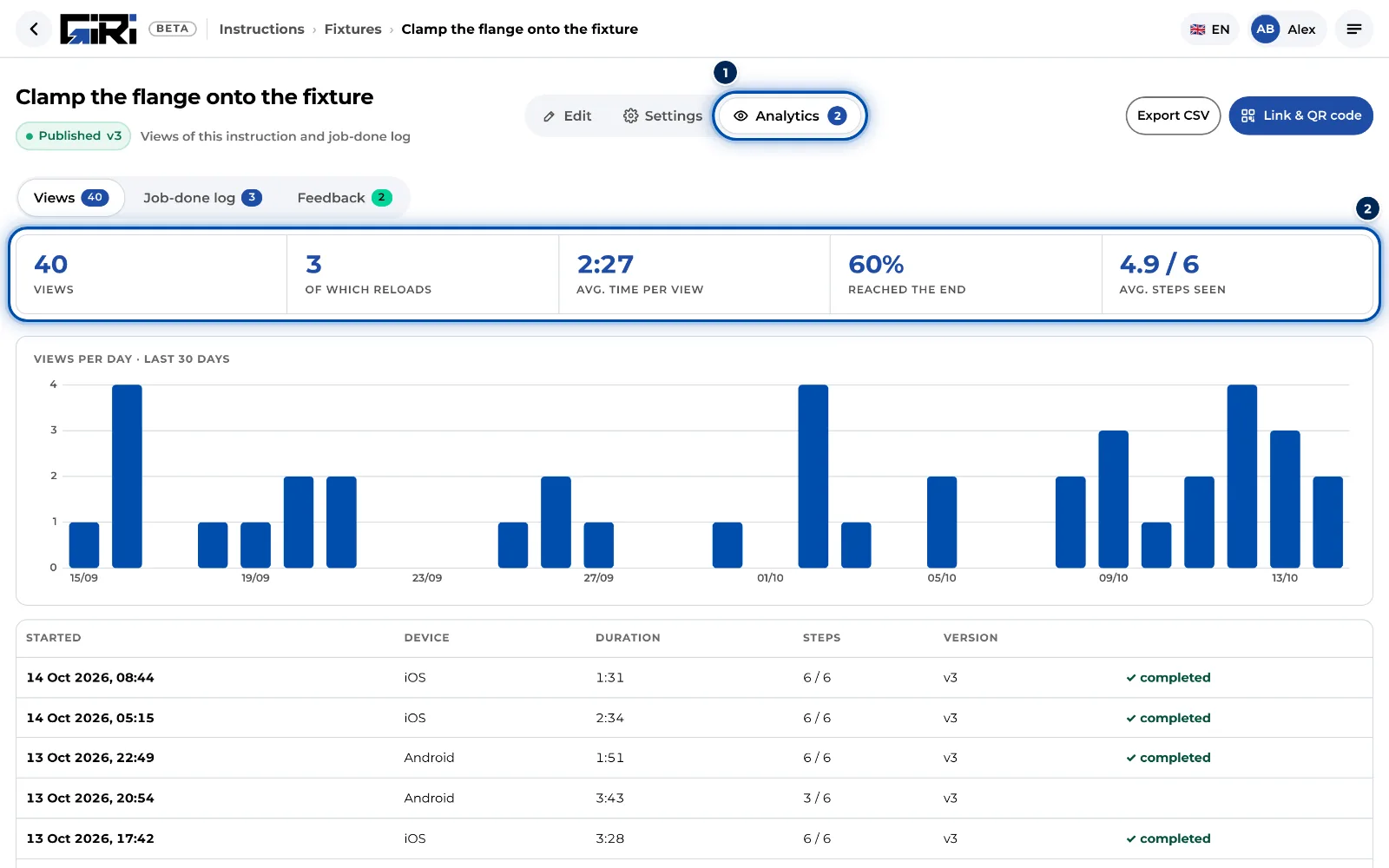
Views tab with key figures and the chart of the last 30 days -
The chart below shows Views per day (last 30 days).
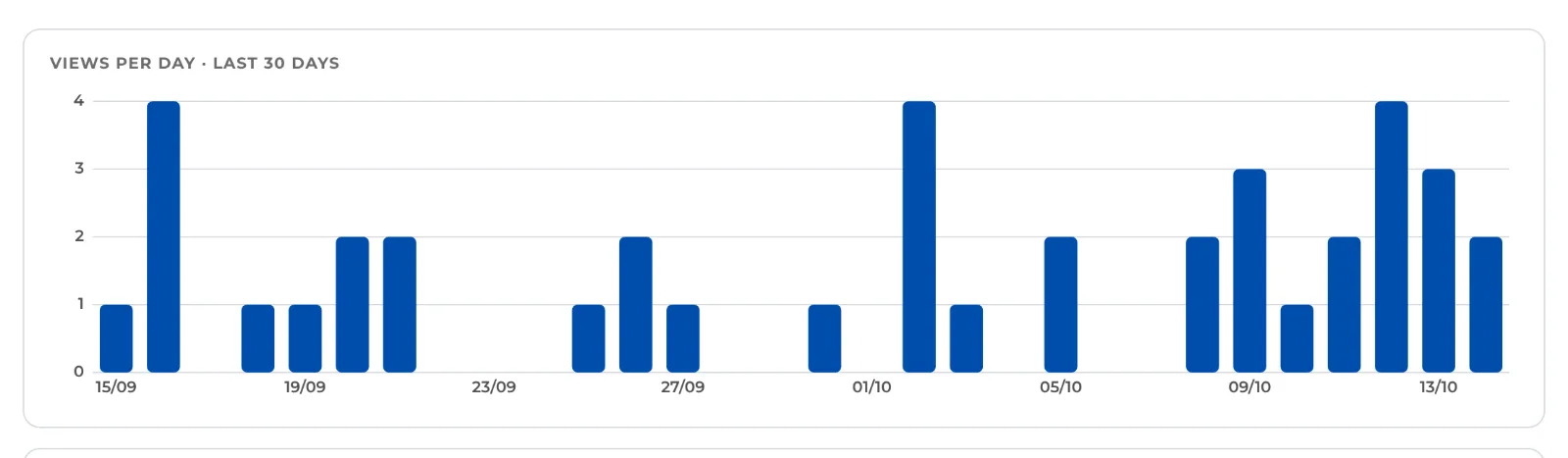
The chart of views per day over the last 30 days -
The table lists every view: Started, Device (iOS, Android, Mac, Windows or Other), Duration, Steps seen out of all, the Version and whether the view was completed or reloaded.
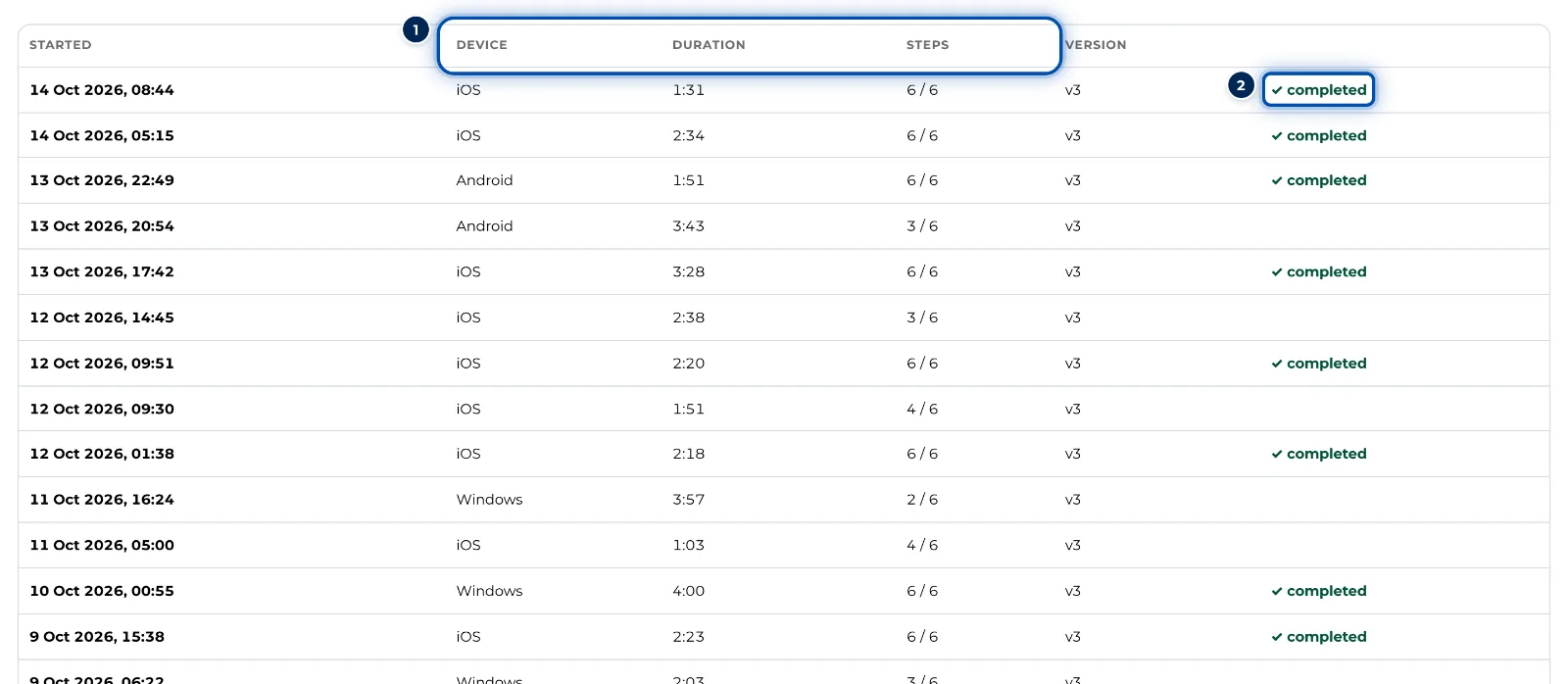
Table of individual views: device, duration, steps seen and version -
For your own analysis, click Export CSV at the top right. GIRI saves the views as a CSV file (giri-‹title›-views.csv). Times are in your local time; the time zone is in the column header.
Tips
- Compare Avg. steps seen with the number of steps. If many stop before the end, check in the table at which step they stop. That step or the next one is often too long or unclear.
- The Version column shows which version was opened, so you can see whether anything changes after a revision.
- Who worked through a checklist is in the job-done log. The statistics show the figures for all instructions at a glance.
Common problems
- No views yet. GIRI only counts once the instruction is published and opened in the worker view. Your own preview does not count.
- The Analytics tab is missing. You do not have edit rights for this instruction. If the workspace is read-only, for example after the trial, only Team Admins and admins still see the tab.
- The count stops at 2,000. The page loads the latest 2,000 views of an instruction and works out the key figures from those alone. The all-time total is in the statistics and on the instruction’s card.
- The duration looks very long. GIRI measures for as long as the instruction is open, even if nobody is looking. If it stays open on a tablet for hours, that time counts too.