Bootcamp
Lesson 3 · Recording
Day 3 in 30 minutes: 5–15 short clips, no voice recording. Tonight your instruction exists in GIRI.
The 30-page Word SOP becomes a series of short clips: visual, scannable, language-independent.
See it in GIRI
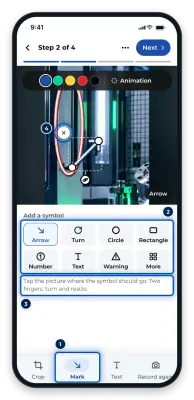
The example instruction “How to create your first instruction” shows you how it works, with real screenshots: record, describe the steps, add markings, submit. GIRI creates it in new, empty workspaces (Bootcamp overview). Then it is your turn. Your instruction does not have to be perfect today, it has to be finished. If you get stuck while recording, see Record steps with the camera.
Your recording, rule by rule
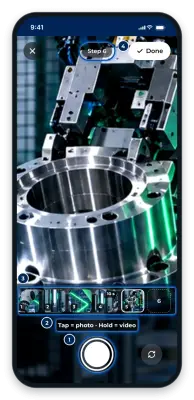
- 1 step = 1 clip, 3–5 seconds. One action per clip, never two things at once. In the camera: Tap = photo · Hold = video. From 5 seconds it shows Getting long …, from 8 seconds Too long – keep it short!, and after 12 seconds it stops. Anything that does not move, you take as a photo.
- A short text per step. The Title says in one sentence what to do. Tool, torque and details go into the Description, on a phone under Details (tool, torque …). No more text is needed.
- Film your 3 key points extra clearly. Get closer, give them their own clip, repeat if needed. These are the places where things go wrong.
- Stay close, keep a steady hand, use good light. There is no sound: GIRI records videos without audio, and workers see imported videos without sound too.
- Target: 5–15 clips in total. If you need more than 45 minutes, the task was too big.
How it works on a phone
-
On the Start page, tap Record a new instruction. The camera opens straight away.
-
Record step by step. Every clip and every photo becomes a step.
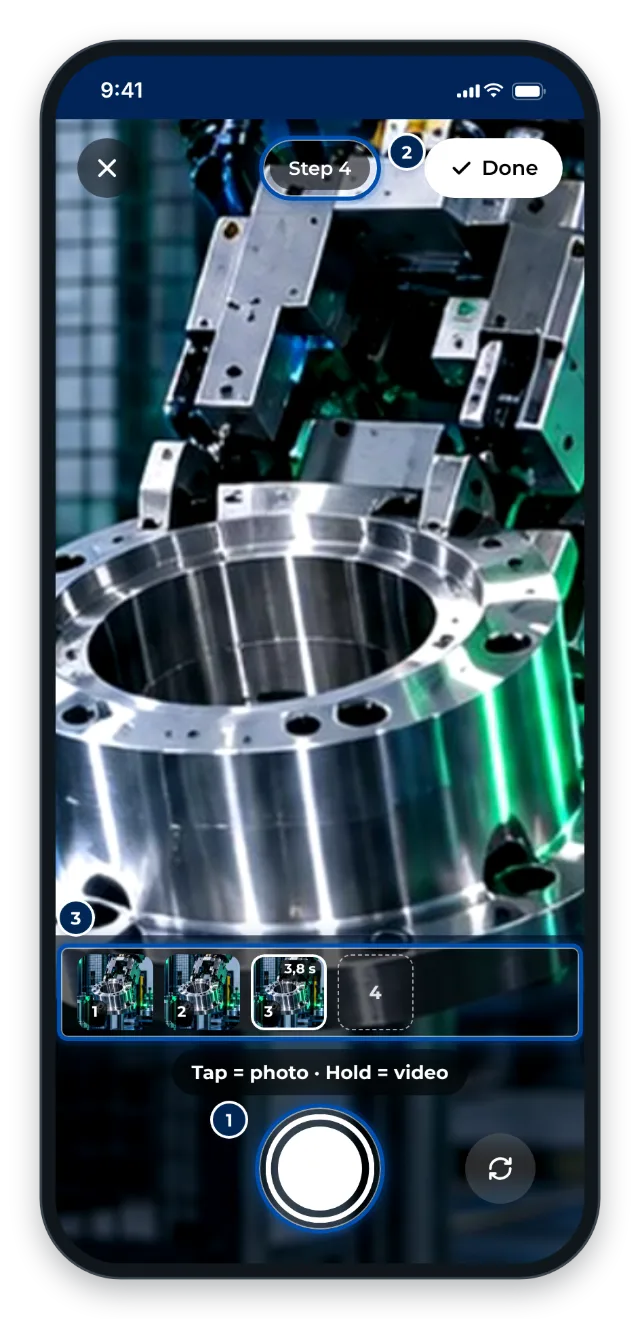
Tap for a photo, hold for a video: the steps collect at the bottom -
Tap Done. GIRI asks: What is the instruction called? Enter the title and tap Continue to the steps.
-
Open each step and write its short text under Text.
-
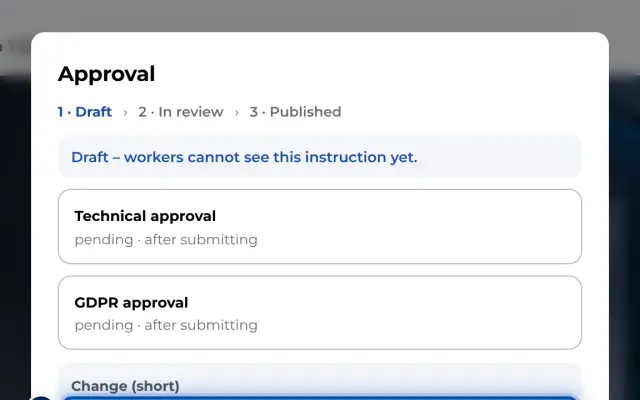
At the end of the day, tap Check & approve. With both approval rights you publish in one go with Approve & publish, so you have your QR code tomorrow. Without these rights you submit, and an approver approves. Approving needs a network connection (Submit for approval).
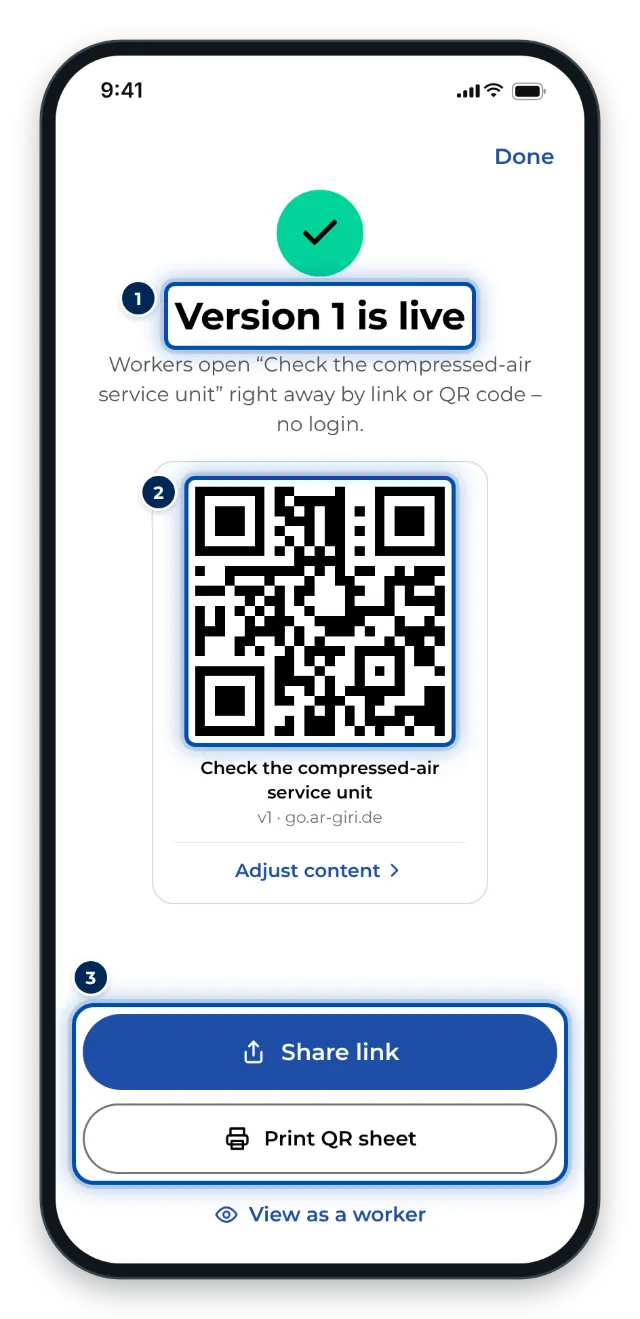
After the approval, version 1 is live: tomorrow’s QR code is ready
Next: Lesson 4 · Refining