FAQ
Can I create instructions for software?
Click-by-click instructions for SAP, ERP or other programs: how screen recording works in GIRI and what the alternatives are.
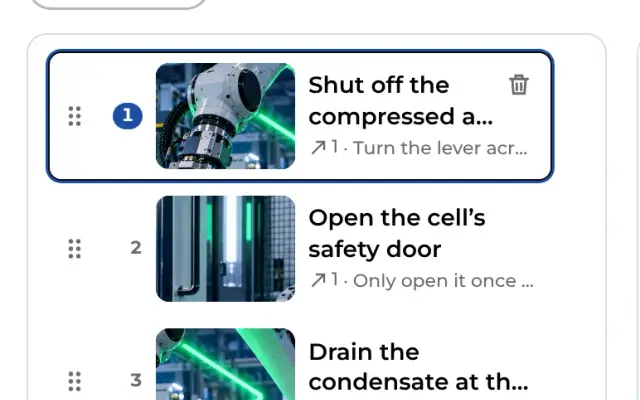
The short answerYes. On a PC you record a program directly in GIRI: after every click that changes something, GIRI takes a picture, and the pictures become steps. Alternatively, upload screenshots or photograph the screen with your phone.
Recording your screen (on a PC)
-
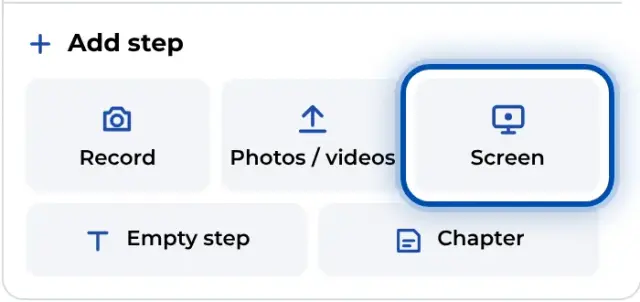
Open the instruction and, under Add step, click Screen. The first time, GIRI explains how it works; you start with Start recording.
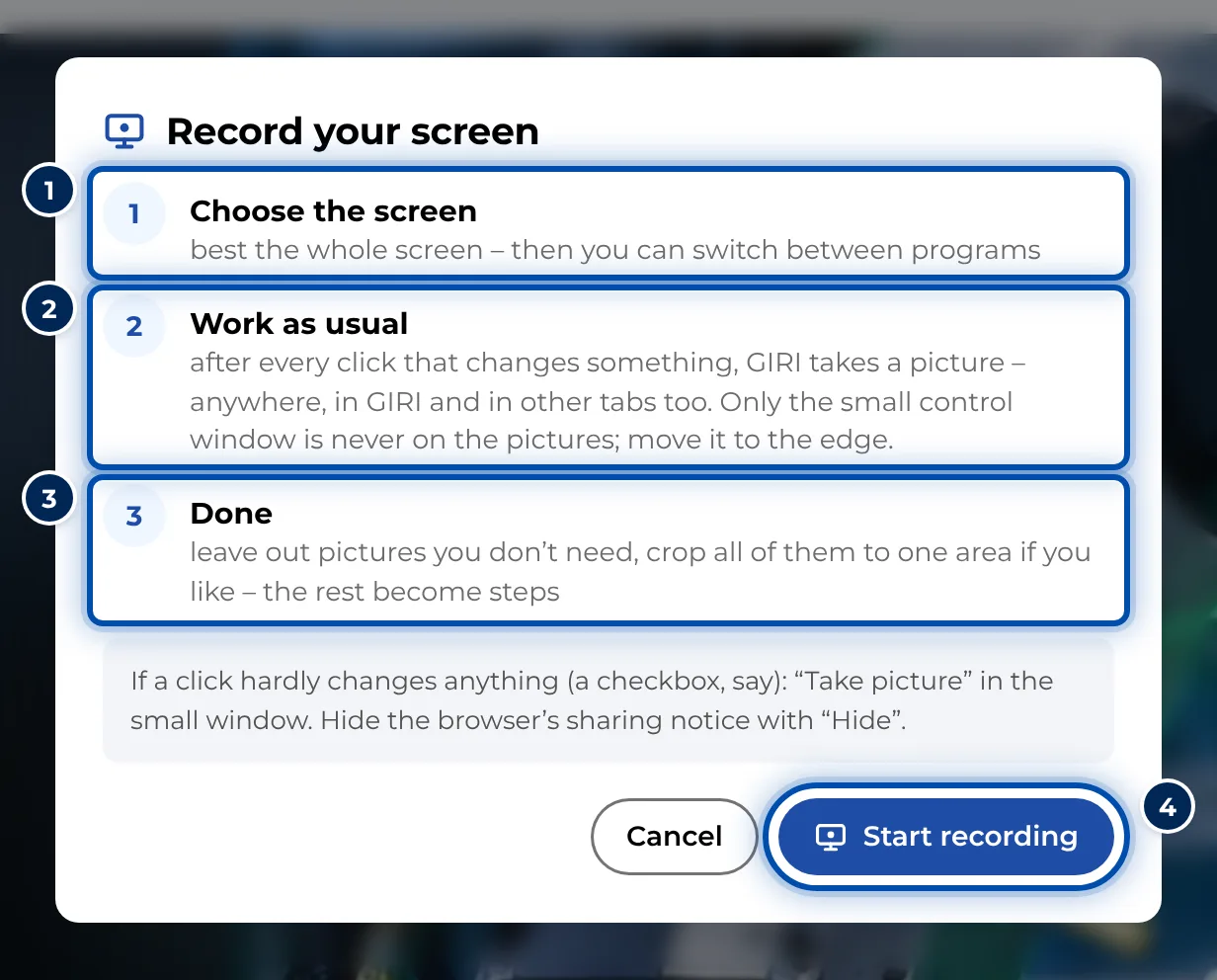
The first time, GIRI explains screen recording in three steps -
In the browser, choose the whole screen, a window or a tab.
-
Work as usual in the program you chose. If a click hardly changes anything, such as ticking a box, press Take picture.
-
Finish with Done. Leave out pictures you don’t need, crop them all to the same area with Crop all if you like, and add the rest as steps.
It is most convenient in Chrome or Edge: there you control the recording from a small window that stays on top of every program. In other browsers such as Firefox, a bar in GIRI takes its place. Each recording can hold up to 150 pictures, sharp enough for small print. More in Record your screen.
Screenshots or photos
- Add screenshots from your PC via Photos / videos or drag them onto the page.
- Your phone is quick too: photograph the screen and the step is done.
Afterwards
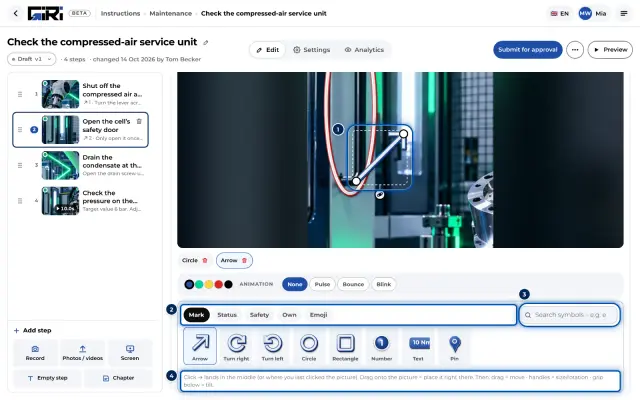
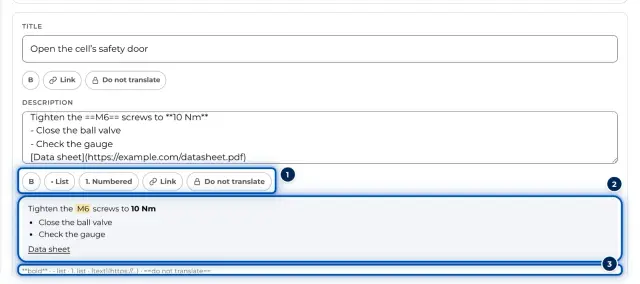
- Add a title and description, and use arrows or frames to mark where to click.
- Protect the program’s field names and buttons from translation with Do not translate. They then keep the names shown on screen in every language.