Overview
How approval works
Draft, in review, published: which two approvals an instruction needs, who may give them and what workers see at each stage.
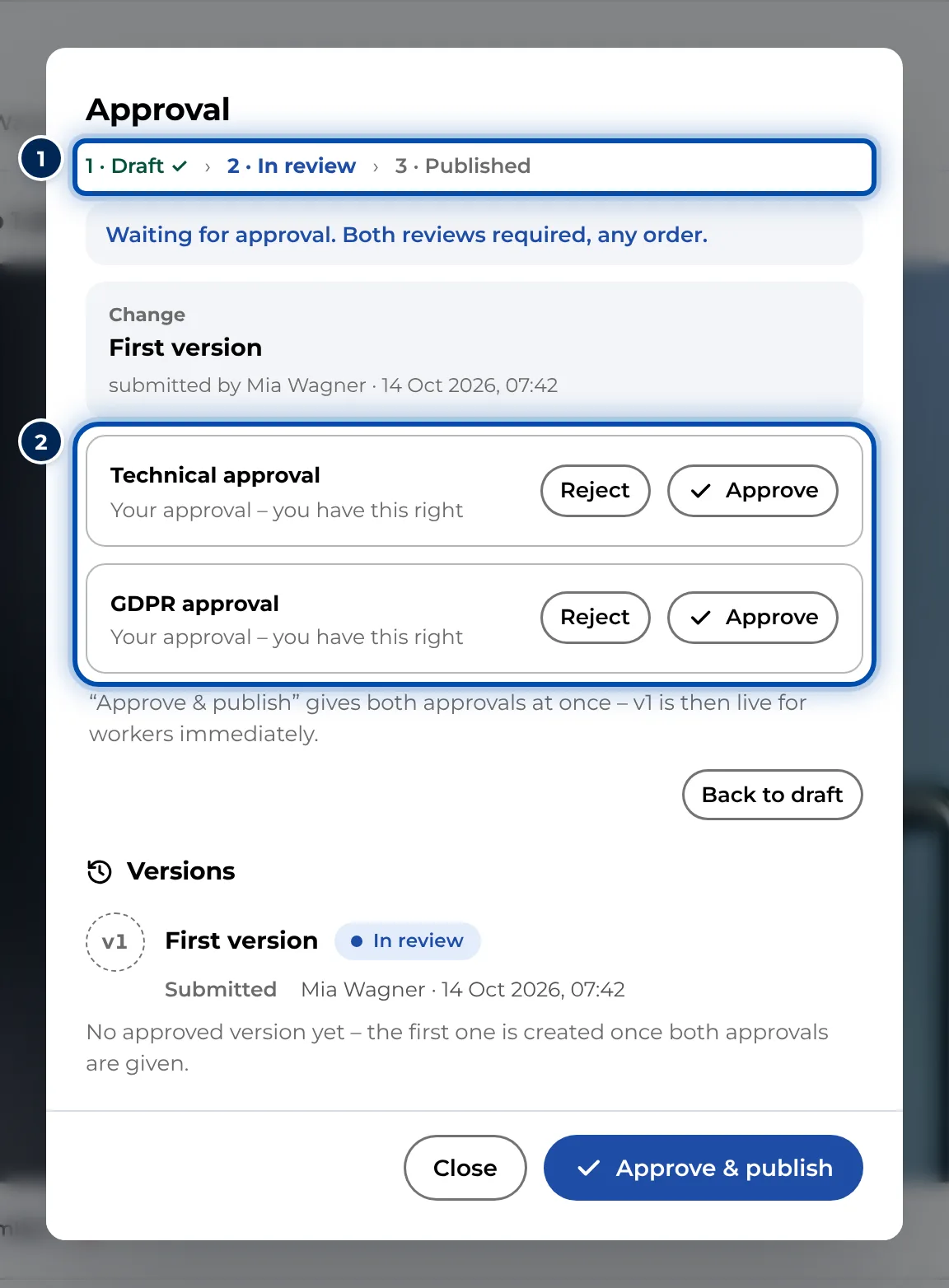
Workers only see an instruction once two approvals have been given: the Technical approval and the GDPR approval. The second approval publishes it straight away.
- DraftYou record and edit. Workers see nothing.
- In reviewSubmitted, waiting for the approvals.
- Technical approvalIs the routine right, complete and safe?GDPR approvalPeople or names in photos and videos?
Any order. The second approval publishes.
- PublishedWorkers open it by link and QR code.
The three stages
| Stage | What happens | What workers see |
|---|---|---|
| Draft | You record and edit. | Nothing. The link does not work yet. |
| In review | The instruction has been submitted and is waiting for the approvals. | Nothing. |
| Published | Both approvals have been given. | The instruction, through the link and the QR code, without signing in. |
This applies to a new instruction. When a published instruction is being updated, workers keep seeing the live version during the draft and the review.
Two approvals, in any order
- The Technical approval confirms the content: is the procedure correct, complete and safe?
- The GDPR approval is meant for data protection. For example: can people, names or other personal data be seen in the photos and videos?
The order does not matter. GIRI records every approval with the name and the time.
Who may do what
| Role | Technical approval | GDPR approval |
|---|---|---|
| Workspace Admin | yes | yes |
| Team Admin | yes | yes |
| Creator | yes | yes |
| Approver | yes | yes |
| Technical Approver | yes | no |
| Compliance Approver | no | yes |
| Compliance Manager | no | yes |
| Editor | no, can only submit | no |
| Viewer | no | no |
Roles apply per team, so someone can approve in one team but not in another. More in Roles and permissions.
Anyone with both rights publishes alone with Approve & publish, including their own instructions. GIRI does not enforce a four-eyes principle. If a second person should always check, nobody who creates instructions may hold both approval rights. With the Editor role, for example, someone can only submit, not approve.
Where pending approvals show up
GIRI sends no emails when an instruction is submitted, approved or sent back. Open tasks appear on the Start page under For you:
- Waiting for your approval appears for everyone who may give an approval that is still missing.
- Sent back appears for the person who created the instruction, together with the reason.
If it is urgent, let the approvers know directly.
Sending back, and changes during review
- Anyone who sends an instruction back has to give a reason. The instruction returns to Draft and both approvals are reset. The reason is kept in the history under Versions.
- If someone changes steps, texts or the title during the review, the instruction goes back to Draft without warning. Both approvals are then missing again.
After publishing
- The version number goes up by one. The link and the QR code stay the same.
- If you change a published instruction, the next version starts as a draft. Until it is approved, workers keep seeing the live version. In GIRI, v3 live shows which one that is. See Update a published instruction.
- Every approved version is kept, with its change, submission and approvals. See View and restore versions.
Differences between PC and phone
- On a PC, GIRI asks once more before the last approval, for example: Workers will see v1 at once. Approve now?
- On a phone there is no such question. The button, or the note above it, tells you beforehand that the instruction will go live at once.
- Approving needs an internet connection. Only submitting also works offline on a phone.
How to do it in practice: Submit for approval and Review, approve or send back.