Guide
Pick a name or number + PIN
How workers confirm a training: quickly by picking a name or securely with number and PIN. The difference, switching, signing out and lockouts.
What for?
So that a record belongs to the right person, you decide how workers identify themselves for a training. Pick a name is quick, but anyone can confirm for anyone. With Number + PIN, each person signs in with the number on their card and a 6-digit PIN, and every record reliably belongs to them. The signature at the end is required either way. GIRI activates training per workspace; ask at giri@ar-giri.de.
Before you start
- Training is activated for your workspace.
- You are a Workspace Admin.
- For Number + PIN: people on the list and printed PIN cards.
Step by step
-
Open the Menu at the top right, choose Training and the Settings tab. Under How workers sign in you see both options. The choice applies to every training and every person.
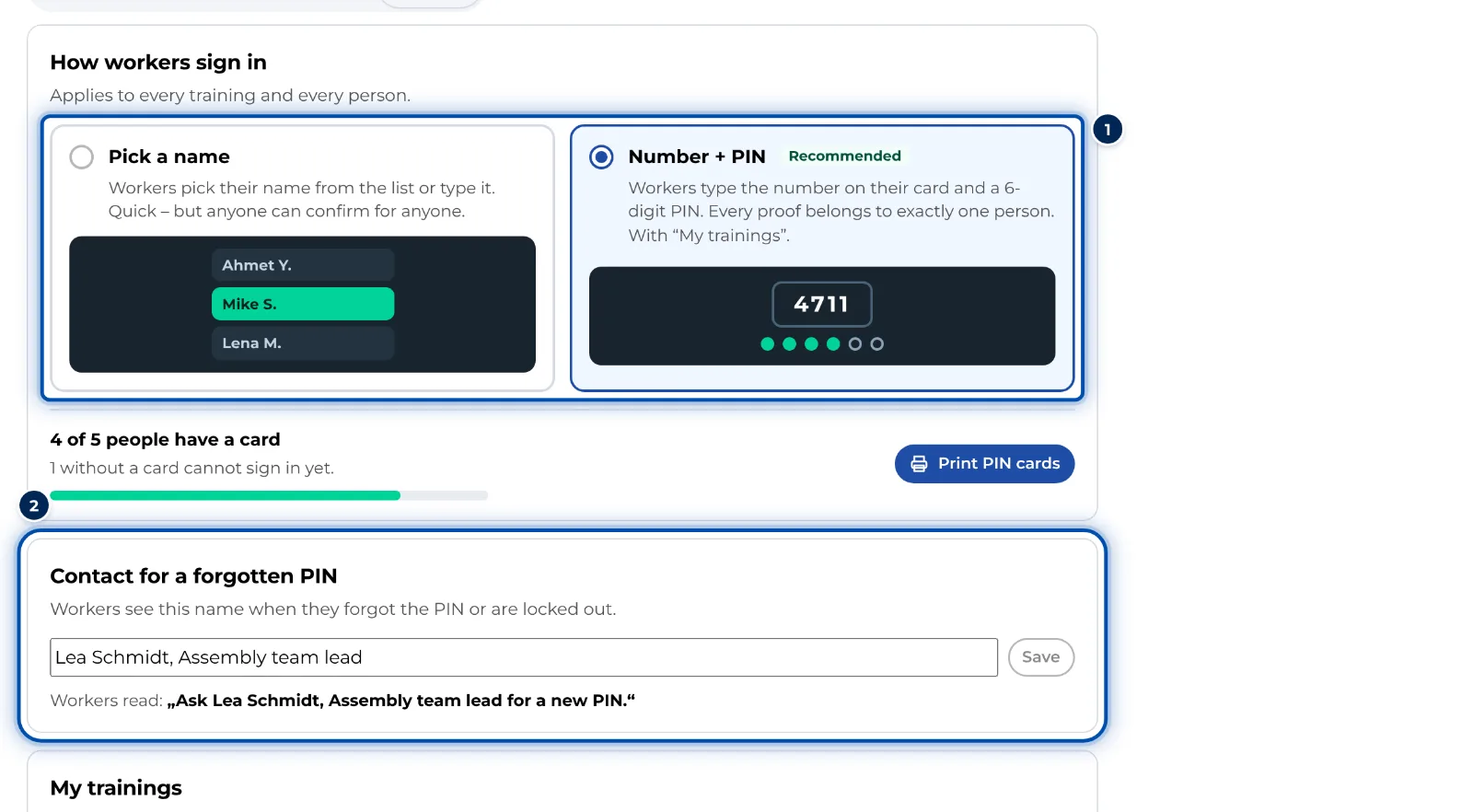
Training settings with Pick a name and Number + PIN -
Under Contact for a forgotten PIN, enter whom workers should ask when their PIN is missing or locked, for example Lea Schmidt, team lead Assembly. Click Save. Without an entry, the keypad and cards refer to your supervisor.
-
Click Number + PIN. GIRI shows the steps for switching: print the cards, check the contact, switch. If not everyone has a card yet, click Print 2 cards first. The dialog then appears again and you click Switch now. The switch applies at once to every training. Switch anyway switches even though cards are missing; anyone without a card cannot sign in then.
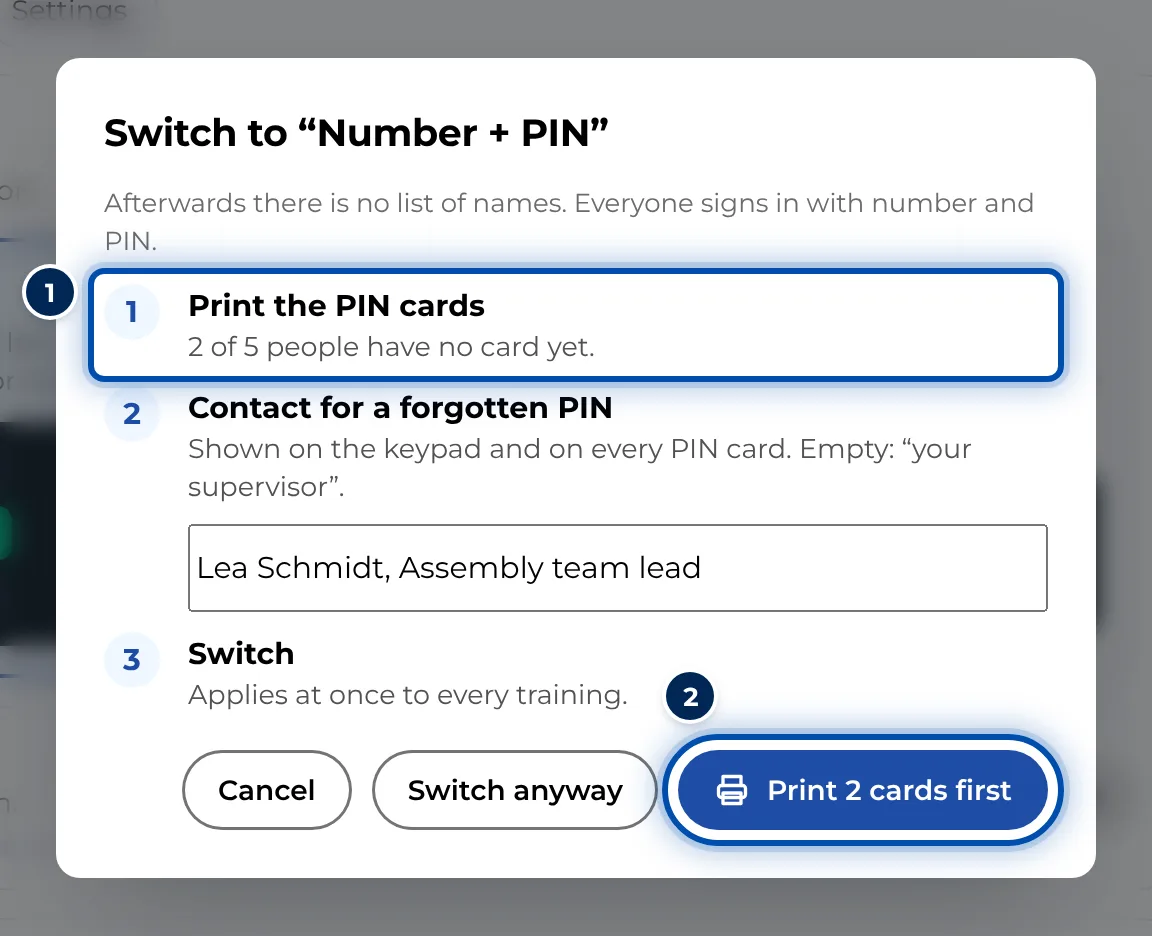
Switch to Number + PIN dialog with printing cards, contact and switching -
This is what workers see. With Pick a name, the training asks Who is being trained? at the start. As they type, GIRI suggests names from the list; a name that is not on the list can still be typed in.
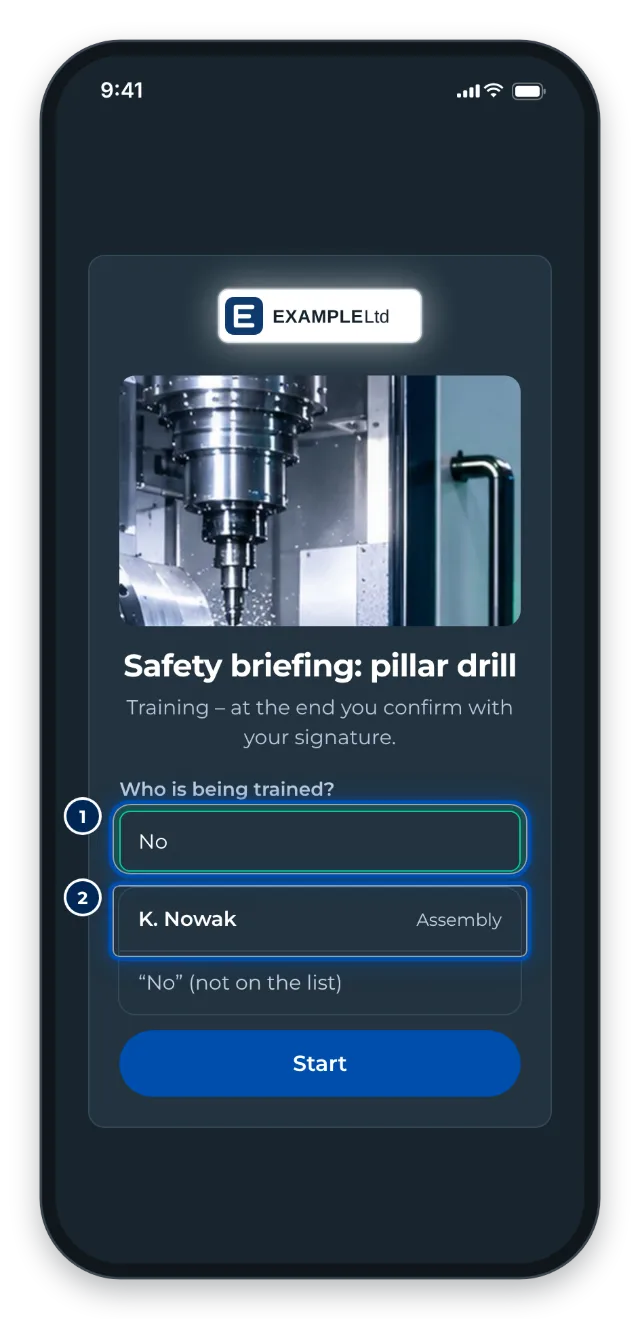
Phone: start of a training with the Who is being trained field and name suggestions -
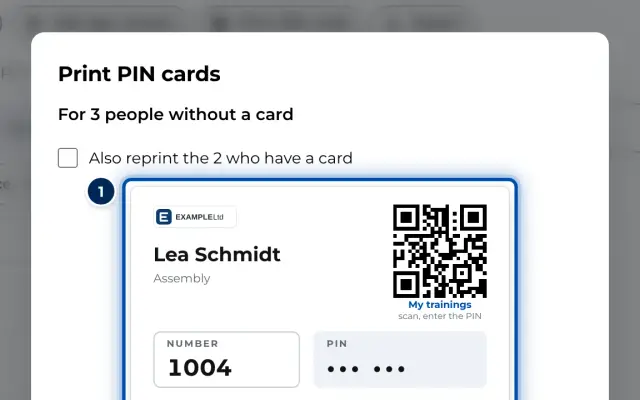
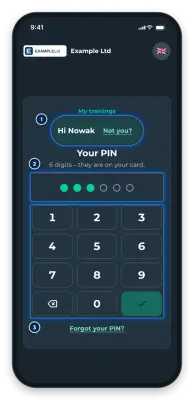
With Number + PIN, the training asks Who are you?. Workers type the number on their card and then the PIN on the large keypad. If they come via a personal link from Send training, the number is already filled in. The QR code on the card opens My trainings, also with the number.
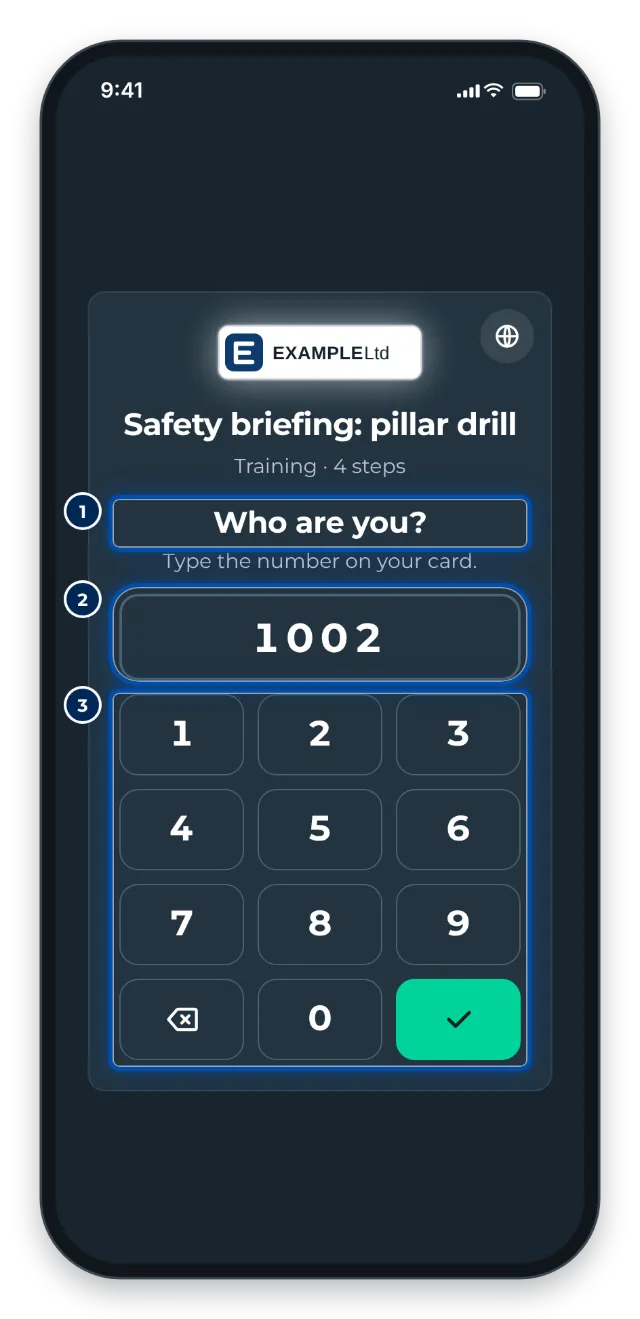
Phone: Who are you keypad with the number from the card -
To go back to Pick a name, click that option and Back to names. Every signed-in worker is signed out at once, and My trainings with the QR codes on the cards stops working. The PINs are kept and work again when you switch back.
Tips
- With Number + PIN, nobody stays signed in on a shared tablet for long. The sign-in only lives in the open browser tab. After 3 minutes without input, GIRI asks, for example, Are you still there, Tom? With the PIN, the person carries on where they were. If nobody enters it, GIRI signs out after 30 seconds.
- After confirming, GIRI signs the person out by itself after 30 seconds without input. Next person signs out at once.
- With Pick a name, the device fills in the last name picked next time. On shared tablets, each person has to pick their own name.
- My trainings for workers only exists with Number + PIN.
- Train a group works with both options and without a PIN, because the trainer vouches for the group.
Common problems
- A worker has forgotten their PIN. Print them a new card in the person’s detail. GIRI never shows a PIN a second time.
- Wrong PIN. 3 tries left. After 5 wrong PINs GIRI pauses, first for 30 seconds, then 2 minutes, then 15 minutes. After 50 wrong PINs in a row the PIN is locked for 24 hours. In the person’s detail, Unlock lifts the pause or lock at once.
- No connection. GIRI needs the internet briefly to sign you in. Check Wi-Fi or mobile data. Without a connection nobody can sign in with a PIN.
- A worker has no card yet. They see You do not have a PIN yet. Ask Lea Schmidt. Print them a card, see Print PIN cards.
- Records arrive as name picked although PIN is set. They were signed before the switch and waited on a device without a connection. They are listed under Records without a person in the People tab; assign them there.