Guide
Export an instruction as PDF
Download an instruction as an A4 PDF with a cover page, approval status and signature field, in the original or one of 13 languages.
What for?
Sometimes it has to be paper: for an audit, for your records or for a workstation without a screen. The SOP-style PDF is a snapshot. The always up-to-date version remains the instruction in GIRI.
Before you start
- In the list: the edit right or the share right for the instruction. With the instruction open, the menu item is in the ⋯ menu.
- For a language other than the original: an internet connection, because DeepL translates first.
- Any status works: Draft, In review or Published.
Step by step
-
Open the menu: in the list, ⋯ on the card and then PDF; with the instruction open, ⋯ and then Download PDF.
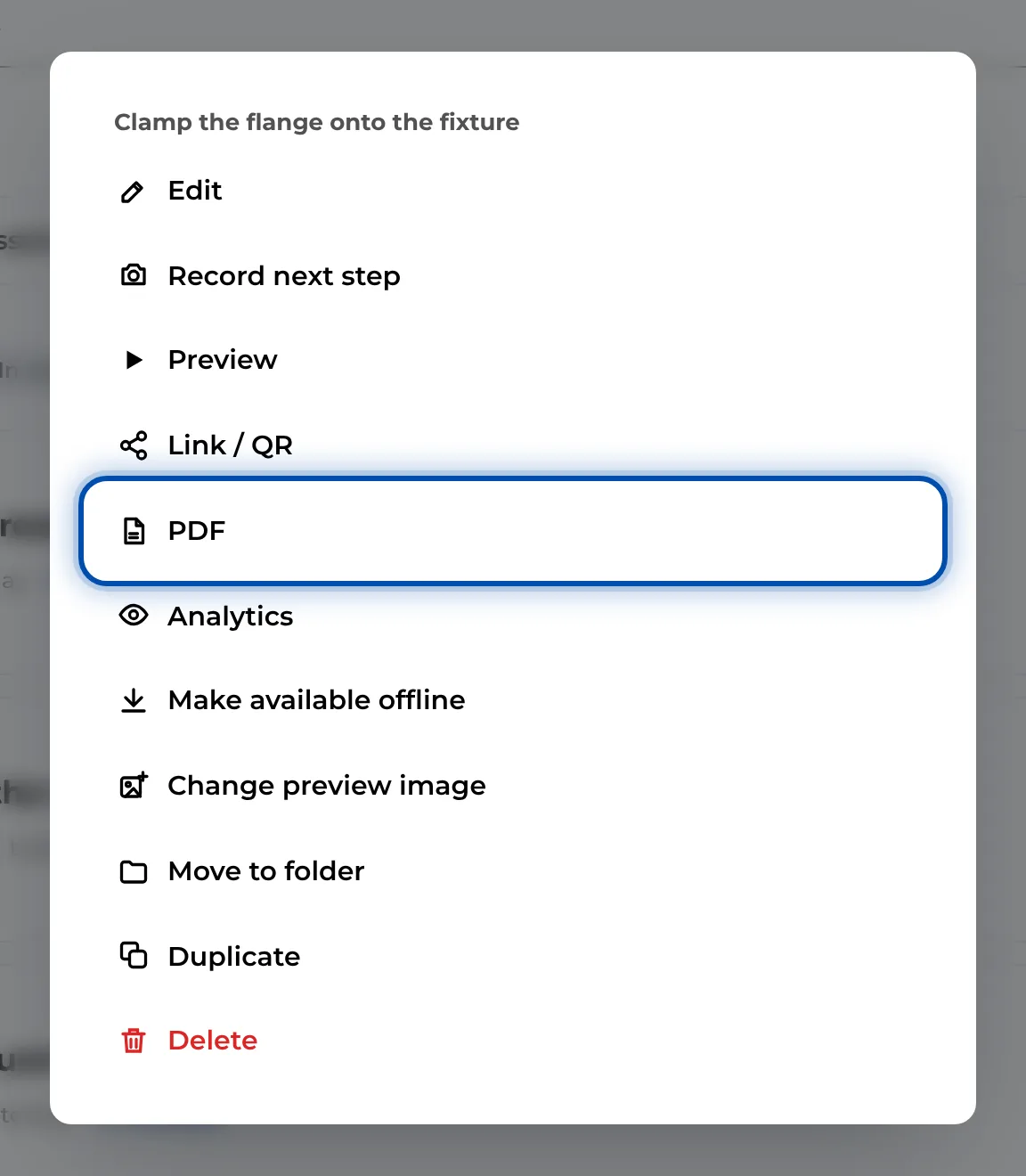
The PDF item in an instruction’s menu -
Under PDF language, choose Original or one of the 13 languages. A ✓ means already translated. A ↻ means the text has changed since, so GIRI translates again. DeepL creates any missing translation first, and GIRI shows Translating … meanwhile.
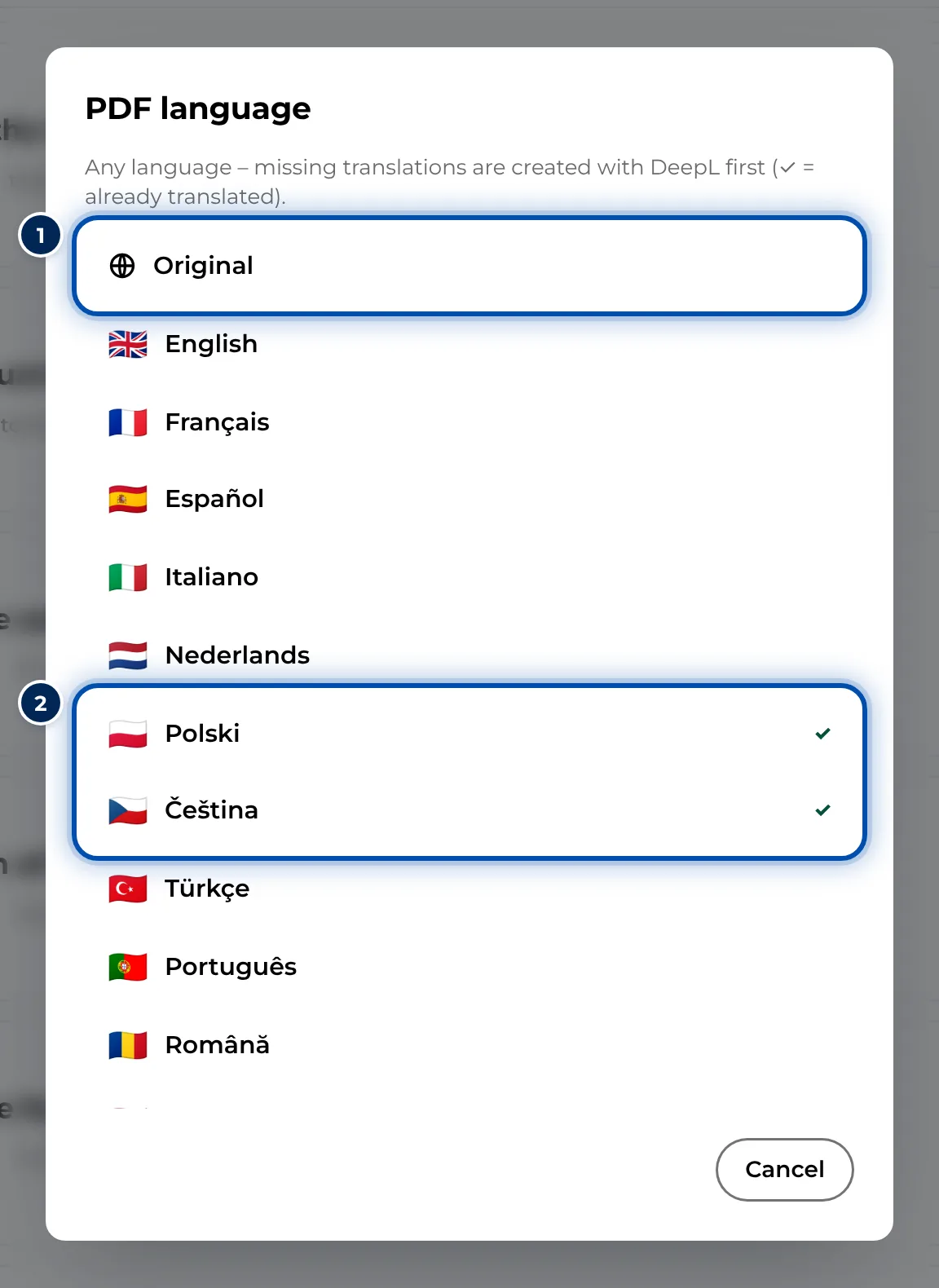
Choosing the language for the PDF -
GIRI builds the PDF (Creating PDF …) and downloads it. The file name contains the title, the version and, for translations, the language code, for example
clamp-the-flange-onto-the-fixture-v3.pdf.
What the PDF contains
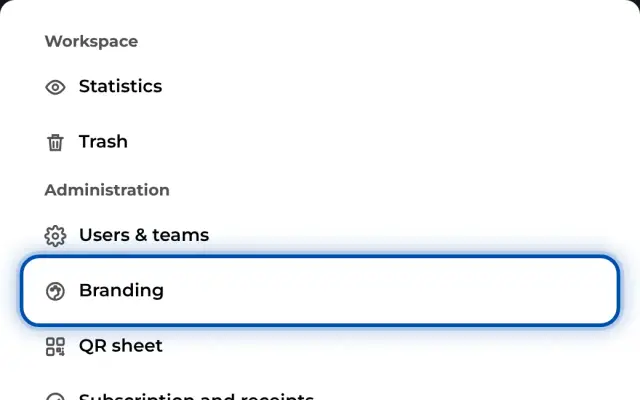
- On every page, your logo or company name from branding and Work instruction / SOP at the top; document number, version, status, date and page number at the bottom.
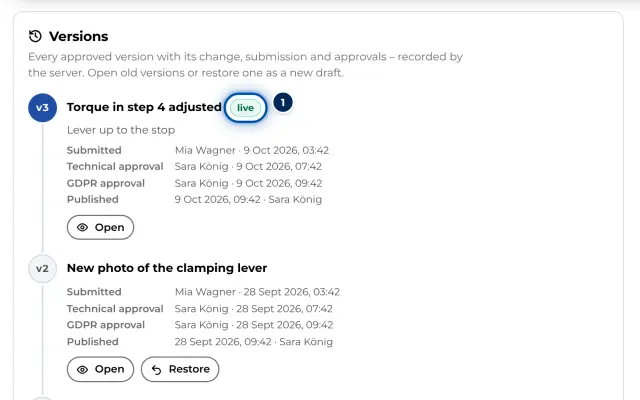
- A cover page with the title, Created by and six fields: Version, Status, Technical approval, GDPR approval, Steps and Checklist. Below them, for instructions with chapters, a contents list with page numbers, plus the Change history with the last six entries.
- Every chapter starts on a new page. Each step appears with its number, picture including markings, title, description and warning. Videos appear as up to three stills.
- Steps that workers confirm according to the checklist get a Confirmed box.
- At the end, lines for Signature worker with name, date and signature.
Tips
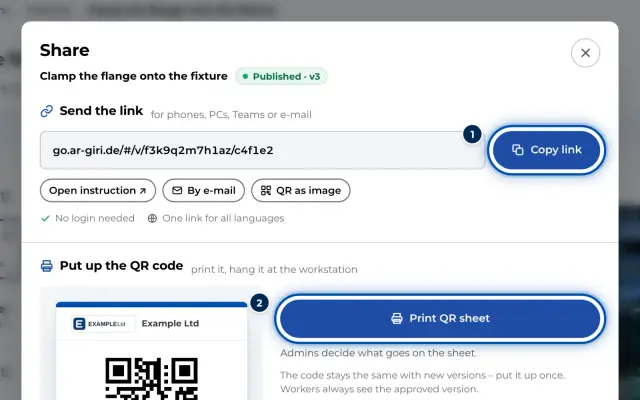
- For workers, the link or QR code is usually the better choice: it always shows the approved version, videos included. There is a comparison under Link, app or PDF.
- Replace printed PDFs when a new version is approved. The version is in the footer of every page.
- GIRI stores a translation made for the PDF. For a published instruction, workers then get that language without waiting.
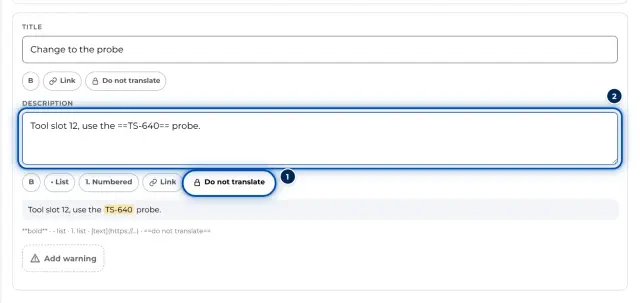
- Bold text, lists and links appear as plain text in the PDF, links with the address in brackets.
Common problems
- The PDF says Draft or shows a change that is not approved yet. The PDF shows the working state. Export the approved version before you start on the next one, or wait for the approval.
- The translation fails. DeepL cannot translate without internet. Try again with a connection or choose Original.
- Pictures are missing from the PDF. The device could not load them, for example without a connection or because a recording has not been uploaded yet. Export again with a connection.
- PDF is missing in the list. Viewers have neither the edit right nor the share right. Ask someone who has one of them.