Guide
Update a published instruction
Change an approved instruction without workers seeing half-finished work: the live version stays in place until the new one is approved.
What for?
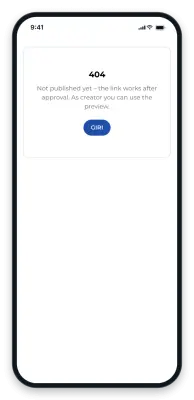
Processes change, and so do instructions. You can rework a published instruction at your own pace. The link and the QR code stay the same, so you do not have to replace any QR sheets on the wall.
Before you start
- You can edit the instruction.
- The instruction is Published.
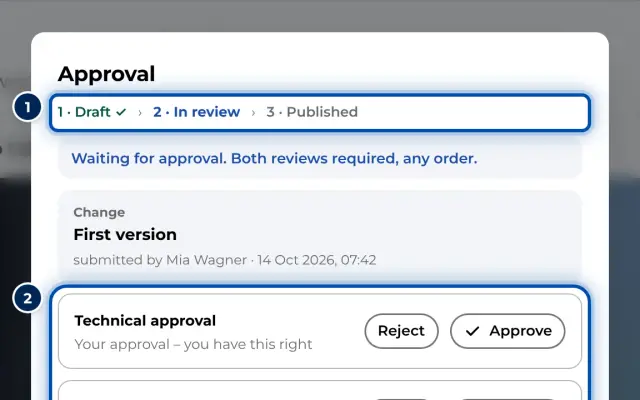
- The new version needs both approvals again, see How approval works.
Step by step
-
Open the instruction for editing.
-
Change something, for example a text, a picture or the order of the steps. GIRI starts the next version and briefly tells you so. Workers keep seeing version 3 until the new version has both approvals.
-
The top of the editor now shows Draft together with v3 live. Below it, a note reminds you: Workers keep seeing version 3. Your changes become visible after the approval. The card in the list also shows v3 live.
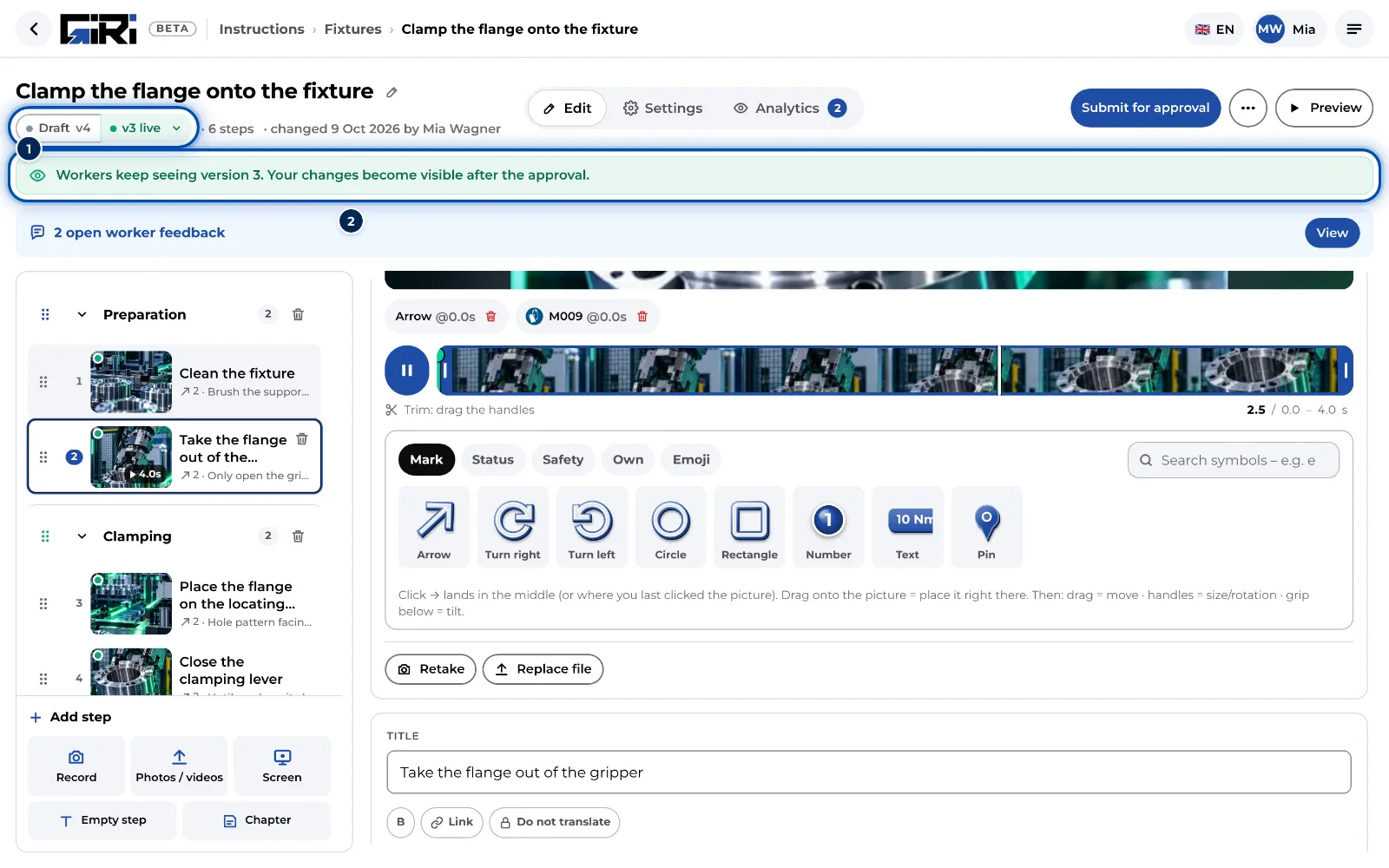
While you update an instruction, the editor shows which version workers see -
Make all your changes. Check them with Preview. The preview shows your draft, while the link still shows version 3.
-
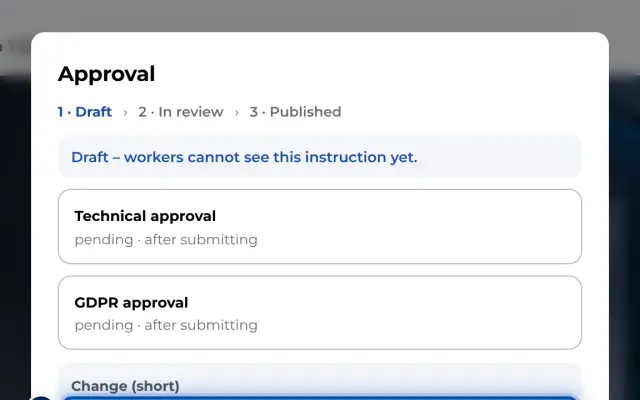
Click Submit for approval. Under Change (short), enter what has changed. The field is now empty and required.
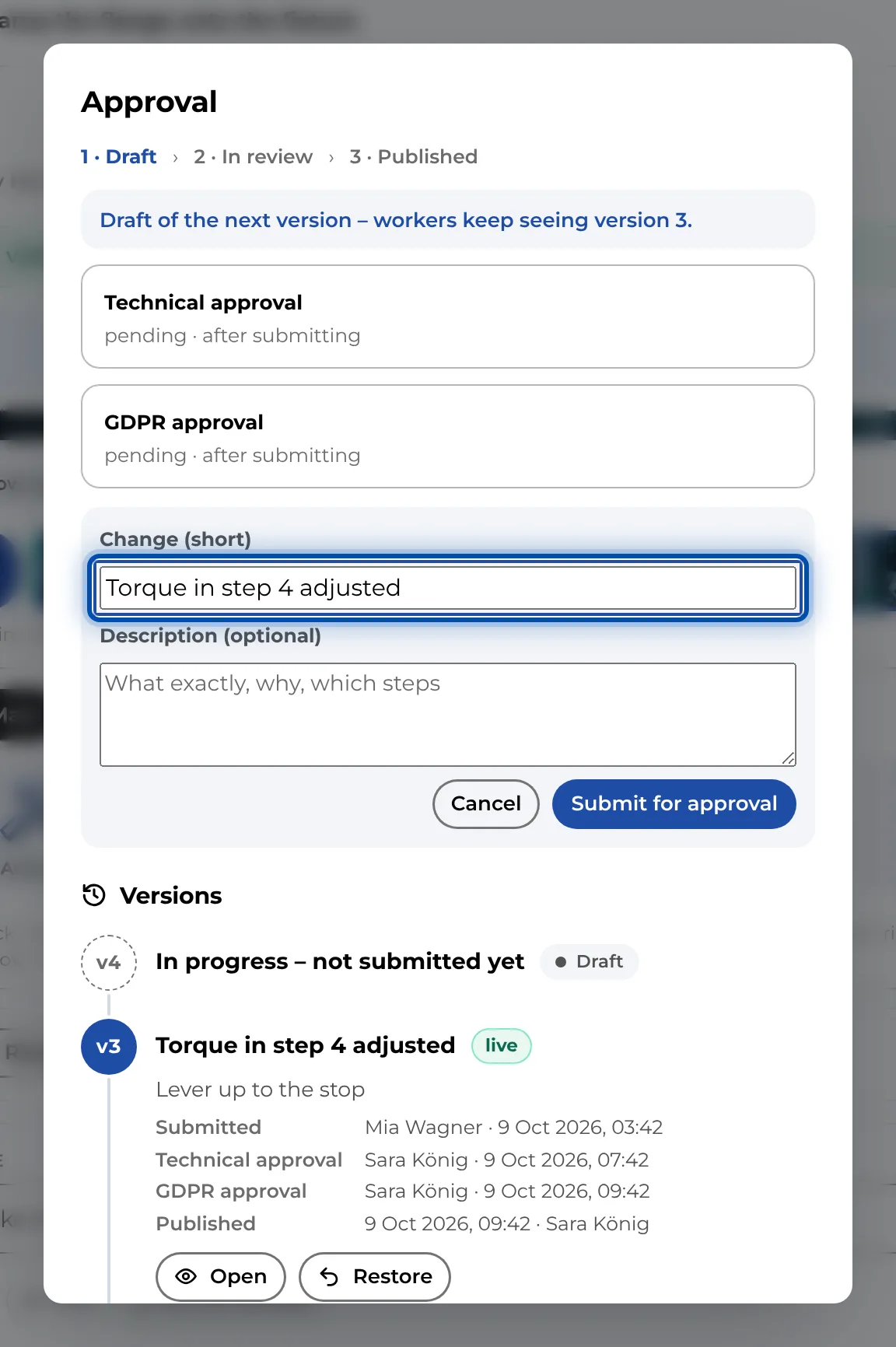
When you submit a new version, you have to name the change -
Once both approvals are in, version 4 is live. Workers see it at once through the same link and QR code. More about submitting in Submit for approval.
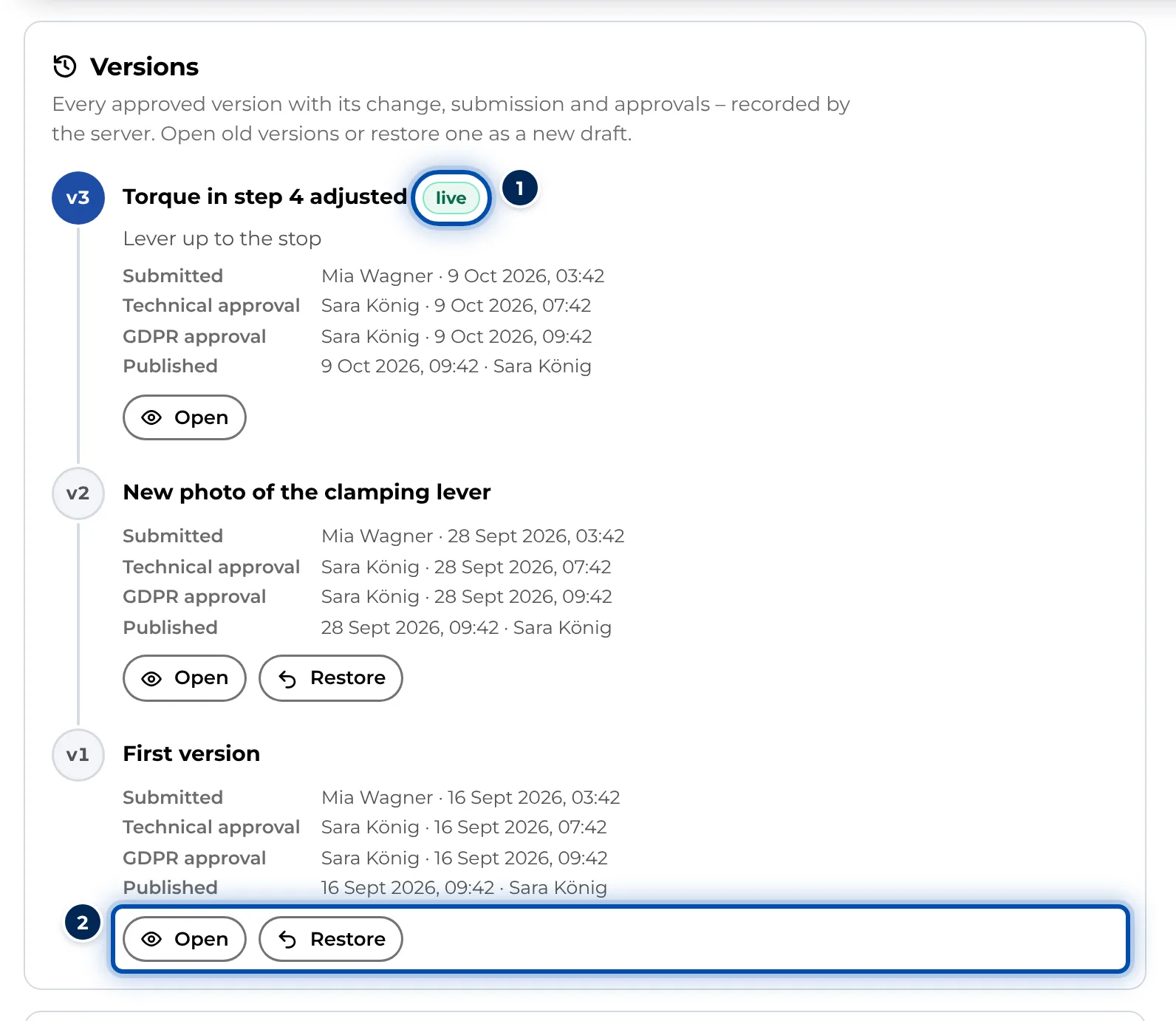
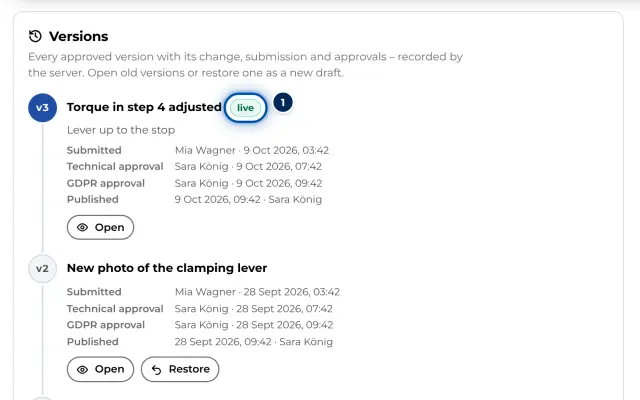
The list of versions in the settings of an instruction
Tips
- Collect your changes and submit them together. Every publication creates a new version in the list under Versions.
- Settings such as the checklist, the signature or feedback do not need a new approval. If no update is in progress, they apply to workers at once. If one is in progress, they apply from the next approval.
- If the version or the date is printed on your QR sheets, sheets already on the wall show the old details afterwards. The code still opens the new version, see Print the QR sheet.
- The PDF always shows your working copy, not the live version. Download it again after the approval.
- While an update is in progress, workers without a login cannot have a new language translated. Languages that were translated before keep working.
Common problems
- Workers do not see my change. The new version has not been approved yet. Submit it and have it approved.
- The instruction was in review and is back in draft. Someone sent it back or changed it during the review. A change resets it without warning and both approvals are then missing again. Submit it once more.
- I want to discard my update. Restore the live version under Versions, see View and restore versions. Your draft then has its content again. Workers see the live version the whole time.
- The preview and the link show different things. That is how it should be: the preview shows the draft, the link shows the approved version.