Guide
Print the QR sheet and choose its content
Print an A4 sheet with a large QR code for the workstation. Admins decide once, for everyone, what appears on it besides the code.
What for?
The QR sheet hangs where the work happens. Workers scan the code and have the instruction on their phone. The code stays the same for new versions, so one sheet lasts a long time.
Before you start
- To print: you may share, and the instruction is published.
- To choose the content: you are a Workspace Admin.
- The company name, logo and colour come from Branding.
Step by step
-
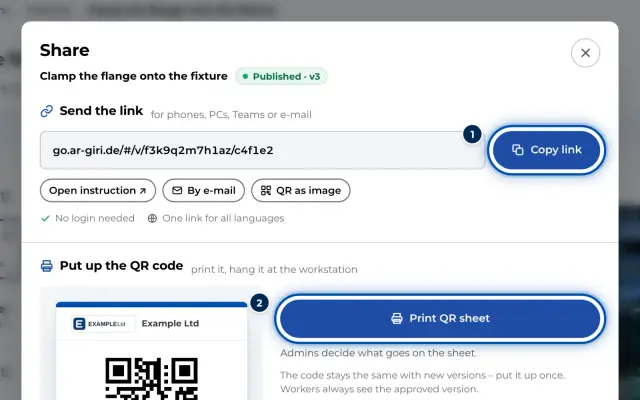
Open the instruction’s Share dialog, see Share the link and QR code. Under Put up the QR code you see a preview of the sheet.
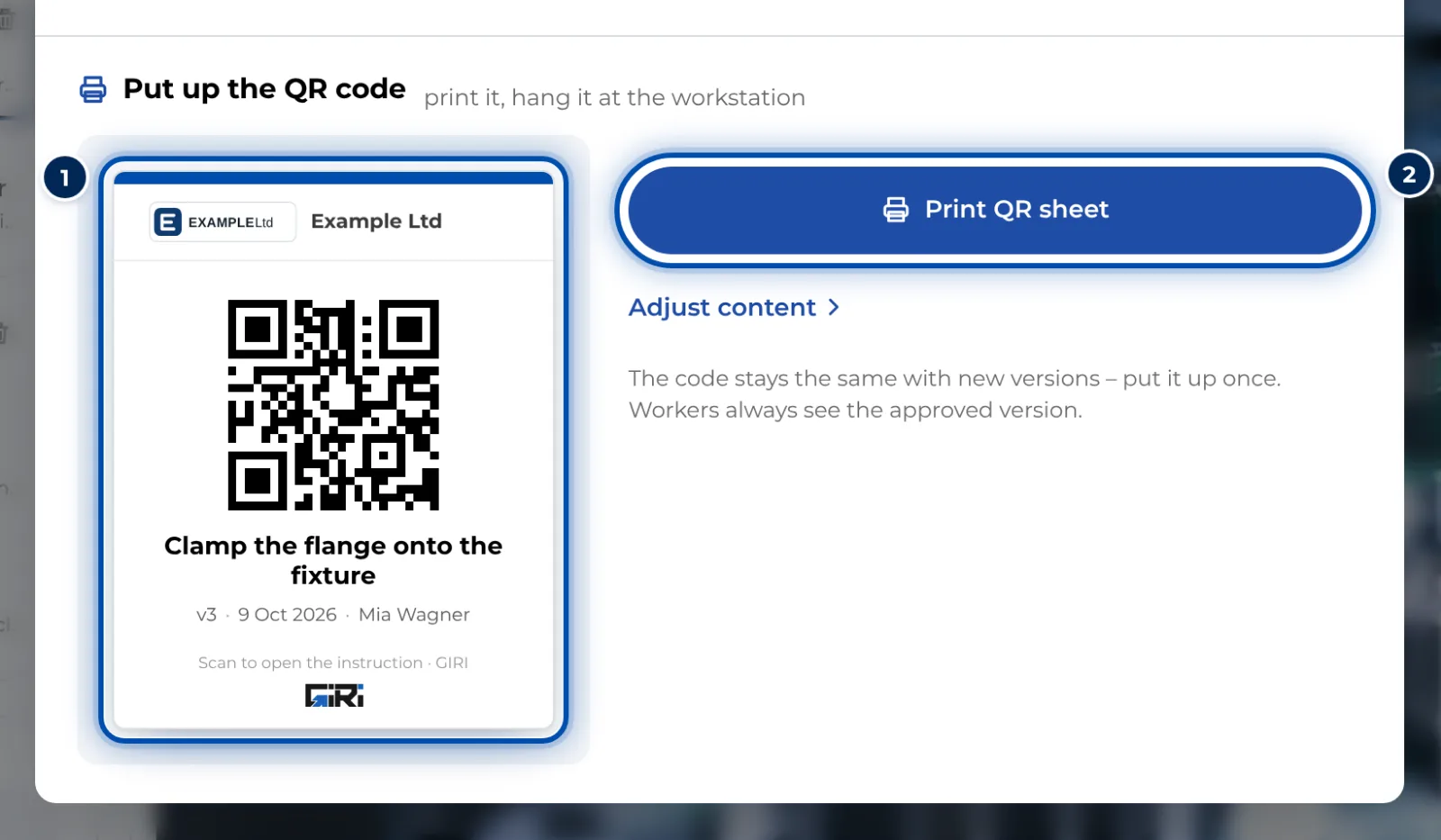
In the Share dialog, a preview shows what the QR sheet looks like -
Click Print QR sheet. GIRI creates an A4 PDF and saves it. On a phone, Print QR sheet is also offered right after publishing.
-
Print the PDF at actual size and put it up at the workstation.
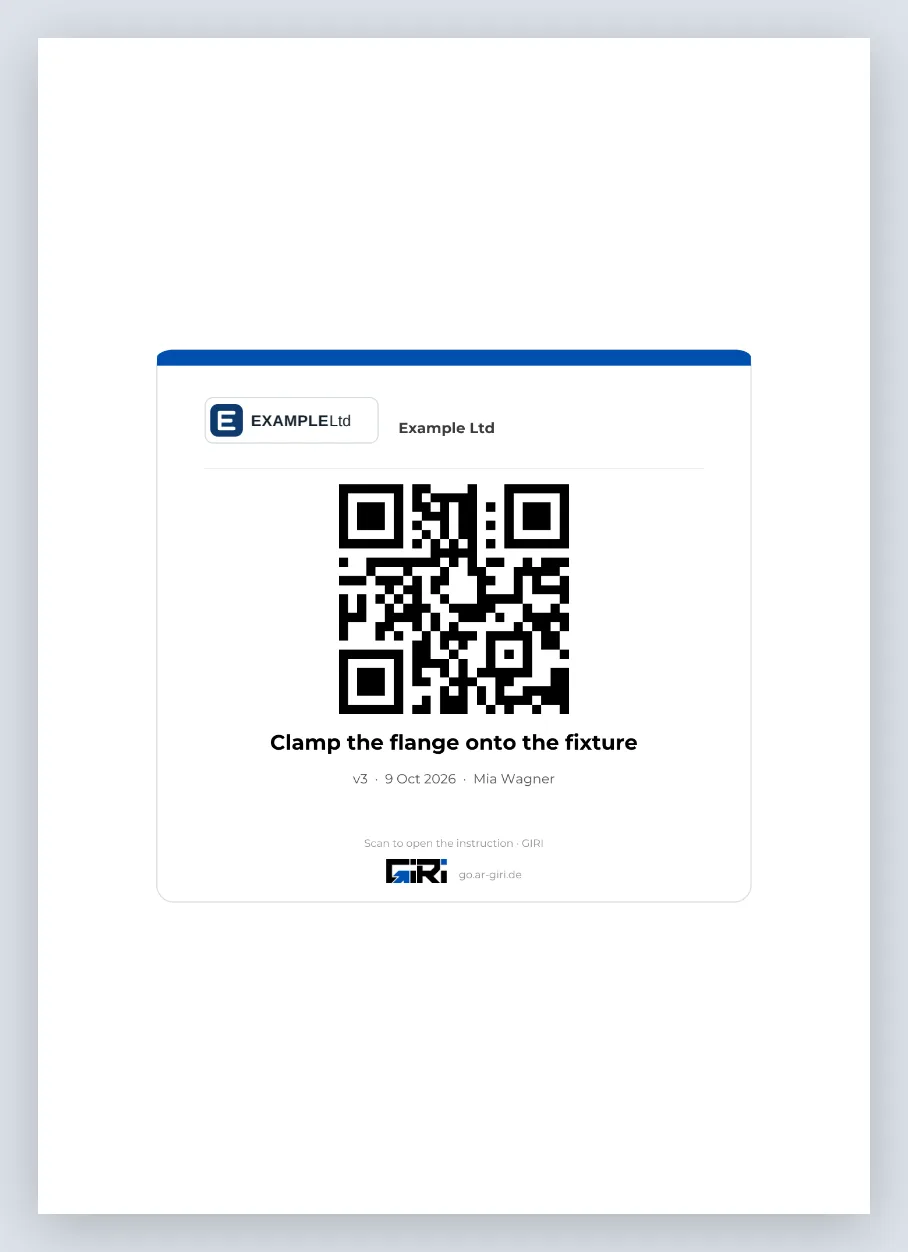
The QR sheet as an A4 PDF: logo, QR code, title, version and date -
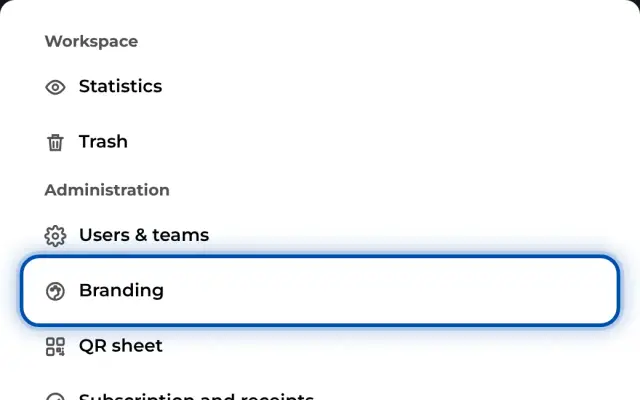
As an admin, you decide what appears on every sheet. Open the menu and choose QR sheet under Administration. Alternatively, click Adjust content in the Share dialog. Settings · QR sheet opens.
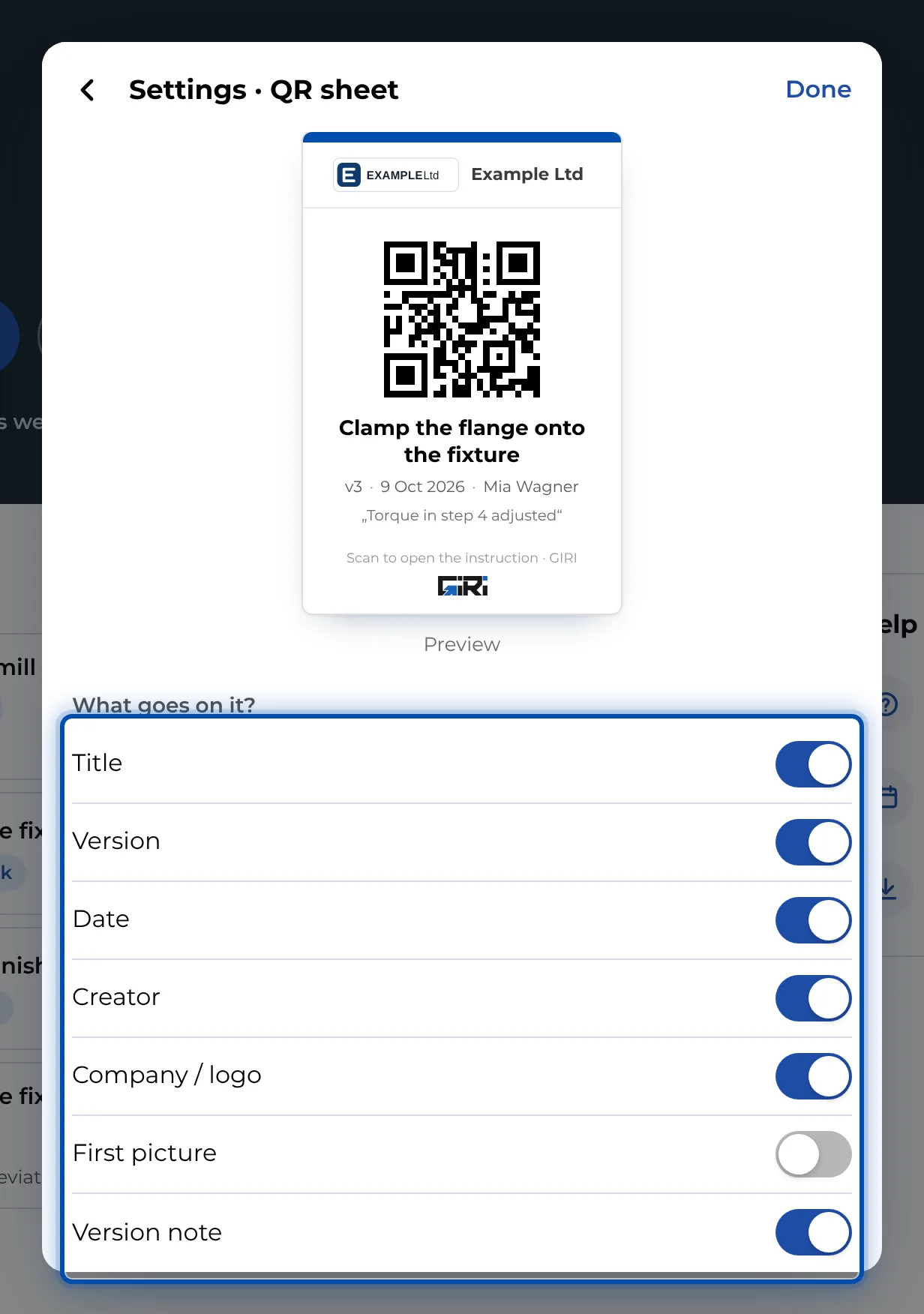
Settings for the QR sheet with a preview and switches -
Under What goes on it?, switch each item on or off. The preview shows the result straight away. GIRI saves every change by itself. Close with Done.
What the switches do:
| Switch | What appears on the sheet | Default |
|---|---|---|
| Title | the title of the instruction | on |
| Version | the version workers currently see. Without an approval it stays empty. | on |
| Date | the date of that version | on |
| Creator | who created the instruction | on |
| Company / logo | logo and company name from Branding | on |
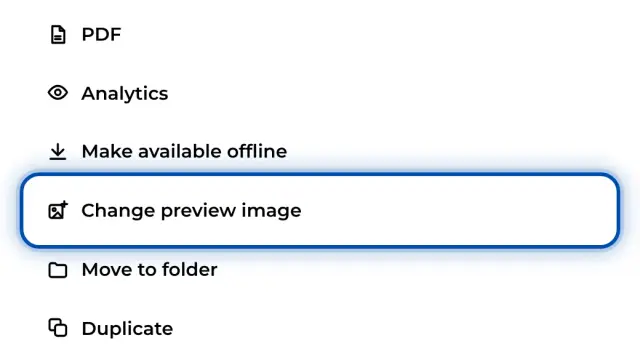
| First picture | despite the name, the instruction’s preview image, which is the first picture unless another one was chosen | off |
| Version note | the short change name of the live version | off |
Tips
- If the version and the date are printed, an old sheet still shows the old details after an update. The code still opens the new version. Switch both off if you do not want to reprint after updates.
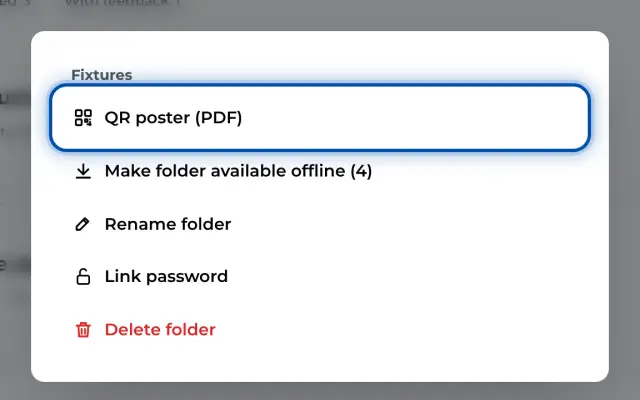
- To get all instructions of a folder on one sheet, use the QR poster.
- If you only need the code for your own label, use QR as image in the Share dialog.
Common problems
- Adjust content is missing. Only admins change the content. The dialog then says: Admins decide what goes on the sheet.
- The version is missing from the sheet. The instruction has not been approved yet. Only then is there a live version.
- A change to the content is not on the sheet. It applies from the next print. Print the sheet again.
- The logo or the company name is missing. Add them under Branding and keep Company / logo switched on.