Guide
Add and import people
Fill the list of people for training: add them one by one, import them from Excel or CSV, or bring in app users with the Viewer role.
What for?
Only people from the list of people appear in the training matrix. The list is independent of GIRI accounts: workers need neither an account nor an email address. A person’s department decides which trainings apply to them and which Team Admin sees them on the Training page. GIRI activates training per workspace; ask at giri@ar-giri.de.
Before you start
- Training is activated for your workspace.
- You are a Workspace Admin.
- For an import: an Excel file (.xlsx) or a CSV with a header row.
Step by step
Add one person
-
Open the Menu at the top right, choose Training and the People tab. Click Add person.
-
Enter the Name. Everything else is optional: Personnel no., Department, Mobile for WhatsApp, Language (the person’s trainings open in it) and Email. Click Save.
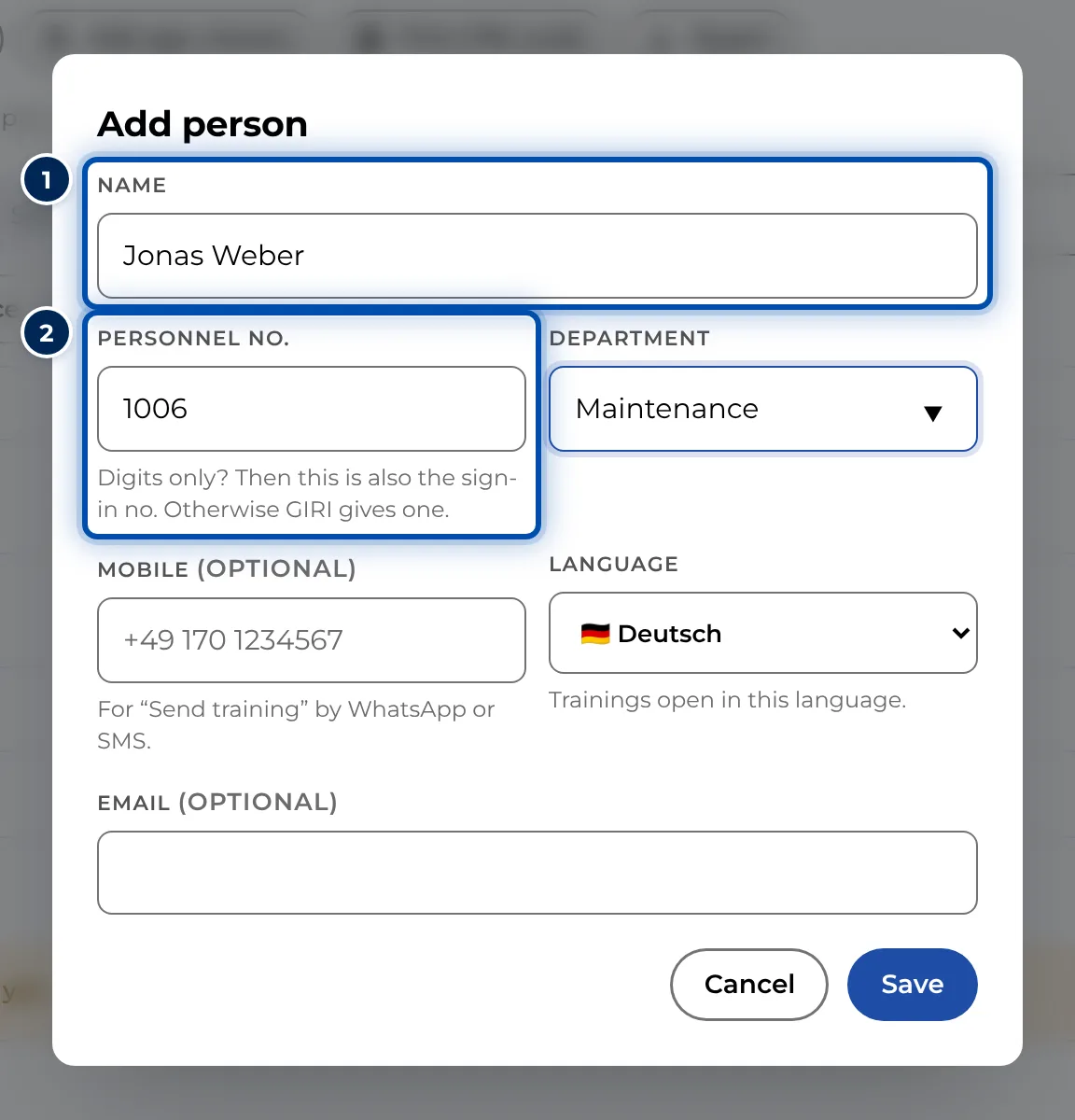
Add person dialog with name, personnel number, department, mobile and language -
If the sign-in is set to Number + PIN, GIRI asks straight away whether to print the card. Without a card the person cannot sign in, see Print PIN cards.
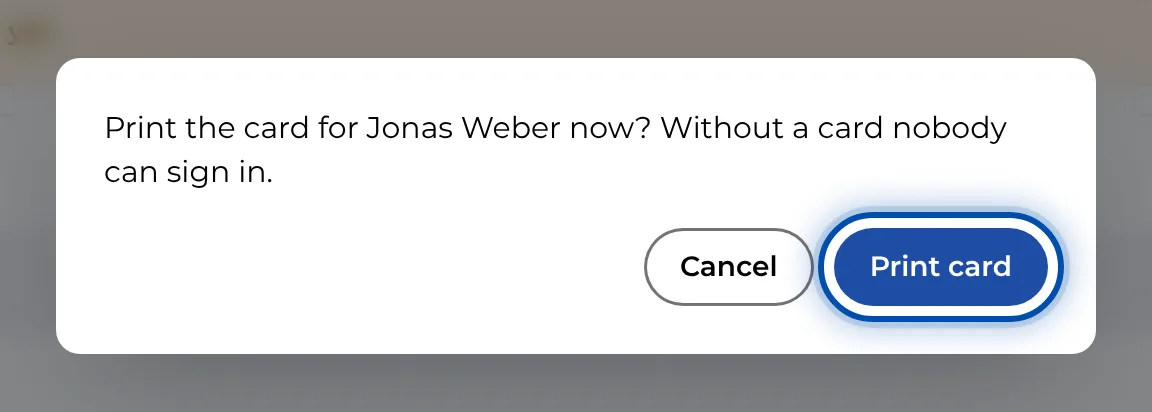
After adding a person, GIRI asks whether to print the PIN card now
Import from Excel or CSV
-
In the People tab, click Import Excel/CSV. If you do not have a list yet, Download template downloads a matching Excel template.
-
Click Choose file and choose the file. GIRI maps the columns from the header row: name or first and last name, personnel number, email, department, mobile and language. Check the mapping. Set columns you do not need to – do not import –.
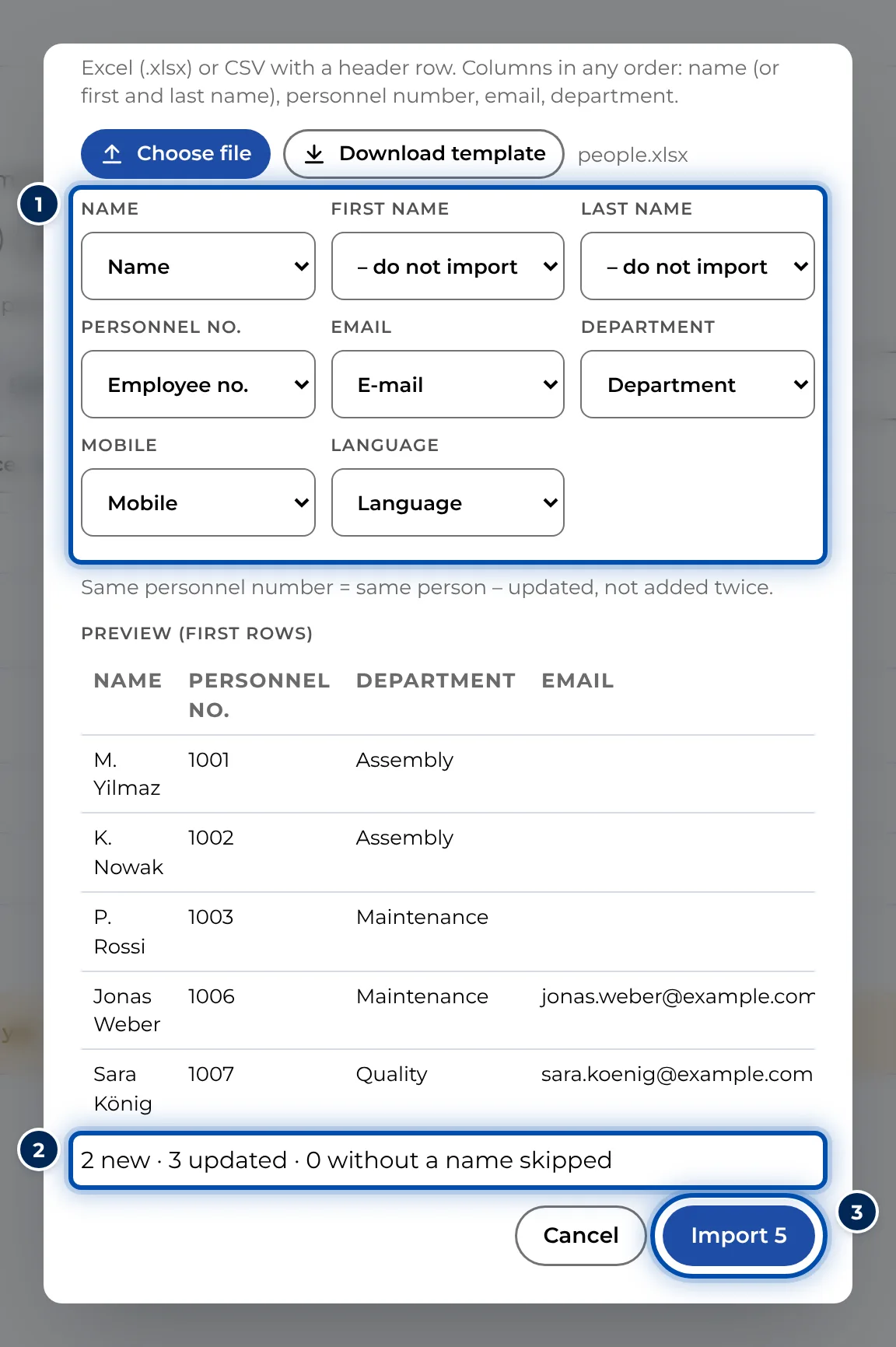
Import with column mapping, preview and summary -
Below the preview you see how many people are new, updated or skipped for lack of a name. Click the button, for example Import 25. The same personnel number means the same person: they are updated, not added twice.
Bring in app users
- Add app viewers adds people who have a GIRI account with the Viewer role to the list, linked by their email. Everyone is ticked. Untick anyone who should not be on the list and confirm.
Edit and remove
-
Click a person in the list, then Edit. To remove them, click Delete in the dialog and choose Remove from the list (their records are kept) or Delete for good – with all records.
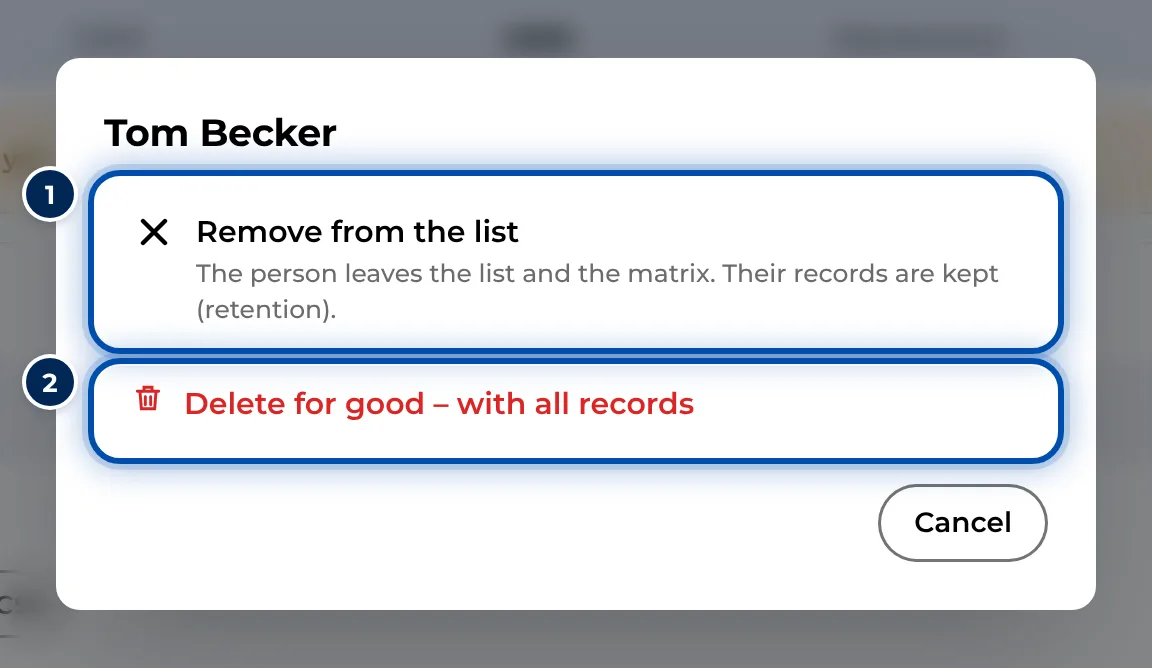
Removing a person: take them off the list or delete them for good
Tips
- If the personnel number consists of digits only, it is also the Sign-in no. with Number + PIN. Leading zeros are dropped, so 004711 becomes 4711. Otherwise GIRI assigns a four-digit number.
- Write the department exactly like the team of the Team Admin in charge. Only then do they see the person on the Training page.
- You can repeat the import at any time. If a column for email, department, mobile or language is missing, the existing values stay. Always include the personnel number, though: without that column, the import clears the personnel numbers of the people GIRI recognises by name. With Number + PIN they then get a new Sign-in no. and need a new card.
- When someone leaves the company, Remove from the list takes them off the list and the matrix. If you later add someone with the same personnel number, GIRI offers Restore and the old records count again. With Number + PIN the person then needs a new card.
Common problems
- K. Nowak already has this personnel number. Each personnel number may only appear once. Check whether the person is already on the list.
- GIRI cannot read the file. Old .xls files do not work. In Excel, use Save As to store the file as .xlsx or CSV and choose it again.
- Rows are missing after the import. GIRI skips rows without a name. Check the mapping of the name column.
- A person appears twice. Without a personnel number, GIRI only recognises a person by exactly the same name. Add the personnel number to the file.
- The Team Admin cannot see the person. Their department is named differently from the team.