Guide
Record steps with the camera
Take photos and short videos straight in GIRI: on a phone, on a tablet or with the webcam on a PC. Every recording becomes a step.
What for?
In GIRI every step shows exactly one action, as a photo or a short video. With the camera in GIRI you record the steps right at the workstation, one after the other. You add text, arrows and warnings afterwards.
Before you start
- A role with the right to edit.
- A phone or tablet with a camera, or a PC with a webcam.
- The browser is allowed to use the camera.
- An instruction, see Create a new instruction. On a phone it is created as you record.
Step by step
On a phone
-
On the start page, tap Record a new instruction. In an existing instruction, tap Add step and then Record.
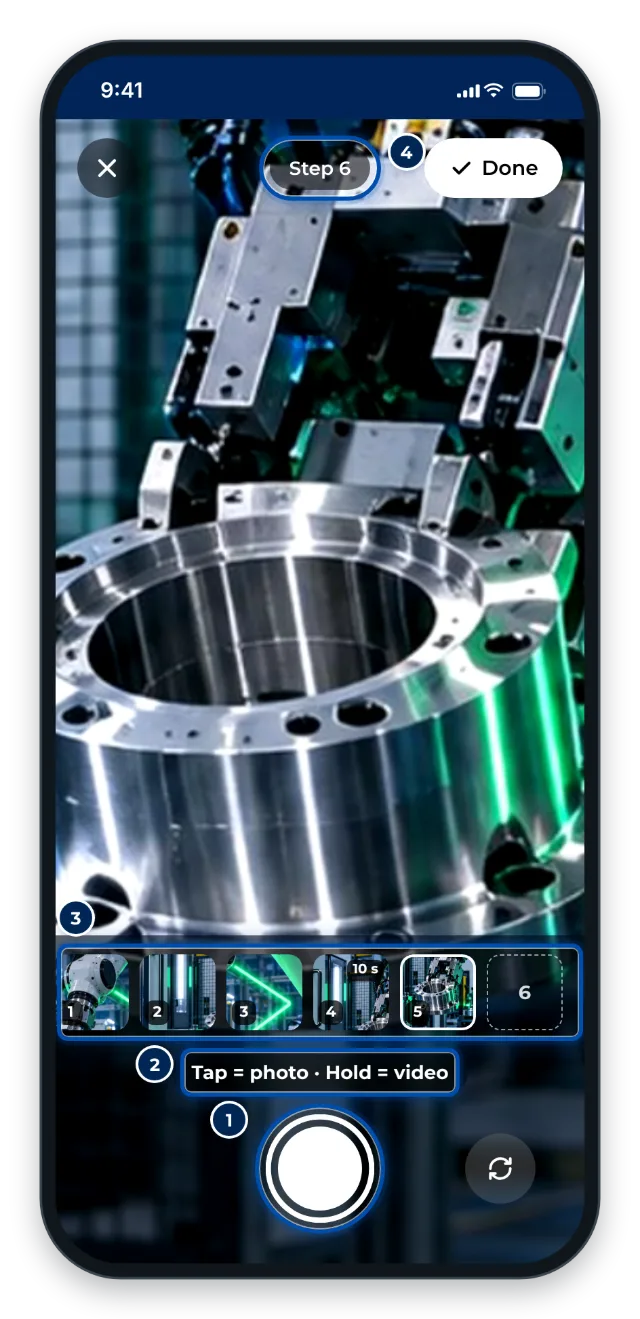
The camera in GIRI: the shutter and the steps so far at the bottom, the number of the next step at the top -
Tap the shutter briefly to take a photo. Hold it down and GIRI records a video until you let go.
-
Keep an eye on the display while filming. Up to 5 seconds it shows Perfect, from 5 seconds Getting long … and from 8 seconds Too long – keep it short!. After 12 seconds GIRI stops the recording by itself.
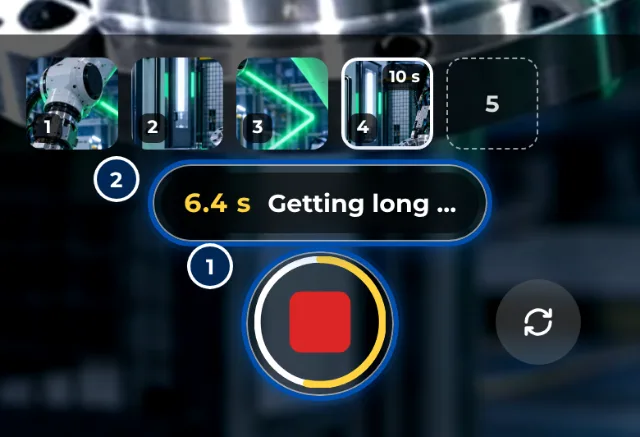
From 5 seconds the ring around the shutter changes colour and GIRI shows a hint -
Record the next step. Every recording becomes a step at once and GIRI confirms it, e.g. Step 3 saved. The strip above the shutter shows all steps.
-
Not happy with a recording? Tap its picture in the strip. The top then reads e.g. Replacing step 2, and your next recording replaces that step.
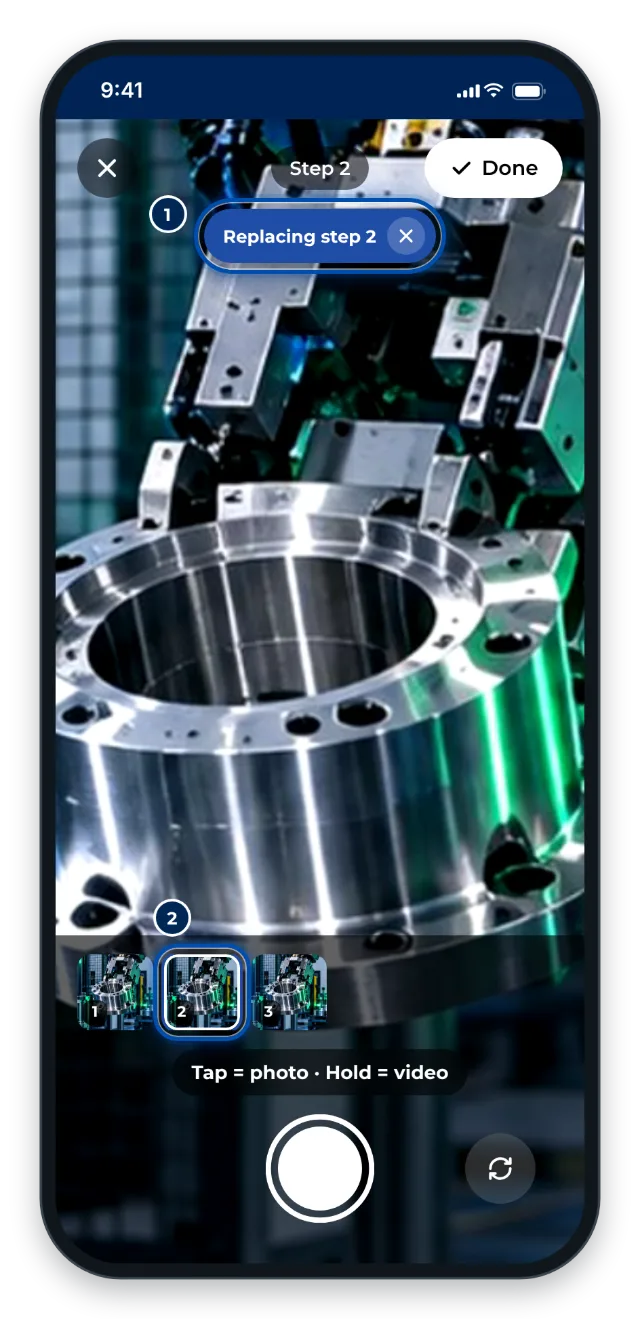
A picture tapped in the strip: the next recording replaces step 2 -
Tap Done. If the instruction has no title yet, GIRI now asks for one. Enter it and tap Continue to the steps. Keep recording takes you back to recording.
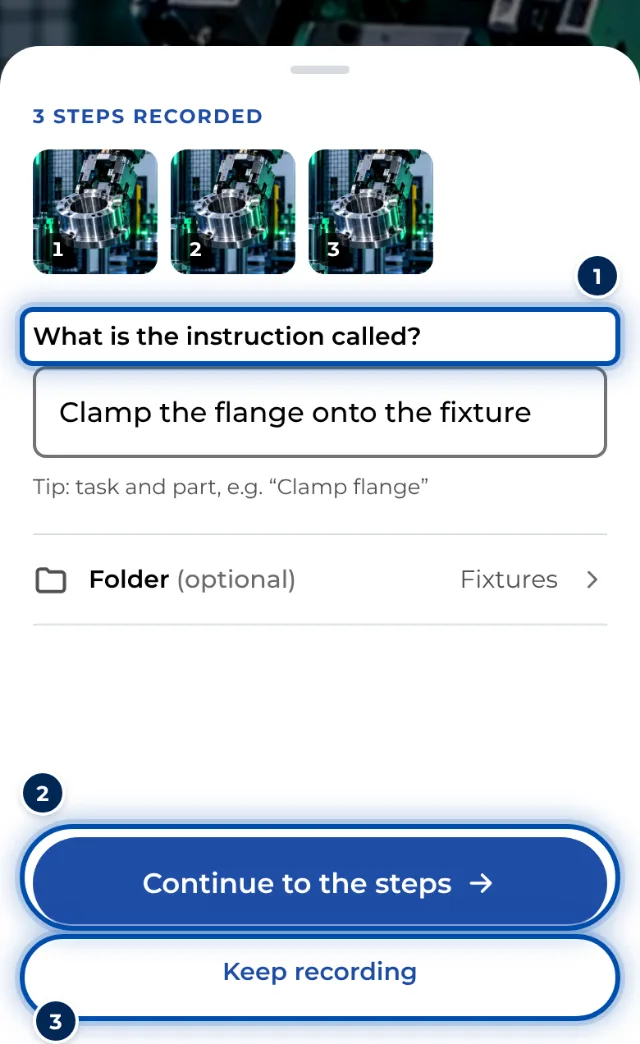
After recording on a phone, GIRI asks for the title of the instruction
On a PC
-
Open the instruction in the editor. Below the list of steps, under Add step, click Record.
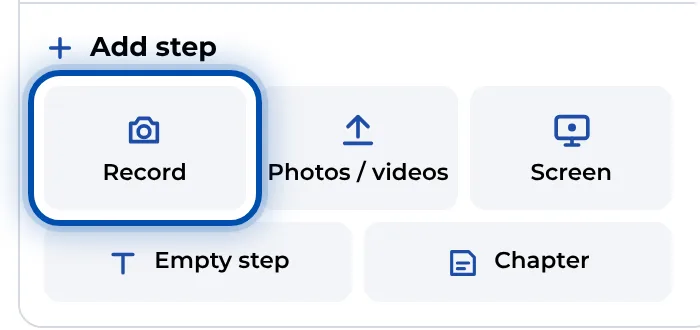
Record in the Add step box below the list of steps -
Allow access to the webcam the first time.
-
One click on the shutter takes a photo. Hold the mouse button down to record a video. The same time limits apply as on a phone.

The webcam in GIRI on a PC: the shutter at the bottom, Done at the top right -
Click Done. You’re back in the editor.
Tips
- One action per step, 3–5 seconds per video. Two short steps are better than one long one.
- Videos have no sound. Anything people would need to hear, such as a click when a part snaps in, goes into the text of the step.
- Tap the picture to focus, if the camera supports it. If it can zoom, pick the level above the strip or pinch with two fingers. Switch camera toggles between the rear and front camera.
- If the instruction still has steps without a recording, for example after an import from a PDF, the camera starts with the first of them and shows its text at the top. The recording goes into that step, then the camera moves on to the next open step.
- In the installed app you can record without a connection too. GIRI uploads the recordings as soon as you’re back online. See Record and edit offline.
Common problems
- GIRI shows Camera not directly available. The browser can’t open the camera directly here. Allow access, or record with the camera app via Record video or Take photo. See Camera or screen recording is blocked.
- GIRI says Too short – hold a bit longer. You held the shutter too briefly for a video. Hold it longer, or just tap for a photo.
- The video stops after 12 seconds. That’s the limit per step. Split the action into two steps.
- New recordings end up at the bottom of the list. GIRI adds new steps at the end. Move them in the editor, see Edit steps.