Guide
Your first instruction in 10 minutes
Record a simple routine on a phone or PC, add text, approve it and put the QR code up at the workstation, then test it with colleagues.
What for?
Start with something simple that everyone knows, such as the coffee machine. You learn how GIRI works without getting tangled up in the content. Afterwards you know how an instruction gets from your phone to the workstation, and you are ready for real routines.
Before you start
- A role with the edit right, for example Creator. If you signed up yourself, you are the Workspace Admin and may do everything.
- Ideally a phone or tablet. On a PC you use photos and videos from your computer, or the webcam.
- Your browser is allowed to use the camera.
- To publish you need both approval rights, as creators, team admins and admins have. Otherwise you submit, and someone else approves.
Step by step
When the workspace admin opens a new workspace for the first time, GIRI creates two example instructions as drafts, in English or German and marked EXAMPLE. One of them is called “How to create your first instruction” and shows the way with screenshots. If the workspace already had instructions before, GIRI creates no examples. You do not need them for the steps below.
On a phone
-
On the start page, tap Record a new instruction. The camera opens straight away. You name the instruction at the end.
-
Take one photo or one short video per action: Tap = photo · Hold = video. A video stops after 12 seconds; 3–5 seconds is ideal. Each step appears in the strip at the bottom.
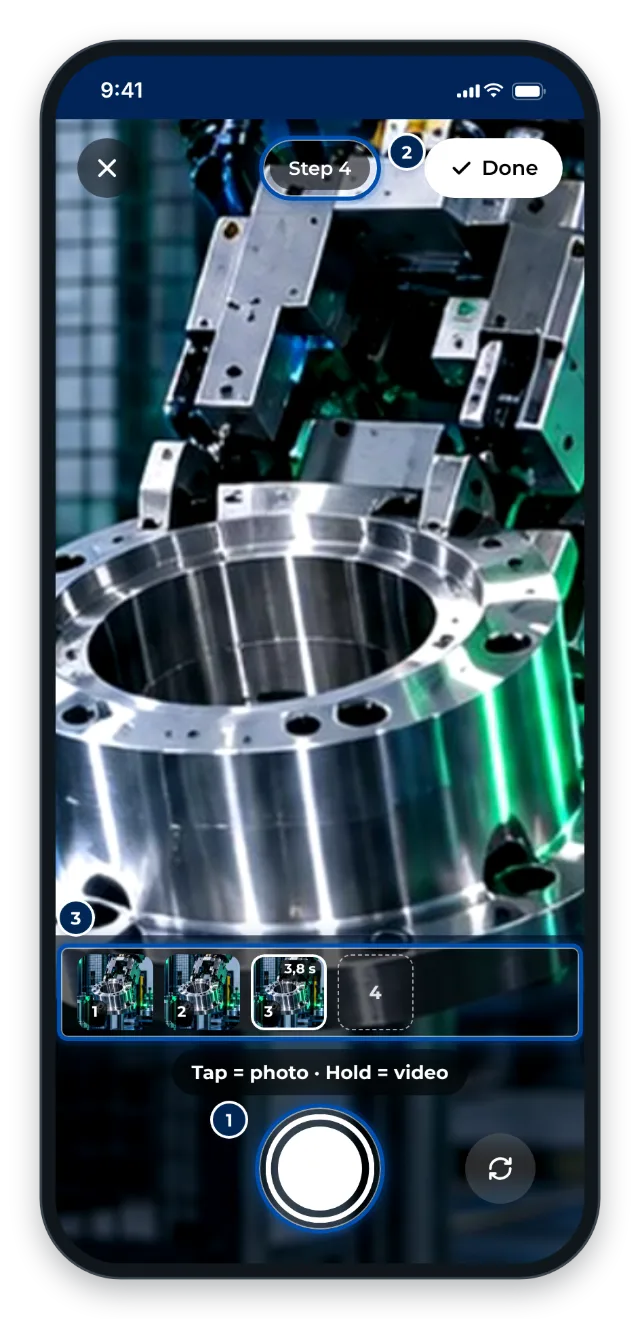
The camera on a phone with the number of the next step and the strip of recorded steps -
Tap Done. GIRI asks: What is the instruction called? Enter a name, pick a folder if you like and tap Continue to the steps.
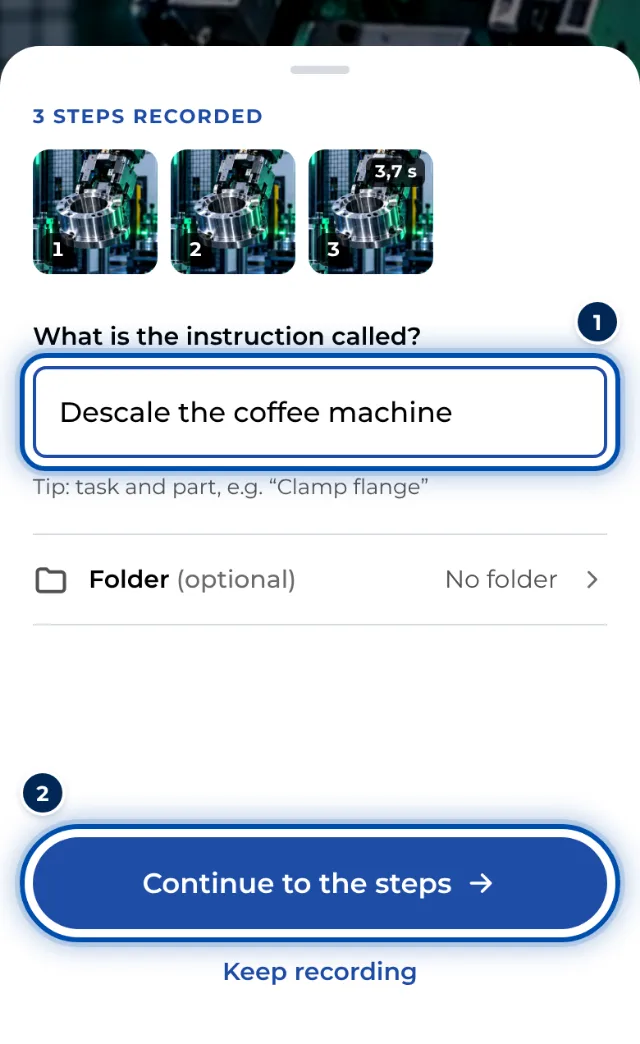
After recording, GIRI asks for the name of the instruction -
Tap a step. Under Text you write in one sentence what to do. Under Mark you put an arrow on the picture.
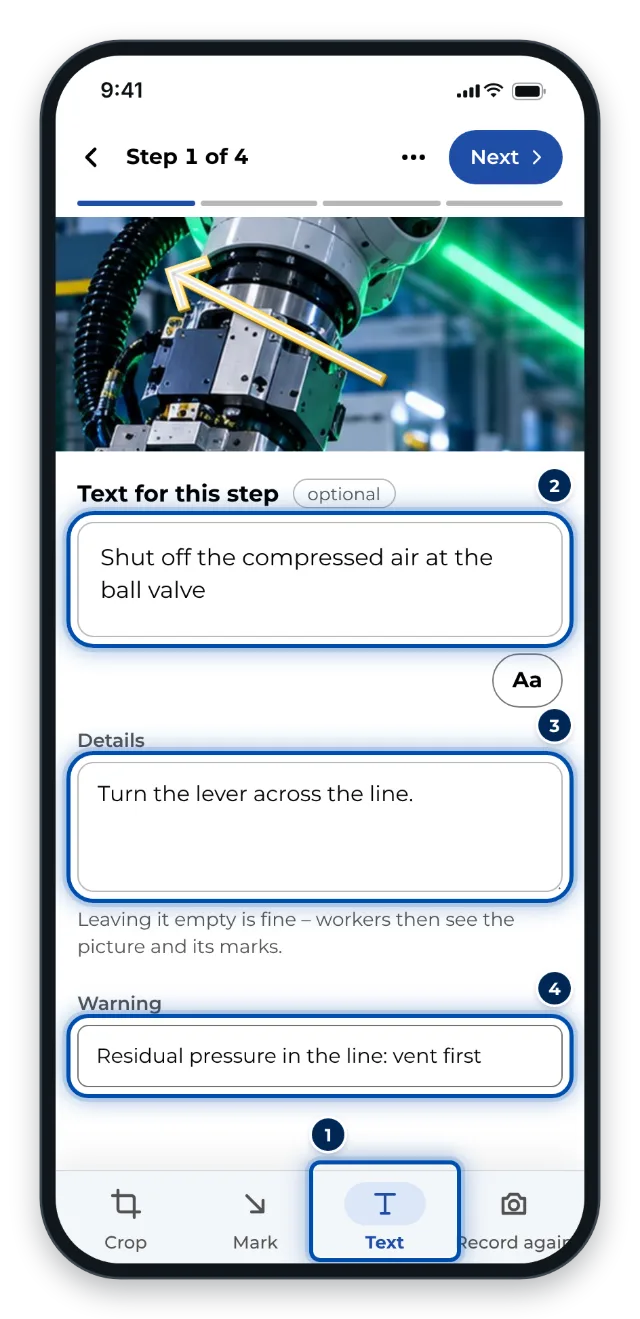
The Text tab on a phone with title, details and warning -
In the step list, tap Check & approve at the bottom. For the first version, the field What has changed? is already filled in with First version. Tap Approve & publish. If you lack approval rights, the buttons are named differently, for example Submit for approval.
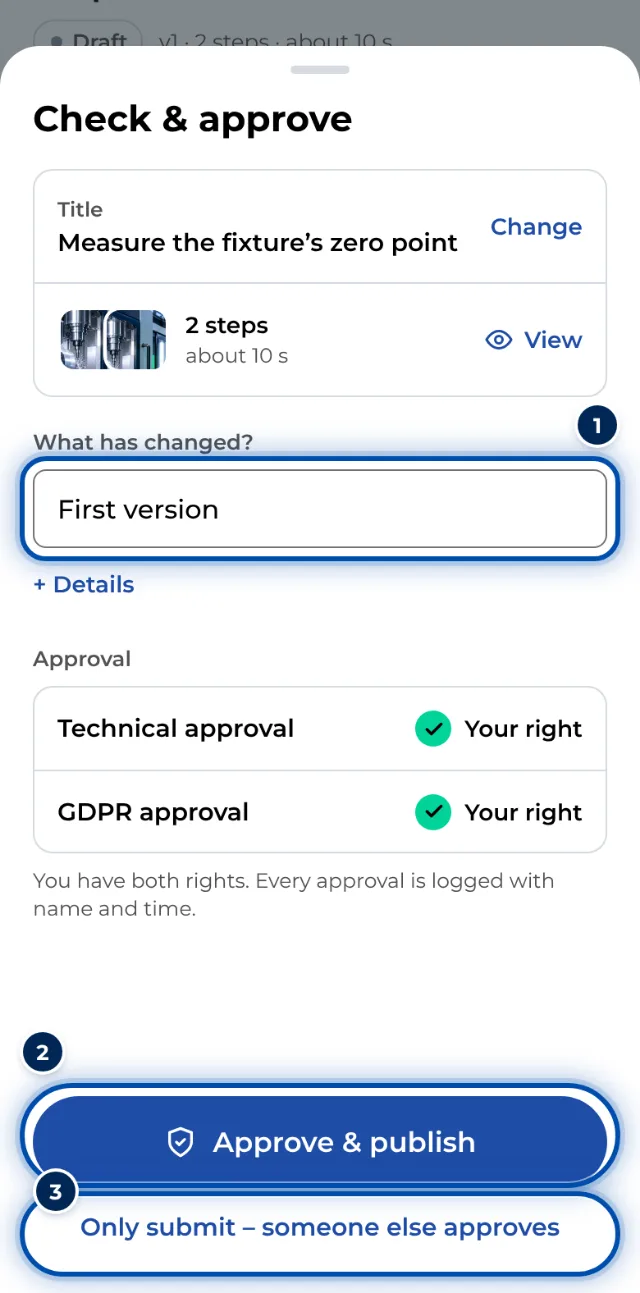
The submit sheet on a phone with the title, the steps and the approvals -
GIRI shows Version 1 is live with the QR code. Print it with Print QR sheet or send the link with Share link.
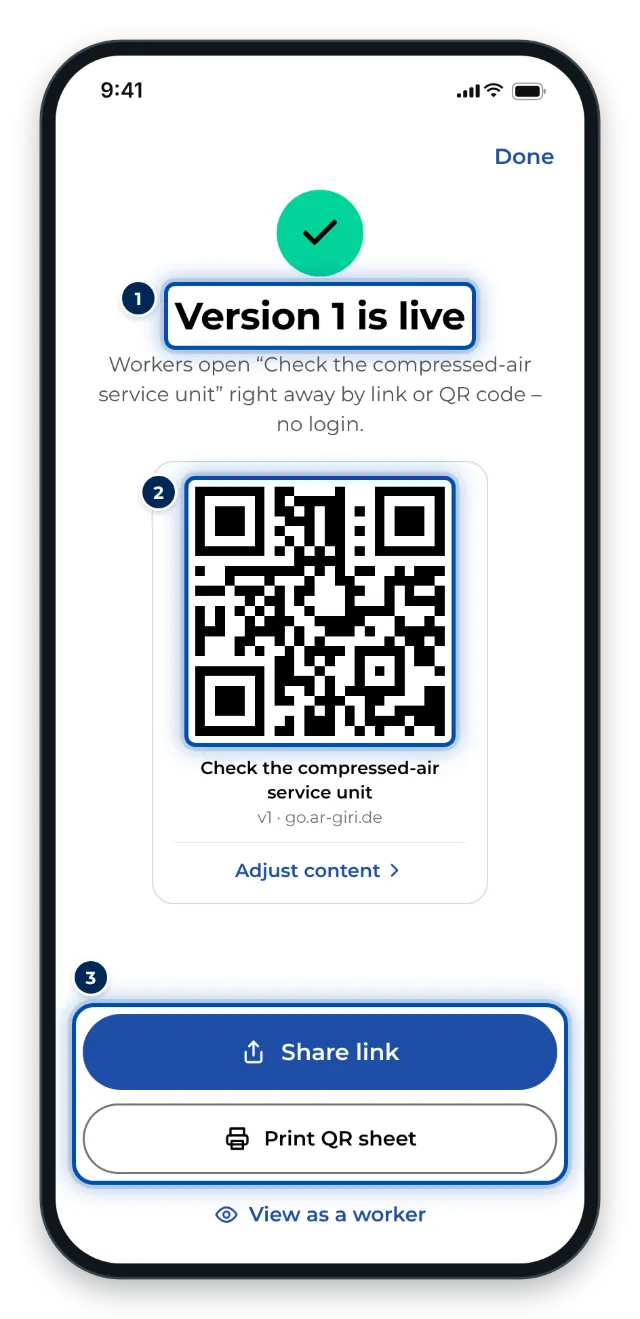
After approval, version 1 is live, with a QR code to share and print
On a PC
-
On the start page, click Record a new instruction. Enter a Title, pick a Folder if you like and click Create.
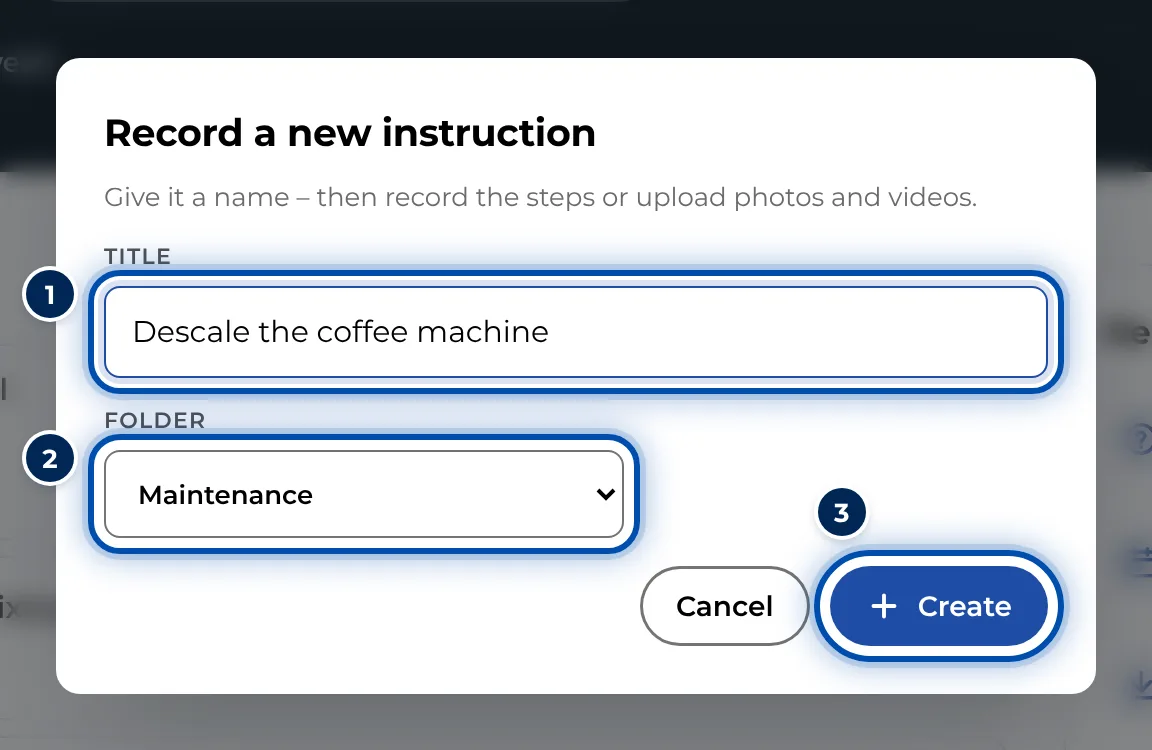
The dialog for recording a new instruction on a PC, with title and folder -
The editor is still empty. Drag photos and videos onto the page, choose them with Photos / videos or record with the webcam (Record).
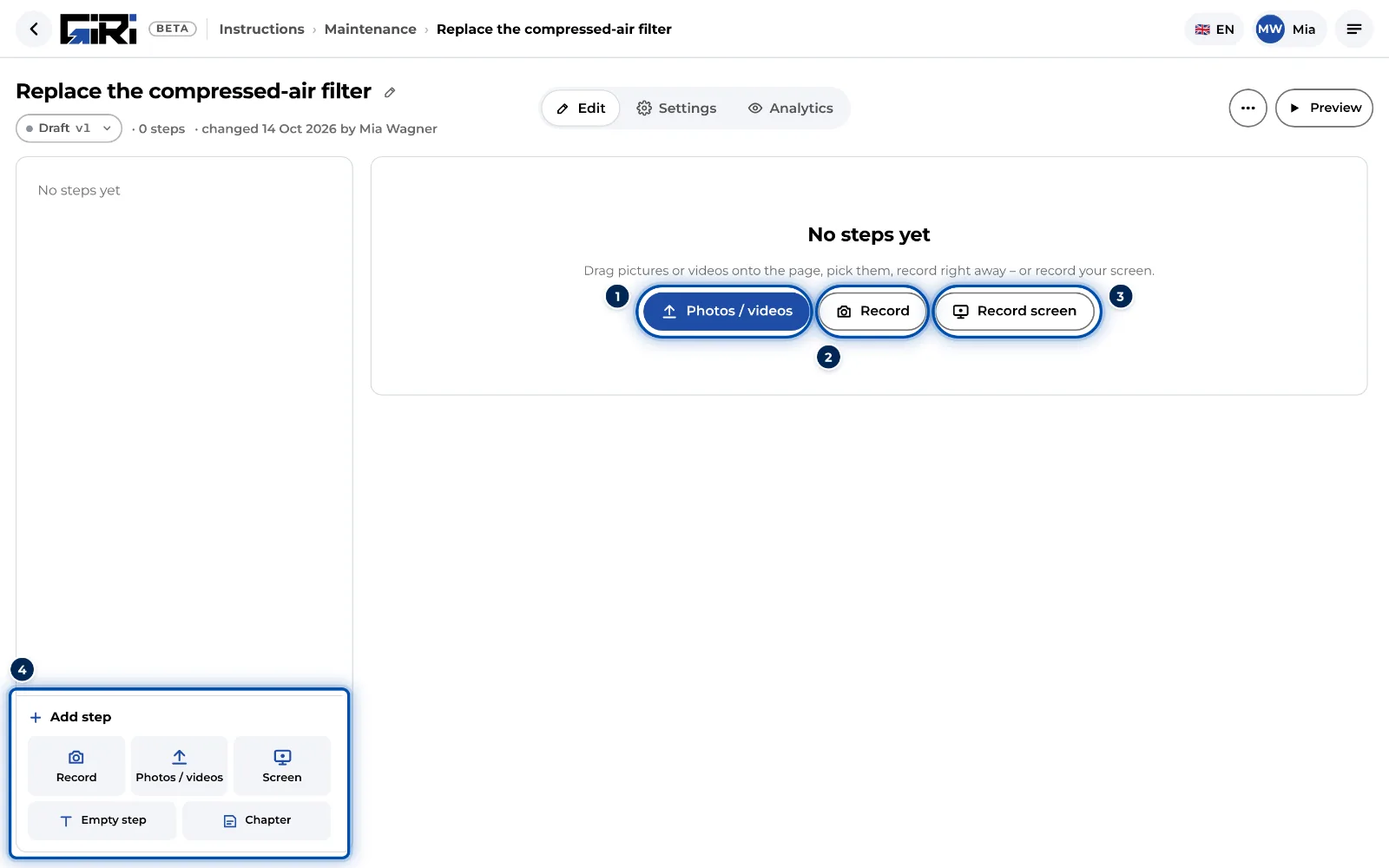
The empty editor on a PC: drop files, pick them, record or record your screen -
Click a step on the left. On the right you enter the Title and the Description, and a warning with Add warning if needed.
-
Click Submit for approval at the top. The field Change (short) already says First version. Click Submit for approval below it once more.
-
If you have both approval rights, click Approve & publish and confirm. GIRI shows Approved – version 1 is live.
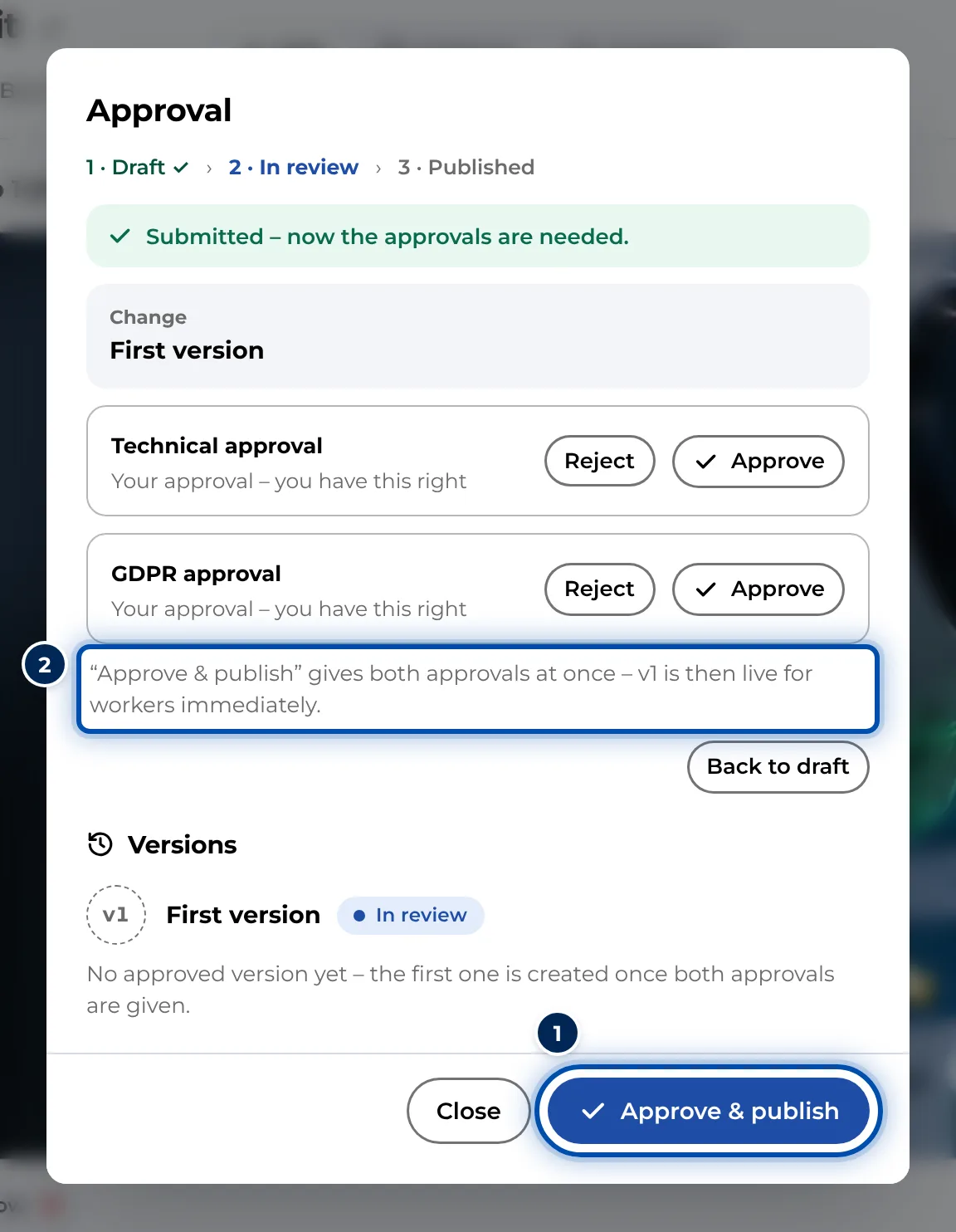
In the Approval dialog you give both approvals and publish with one click -
Click Link & QR code. Copy the link with Copy link or click Print QR sheet.
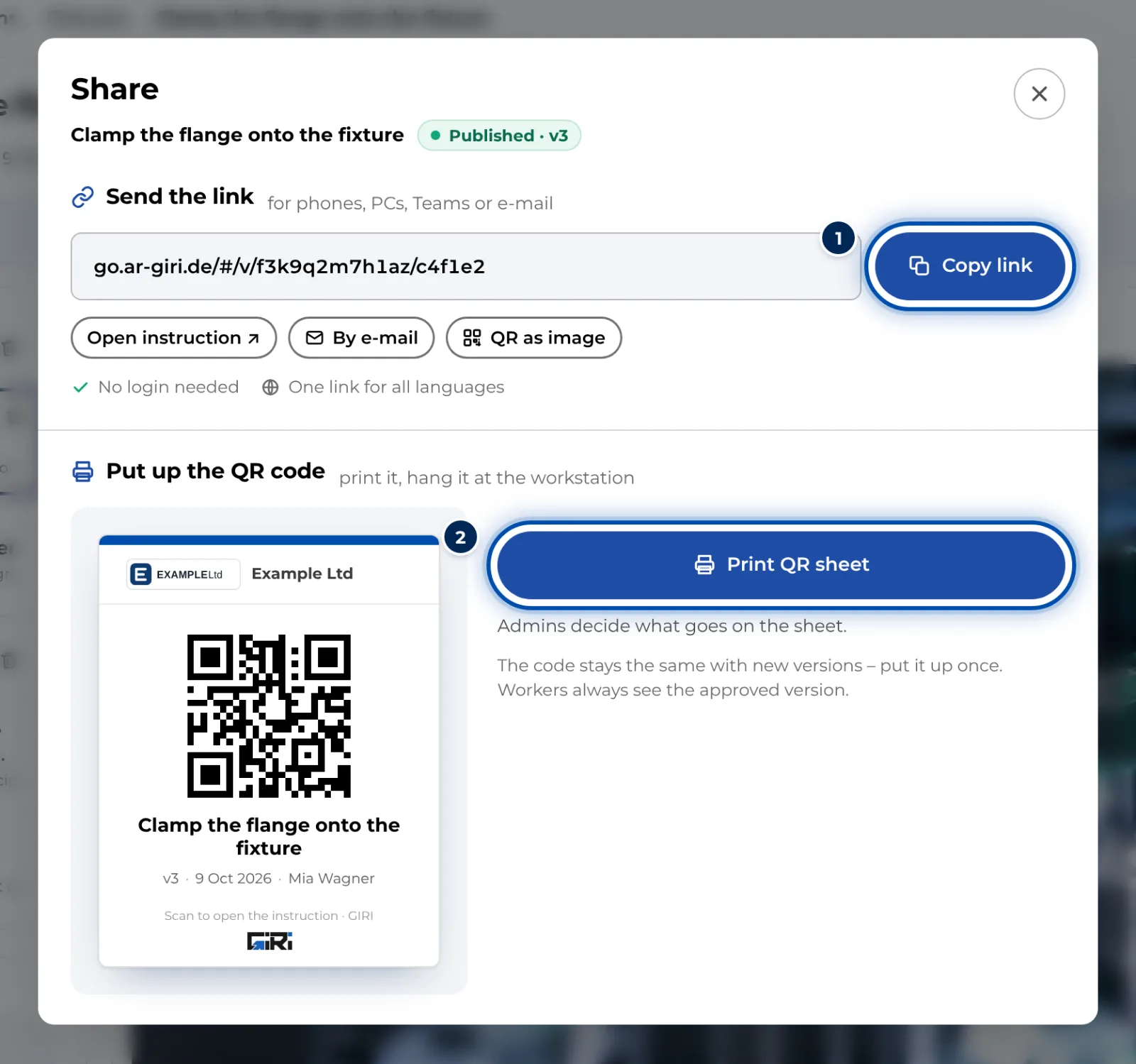
The Share dialog with the link at the top and the QR sheet below
Test it at the workstation
- Put the QR code on the machine.
- Ask 1–2 colleagues to work through the instruction on the spot, without explanation. You will see straight away where it gets stuck.
- Improve the instruction and approve it again. Until then workers see the previous version, and the QR code stays the same.
Tips
- One action per step. Videos of 3–5 seconds work best; use photos for anything that does not move.
- Videos have no sound. Whatever matters must be in the picture or in the text.
- Perfection is not the goal; clarity is.
- If the instruction gets longer, add chapters, for example preparation, execution and wrap-up. See Chapters and text-only steps.
- If the routine already exists as a PDF, the AI can suggest the steps for you. See Create from PDF or photos (AI).
Common problems
- The camera does not open. Allow the browser to use the camera. See Camera or screen recording is blocked.
- The link does not work yet. The link and QR code exist only once the instruction is published. Until then you check it with Preview.
- There is no button to approve. You lack an approval right. Submit it: the instruction then appears for everyone with an approval right on their start page under For you.
- The example instruction looks different from your app. It comes from an older version. On the start page the button is now called Record a new instruction. You find New instruction under Instructions. To print the QR code you now use Print QR sheet.