Guide
Send a training
Ask people to complete a training: GIRI writes the message with a personal link, and you send it via WhatsApp, email or as copied text, for example in Teams.
What for?
Anyone not yet trained, or whose record has expired, should complete the training. Send training writes the message for you: with the link, a due date, how to sign in and that a signature is needed. GIRI itself sends nothing; the message goes out from your phone or PC. GIRI activates training per workspace; ask at giri@ar-giri.de.
Before you start
- Training is activated for your workspace.
- You are a Workspace Admin or a Team Admin. Team Admins send to the people of their department.
- The training is published. Otherwise the link does not work and GIRI blocks sending.
- For WhatsApp the person needs a mobile number on the list, for email an email address. Copy always works.
Step by step
-
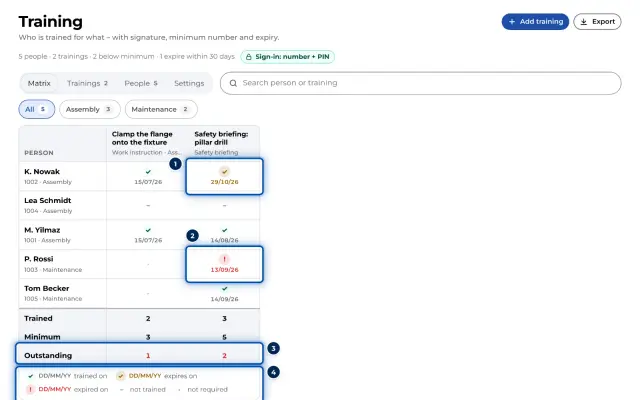
Open the Menu at the top right, choose Training and click the training in the matrix or in the Trainings tab. In the detail, click Send training. For a single person, use the button in their row.
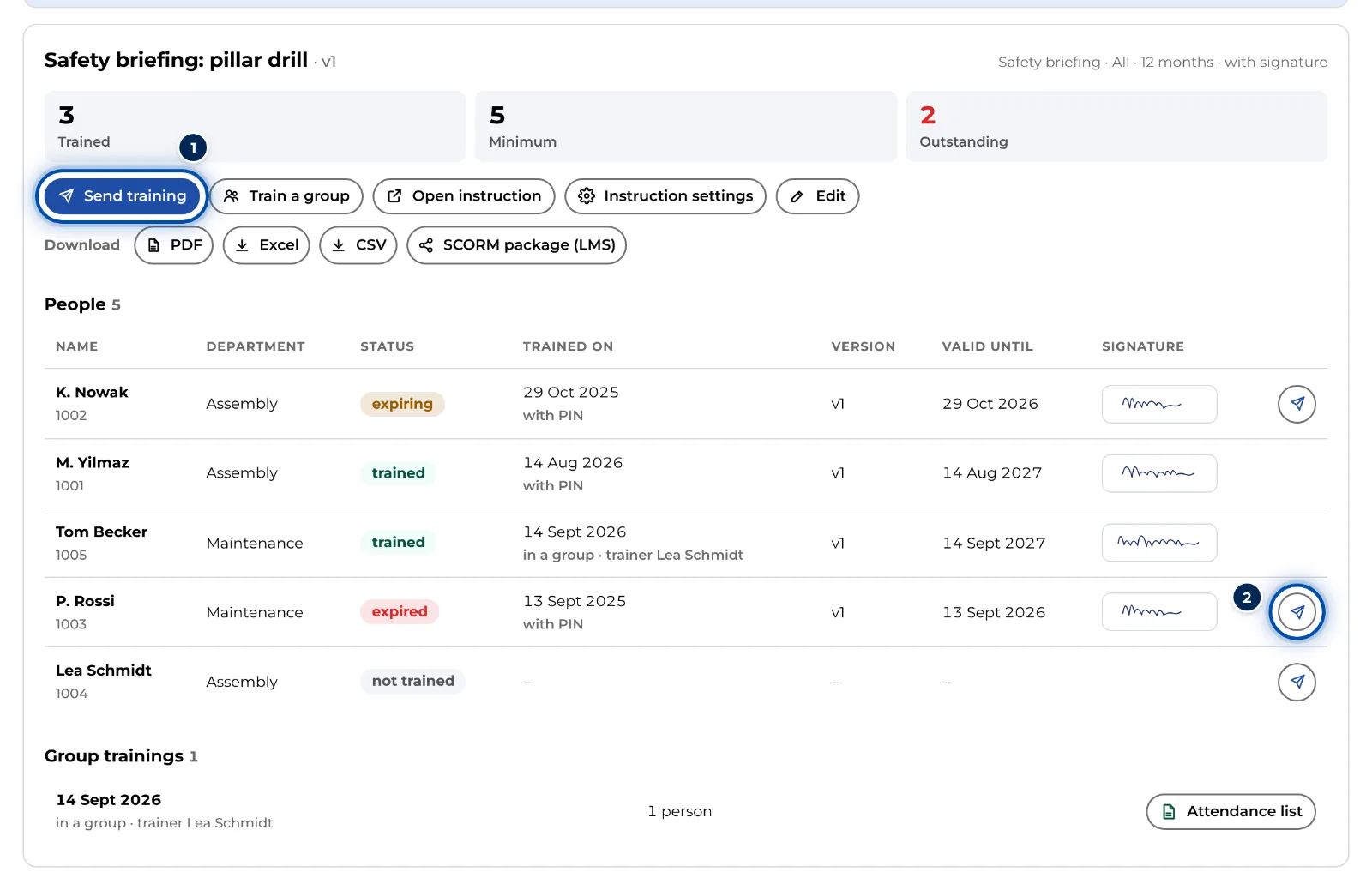
Detail of a training with Send training and the buttons in the rows -
Everyone not yet trained or whose record has expired is already selected. Adjust the selection. All open selects everyone outstanding, None nobody. Other departments (4) shows people from other departments.
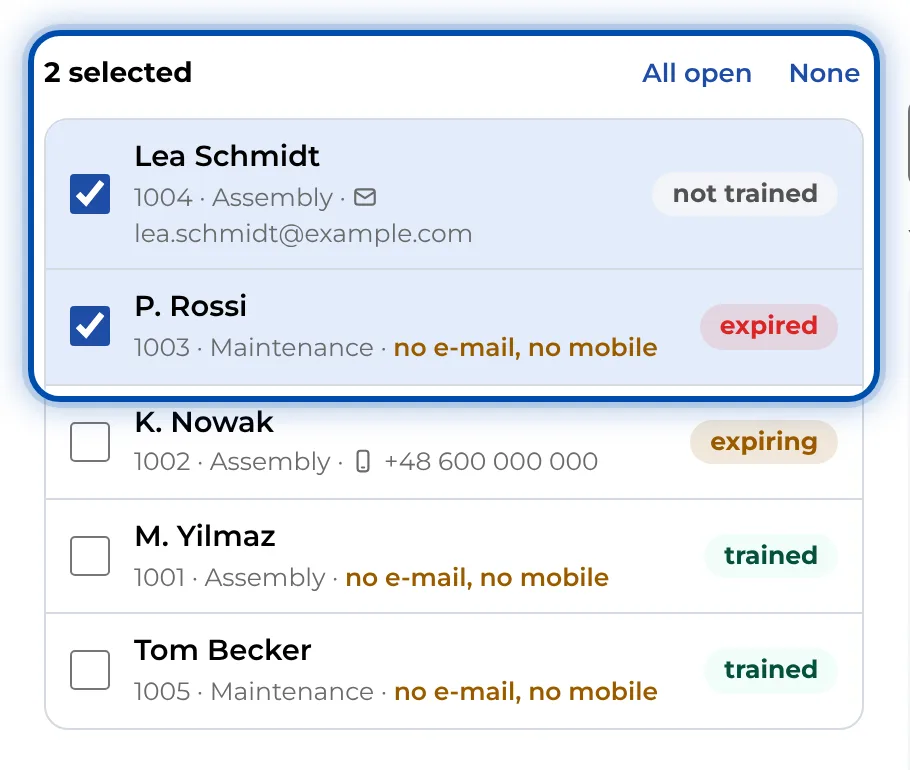
The selection in the dialog: two people are already selected, above them All open and None -
Enter a deadline under Due by if you like. Under What goes out you see the subject and the full text.
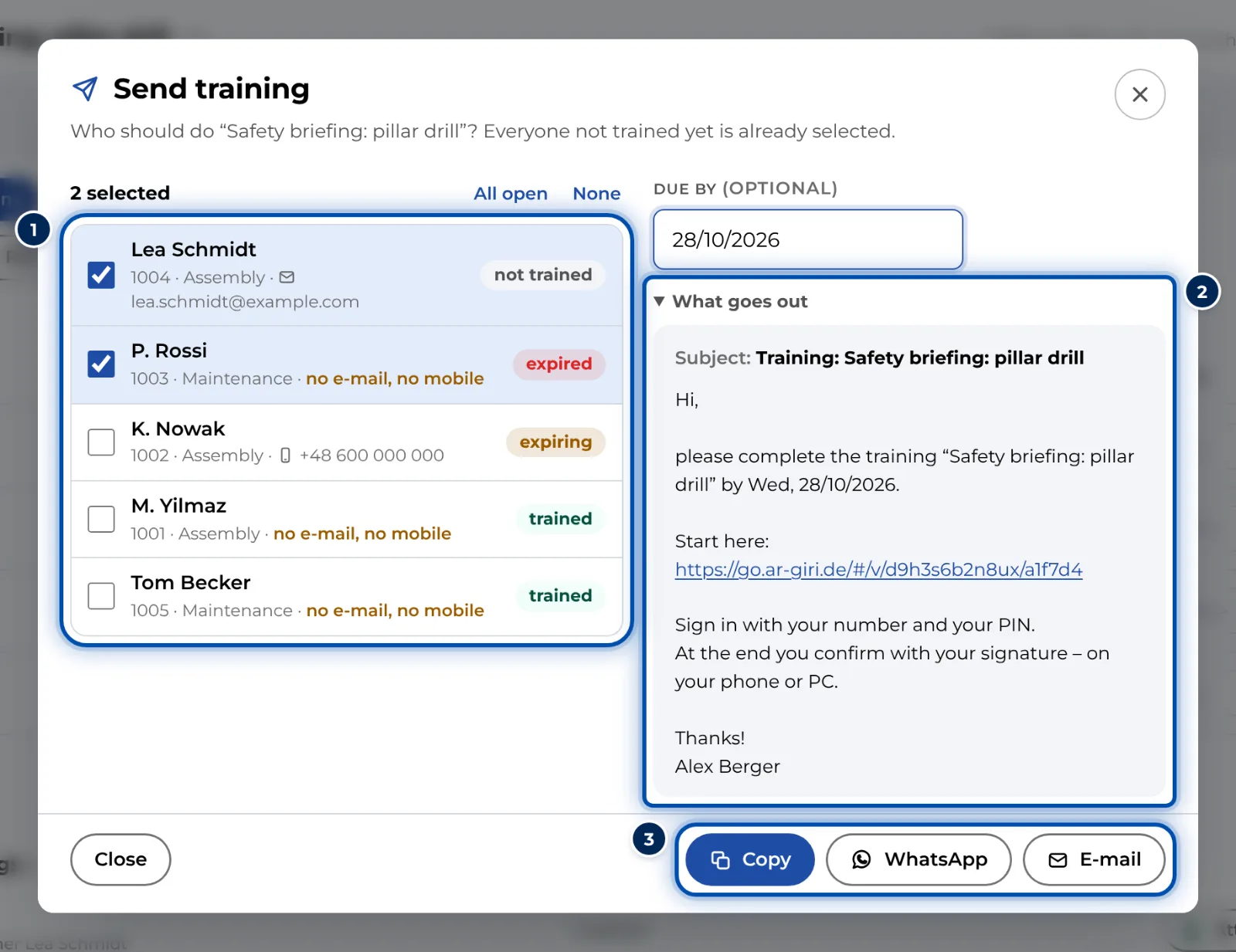
Send training dialog with the selection, deadline, text preview and the Copy, WhatsApp and E-mail buttons -
Choose how the message goes out. The button highlighted in blue suits the selection best.
- Copy: the text with its link goes to the clipboard, to paste into Teams, a text message or a WhatsApp group.
- WhatsApp: for one person with a mobile number their chat opens directly; otherwise you choose the chat or group in WhatsApp.
- E-mail: your mail program opens. One person goes in the To field; several go in BCC, with you in the To field.
-
Check the message in WhatsApp or your mail program and send it.
For a single person it also works the other way round: click their name and then Send training. Their outstanding trainings are then selected.
Tips
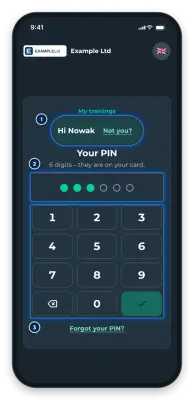
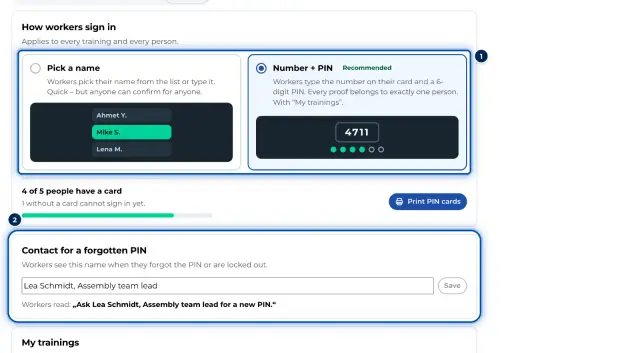
- If the message goes to one person, it contains their personal link. With Number + PIN their number is already filled in. With Pick a name their name is fixed and the record counts as personal link. If someone else is at the device, they tap Not you? and pick their own name.
- For several people there is one shared link. Everyone signs in with number and PIN or picks their name.
- For mobile numbers starting with 0, GIRI adds a country code: Austria, Switzerland, Liechtenstein or Luxembourg depending on the browser’s language setting, otherwise Germany. The person’s dialog shows which number will be dialled.
- GIRI does not record whom you sent what. Whether someone has completed the training is shown in the matrix.
Common problems
- The buttons are greyed out. Nobody is selected, or the training is not published yet.
- no e-mail, no mobile The person has neither an email address nor a mobile number on the list. Add one or use Copy.
- The mail program opens without all the addresses. With very many recipients the mail link gets too long. GIRI then copies the addresses and you paste them into BCC in your mail program. If even the text is too long, GIRI copies it and you paste it in.
- Send training is missing. You read training as QM. Only admins and Team Admins can send.