Guide
Review, approve or send back
Check submitted instructions, then approve them or send them back with a reason. How the review page works on a PC and on a phone.
What for?
Before workers see an instruction, someone with an approval right checks that the procedure and data protection are in order. The review page shows everything on one page for this, without any editing tools. The second approval publishes the instruction straight away.
Before you start
- You hold an approval right for this instruction: Technical approval, GDPR approval or both. Which role holds which right is explained in How approval works.
- The instruction is In review.
- You have an internet connection.
Step by step
On a PC
-
Open the Start page. Under For you, the instruction is marked Waiting for your approval. Click it and the review page opens. In Instructions, clicking a card marked In review also opens the review page.
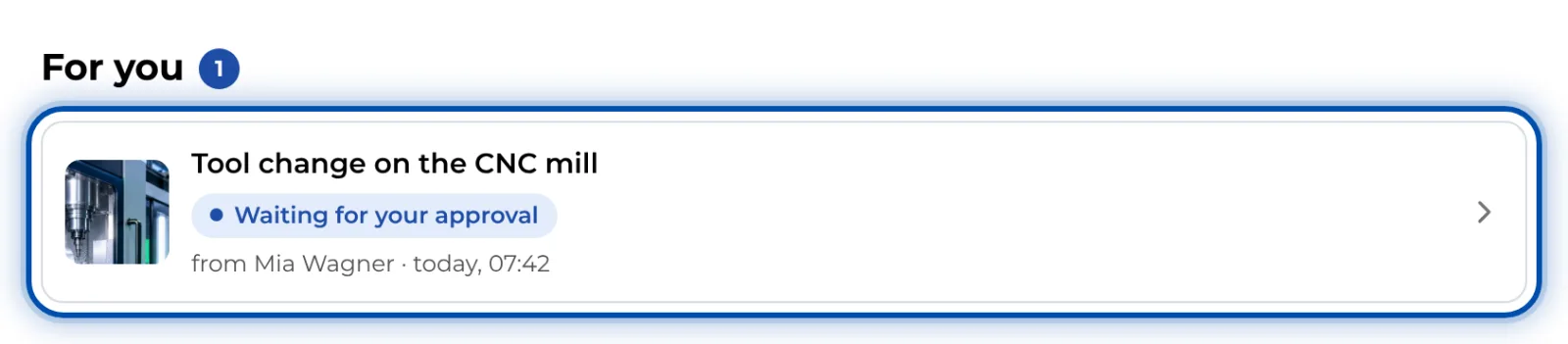
An instruction waiting for your approval under For you -
At the top you see the Change and who submitted it. Below that are both approvals, with yours marked. Further down come all the steps with their pictures, texts and warnings. Steps that workers have to confirm carry the note the worker confirms this step.
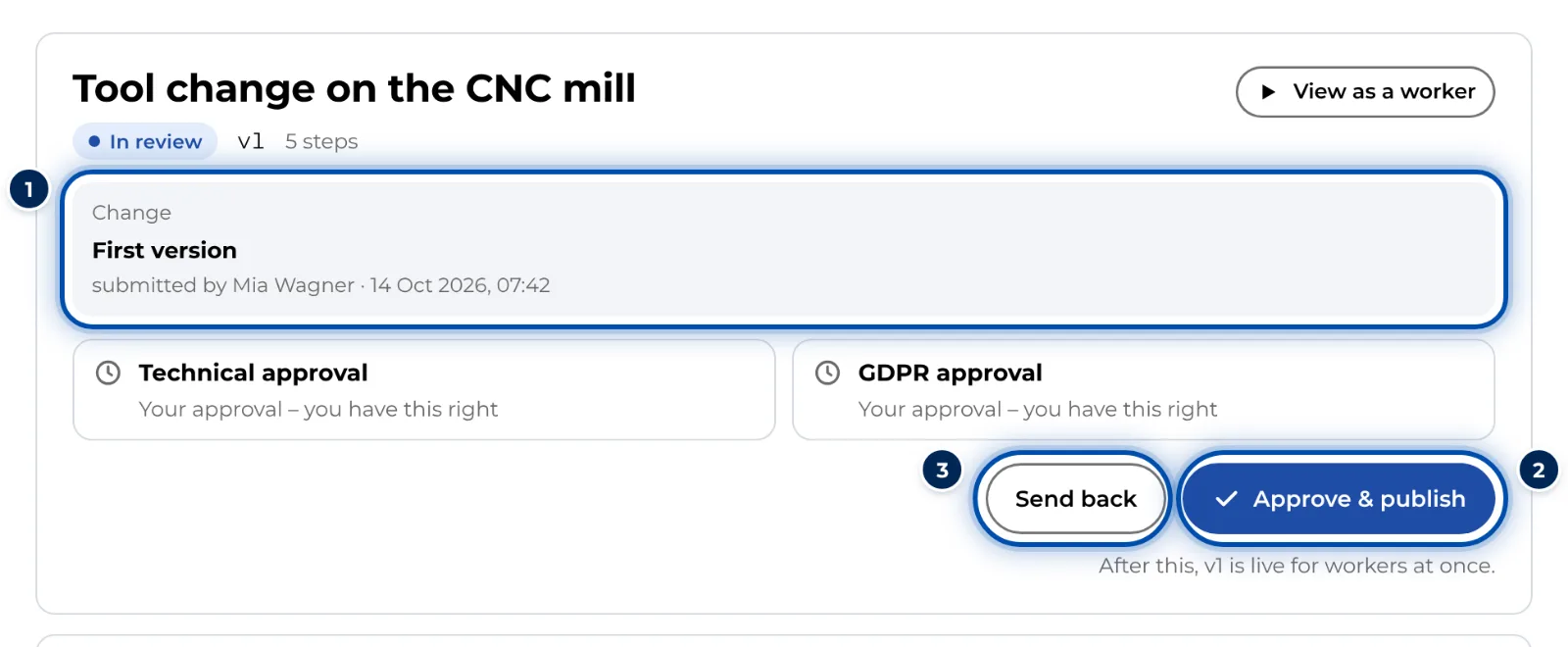
The review page with the change, both approvals and the buttons -
View as a worker shows the instruction the way a worker sees it. Under Versions you can open earlier versions.
-
If everything is right, click Approve. If yours is the last approval, the button says Approve & publish and GIRI asks once more: Workers will see v1 at once. Approve now? Confirm with Approve & publish. Workers see the instruction at once. If another approval is still missing, GIRI tells you which one.
-
If something needs to change, click Send back. Enter what is missing under What needs to change?. A reason is required. Click Send back again. The instruction returns to Draft and both approvals are reset.
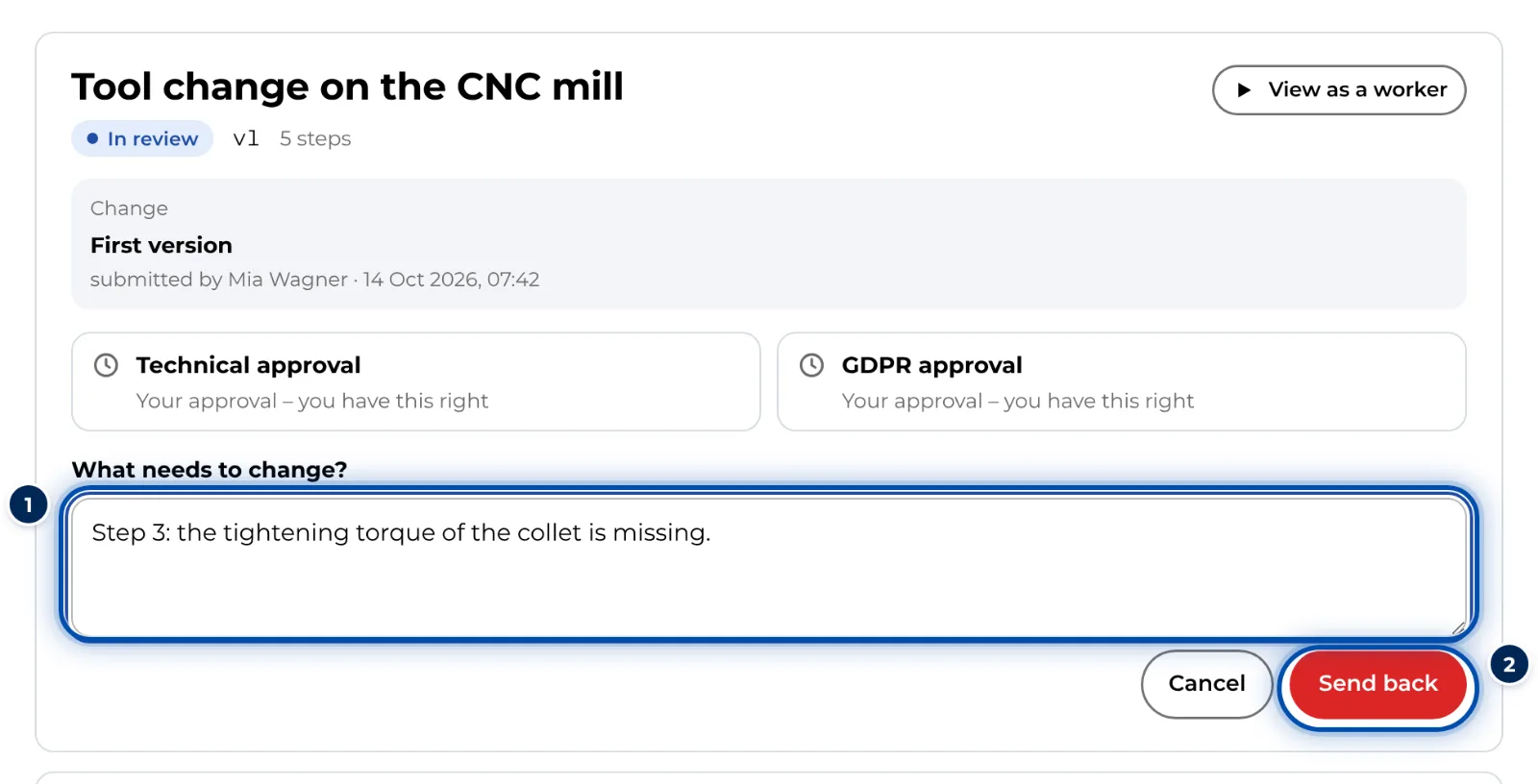
When you send an instruction back, GIRI asks what needs to change
The buttons appear at the top and again after the last step, under the question Checked every step?
On a phone
-
On the start page, tap the instruction under For you.
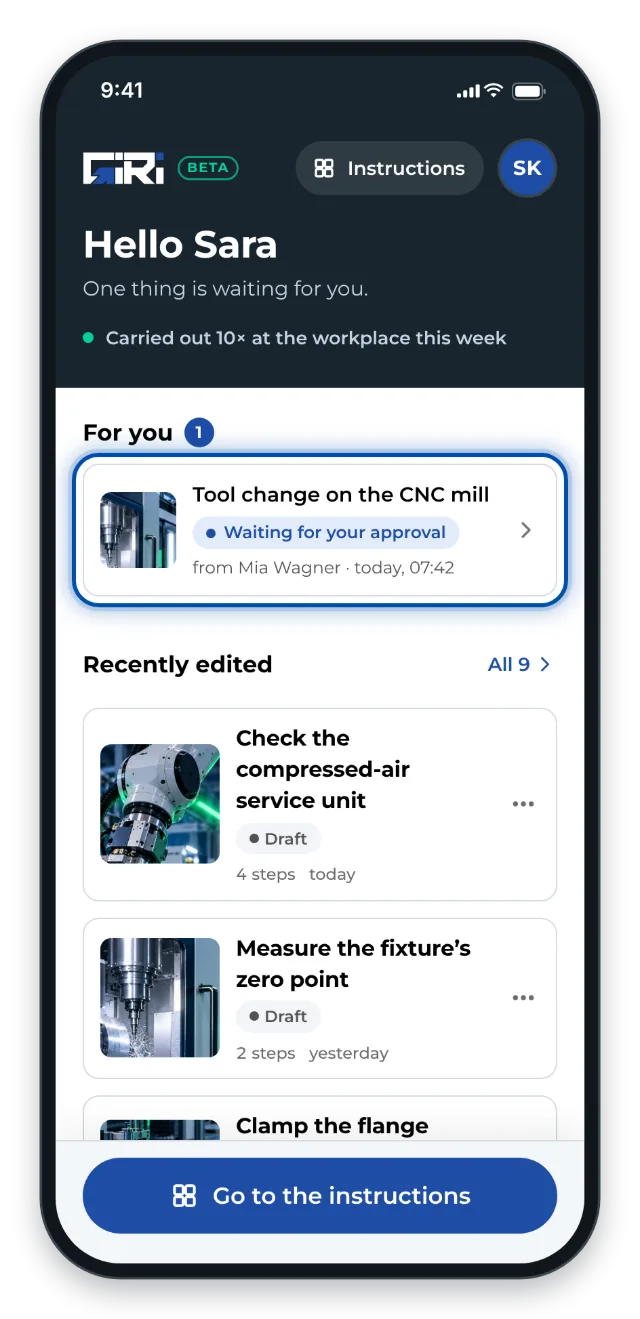
For you on a phone: the instruction is waiting for your approval -
Swipe through the steps. When an instruction is being updated, GIRI marks steps as New or Changed compared with the live version.
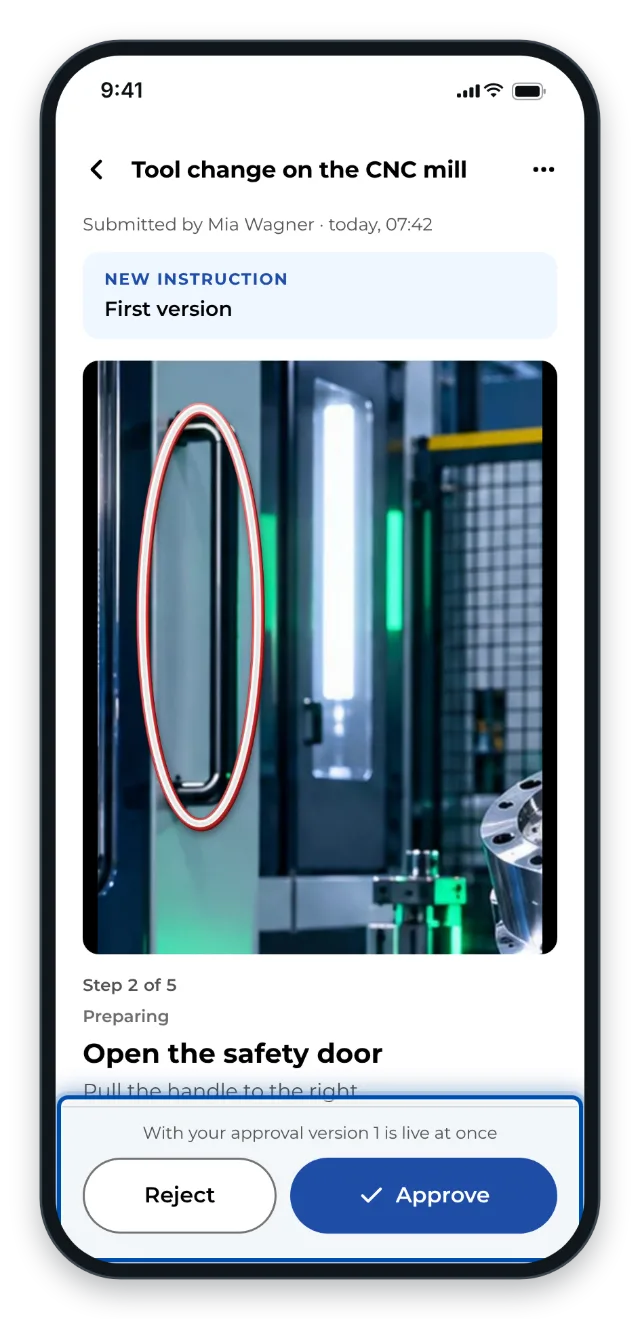
The review page on a phone: swipe through the steps, Reject and Approve at the bottom -
Tap Approve at the bottom. If you hold both rights, this gives both approvals. There is no extra question on a phone. The note above the buttons tells you beforehand whether the instruction will go live. If yours is the last approval, GIRI shows Version 1 is live with the QR code.
-
To send it back, tap Reject, enter the reason and tap Send back.
Tips
- Write the reason so that it can be acted on without further questions. The person who created the instruction sees it on their start page under Sent back.
- If you hold both rights, you publish alone with Approve & publish.
- Even if you can also edit, do not change anything during the review. A change to steps or texts puts the instruction back to draft and both approvals are missing again. Send it back with a reason instead.
- If you can edit, it also works from the editor on a PC: click the status at the top. The Approval dialog has Reject and Approve for each approval.
Common problems
- There are no buttons for approving. GIRI says: Nothing left for you here – it is waiting for someone else's approval. Your approval has already been given, or the missing approval needs a right you do not hold.
- Approving does not work. Approving needs a connection. Try again once you are online.
- The instruction has disappeared from For you. Someone has approved it, sent it back or changed it. After a change it is back in Draft.
- Sending back does not work. The What needs to change? field is empty. A reason is required.