Guide
Submit for approval
Hand a finished instruction over for review: name the change, submit it and, if you hold an approval right, approve it straight away. On a PC and on a phone.
What for?
Workers only see an instruction once it has two approvals. Submitting it says: this instruction is finished, please check it. It moves to In review and appears on the start page of everyone with a matching approval right. The whole process is explained in How approval works.
Before you start
- You can edit the instruction: Editor, Creator, Team Admin or Workspace Admin.
- The instruction is a Draft and has at least one step.
- It has a title. If it does not, GIRI asks for one before you submit.
- The workspace is not read-only. Once the trial has ended, you can no longer submit, see Trial ended.
Step by step
On a PC
-
Open the instruction for editing. Check it first with Preview to see it the way workers will.
-
Click Submit for approval at the top right. The Approval dialog opens with the form.

The button for submitting at the top right of the editor -
Under Change (short), briefly enter what has changed. The field is required. For the first version it already says First version. Add details under Description (optional) if you like.
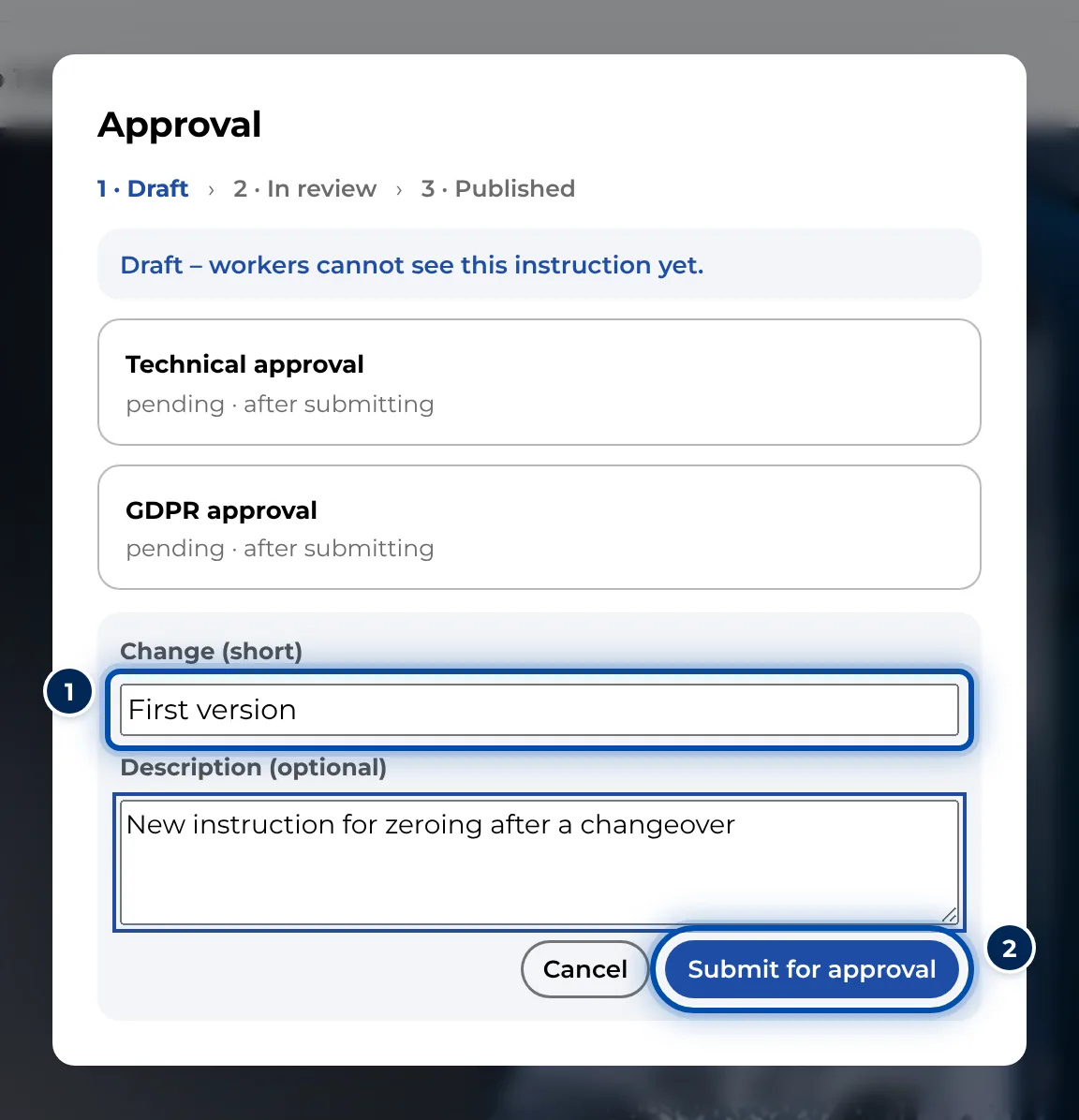
The submit form with the short change name and the description -
Click Submit for approval. The status changes to In review and the dialog says: Submitted – now the approvals are needed. Below that you can see which approvals are still missing.
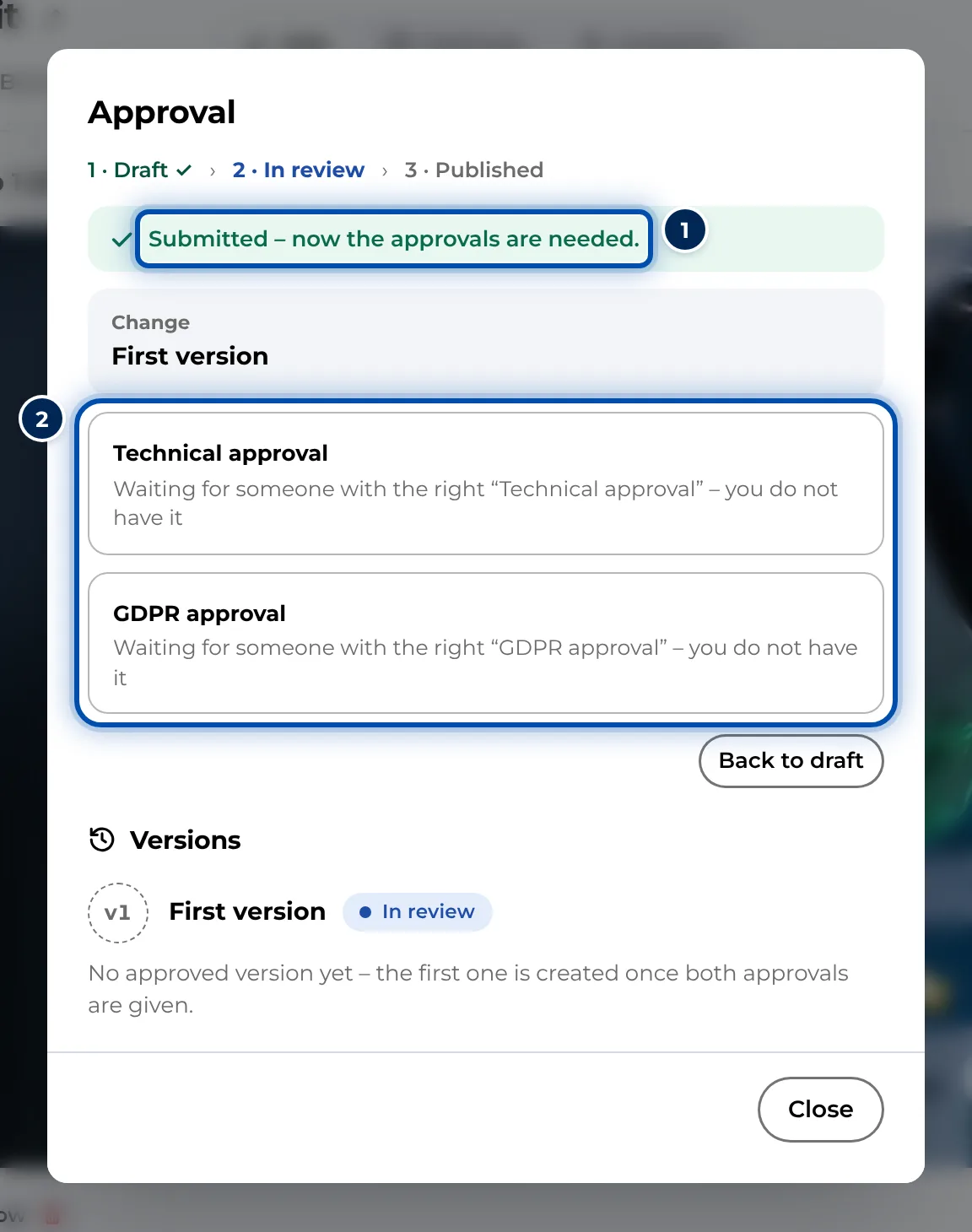
After submitting, the dialog shows which approvals are still missing -
If you hold an approval right yourself, you can give your approval in the same dialog. See Review, approve or send back. Otherwise close it with Close.
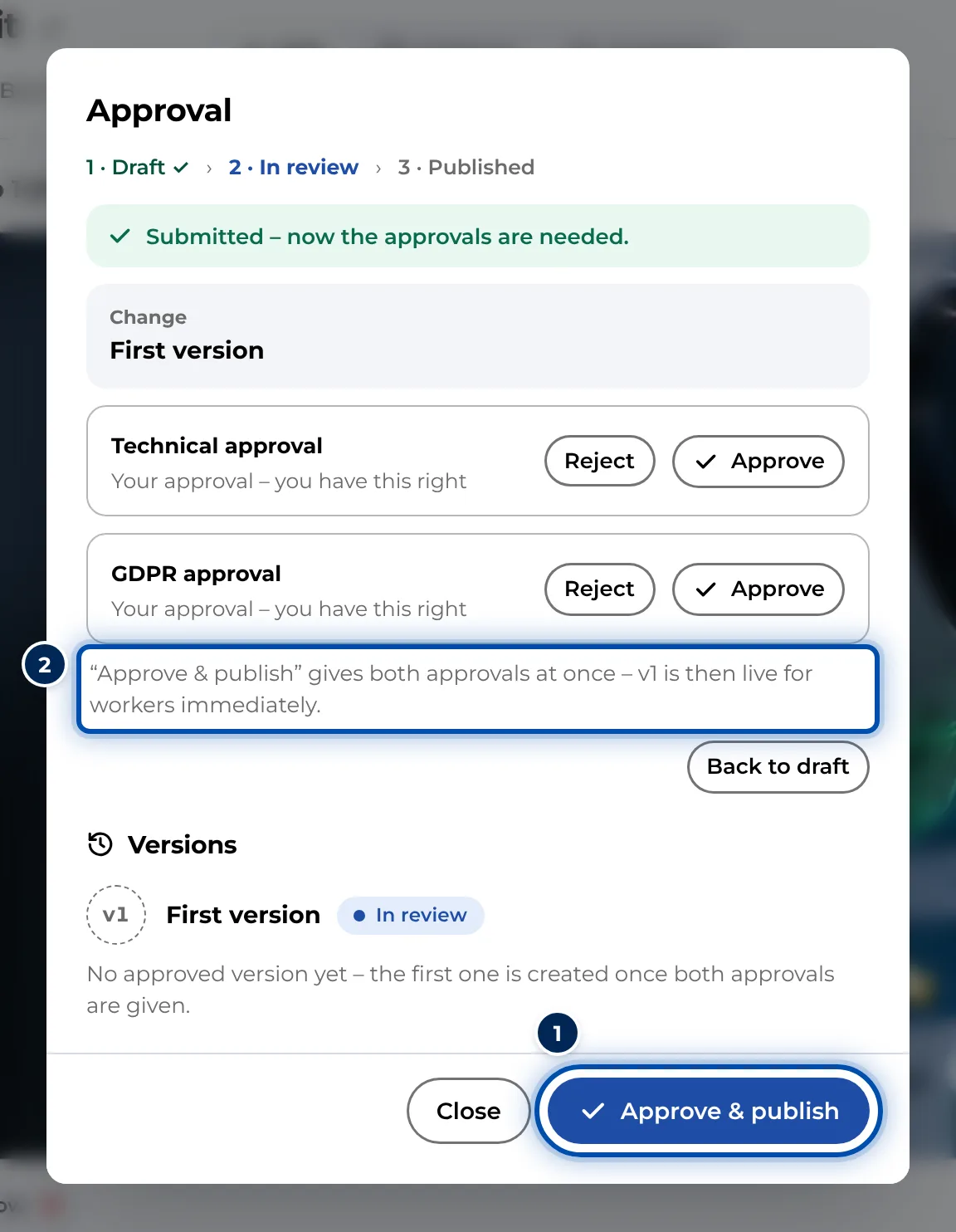
In the Approval dialog you give both approvals and publish with one click
On a phone
-
Open the instruction. In the step list, tap Submit for approval at the bottom. If you hold an approval right, the button is called Check & approve.
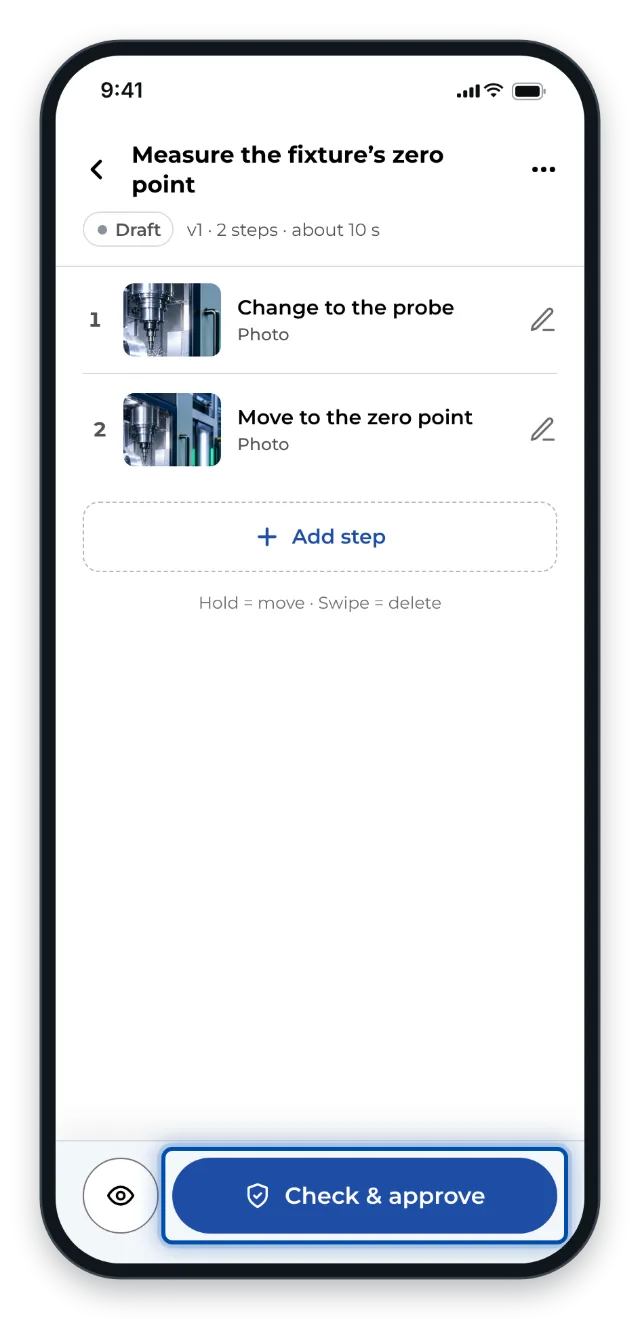
On a phone, the approval button sits at the bottom of the list of steps -
The sheet lets you check the title (Change) and the steps (View). Fill in What has changed?. There is room for more text under Details.
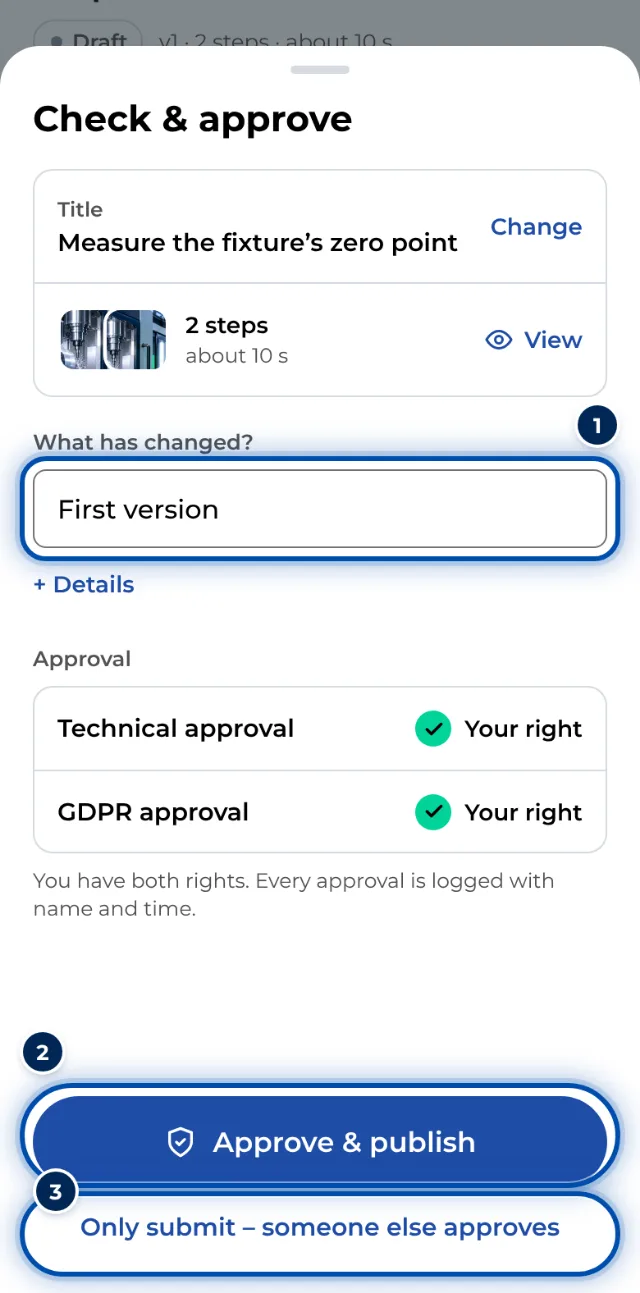
The submit sheet on a phone with the title, the steps and the approvals -
The bottom of the sheet shows who approves. Tap the large button. Without an approval right it says Submit for approval. With one right you submit and give your approval in one go, for example with Submit & give technical approval. With both rights it says Approve & publish and the instruction goes live at once.
-
To submit only and leave the approval to others, tap Only submit – someone else approves and then Submit for approval.
Tips
- Name the change precisely, for example “Torque in step 4 adjusted”. The text appears on the review page, in the version history and, if switched on, on the QR sheet.
- GIRI sends no email when you submit. Let the approvers know if it is urgent.
- On a phone, Only submit – someone else approves also works offline. GIRI sends the submission as soon as the device is back online. Approving, on the other hand, needs a connection.
- To withdraw a submission, open Approval & history from the ⋯ menu in the editor and choose Back to draft. Any approvals already given are reset.
Common problems
- There is no button for submitting. The instruction has no steps yet, is already In review, or you cannot edit it. After the trial has ended, the workspace is read-only.
- GIRI says: Please name the change. Enter a short description of the change under Change (short).
- The instruction is suddenly back in draft. Either someone sent it back. You find the reason under Versions, and as its creator also on the start page under Sent back. Or someone changed it during the review. That resets it without warning and both approvals are missing again. Then submit it once more.
- An approver cannot see the instruction. For you only lists instructions for which the person holds a matching right. Roles apply per team, see Roles and permissions.