Guide
SCORM package for your LMS
Bring an instruction into your own learning system as a SCORM 1.2 course. Content and versions stay in GIRI, the LMS records completion.
What for?
Many companies run mandatory training through a learning management system (LMS). With the SCORM package, your LMS launches a GIRI instruction like a course and learns when someone has finished it.
Before you start
- GIRI has activated Training for your workspace, see Training in GIRI.
- You can edit or share the instruction.
- The instruction is published.
- Your LMS supports SCORM 1.2.
- The learners’ devices can reach GIRI over the internet. The package loads the instruction live every time it starts.
Step by step
-
Open Instructions. In the card’s ⋯ menu, choose SCORM package (LMS). In the editor, the entry is in the ⋯ menu at the top right.
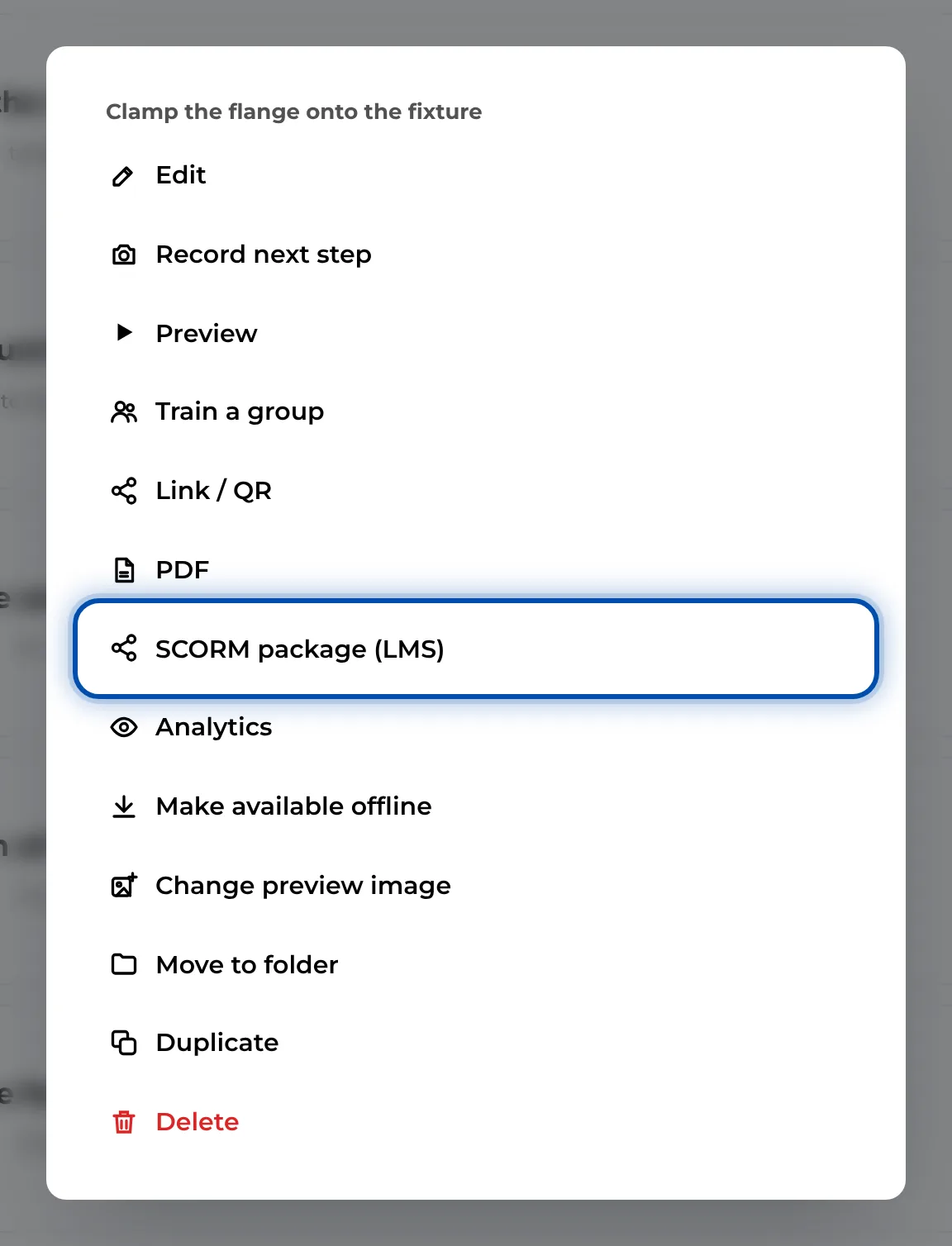
The menu of an instruction contains the entry for the SCORM package -
GIRI saves a ZIP file and says: SCORM package saved – upload it to the LMS as a course (SCORM 1.2).
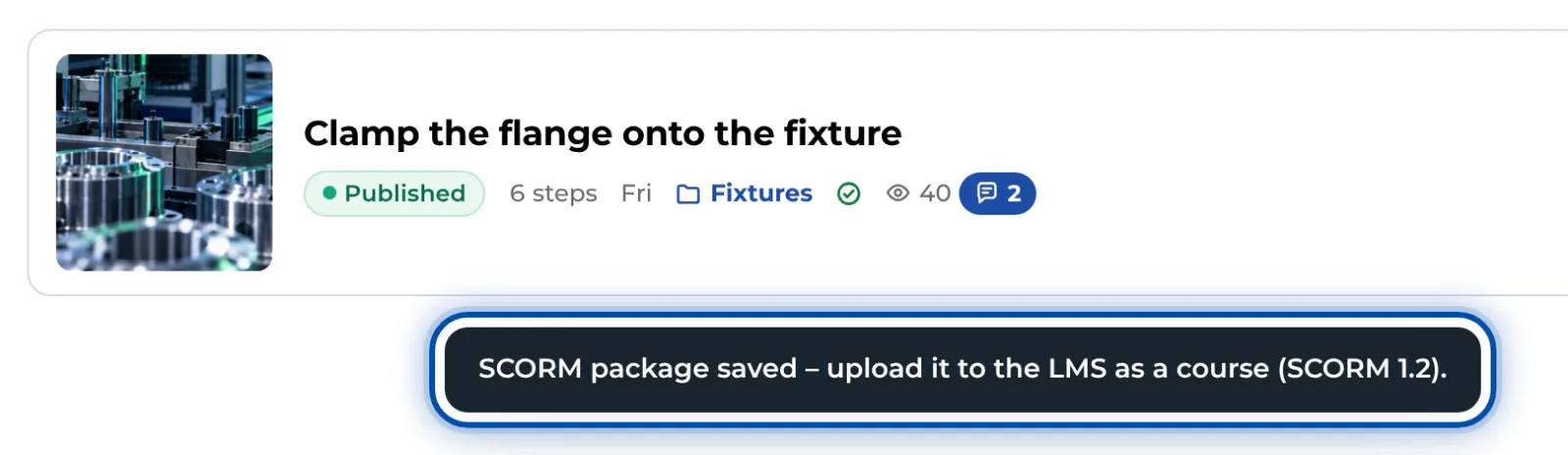
After the export, GIRI reports that the SCORM package is saved -
Upload the ZIP file to your LMS as a new course. If the LMS asks for the format, choose SCORM 1.2.
-
When someone starts the course, the LMS opens the live version of the instruction. GIRI takes the person’s name and ID from the LMS. With a checklist, the name is already filled in.
-
At the end, GIRI reports the status “completed” to the LMS: with a checklist after Finish, for a training after the confirmation, otherwise at the end of the instruction. If steps are left open, GIRI reports “incomplete”. GIRI also passes on the time spent.
Tips
- New versions do not need a new package. It always opens the live version.
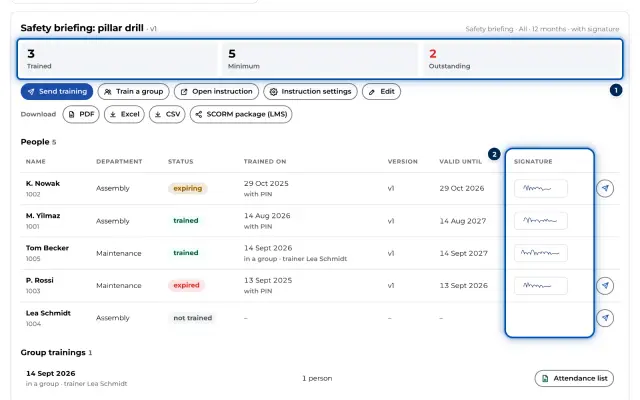
- If the instruction is set up as a training (Record as training), GIRI also stores a record with a signature. The ID from the LMS appears there as the personnel number. See Assign and export training records.
- Test the course once with a test account in the LMS before you assign it.
- For a link in Teams, SharePoint or on the intranet you do not need SCORM, see Embed GIRI.
Common problems
- SCORM package (LMS) is missing from the menu. Training has not been activated for your workspace, or you lack the right.
- GIRI says: Publish first – the SCORM package opens the published version. Have the instruction approved first.
- The course stays blank in the LMS. The device cannot reach GIRI. Your IT team needs to allow GIRI’s addresses, see For IT.
- The LMS shows “incomplete”. Steps are still open, or the instruction was not viewed to the end.