Guide
Import photos and videos
Turn existing photos and videos into steps: drag and drop on a PC, or pick them from the phone's library. GIRI converts long videos itself.
What for?
Not every step has to be recorded from scratch. Shots from your phone’s gallery, pictures from a digital camera or screenshots go straight in. Every file becomes a step of its own, which you then edit like any other.
Before you start
- A role with the right to edit.
- Photos as JPG, PNG, WebP, HEIC, HEIF or GIF.
- Videos as MP4, MOV, M4V or WebM, up to 600 MB each.
- For converting videos, Chrome, Edge or Safari work best.
Step by step
On a PC
-
Open the instruction in the editor and select the step the new steps should follow.
-
Drag the files from Explorer or Finder onto the page. GIRI shows Drop photos & videos here and, below it, where the steps will go.
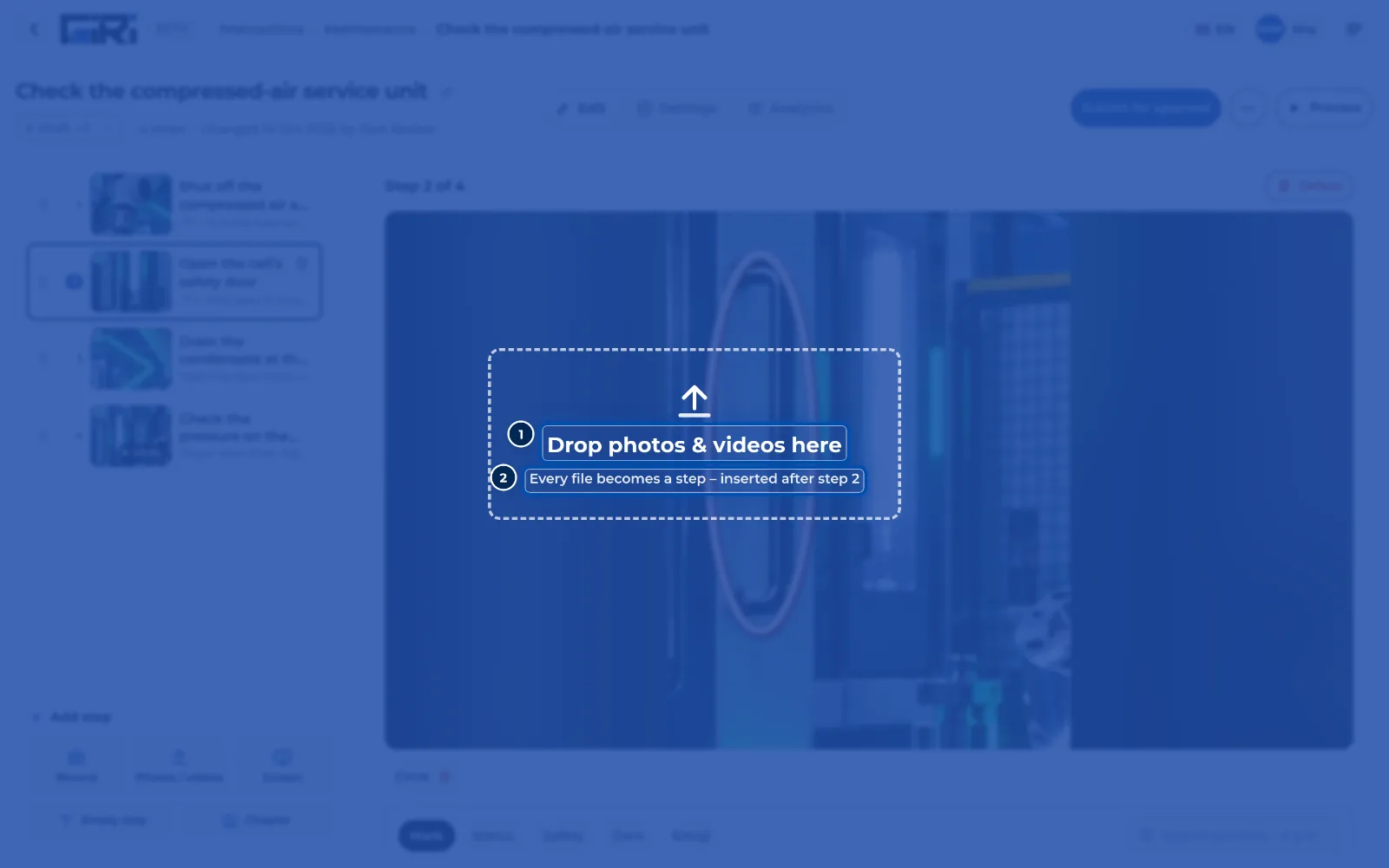
While you drag files, GIRI shows which step they will be inserted after -
Alternatively, click Photos / videos below the list of steps and choose one or more files. GIRI adds these steps at the end.
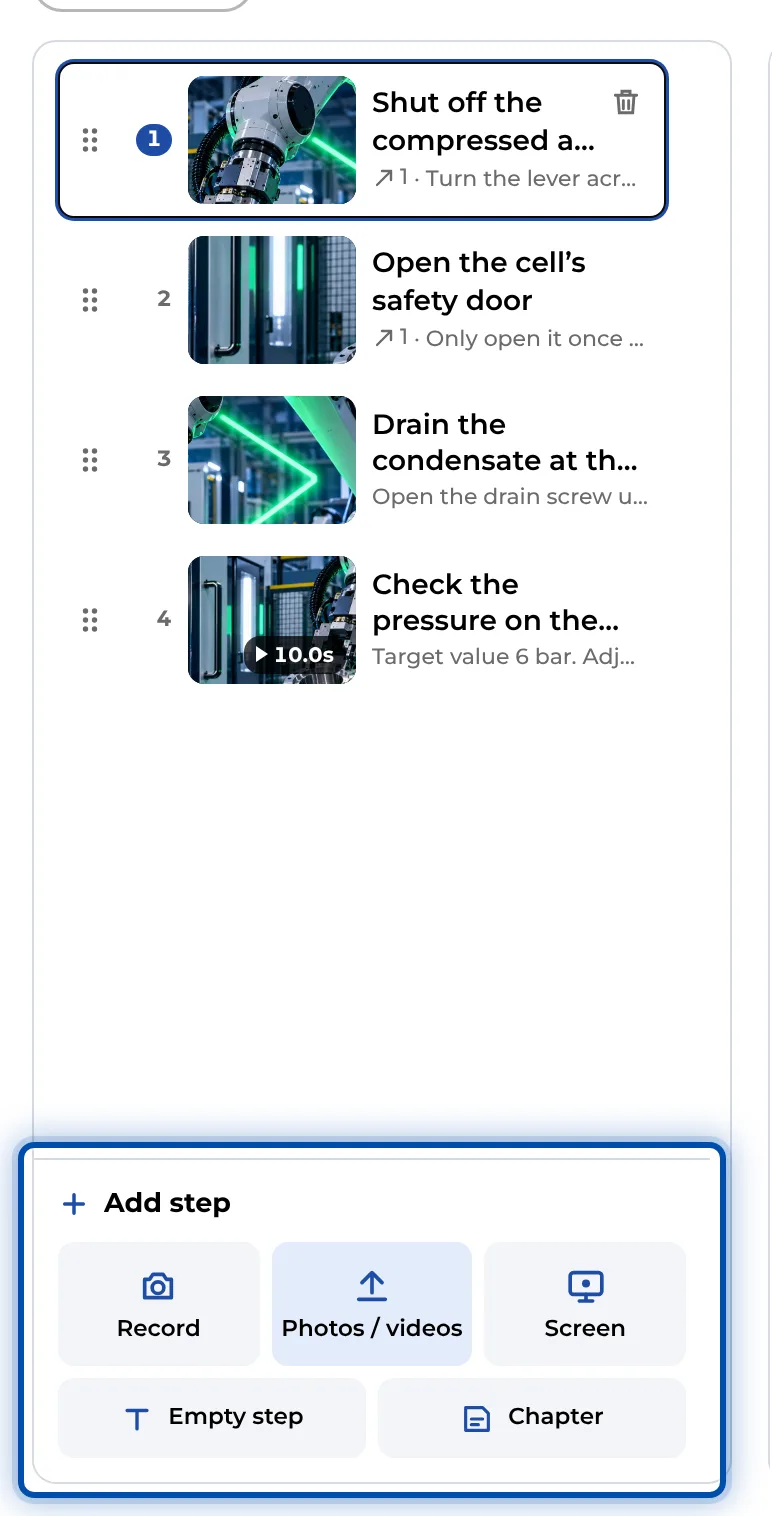
The Add step bar below the list of steps on a PC -
Wait for the import to finish. When GIRI converts a video, it shows Shrinking video with the progress.
-
Check the new steps. GIRI sorts several files by their file date, which is usually the order in which they were taken.
On a phone
-
Open the instruction and tap Add step below the list of steps.
-
Tap Photos / videos and choose photos or videos from the library, several at once if you like.
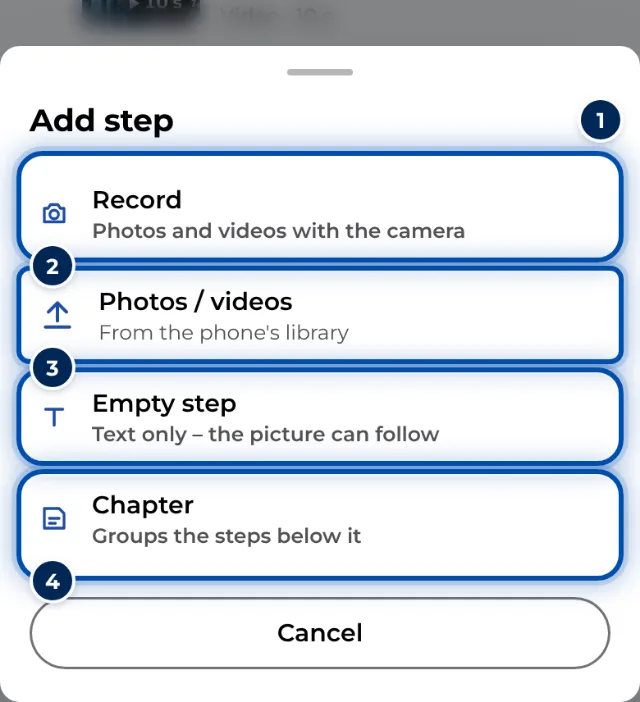
On a phone, Add step opens a menu with Record, Photos / videos, Empty step and Chapter -
GIRI adds the files as steps at the end of the list. Move them to the right place if needed.
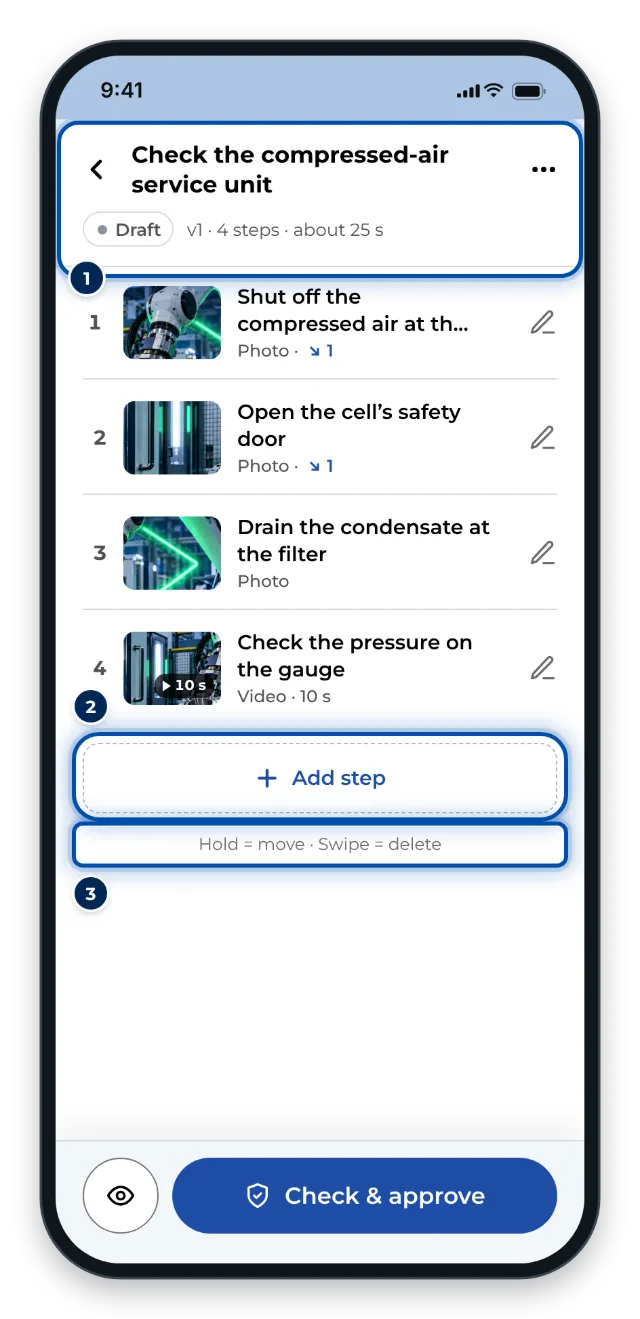
The list of steps on a phone: new steps are at the end, hold one to move it
Tips
- GIRI stores photos as JPG with at most 1,600 pixels on the long side. That’s plenty for phones, tablets and the PDF.
- To swap only the picture of a step, use Replace file instead of adding a new step. Text and symbols stay. With a video the symbols then sit at the start, so set their moments again.
- Animated GIFs become a still picture.
- For software instructions you can import screenshots or simply record your screen.
Common problems
- GIRI reports 1 file(s) not imported. It lists the files with the reason, for example too large or format not supported. For videos that are too large, record a shorter clip or export it in 1080p.
- GIRI says No matching files (photos/videos). You dropped a PDF, for example. GIRI turns a PDF into steps via Create from PDF or photos.
- A video is shorter after the import. When converting, GIRI keeps at most the first 60 seconds. Split long videos into sections beforehand.
- The video only shows the first 15 seconds. Drag the right handle of the timeline further to the right.
- iPhone photos or videos can’t be read on the PC. See Importing iPhone videos.