Guide
Import from GIRI 11
Bring instructions from GIRI 11 into GIRI 12, optionally with users, roles, teams and projects: connect, take over the structure, choose instructions.
What for?
If you have been using GIRI 11, you bring your instructions into GIRI 12 with their chapters, steps, pictures, videos and step icons. Optionally, users come along with their roles, teams with their members and projects as folders. What else changes is described in Moving from GIRI 11: what is different. In the app, the menu item is still called Import from GIRI Classic.
Before you start
- You are a Workspace Admin in GIRI 12.
- You have a GIRI 11 account with e-mail and password. For users and teams, an account with org admin rights works best.
- Your workspace is not read-only. After a trial has ended, for example, the import does not work.
- The page has to stay open during the import, and the device has to stay online the whole time.
Step by step
-
Open Menu → Import from GIRI Classic. Alternatively, under Users & teams, click Start import in the Import from GIRI Classic card.
-
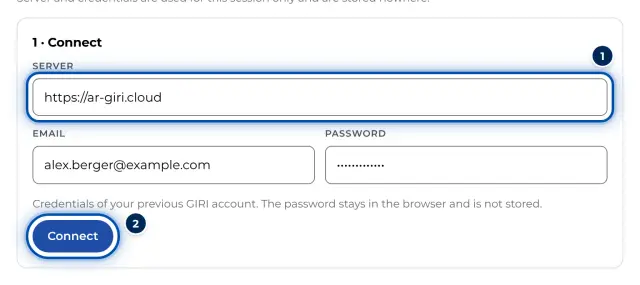
In the Connect section, Server already says https://ar-giri.cloud. If you have your own GIRI 11 server, enter its address; it starts with https://. Enter the e-mail address and Password of your GIRI 11 account and click Connect. GIRI only uses the credentials to sign in to the GIRI 11 server and does not store them.
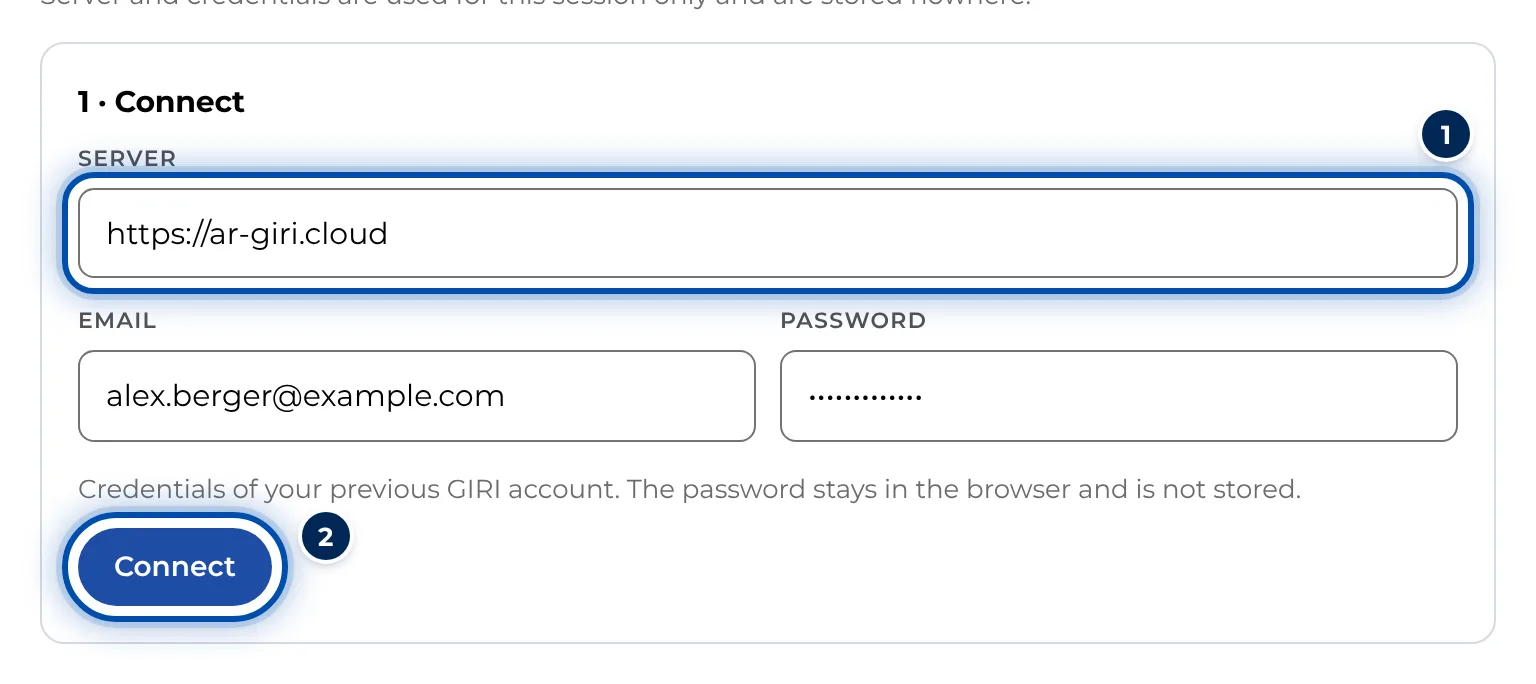
The Connect section with server, e-mail and password of the GIRI 11 account -
In the Take over structure section, GIRI shows the users with your company domain, the teams and the projects. Choose what GIRI should create: Take over users and set roles, Send new users the login mail now, Create teams with members, Create projects as folders and assign teams and Skip empty projects (no folder without instructions). Click Take over structure.
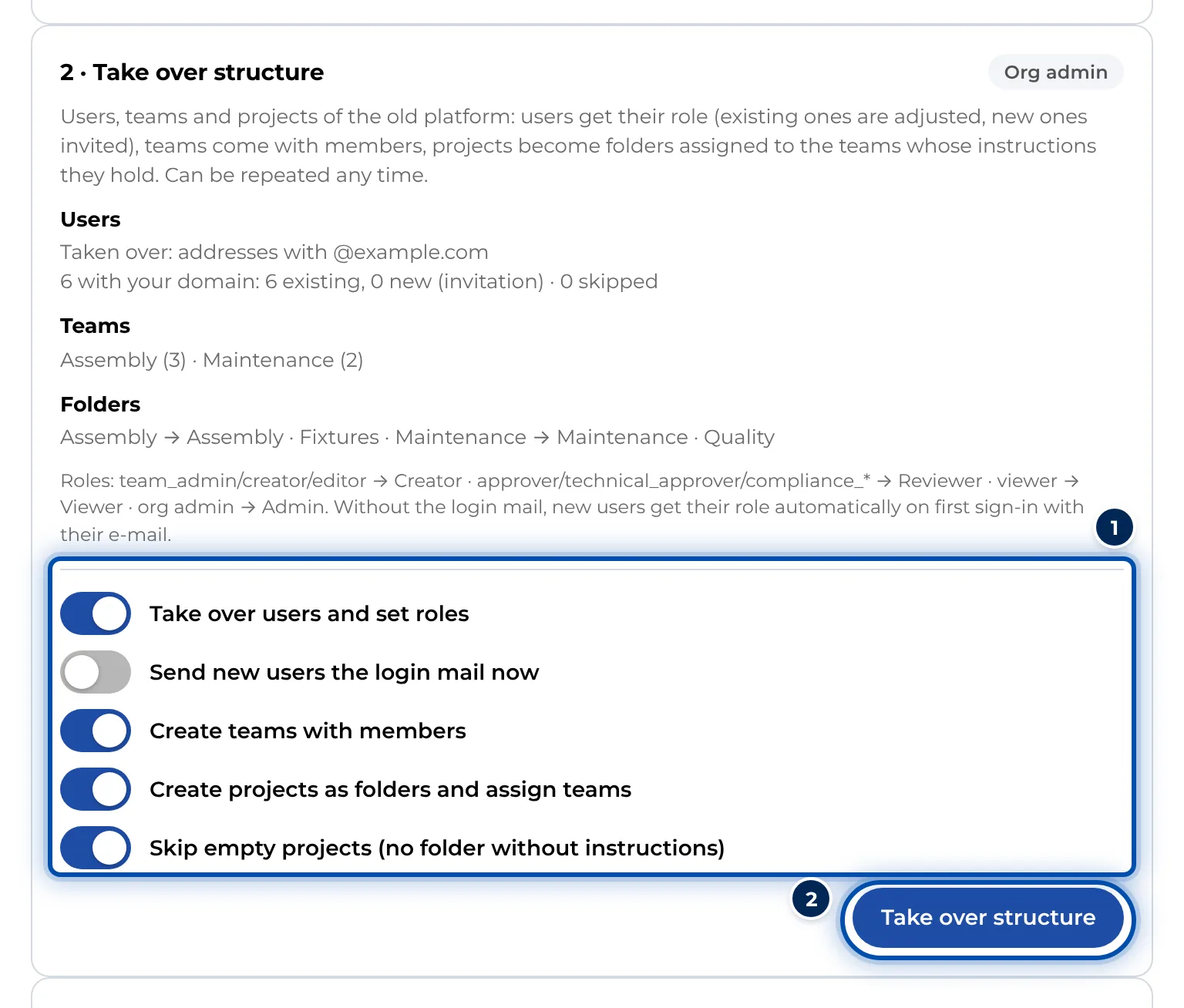
The Take over structure section with users, teams, projects and options -
In the Choose instructions section, the instructions are grouped by project. Everything not yet imported is preselected. Search, sorting and Only not yet imported narrow down the selection. Below, choose Projects become folders, Published stays published and Take over step icons.
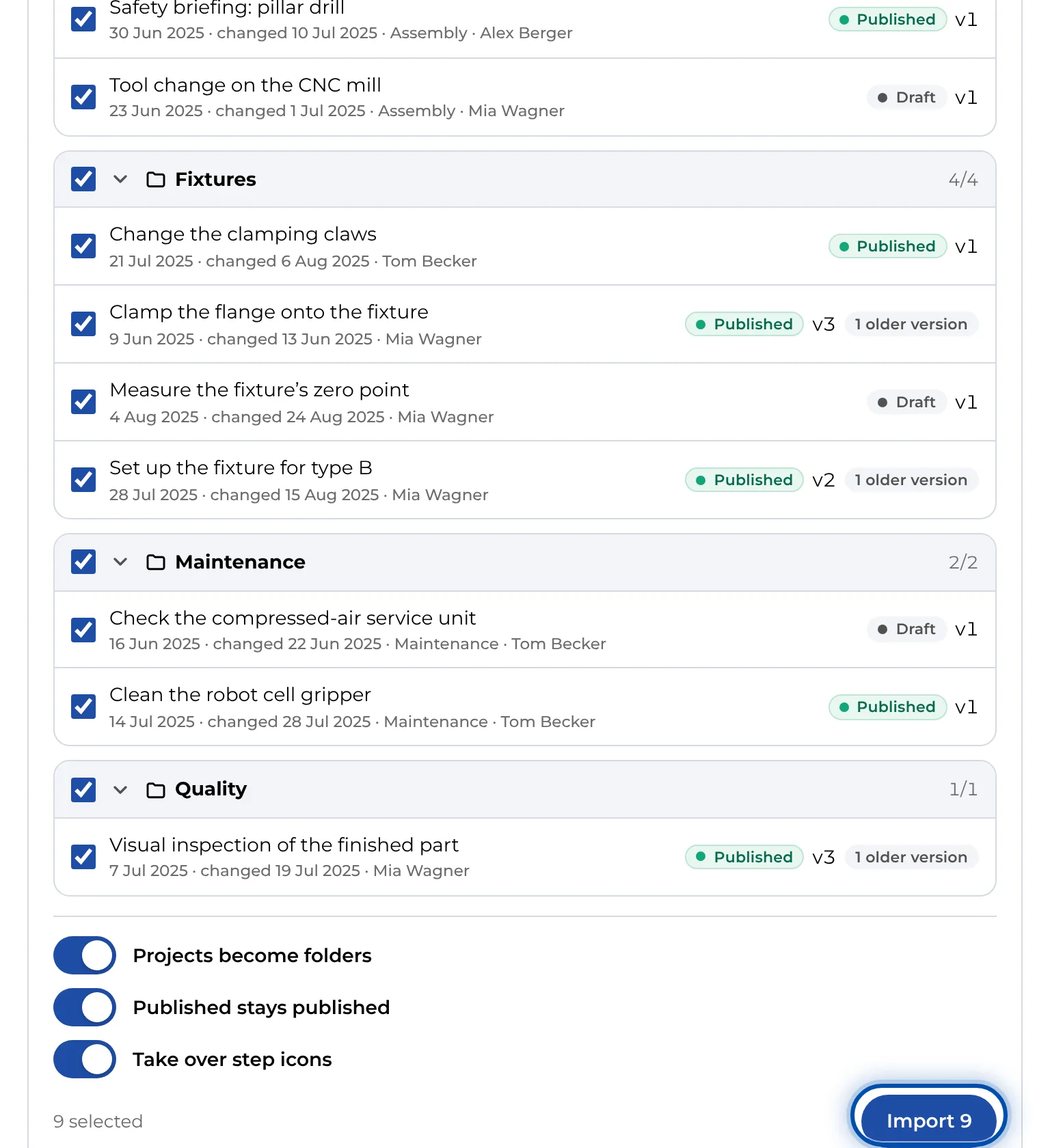
Choosing GIRI 11 instructions by project, with status and version -
Click the button with the number, for example Import 12. GIRI imports one instruction after another and shows the progress. If one fails, click Retry next to it.
-
At the end, Instructions takes you to the list and Import more back to the selection.
Tips
- Take over the structure first, then the instructions. That way the instructions land straight in the right folders and teams.
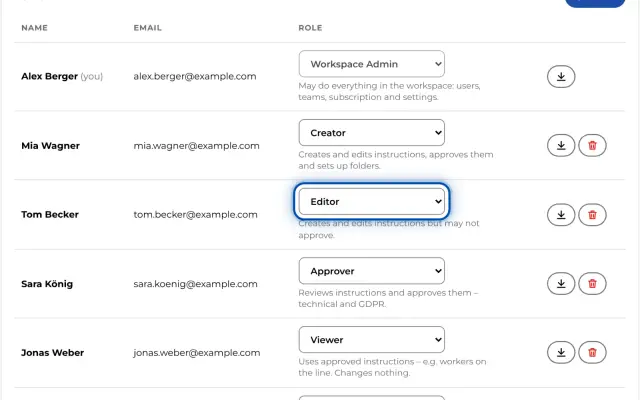
- The eight GIRI 11 roles exist in GIRI 12 under the same names, and team roles carry over one to one. As their workspace role, each person gets their highest team role; org admins become admin, and anyone in no team becomes Viewer. The import does not change your own role, and admins stay admin. The note under the structure still describes an older mapping.
- Only addresses with your company’s domain are taken over: your own domain and the workspace owner’s, never addresses from free e-mail providers. New people are created as pending invitations. With Send new users the login mail now they get the invitation e-mail straight away; otherwise you send it later under Pending invitations. They get their role as soon as they sign in with their address.
- A GIRI 11 step with several media slots, such as a before and after pattern, becomes one step per slot. The label goes into the title. Of several versions, the newest one is imported; the older ones appear as entries in the history.
- GIRI plays videos without sound, including imported ones. Look at imported instructions in the Preview before you approve them.
Common problems
- Wrong e-mail or password. Check the credentials in GIRI 11. The server address must start with https://.
- Session expired. Connect again in the first section and carry on.
- A step arrives without a picture or video. The file was too large, or the old server did not respond. GIRI takes over files up to 120 MB, even if the message says 150 MB. The step keeps its text, and you record it again.
- Colleagues are missing after taking over the structure. They have a different domain and were skipped. The overview under Take over structure lists these addresses. Invite them yourself, see Invite people and assign roles.
- An instruction is skipped. Usually the workspace is read-only, for example after the trial has ended. Write to giri@ar-giri.de.