Guide
Branding: logo, colour, theme
Set your company name, accent colour, logo and a light or dark theme for the worker view, PDFs, QR sheets and PIN cards.
What for?
Branding puts your name, your logo and your colour on your instructions. Workers can see at a glance that an instruction comes from you, and printouts look consistent. Branding applies to the whole workspace.
Before you start
- You are a Workspace Admin. Only admins see the Administration section in the menu.
- Optional: your logo as a PNG, JPG or SVG file.
Step by step
-
Open Menu → Branding. The Branding dialog opens.
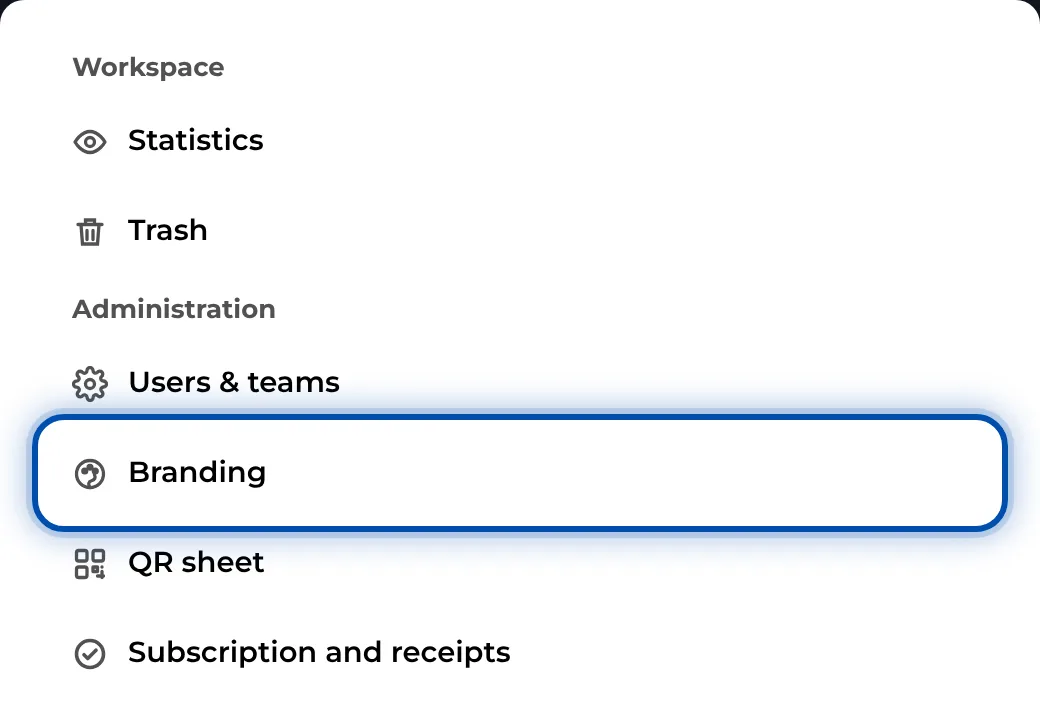
Branding in the menu under Administration -
Enter your name under Company name, for example Example Ltd. It appears at the top of the worker view and in the PDF.
-
Choose one of the 16 colours under Accent colour. In the worker view it colours buttons, the progress bar and chapter pages, plus accents in the PDF, QR sheet and PIN cards.
-
Under Logo, click Upload and choose your logo. An existing logo can be taken out again with Remove.
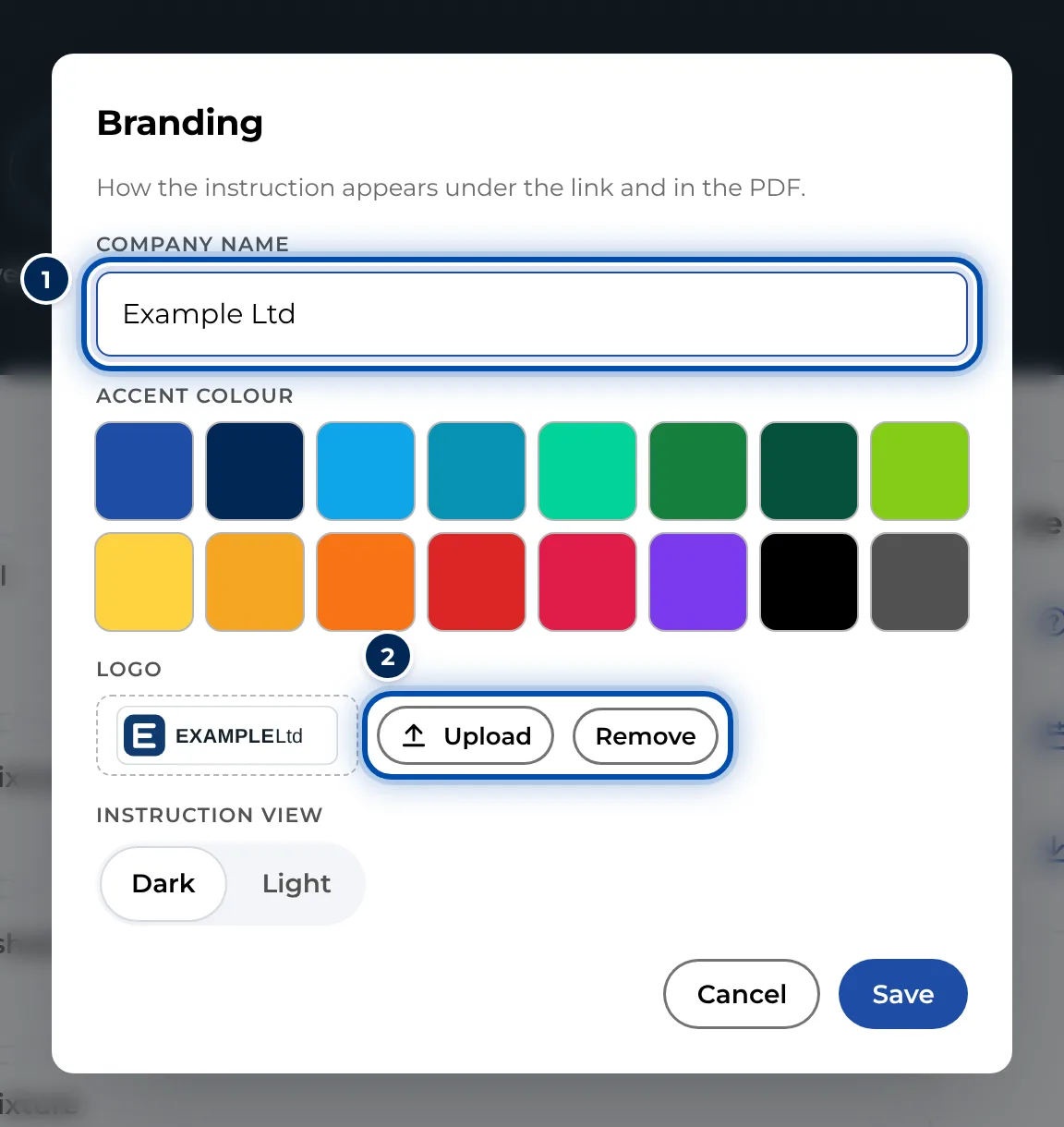
Company name and logo in the Branding dialog -
Under Instruction view, choose Dark or Light. This sets the background of the worker view.
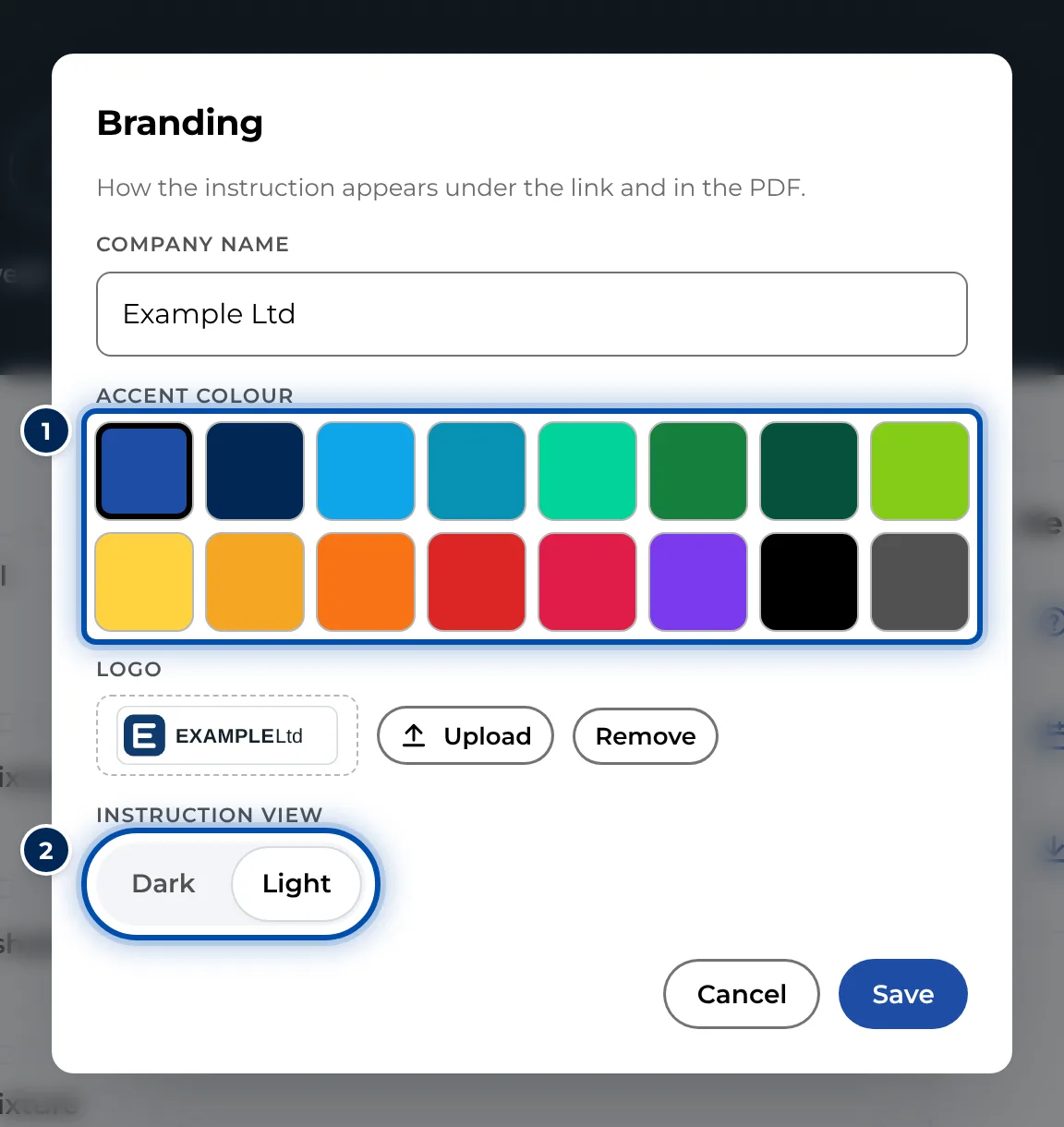
The Branding dialog with company name, accent colour, logo and instruction view -
Click Save. From now on, instructions open with the new branding.
-
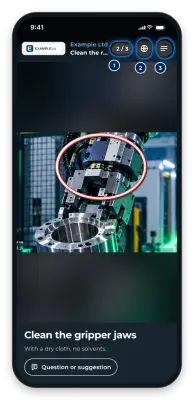
Check the result: open a published instruction via its link or in the Preview.
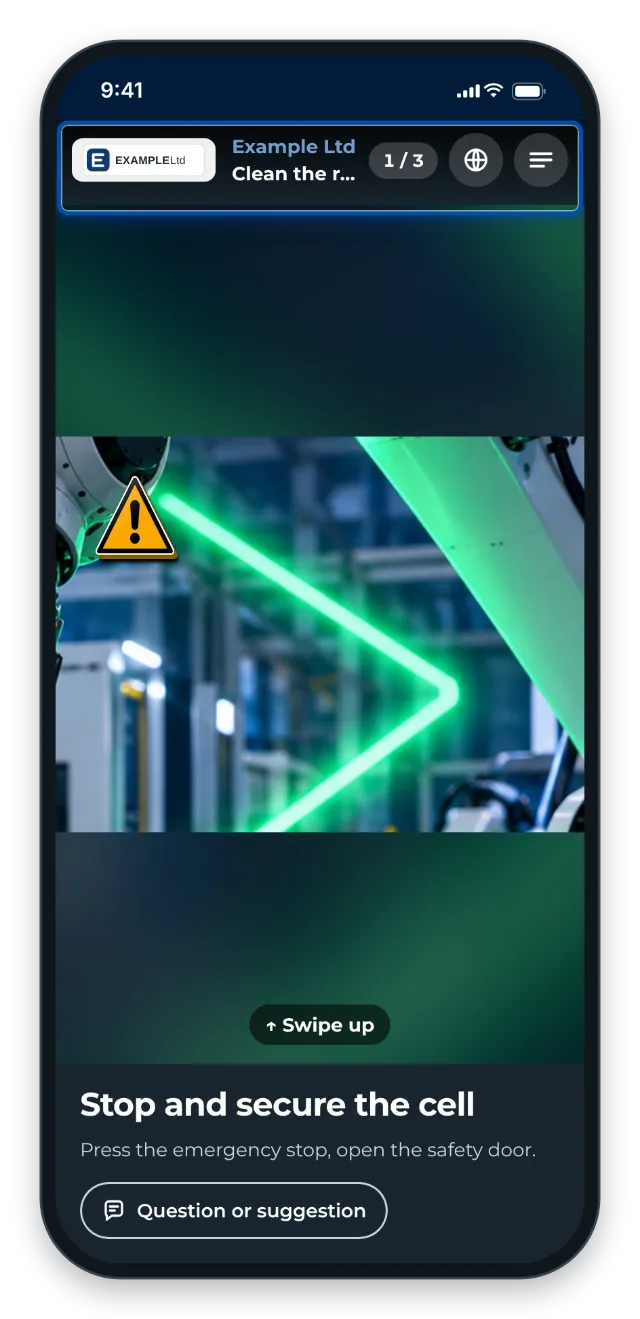
The worker view on a phone with logo, company name and accent colour
Tips
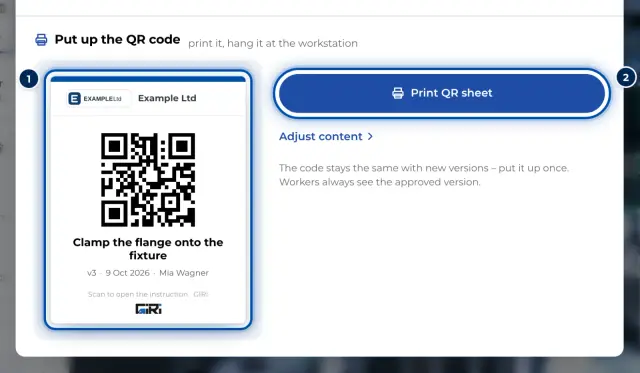
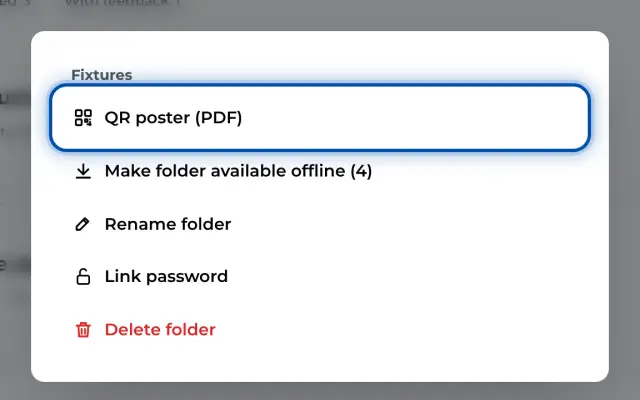
- Branding appears in the worker view, in an instruction’s PDF, on the QR sheet and QR poster, on PIN cards, in training records and on the My trainings page.
- Without a logo, the worker view shows the company name in your colour.
- A landscape logo with a transparent background fits best in headers and on cards.
- Dark is the default. Try both views on a phone at the workstation before you decide.
- What appears on the QR sheet and QR poster is set there, see Print the QR sheet and choose its content.
Common problems
- Branding is missing from the menu. Only admins see the Administration section.
- Your house colour is not there. There are only the 16 colours in the dialog. You cannot enter a colour value of your own. Pick the closest one.
- A printed QR sheet or a PDF still shows the old logo. Saved and printed files do not change with it. Create them again.
- A device still shows the old branding. Without a connection, GIRI opens the saved copy of an instruction. Reload the page with a connection and open the instruction again.