Guide
Train a group
Brief several people at once on a tablet or screen: pick participants or scan their cards, add guests, everyone signs, attendance list as PDF.
What for?
A supervisor often briefs several people together, for example once a year at the pillar drill. With Train a group, each person still gets a record of their own with a signature. Nobody needs a PIN for this: you, as the trainer, vouch for the group. GIRI activates training per workspace; ask at giri@ar-giri.de.
Before you start
- Training is activated for your workspace.
- You are signed in to GIRI as a Workspace Admin or Team Admin.
- The training is published.
- A tablet or a screen with touch or a mouse for the signatures. The device needs a connection to load the list of participants.
Step by step
-
Start the group training. On the Training page, click the training and then Train a group. You find the same entry in the ⋯ menu on the instruction’s card and in its Settings.
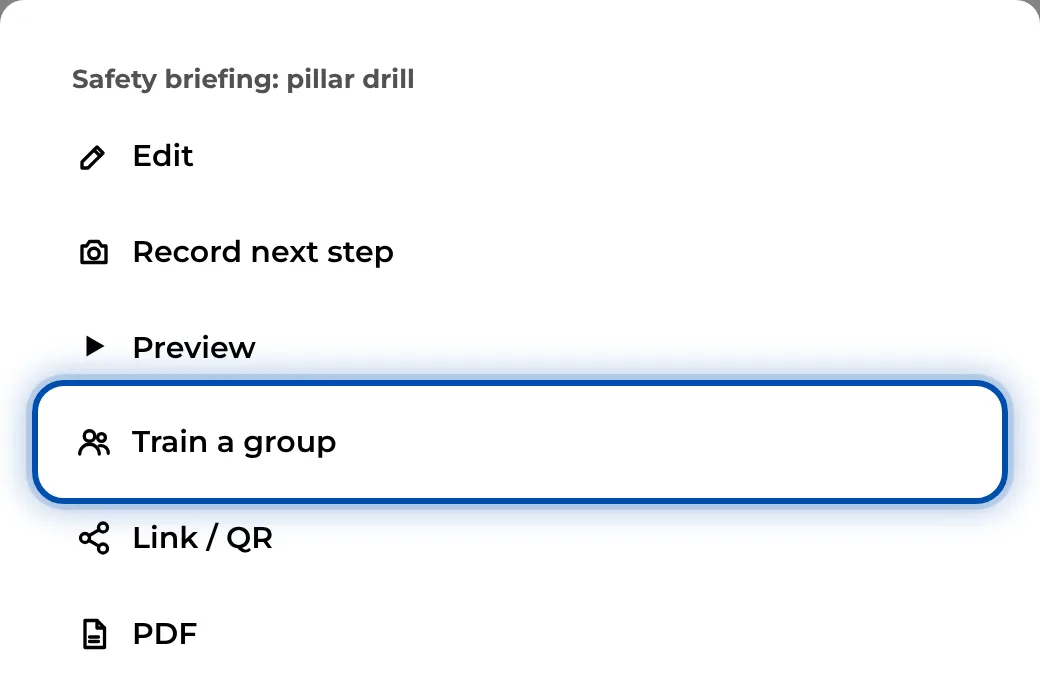
Train a group in the ⋯ menu on the instruction’s card -
Tick everyone in the list who is present. The list shows the people with their department, number and status for this training. If you use PIN cards, hold them up to the camera one after another with Scan cards. Each recognised card ticks a person.
-
Click Add a guest for people who are not on the list, such as temporary workers. Enter the name and, if you like, the Firm, then click Add.
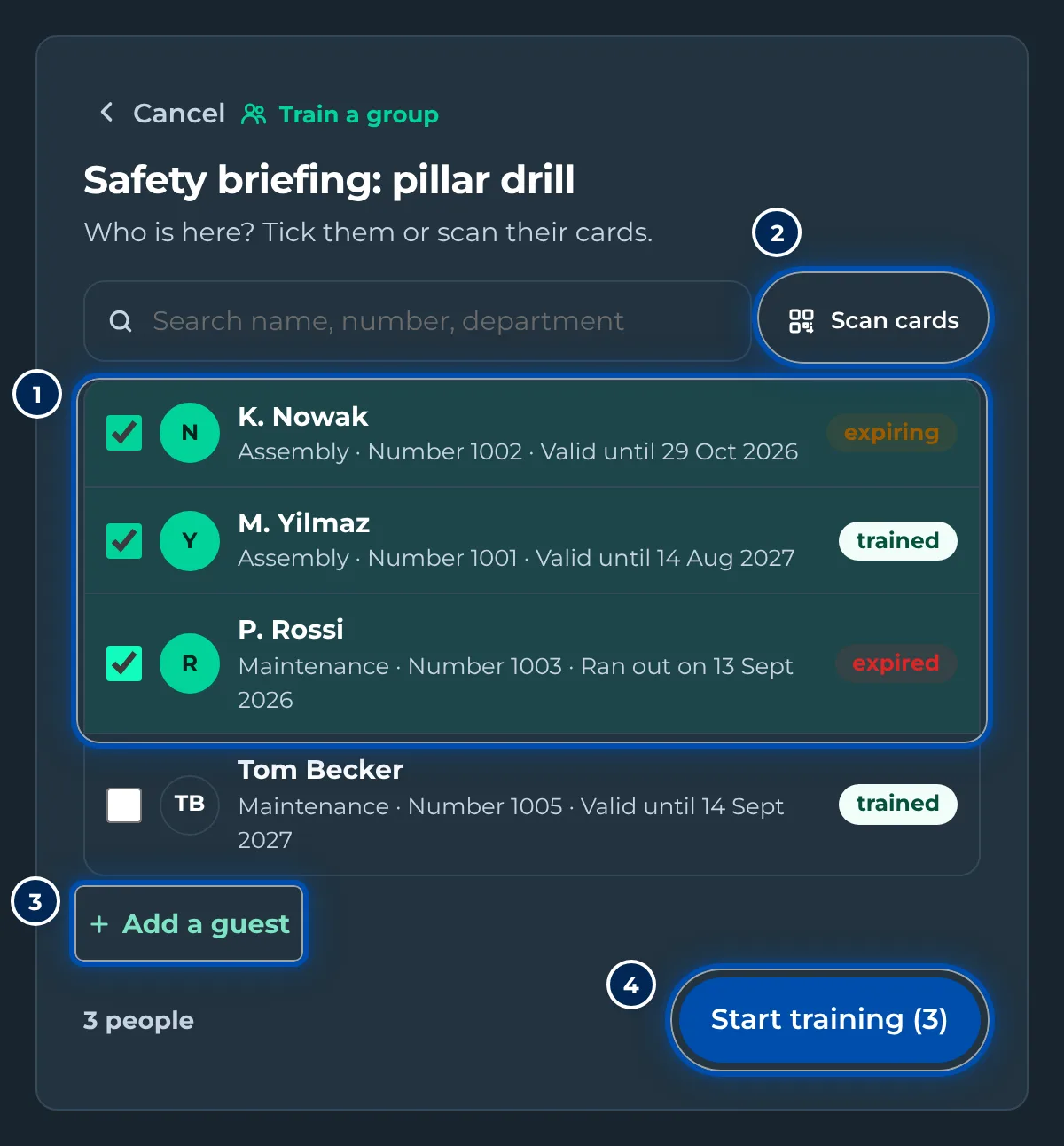
Who is here: list with ticks, Scan cards, Add a guest and Start training -
Click Start training (8) and go through the training with the group. Any checklist in the instruction is switched off for group training.
-
At the end you see the Signatures list. Click Collect signatures (8 open) and pass the device on. Each person sees their name and a sentence saying that you briefed them, signs with a finger and taps Sign. Anyone who is not there gets Absent today.
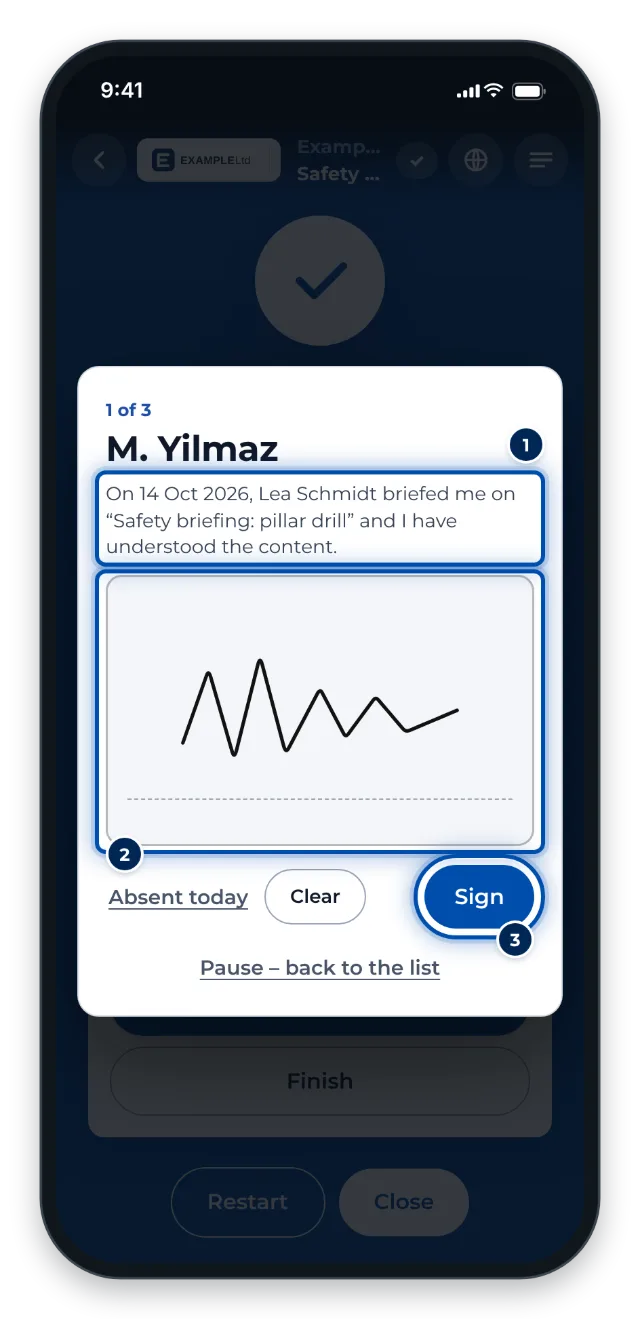
A person signing in the group training, with the sentence about the briefing -
Click Finish. If signatures are still missing, GIRI asks first. The last page shows how many signed and how many are missing. Attendance list (PDF) saves the attendance list with every signature and a field for your own.
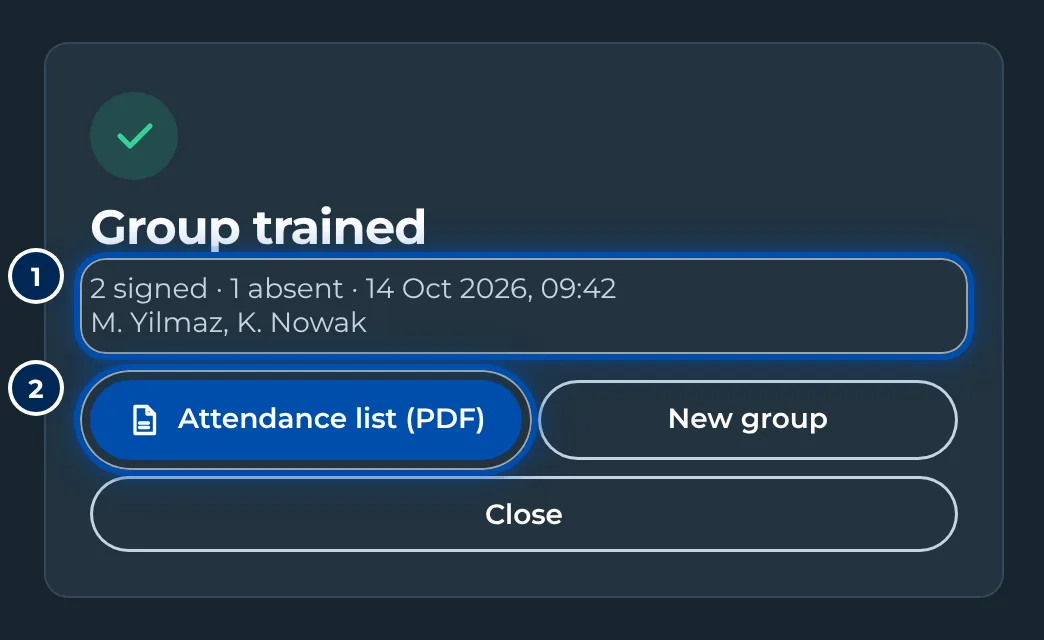
End of the group training with Attendance list, New group and To the training -
New group starts the next group straight away.
Tips
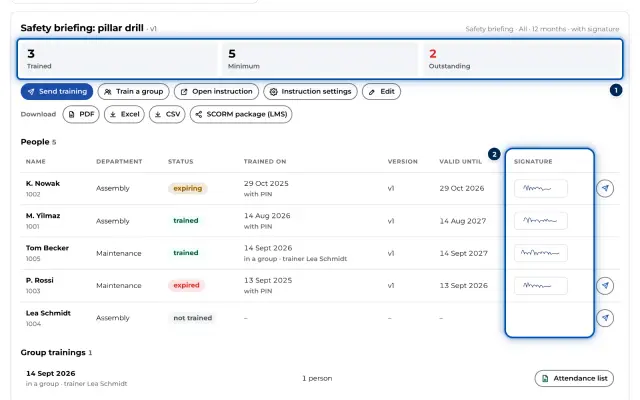
- Each signature becomes a record of its own, marked in a group · trainer Lea Schmidt.
- You find the attendance list later in the training’s detail under Group trainings. Guests are listed there under Guests and contractors, not on the list of people.
- Pause – back to the list takes you back to the list while people are signing.
- Train a group works the same with Pick a name and with Number + PIN.
Common problems
- Only admins and team leads train groups – the training opens normally. Sign in as an admin or Team Admin, or have people do the training individually.
- Train a group is missing. The training is not published yet, or you are neither an admin nor a Team Admin.
- Camera not available – tick the people in the list. Allow the browser to use the camera, or tick the people by hand.
- The list could not be loaded. Check the connection and tap Try again.