Guide
Share the link and QR code
Send a published instruction as a link or put its QR code up at the workstation. Workers open it without signing in and always see the live version.
What for?
Workers should find the right instruction where they work. Instead of a printout in a binder, the QR code hangs right at the machine. The link and the code stay the same, even when you update the instruction later.
Before you start
- You may share: every role except Viewer and Editor.
- The instruction is published, see Submit for approval.
Step by step
-
Open the instruction. On a PC, click Link & QR code at the top right. In the list, use the card’s ⋯ menu and Link / QR. On a phone, tap Link & QR code at the bottom of the step list.

A published instruction has the Link and QR code button at the top right -
The Share dialog opens. The link is at the top, under Send the link.
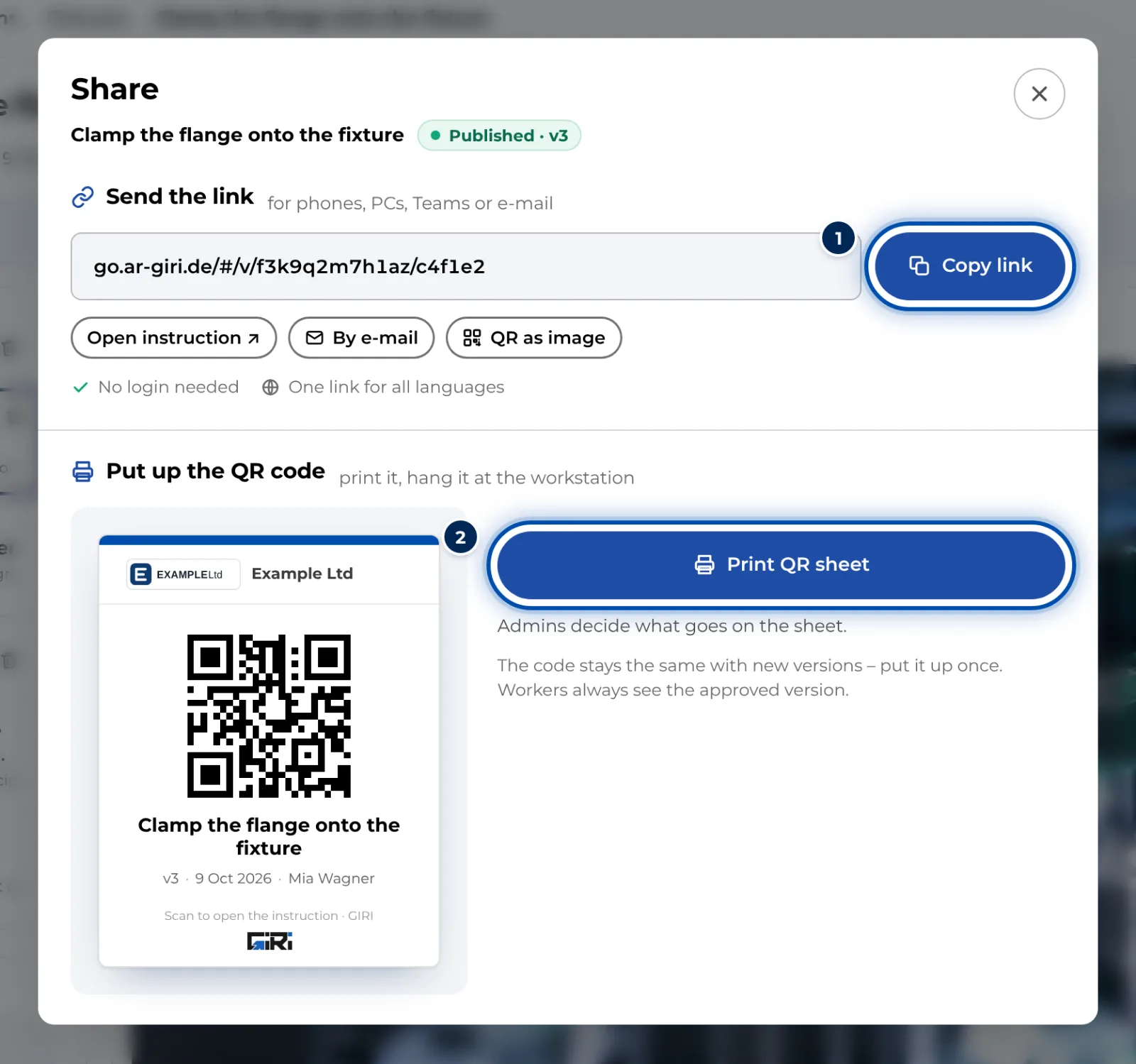
The Share dialog with the link at the top and the QR sheet below -
Click Copy link. Paste the link wherever your people need it: in a chat, in Teams, on the intranet or in a ticket. Open instruction lets you test it.
-
Share … opens your device’s share menu. If your device has none, you see By e-mail for a ready-made email instead.
-
QR as image saves just the QR code as a PNG image. That works for labels, machine signs or documents.
-
Under Put up the QR code you see the QR sheet. Print QR sheet creates an A4 PDF to put up. More in Print the QR sheet and choose its content.
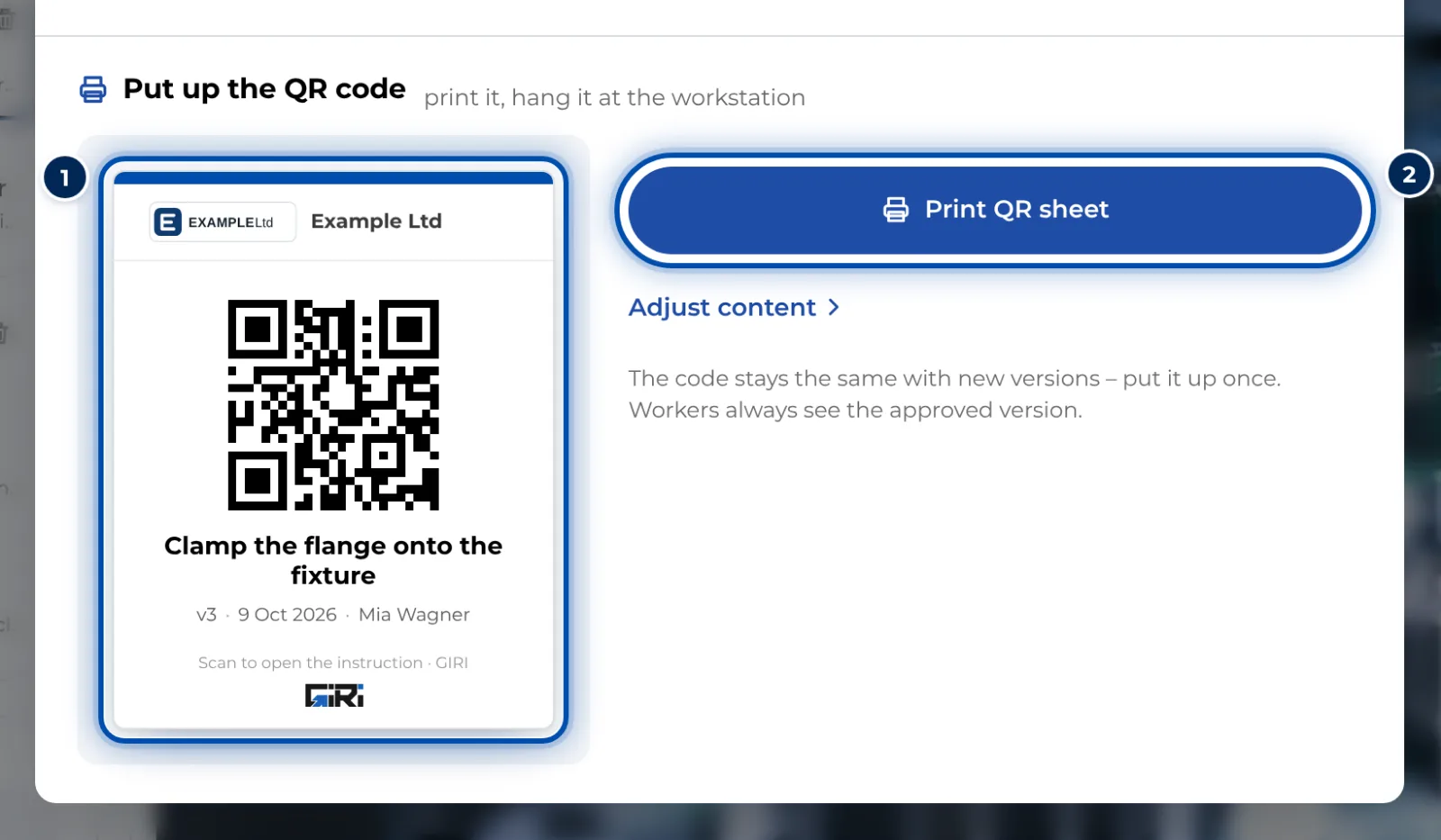
In the Share dialog, a preview shows what the QR sheet looks like
When you publish on a phone, GIRI then shows the QR code straight away, with Share link and Print QR sheet.
Tips
- The QR code stays the same for new versions. Put it up once and workers always see the approved version.
- One link for all languages: workers choose their own language, see Choose your language.
- Several instructions at one machine? The QR poster for a folder puts them all on one sheet.
- If not everyone with the link should be able to open the instruction, set a link password. The dialog then shows a note with a padlock.
Common problems
- Link & QR code is missing. The instruction is not published yet, or your role may not share. While a new version is in progress, that spot shows Preview. You then find the link and the QR code in the ⋯ menu under Link / QR.
- The link says the instruction is not published yet. It has not been approved yet, or it is in the trash. Without a connection the message also appears when the instruction has never been opened on that device. See “Not published yet” when opening a link.
- Workers still see the old version. The new version has not been approved yet, see Update a published instruction.
- The link is reported as outdated. It was copied incompletely or is very old. Share the current link from this dialog.