Guide
Instructions in other languages
GIRI translates instructions into 13 languages with DeepL as soon as someone picks a language. How to prepare your texts and check the result.
What for?
In many teams not everyone reads the same language. With GIRI you write an instruction once, and everyone reads it in their own language. There is no translate button: the translation is made in the worker view, the preview or the PDF export, and GIRI stores it. One link and one QR code serve every language.
Before you start
- The edit right to prepare the texts. Anyone who opens the instruction can pick a language, including workers without a sign-in.
- The first translation into a language needs an internet connection on the device.
- Workers can only open the instruction via its link once it is published.
Step by step
-
Write the texts in your own language. GIRI translates the title, the chapter names and, for every step, its title, description and warning. DeepL detects the source language by itself.
-
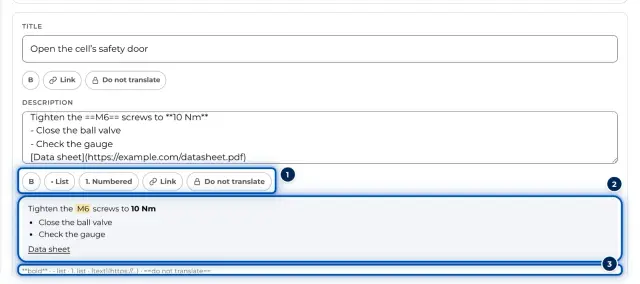
Protect terms that must stay the same, such as part numbers, product names or labels on the machine. Select the term in the step’s title or description and click Do not translate. GIRI puts it between
==and==, and DeepL leaves it unchanged.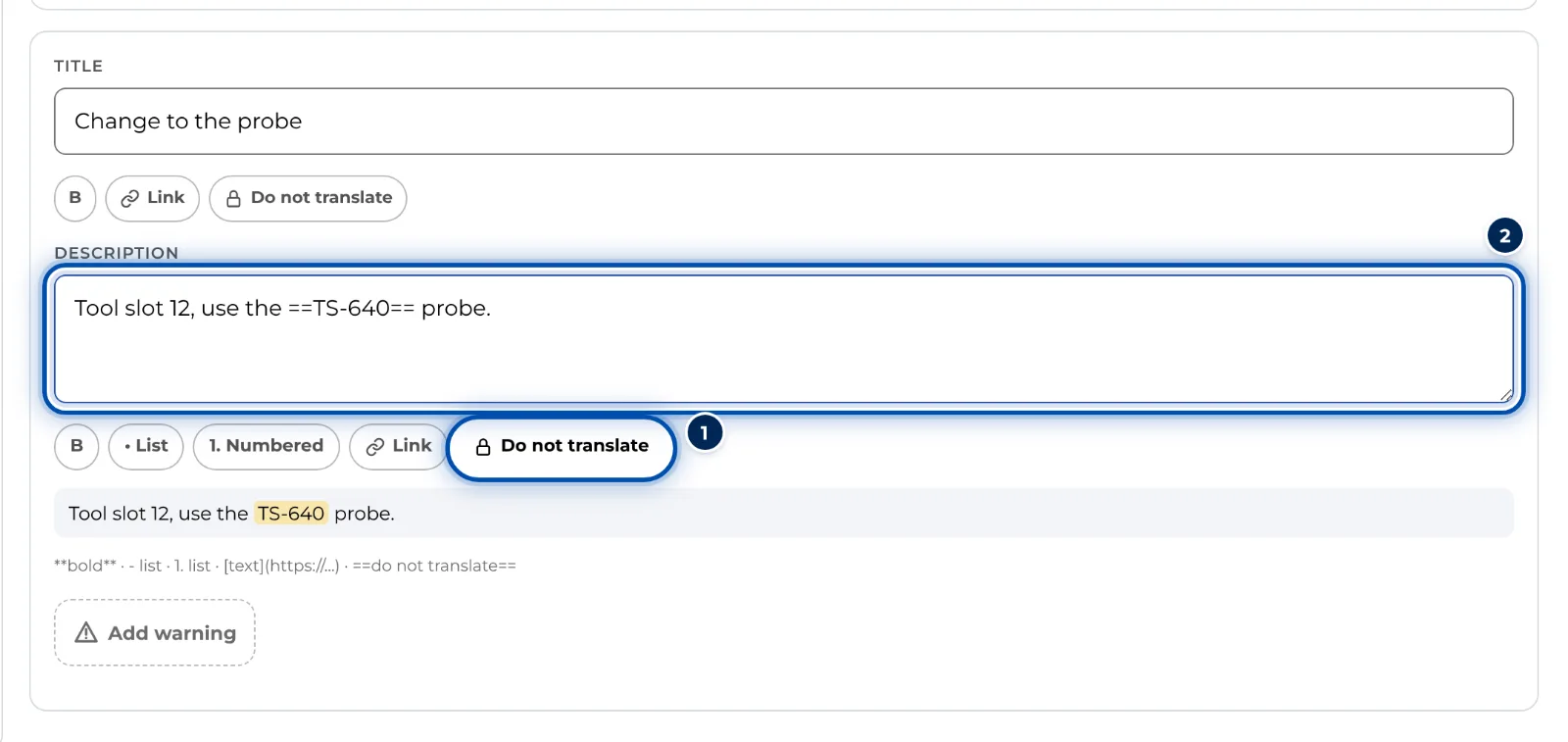
With Do not translate, a term stays the same in every language -
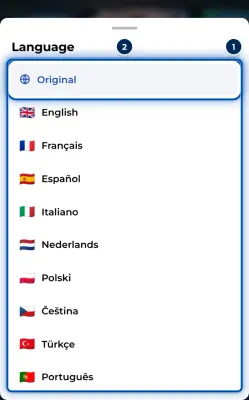
Check a language in the preview: tap the globe at the top (Language) and pick a language. GIRI briefly shows Translating … and stores the translation. Original takes you back to your text.
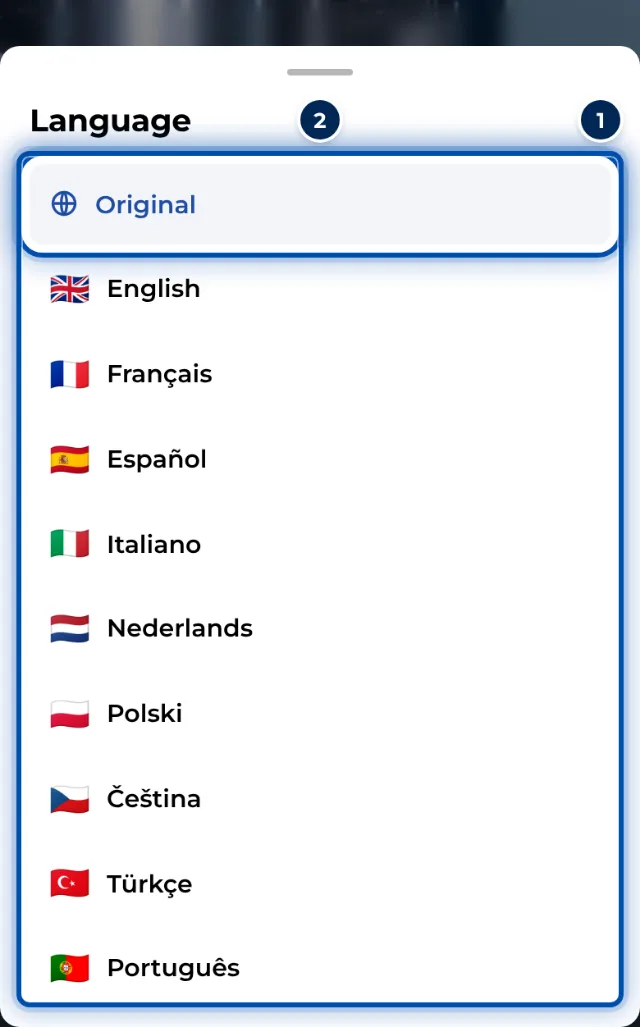
The language menu in the preview, with the original and 13 languages -
Submit the instruction for approval. Once it is approved, workers pick their language themselves via the globe, and their device remembers the choice. The buttons of the worker view switch to that language as well. See Choose your language.
-
With the share right, you see in the Share dialog which languages have been translated already: the flags under One link for all languages.
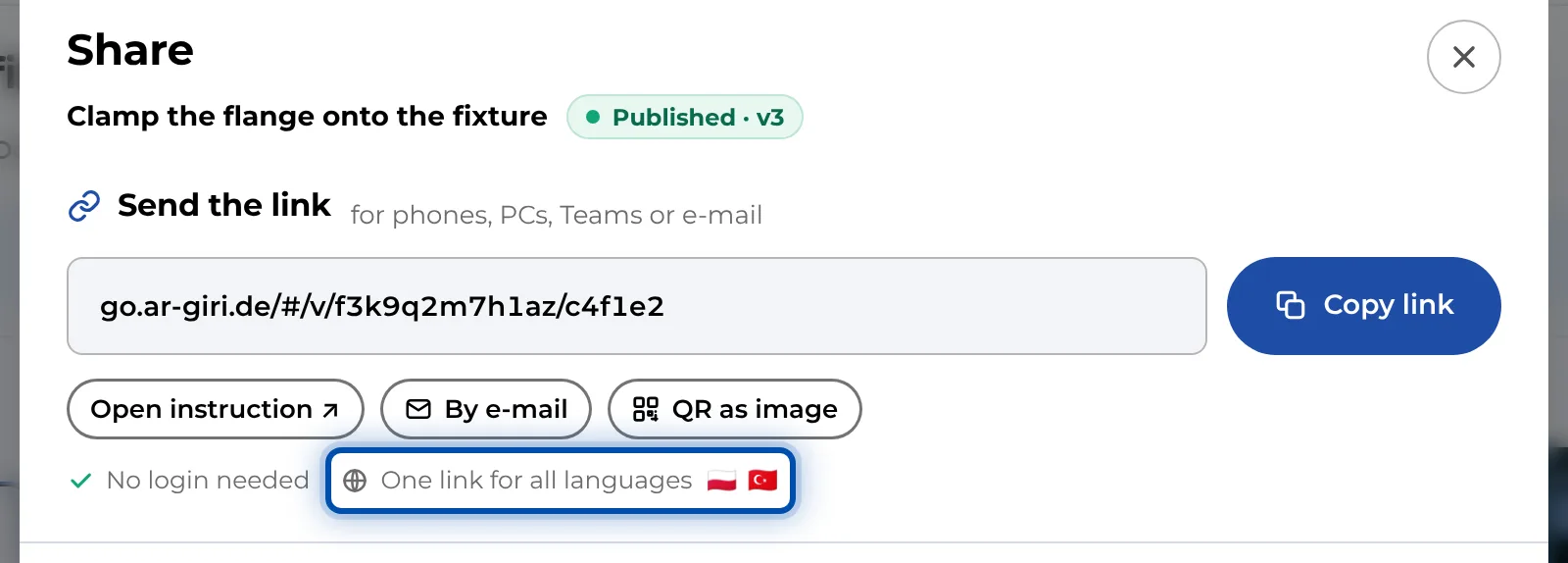
In the Share dialog, flags show the languages already translated
There are 13 languages to choose from: English, French, Spanish, Italian, Dutch, Polish, Czech, Turkish, Portuguese, Romanian, Hungarian, Chinese and German. DeepL translates English as British English, Portuguese as European Portuguese and Chinese into simplified characters.
Tips
- DeepL is most reliable with short, clear sentences and one action per step. Avoid abbreviations and in-house jargon.
- When the original text changes, GIRI translates again the next time someone opens the instruction in that language. You don’t need to trigger anything.
- Text you write into the picture with the Text tool is not translated. Important notes belong in the description or the warning.
- If you add a language code to the instruction’s link, such as
/enor/pl, it opens straight in that language. - Translate the most important languages once in the preview before you submit. Workers then don’t have to wait when they first open it.
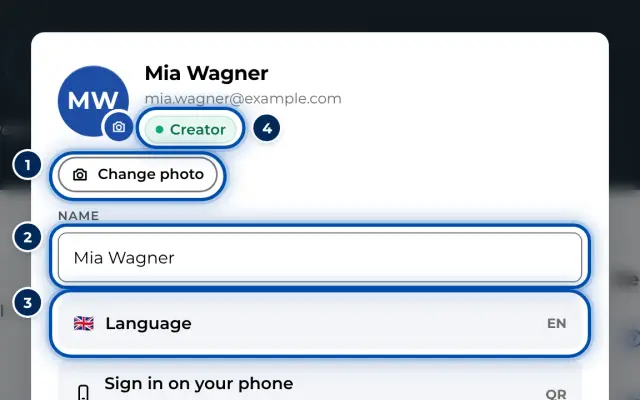
- The language of the app itself is a separate setting in your profile.
Common problems
- A term is translated wrongly. You cannot correct it by hand. Protect it with Do not translate or rephrase the original sentence.
- Text in the picture stays in the original language. GIRI does not translate symbols or text in pictures. Put the note in the description.
- The language does not load. The first translation needs internet. Without a connection, only languages already loaded on the device work.
- Workers cannot load a new language while a new version is in progress. Without a sign-in they only get languages translated before, until the new version is approved.