Guide
Handle and adopt feedback
Read workers' questions and suggestions, mark them as done, dismiss them or turn a photo or video straight into a new step.
What for?
Workers can send a Question or suggestion under every step and at the end of the instruction: text, a photo or a video, with or without their name. In the Feedback tab of the analytics page you collect this feedback and decide what happens with it. That way you improve the instruction with what workers notice at the workplace.
Before you start
- You have edit rights for the instruction (Editor, Creator, Team Admin or Workspace Admin).
- Allow worker feedback is switched on in the instruction’s Settings. This is the default.
- How workers send feedback is described in Send a question or suggestion.
Step by step
-
You notice open feedback by the number on the Analytics tab, the number on the instruction’s card and on the start page under For you. In the editor a notice such as 2 open worker feedback appears with a View button.
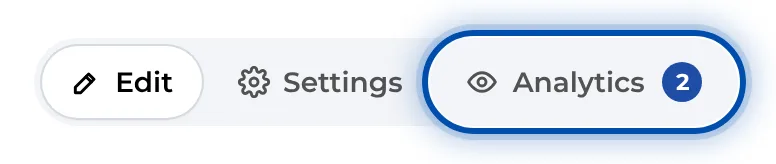
The number on the Analytics tab shows open feedback -
Open Analytics and then the Feedback tab. The number on the card, the entry under For you and View take you straight there. Open feedback comes first, newest at the top. Each card shows the type (Improve the instruction or Improve the process), the step, the text, the photo or video, the name if given, and the date.
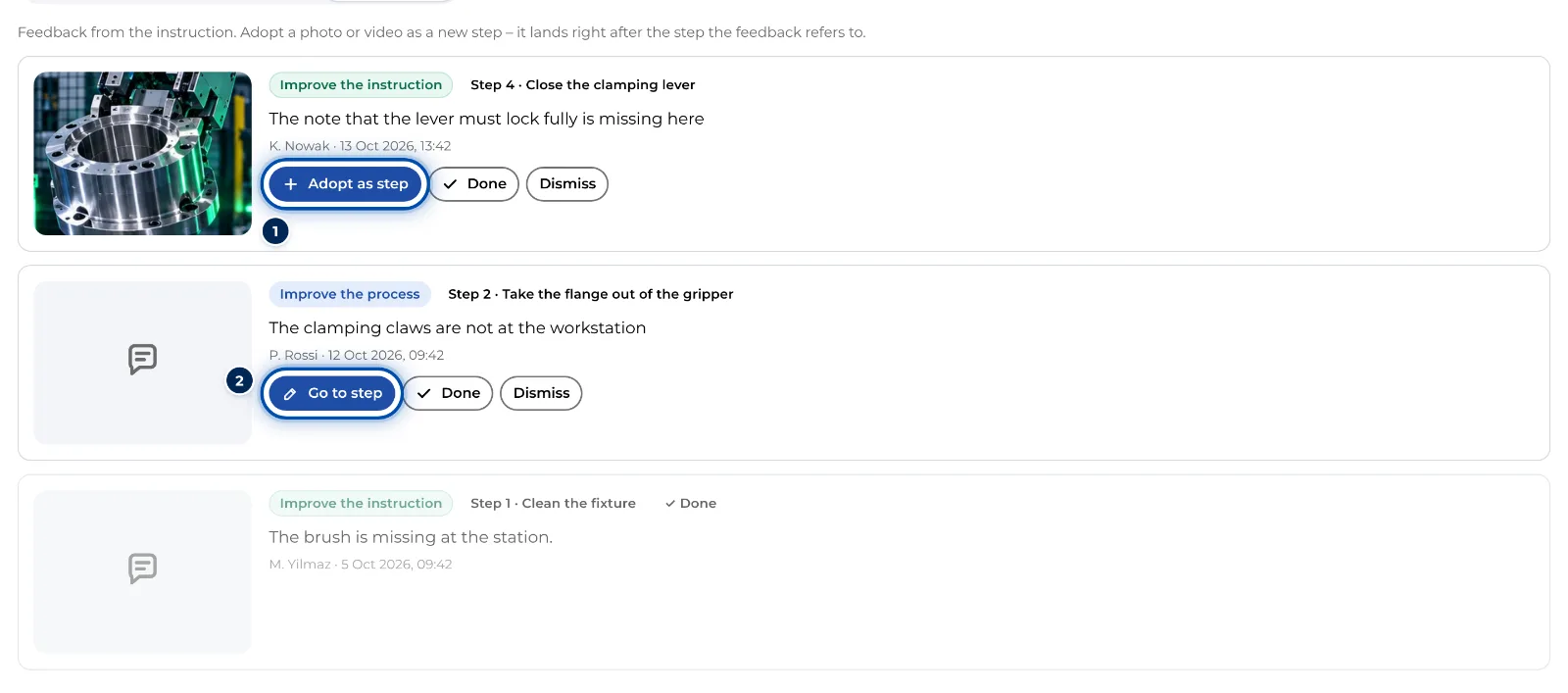
Feedback tab with one item with a photo and one with text only -
Decide for each item:
- Adopt as step is only there for a photo or video. GIRI opens the editor and inserts the media as a new step right after the step concerned, or at the end for feedback on the whole instruction. The text becomes the description and the title reads, for example, Suggestion from K. Nowak. The feedback then counts as done.
- Go to step appears for feedback without a photo or video that belongs to a step. GIRI opens the editor at that step and briefly shows the text. The feedback counts as done straight away, even if you change nothing.
- Use Done if you solved it another way or talked to the worker.
- Dismiss files the feedback away. It stays in the list marked Dismissed.
-
Check the new step in the editor and adjust it, for example trim the video or add text. If the instruction is published, this change starts a new version. Workers keep seeing the approved version until the new one is approved.
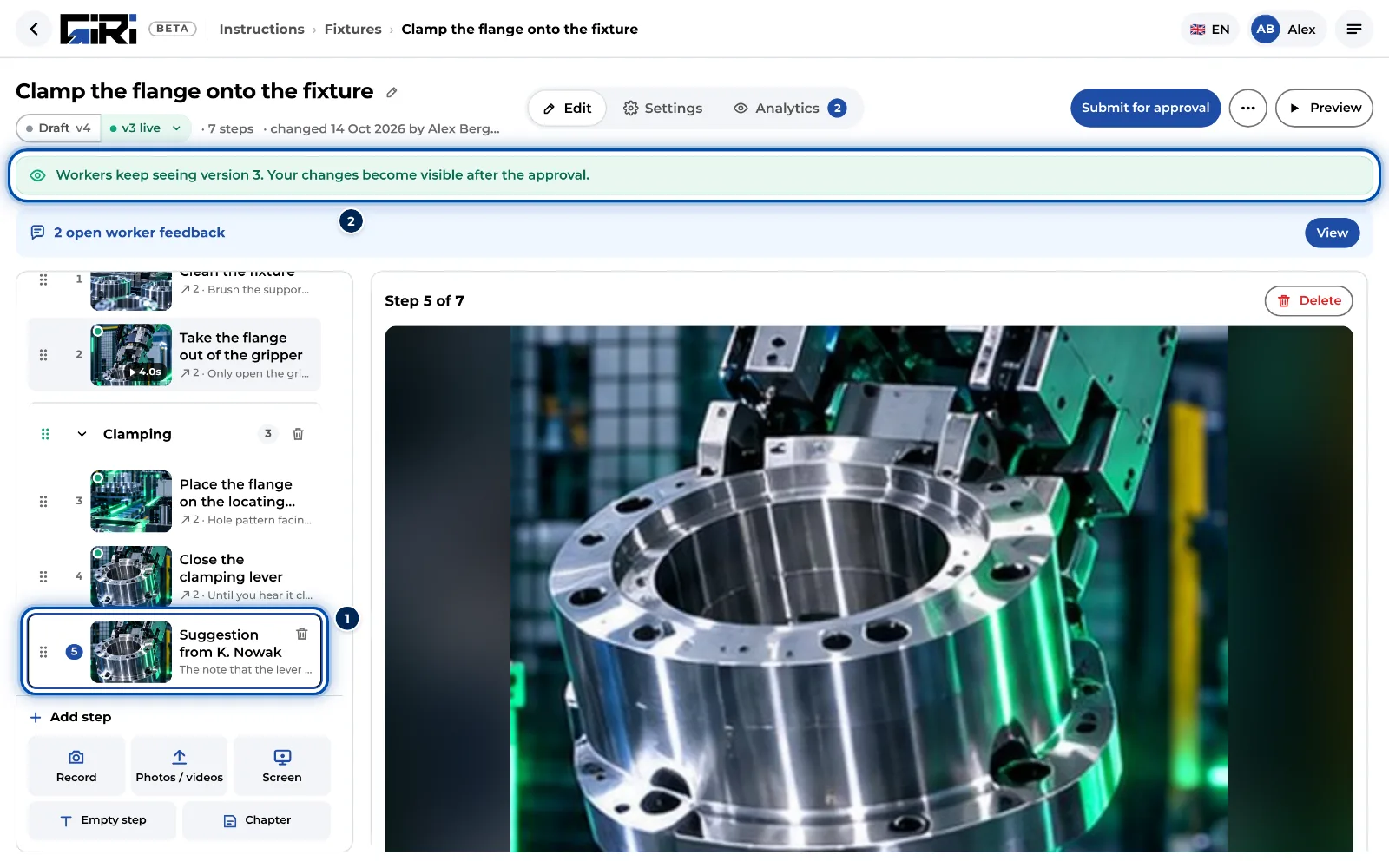
Editor after adopting: the new step right after the step concerned -
Submit the change for approval. More in Update a published instruction.
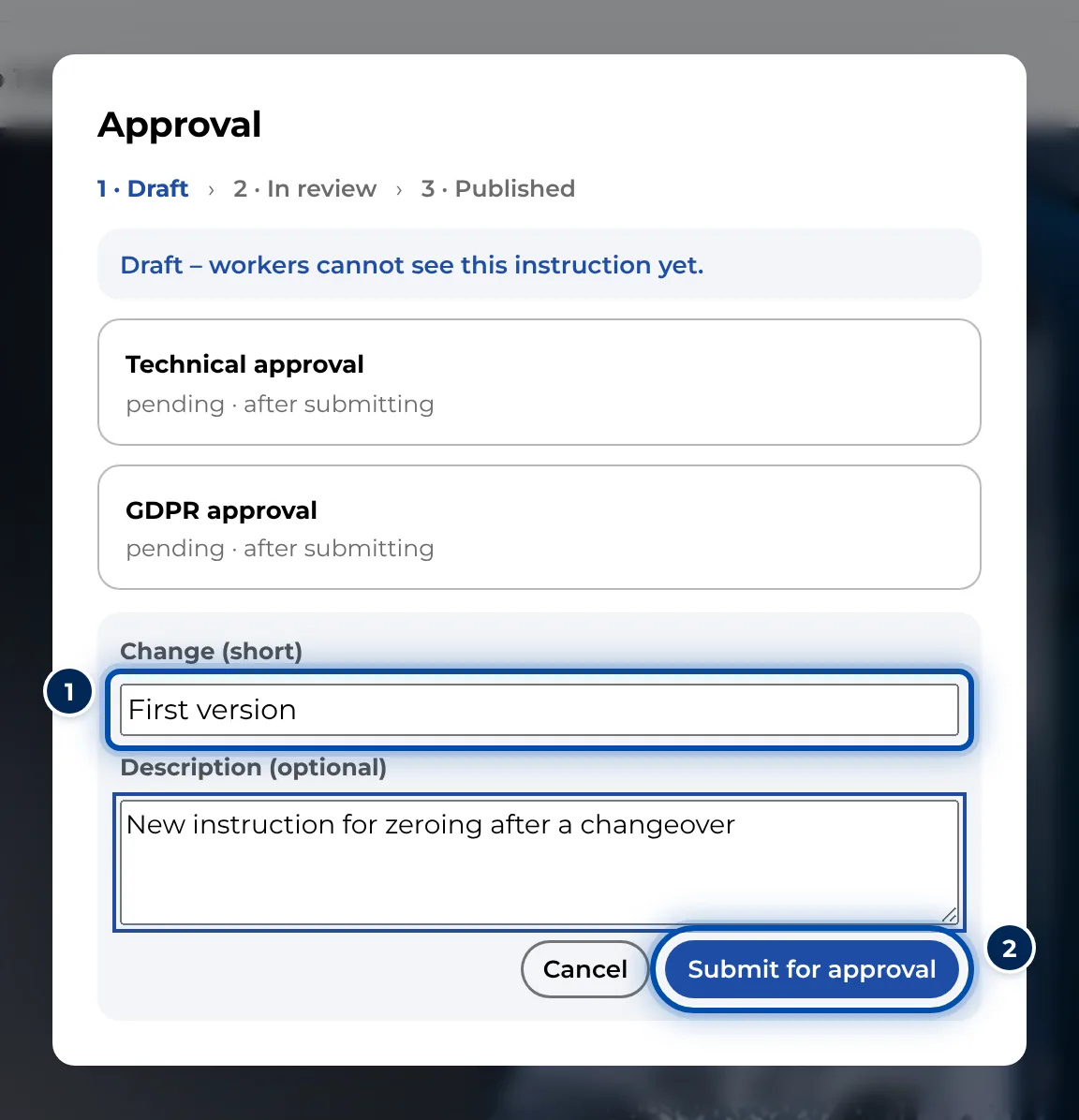
The submit form with the short change name and the description
Tips
- Let the worker know what became of their suggestion. GIRI has no reply function. You see the name on the card if the worker gave it.
- Feedback of the type Improve the process is often about the process rather than the instruction. Pass it on to whoever is responsible.
- Get an email for new feedback: Email notifications for new feedback.
Common problems
- The cards have no buttons. The feedback is already done or dismissed, or you do not have edit rights. This also applies when the workspace is read-only, for example after the trial.
- Adopt as step is missing. The feedback has neither a photo nor a video. Use Go to step if it belongs to a step, otherwise Done.
- Marked as done or dismissed by mistake. The status cannot be reset in the app. The feedback stays in the list, though.
- Workers do not see the new step. It is in the draft. It only reaches the worker view after approval.
- No feedback arrives. Check that Allow worker feedback is on and the instruction is published. Nothing is sent from the Preview. Workers need a connection to send feedback; GIRI does not hold it back offline.