Guide
Find instructions: search, filters, teams
Full-text search across titles and step texts, status filters, sorting and the team filter: how to find any instruction again quickly.
What for?
Over time you collect dozens or hundreds of instructions. Then you may be looking for the one with a particular part number, for everything still in review, or only for what applies to your team. You can do all of that on the Instructions page.
Before you start
- You are signed in; any role will do.
- You only see instructions from folders and teams you have access to.
- The team filter is available if you belong to at least two teams. Admins see it as soon as there are two teams.
Step by step
-
Open Instructions. On the start page the button sits in the top bar; on a phone it is at the top next to your profile picture.
-
Type search terms into the search box. GIRI searches titles, chapter names, step titles, descriptions, warnings and the creator’s name. With several words, all of them must appear. Matching folders show up above as tiles.
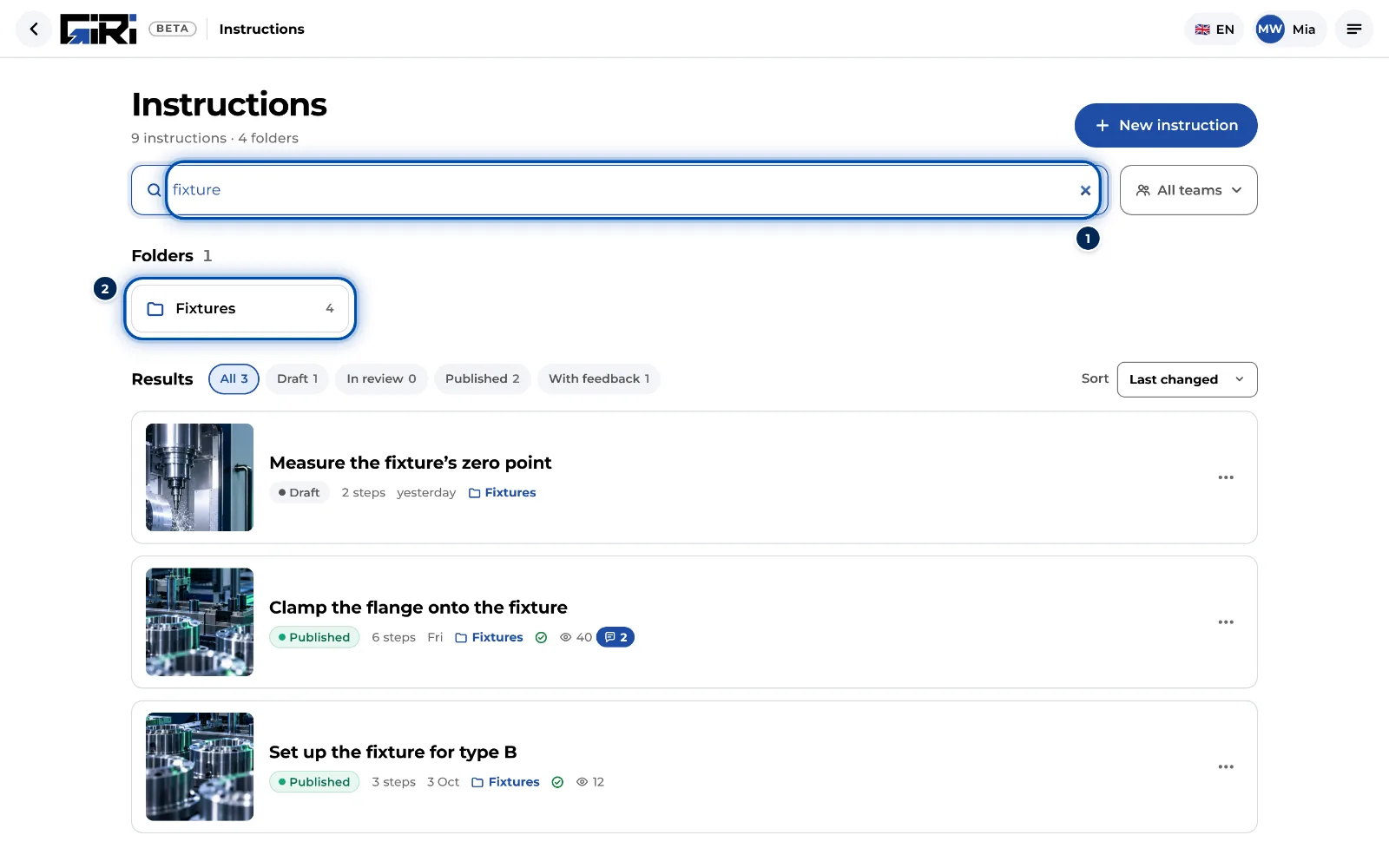
Searching for “fixture”: matching folders and instructions -
Narrow the list with the status buttons: All, Draft, In review or Published. If there is open feedback, With feedback is added. The number shows how many instructions match. Clicking a second time removes the filter.
-
Sort via Sort: Last changed, Last created, Last published or Title A–Z.

Status filters and sorting above the list -
Pick a team: click All teams next to the search box, then a team. You now only see that team’s instructions, whether they are assigned through their folder or directly. No team shows instructions without a team.
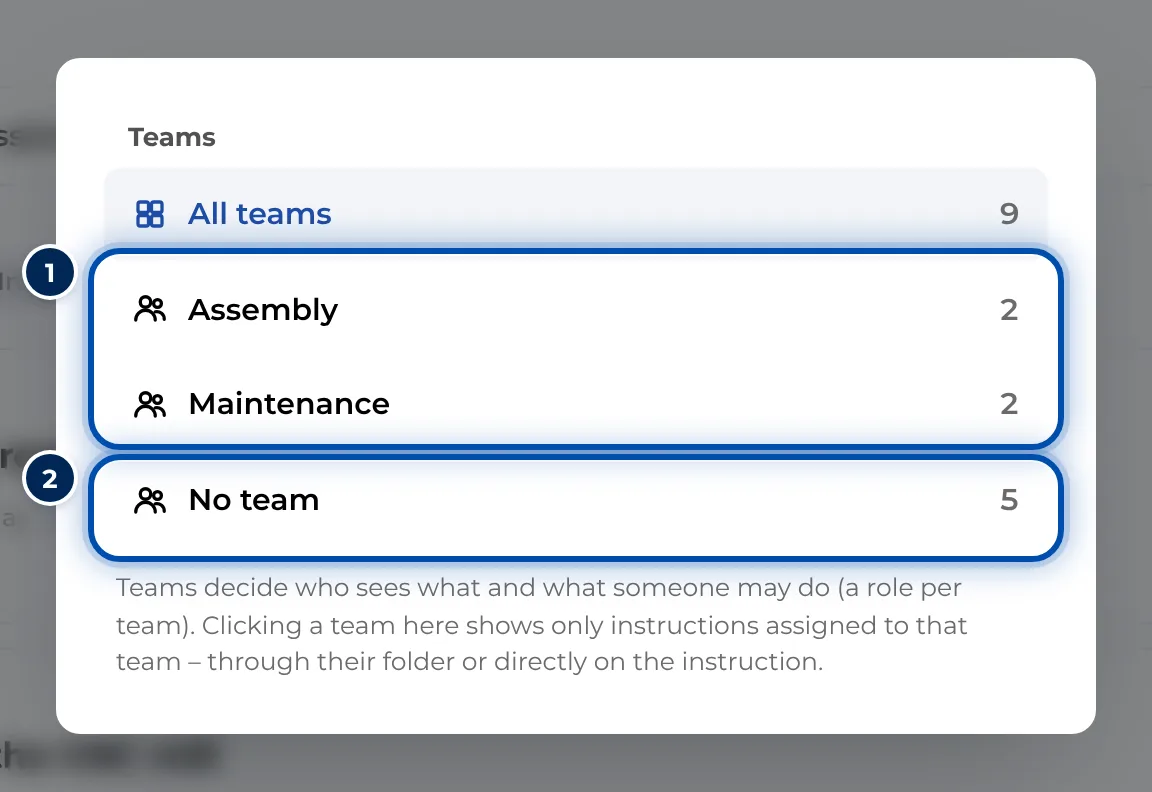
The team filter with the number of instructions per team -
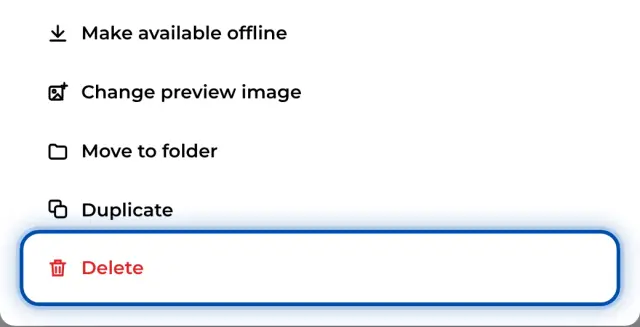
Open an instruction by clicking its card. Depending on your rights and its status, you land in the editor, on the review page, in the worker view or in the preview. More actions are under ⋯ on the card.
At a glance, each card shows the status, the number of steps, the last change and the folder. A checklist icon, views and open feedback complete the picture.
Tips
- Parts of words are enough: “flan” finds “flange”.
- Search for content from the steps, such as a part number or a torque value.
- The search always covers every folder, even when you have a folder open.
- Last published shows what went live most recently.
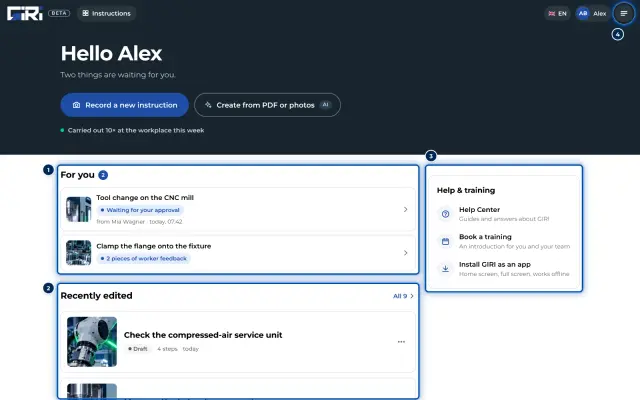
- Whatever is waiting for you, such as approvals, instructions sent back and new feedback, is listed on the start page under For you.
- Filters and sorting are kept for as long as the browser tab stays open.
Common problems
- An instruction is missing from the list. First check whether a status or team filter is active, and reset it to All and All teams. If it sits in a folder or team you have no access to, your admin can help. Deleted instructions are in the trash.
- Nothing found. With several words, all of them must appear. Leave one out or shorten it.
- The team filter is missing. It only appears on the page with all instructions, not inside a folder, and only if you belong to at least two teams.
- The list shows instructions from other folders. That is intended during a search. Clear the search box to see only the folder again.