Guide
Statistics for the whole workspace
Views and runs of all instructions on one page: key figures, charts, filters by instruction or deviation, and CSV export.
What for?
Here you see which instructions are opened most, how many checklists were run and where there were deviations. That helps with a monthly report, in quality assurance and when you want to show how GIRI is used on site.
Before you start
- You are signed in to GIRI.
- On a PC or a phone.
Step by step
-
Open the Menu at the top right and choose Statistics. On a phone, your profile picture at the top right opens the menu.
-
Six key figures sit at the top: Views since the start, Views in the last 30 days, Avg. time per view, reached the end, Runs and the number of steps marked Not OK.
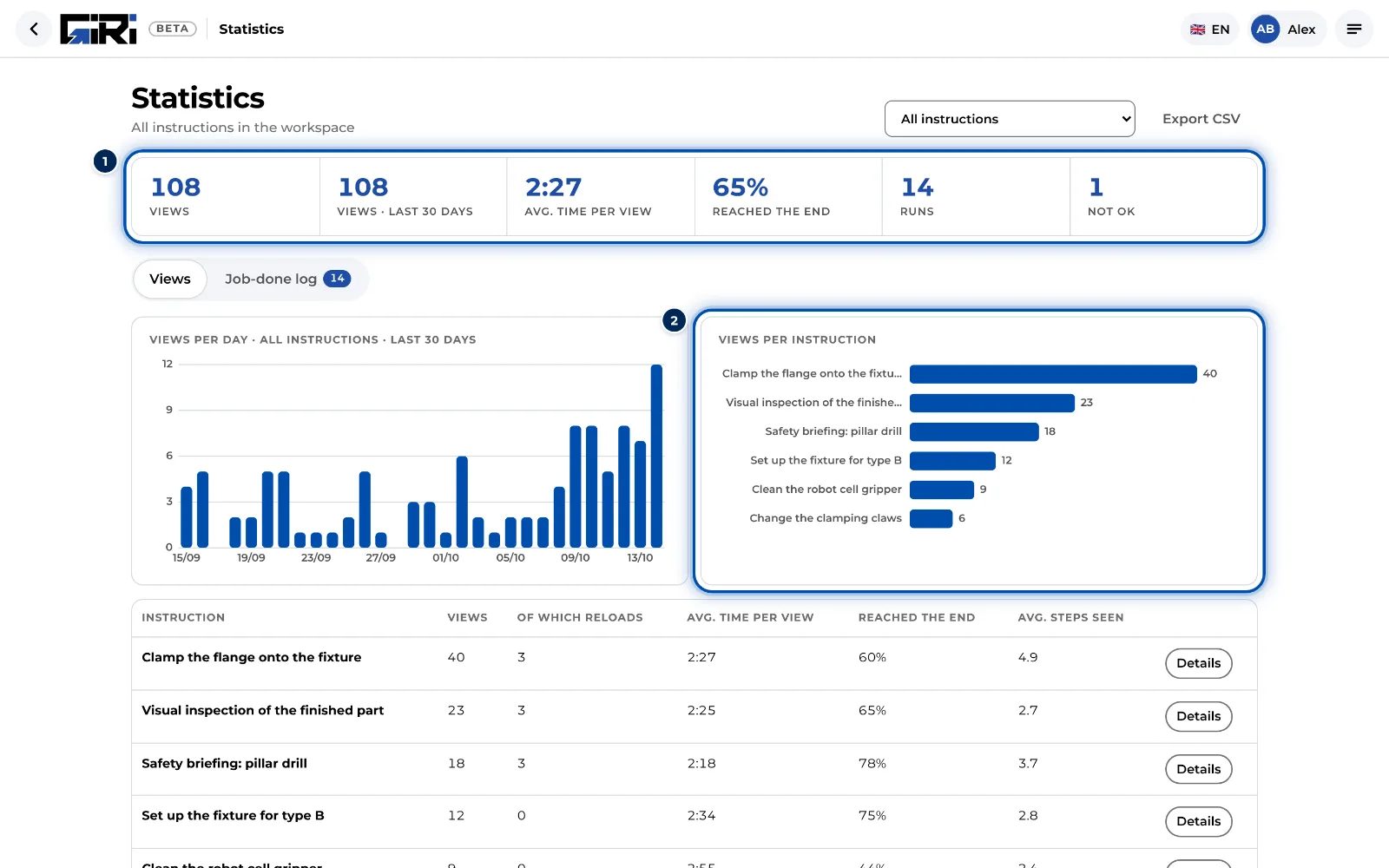
Statistics with six key figures, views per day and views per instruction -
In the Views tab, two charts show Views per day and the twelve most opened instructions (Views per instruction). The table below lists every instruction that has views, with its figures since the start. Details opens the analytics of that instruction.
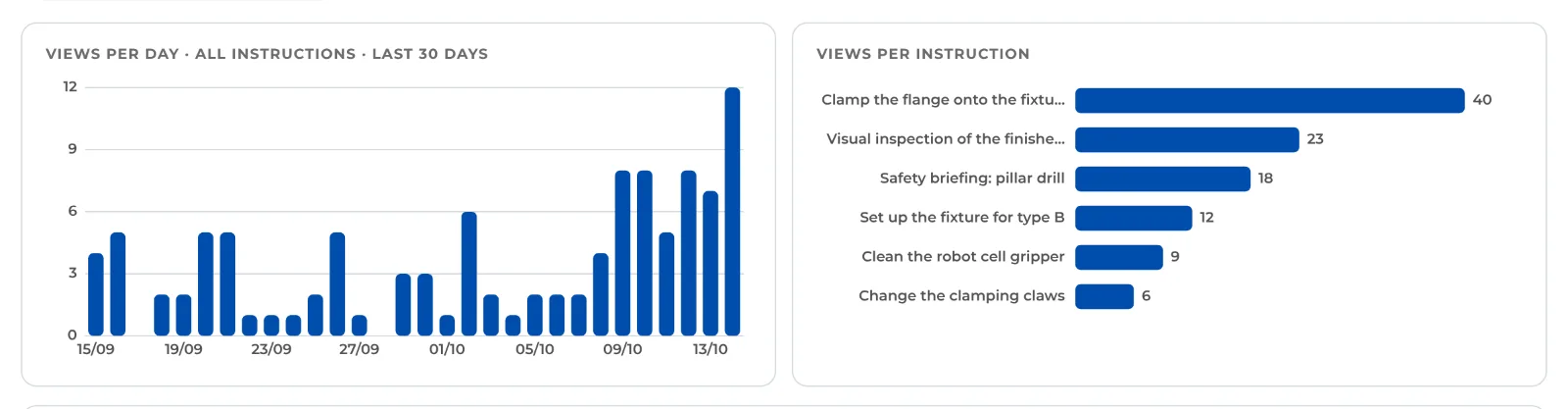
Views per day and views per instruction for the whole workspace -
Pick a single instruction instead of All instructions in the drop-down at the top if you only want its figures.
-
The Job-done log tab lists the runs of all instructions, newest first. If there are runs with Not OK steps, the Only with deviation filter appears at the top and shows only those runs. Details shows the steps, notes and photos.
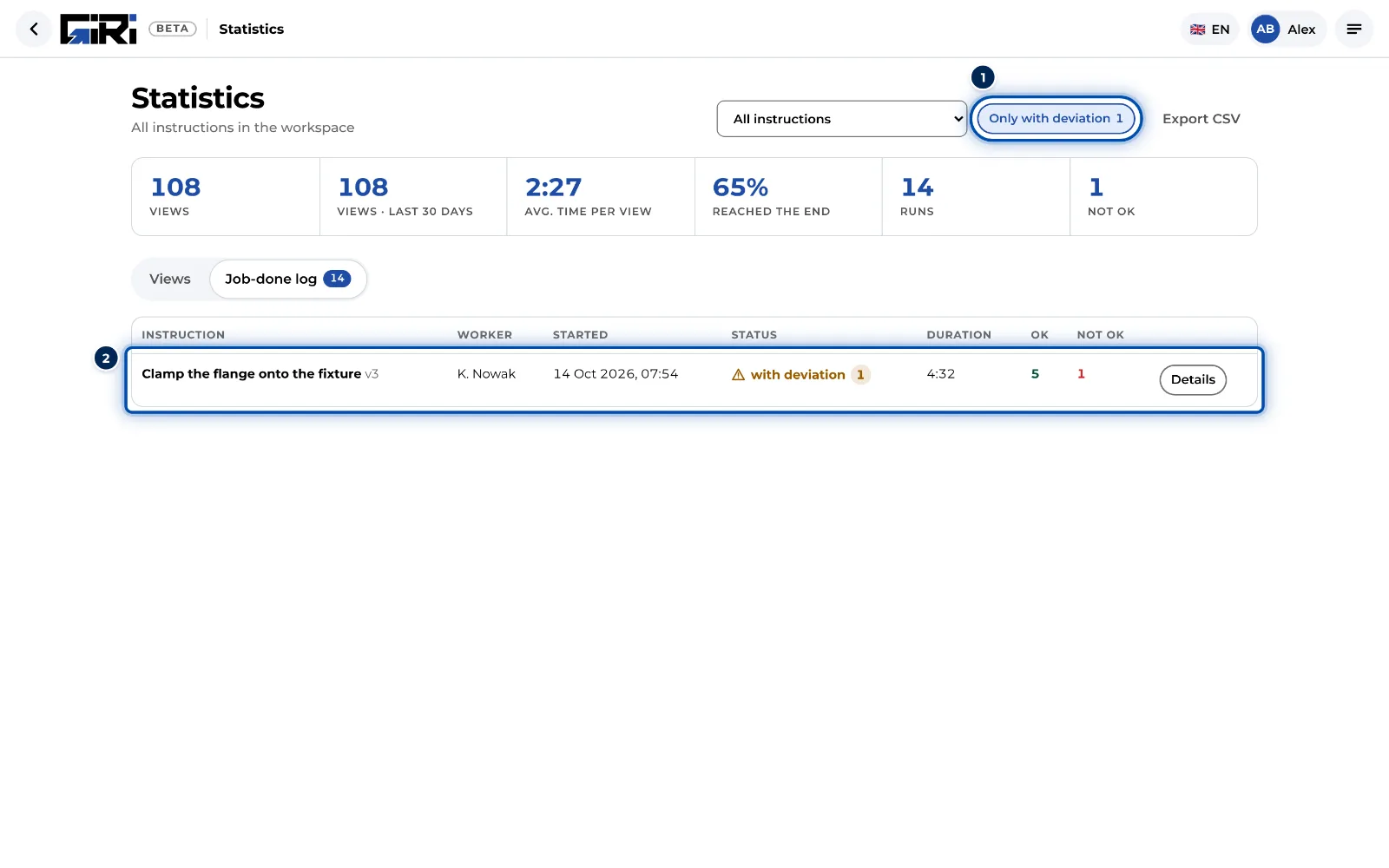
Job-done log tab with the Only with deviation filter switched on -
Export CSV saves the tab that is open. For Views you get one row per instruction and the views per day below (giri-views.csv). For Job-done log, one row per run with the status in words and the notes on Not OK steps (giri-jobdone.csv). Any filters you set apply to the export as well.
Tips
- For a monthly report: set the filters, export the CSV and continue in Excel. Times are in your local time.
- Mind the period when comparing: the first tile counts since the start, the second only the last 30 days.
- The page remembers the tab and filters for as long as the browser tab stays open.
Common problems
- Older runs are missing. The Runs and Not OK tiles and the Job-done log tab only count the latest 300 runs of the workspace. You find older ones in the job-done log of each instruction.
- Rows with a dash instead of a title. These are, for example, instructions in the trash or the archive.
- The figures do not add up. Avg. time per view uses the last 30 days, reached the end all views since the start.
- The Views per instruction chart is missing. It only appears when All instructions is selected.