Guide
Add markings and symbols
Put arrows, circles, numbers, text, ISO 7010 safety signs and emojis right onto the photo or video, on a PC and on a phone.
What for?
An arrow shows the way at a glance. A circle highlights the right part, a number the order. Besides arrows and shapes there are status signs such as ticks and crosses, 332 safety signs to ISO 7010, emojis and your own symbols.
Before you start
- A role with the right to edit.
- A step with a photo or video.
Step by step
On a PC
-
Select the step. Below the picture you’ll find the symbol library with the tabs Mark, Status, Safety, Own and Emoji. After your first symbol, Recent is added.
-
Click the picture where the symbol should go. A ring marks the spot. Then click a symbol in the library, e.g. Arrow. You can also drag a symbol straight onto the picture.
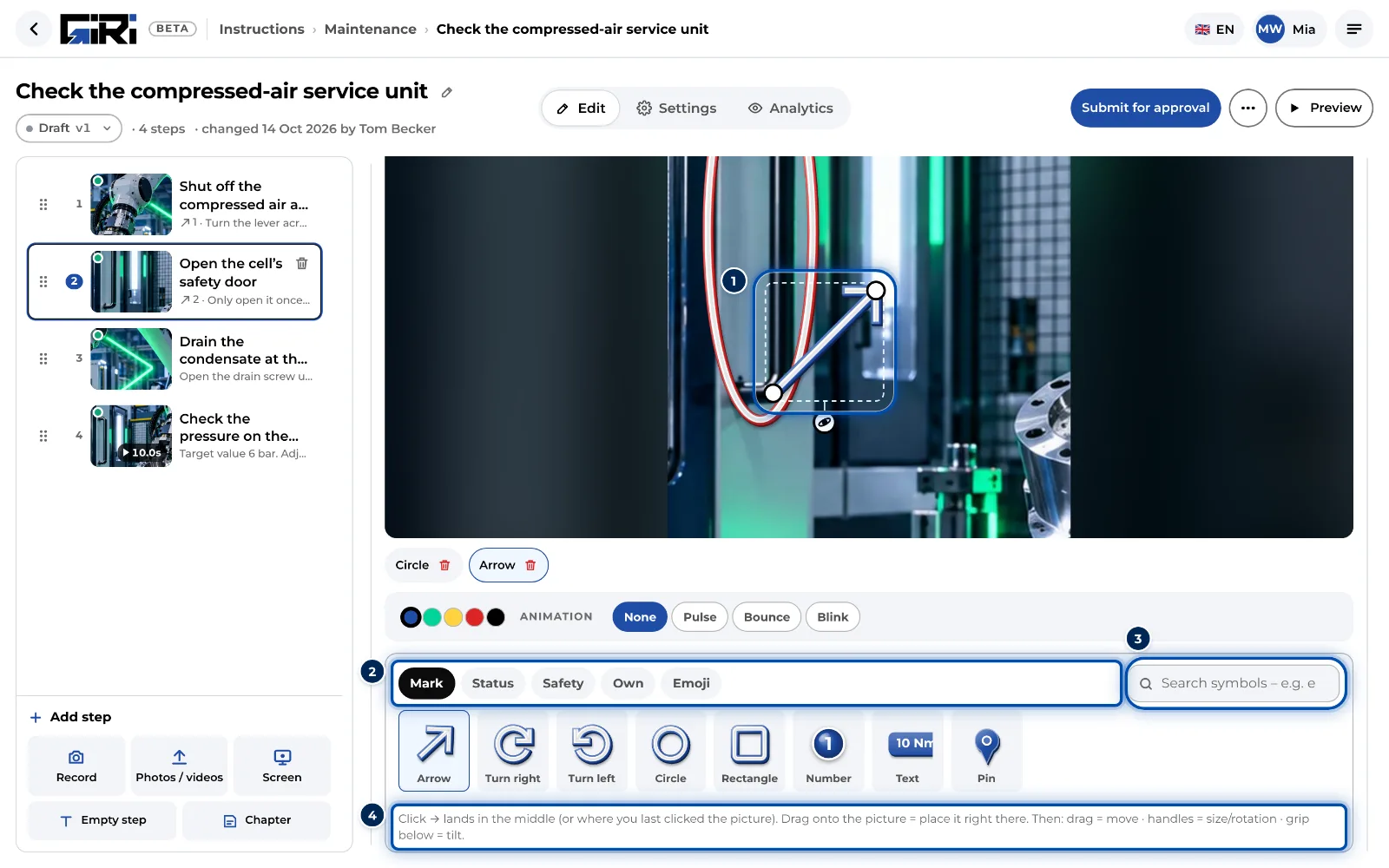
An arrow on the picture, with the symbol library and the Mark tab below -
Adjust the symbol: dragging moves it, the handles change size and rotation, and the grip below it tilts it in 3D.
-
Pick the colour in the bar below the picture. That’s also where you set the Animation, see Animate symbols.
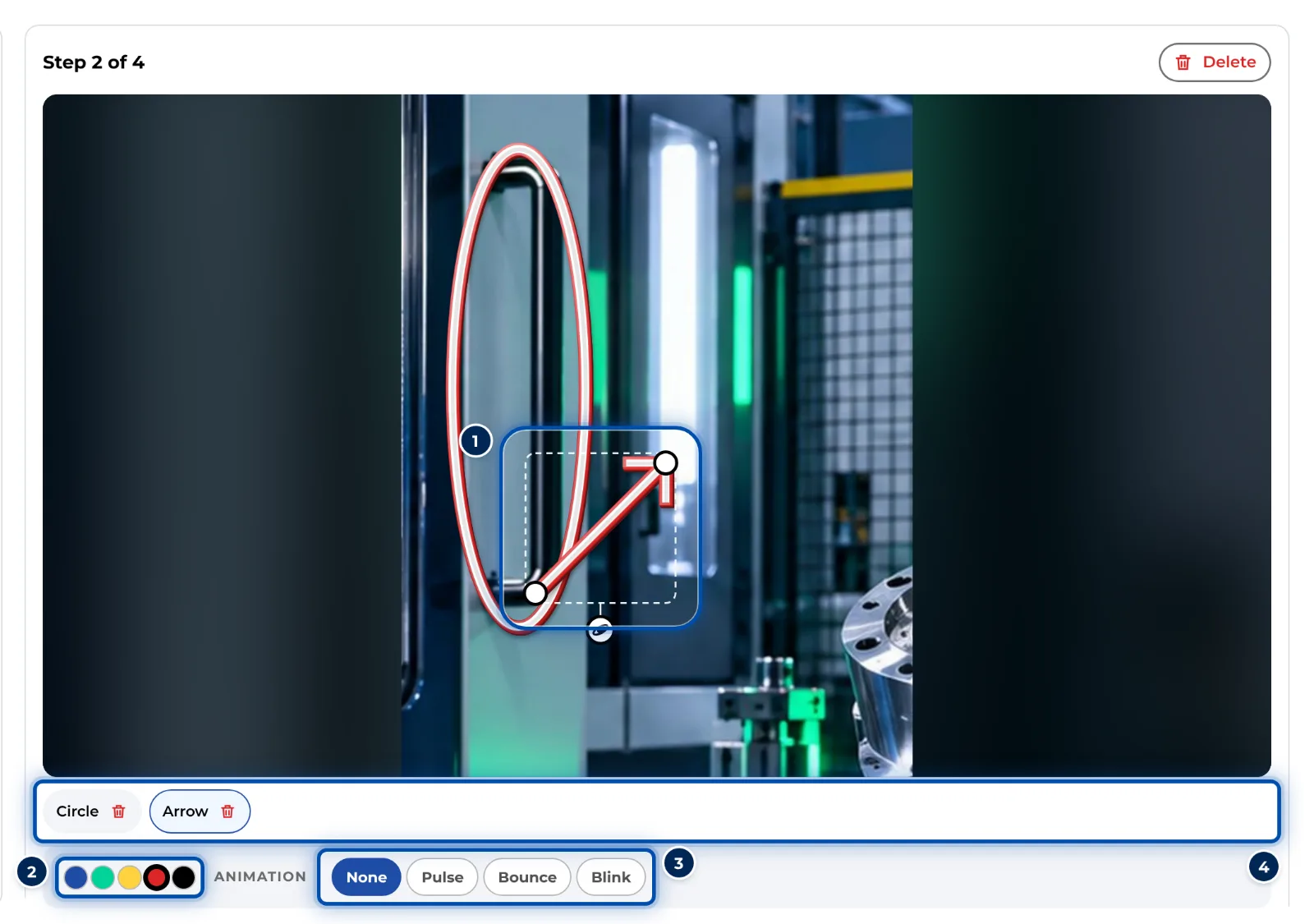
A selected symbol with handles and the bar for colour and animation -
The quickest way to find a safety sign is the search field (Search symbols – e.g. ear protection, prohibition, arrow …).
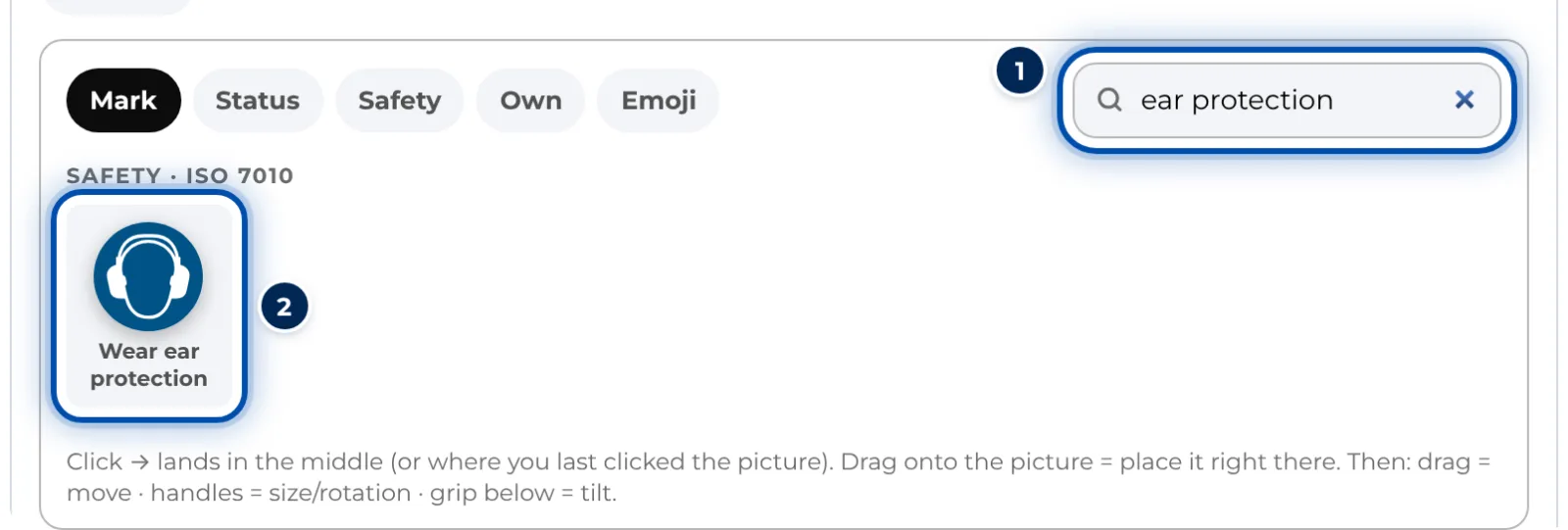
The search in the symbol library finds the right safety sign -
To delete, select the symbol and press Del. Or click the bin icon in the list of symbols below the picture.
On a phone
-
Open the step and tap the Mark tab at the bottom.
-
Tap the picture where the symbol should go. Then tap a symbol under Add a symbol, e.g. Arrow.
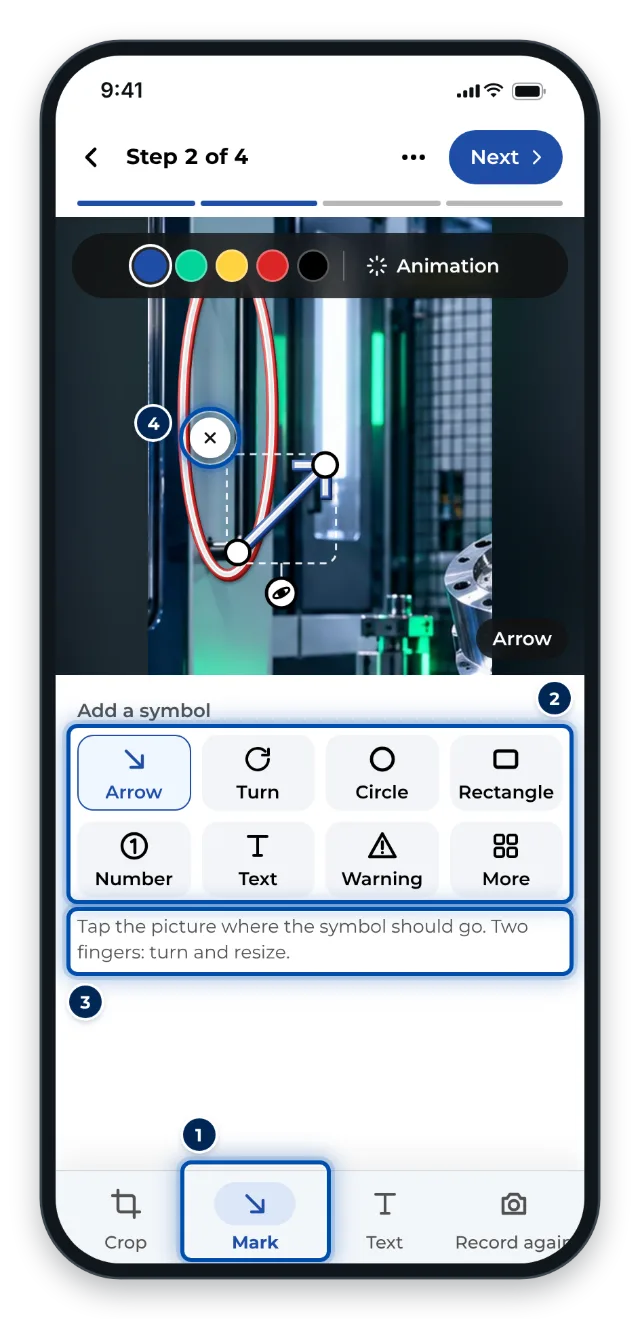
The Mark tab on a phone with the most common symbols -
More opens the full library with safety signs, emojis and your own symbols.
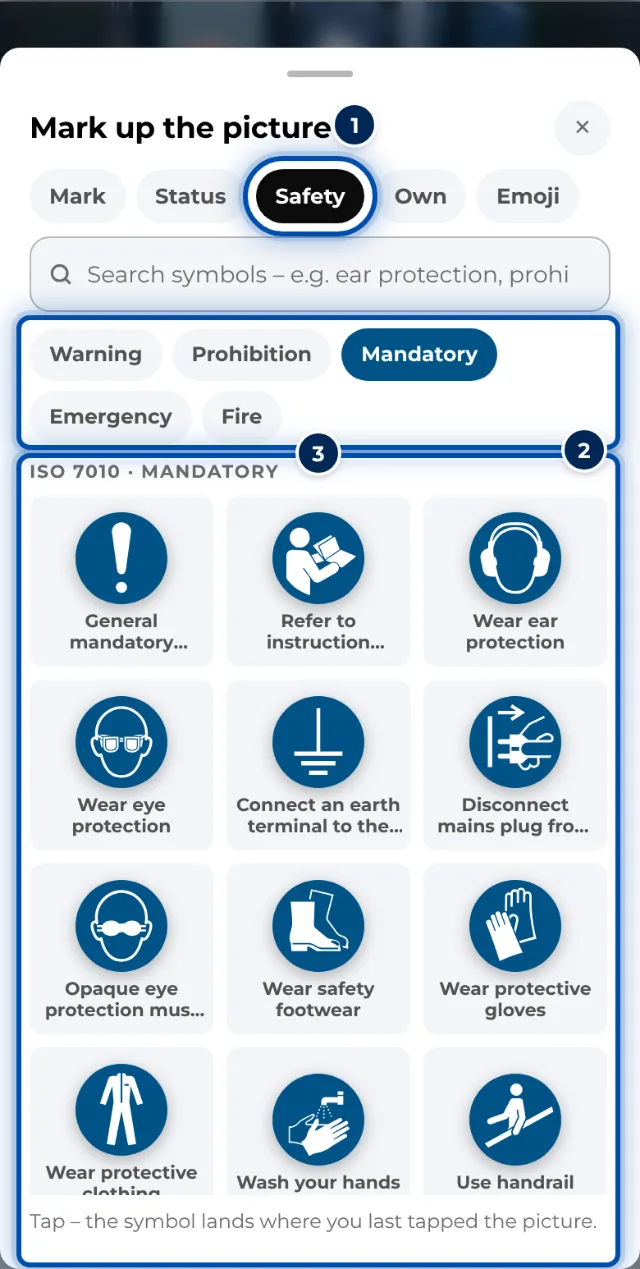
The library on a phone showing the ISO 7010 safety signs -
Drag the symbol into place with one finger. Use two fingers to turn and resize it.
-
Pick the colour and Animation in the bar. The × on the symbol deletes it, and Undo brings it back for a short while.
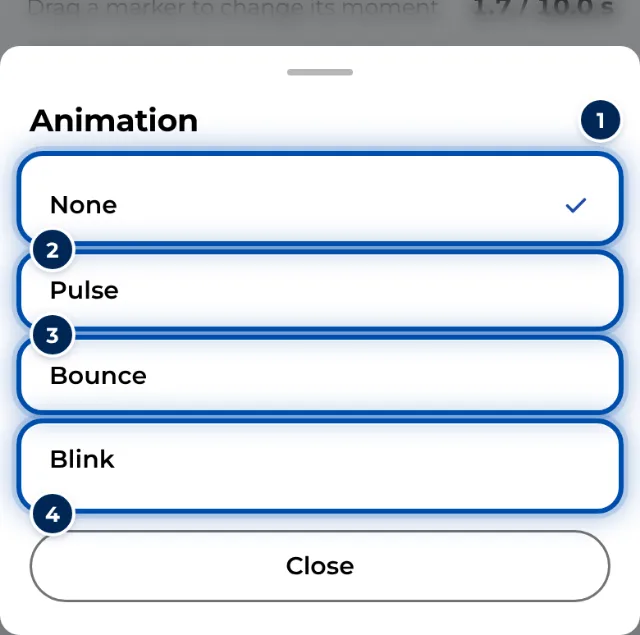
The Animation choice on a phone with None, Pulse, Bounce and Blink
Symbols in a video
When you put a symbol into a video, GIRI pauses the video. The symbol then belongs to exactly that moment. For workers, the video pauses there for 1 second and shows the symbol. The timeline has a marker for each symbol. Drag the marker to change the moment.
Tips
- Less is more: one to three symbols per step are usually enough.
- An arrow points with its tip exactly at the spot you clicked. GIRI centres circles and rectangles on that spot.
- A text symbol works well for short values, e.g. “10 Nm”. GIRI asks for the text when you place it.
- Numbers count up by themselves: 1, 2, 3.
- On a PC, + and - change the size of the selected symbol, [ and ] turn it, and Esc deselects it.
Common problems
- The symbol lands in the middle of the picture. Click or tap the spot on the picture first.
- The symbol has disappeared in the video. It’s only visible at its moment. Click or tap its marker on the timeline and the video jumps there.
- You can’t change the colour. Safety signs, warning triangles, emojis, ticks and crosses have fixed colours.
- Symbols are missing after cropping. GIRI removes symbols outside the cut-out. See Trim videos and crop pictures.