Guide
QR poster for a folder
All instructions of a folder on one A4 poster: a picture, a title and a QR code for each. Handy for a machine, a line or an area.
What for?
A machine or a line often has several instructions. Instead of many separate QR sheets, one poster hangs there. Workers simply scan the right tile.
Before you start
- You can open the folder. Every role may create the poster.
- The folder contains published instructions. Only their codes open for workers.
Step by step
-
Open Instructions and click the folder’s tile.
-
Click Folder at the top right and choose QR poster (PDF).
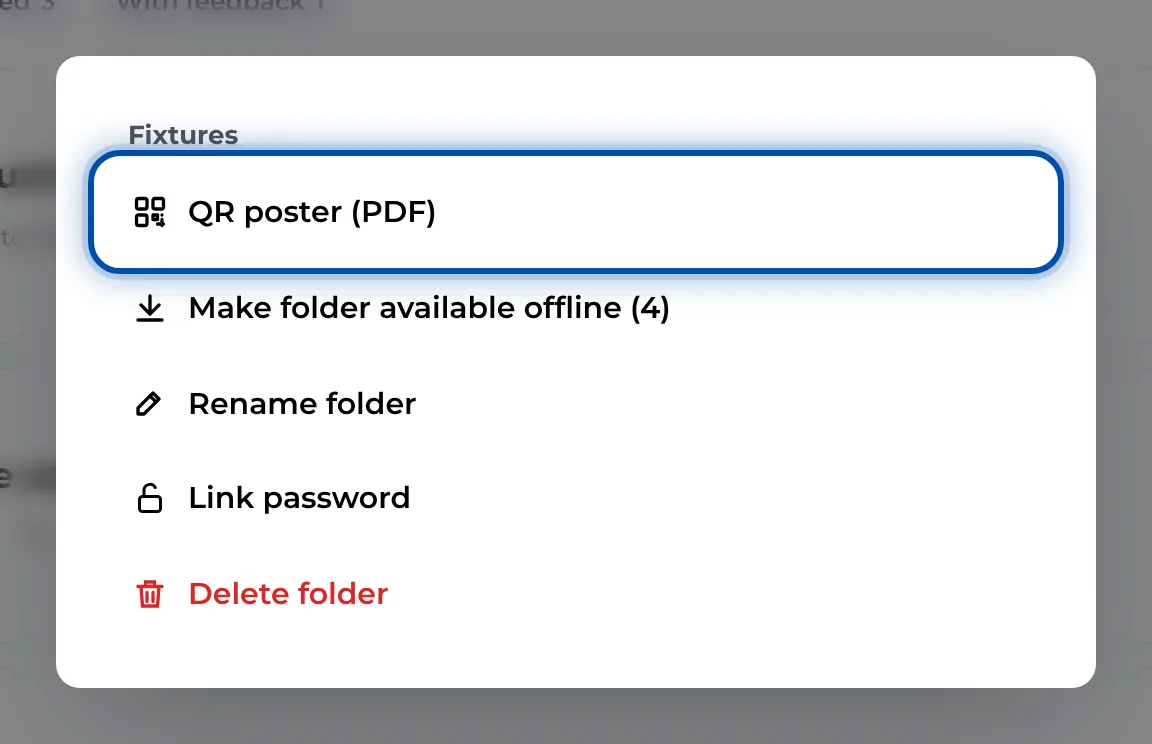
The folder menu contains the entry for the QR poster -
In the dialog, choose what goes on the poster:
- Published instructions only: the number of published instructions is shown next to it. If there are any, the box is ticked.
- First image: despite the name, the preview image of each instruction.
- Company / logo: logo and company name from Branding.
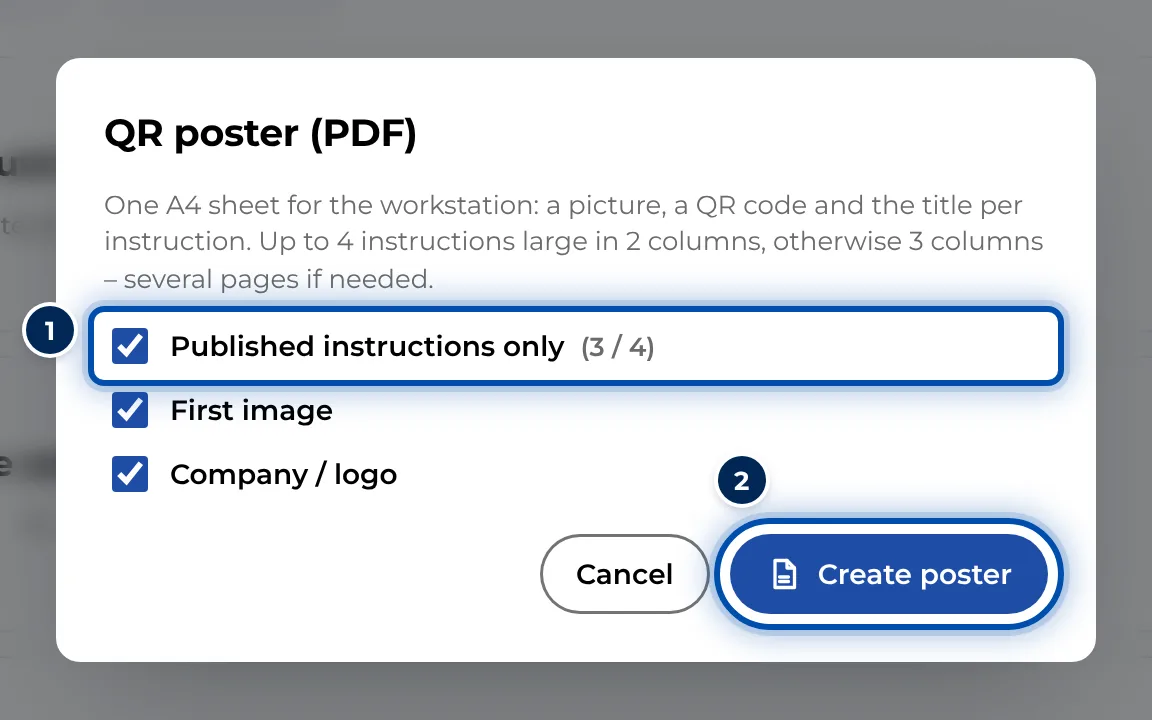
The QR poster dialog with its three options -
Click Create poster. GIRI creates the PDF and saves it.
-
Print the poster and put it up.
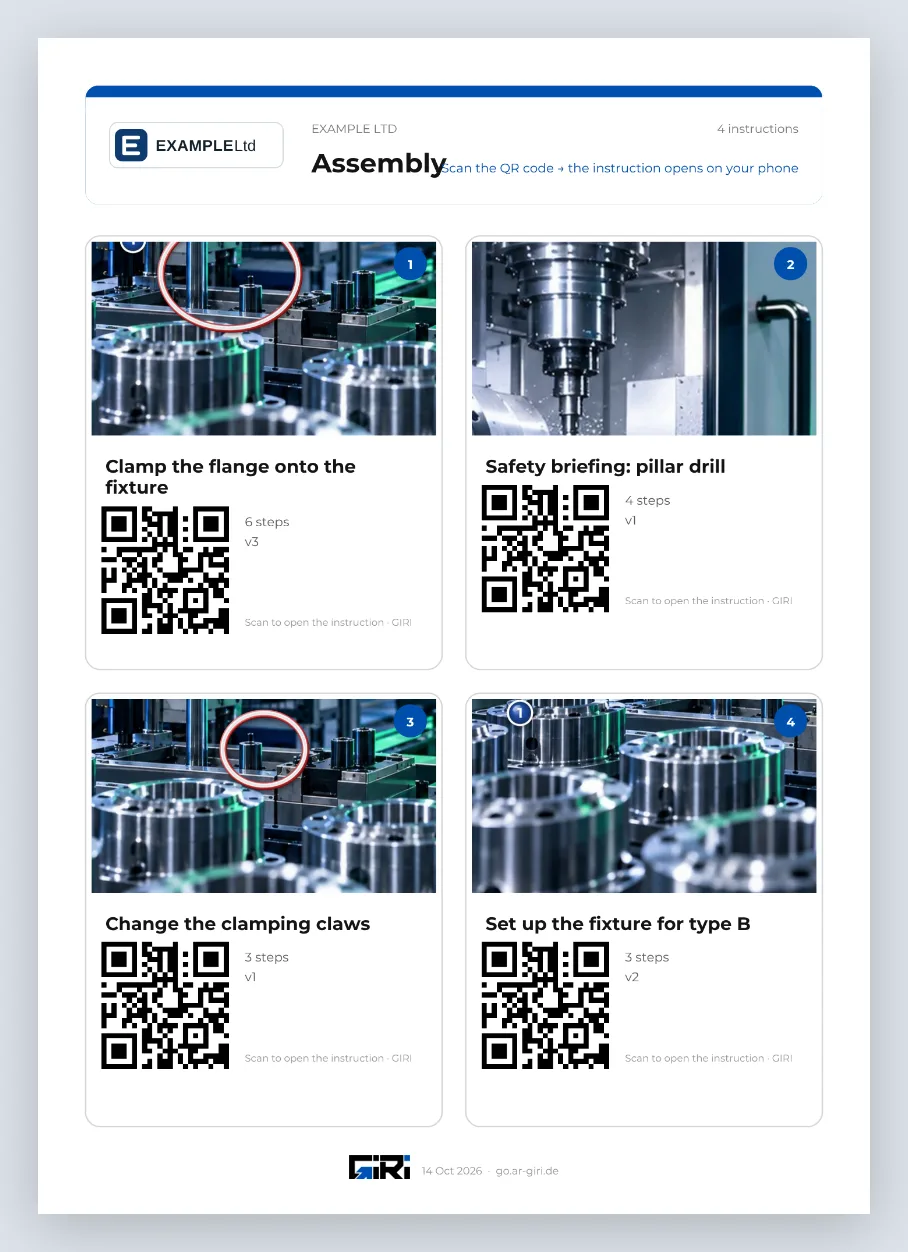
The QR poster as an A4 PDF: the folder at the top, a tile per instruction below
How the poster is laid out: the top shows the logo, the folder name, the number of instructions and the line Scan the QR code → the instruction opens on your phone. Up to 4 instructions get 2 large columns, more get 3. With many instructions the poster runs over several pages. Each tile shows the number, title, QR code, number of steps and version, plus the picture if selected. The bottom shows GIRI and the print date.
Tips
- Keep Published instructions only ticked. Codes of drafts only show workers a note that the instruction has not been published yet.
- The codes stay valid for new versions. Reprint when instructions are added or removed. The version on a tile is the one that was live when you printed.
- The numbers on the tiles help when giving directions, for example: “Scan number 3.”
- For a single instruction, the QR sheet is the better choice.
Common problems
- GIRI says No instructions yet. The folder contains no matching instruction. With Published instructions only ticked, only published ones count.
- Published instructions only cannot be ticked. No instruction in the folder has been published yet.
- The Folder button is missing at the top. There is no poster for No folder. Put the instructions into a folder, see Create folders and file instructions.