Guide
Record your screen for software instructions
For instructions on SAP, ERP or other programs: you work as usual and GIRI takes a picture after every click. The pictures become steps.
What for?
Software instructions consist of many clicks. Instead of taking and uploading every screenshot by hand, you let GIRI collect the pictures while you work. At the end you pick the ones you need. You add texts and arrows afterwards in the editor.
Before you start
- A role with the right to edit.
- A PC. Screen recording isn’t available on phones or tablets.
- An up-to-date browser, ideally Chrome or Edge. Only these offer the small control window that stays on top of every program.
- The browser is allowed to share the screen. An IT policy can block this. On a Mac you have to allow screen recording for the browser once in System Settings.
Step by step
-
Open the instruction in the editor. Below the list of steps, under Add step, click Screen. If the instruction is still empty, you can also use Record screen in the middle.
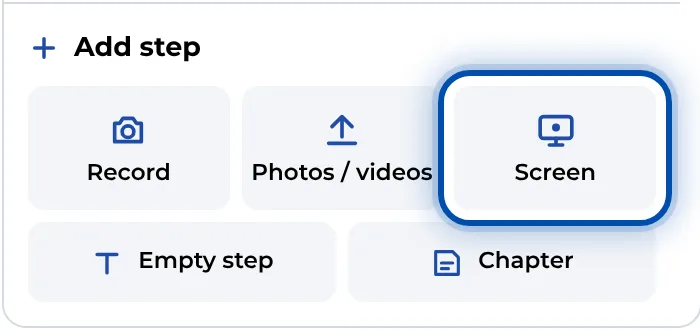
Screen in the Add step box -
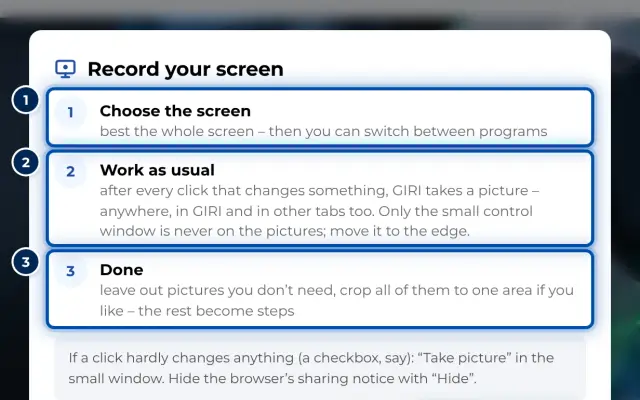
The first time, GIRI explains the process in three steps. Click Start recording. After that, the recording starts straight away.
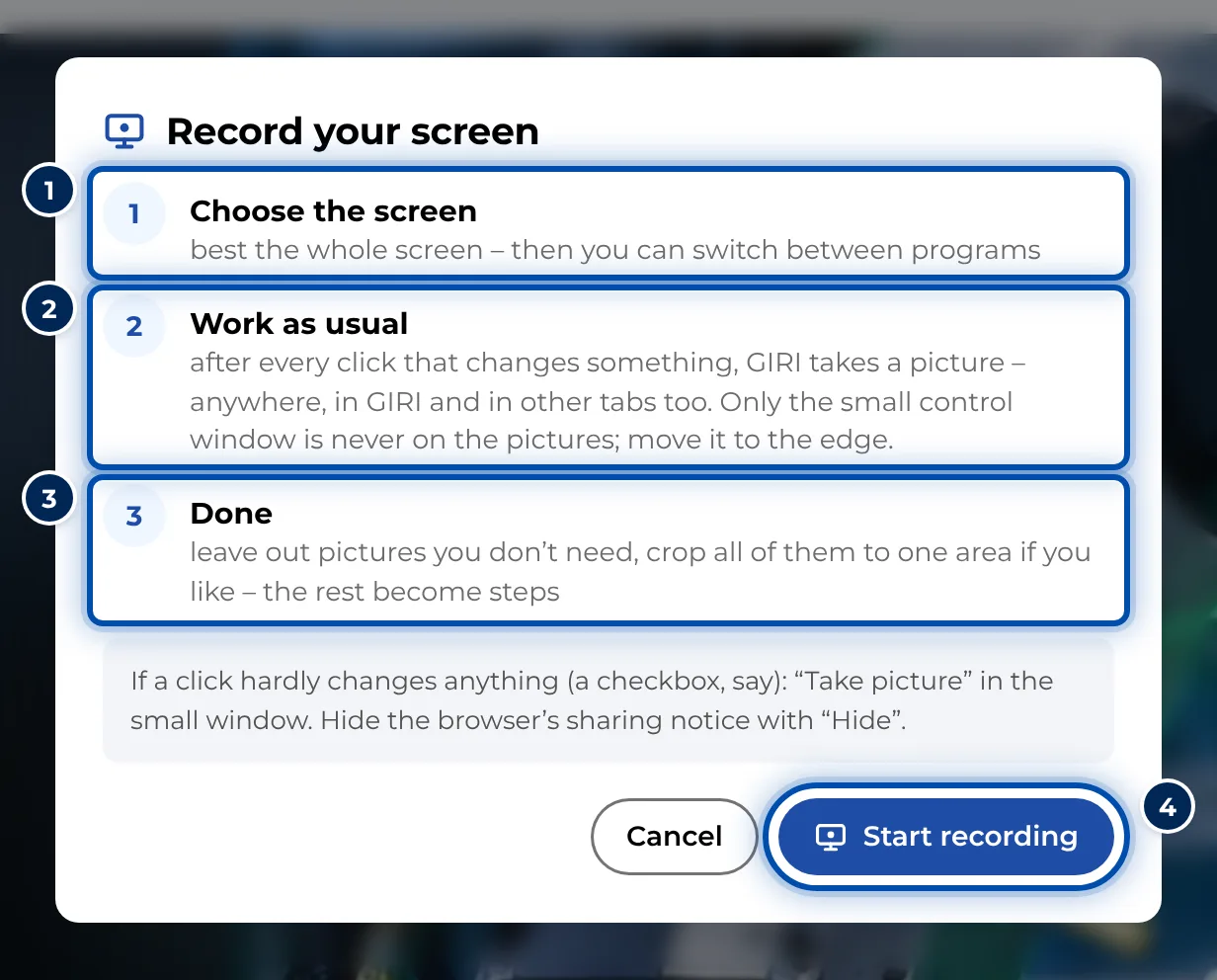
The first time, GIRI explains screen recording in three steps -
In the browser’s dialog, choose the entire screen, a window or a tab. The entire screen works best, because then you can switch between programs.
-
Work as usual. After every click that changes something, GIRI takes a picture. The small control window shows the last picture, the count and the time. It never appears in the pictures itself. Move it to the edge of the screen.
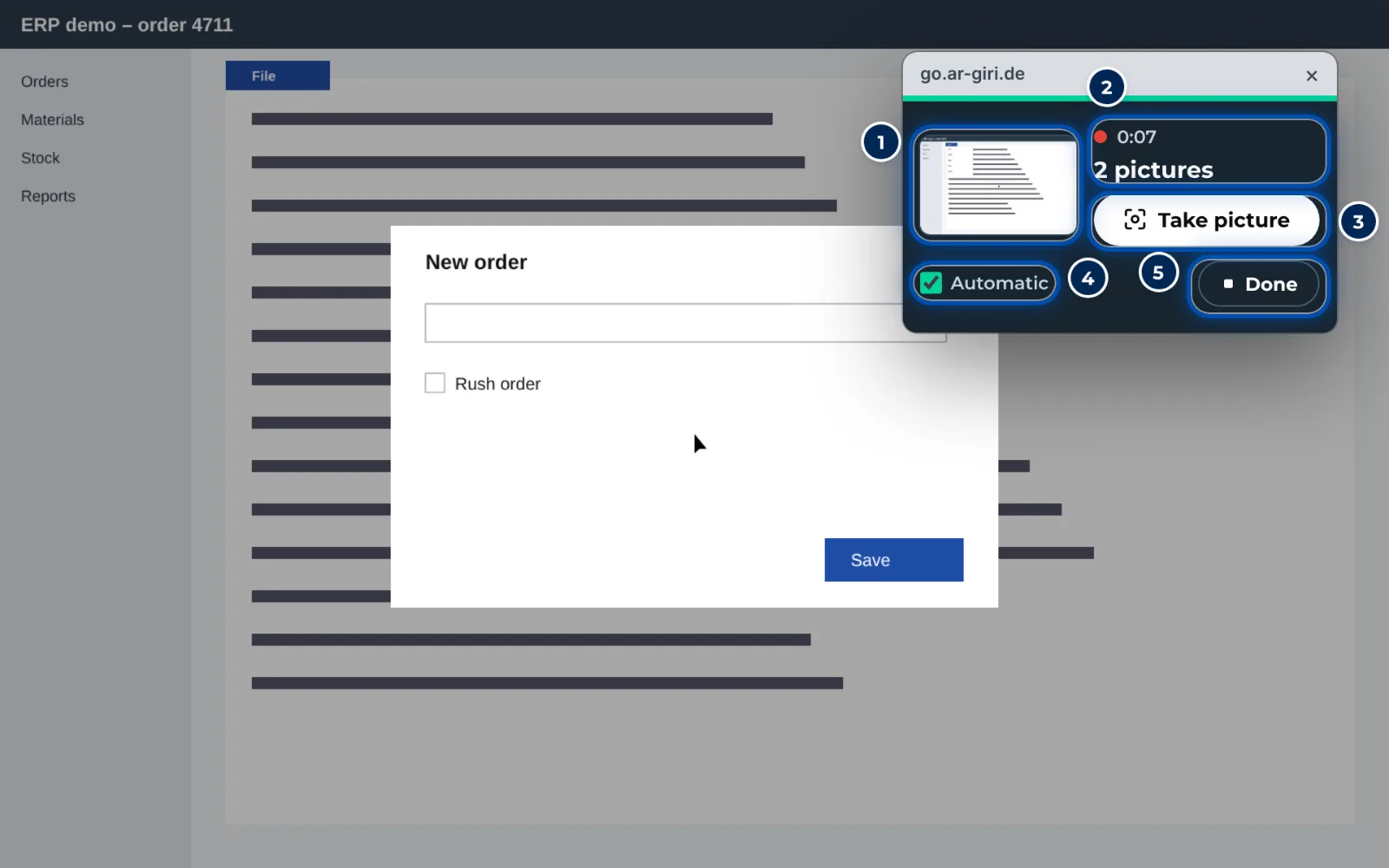
The small control window with the last picture, the count and the buttons Take picture and Done -
If a click hardly changes anything, such as ticking a checkbox, click Take picture in the control window. Automatic switches the automatic pictures off and on again.
-
Click Done. The recording also ends when you stop sharing in the browser’s bar or close the control window.
-
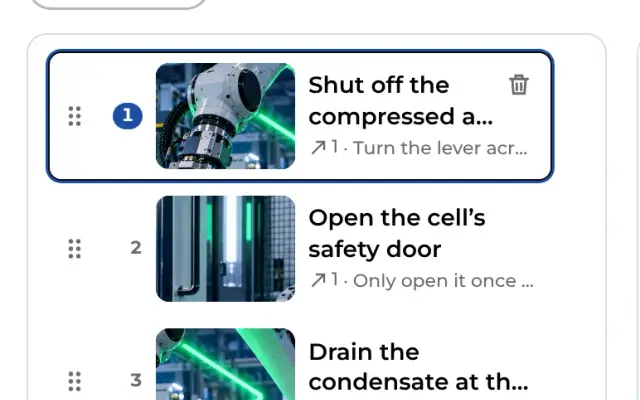
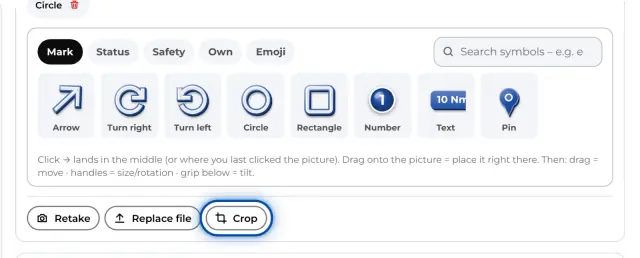
Review the pictures. Clicking a picture leaves it out, a second click brings it back. Crop all crops all pictures to the same area, for example the window of your program.
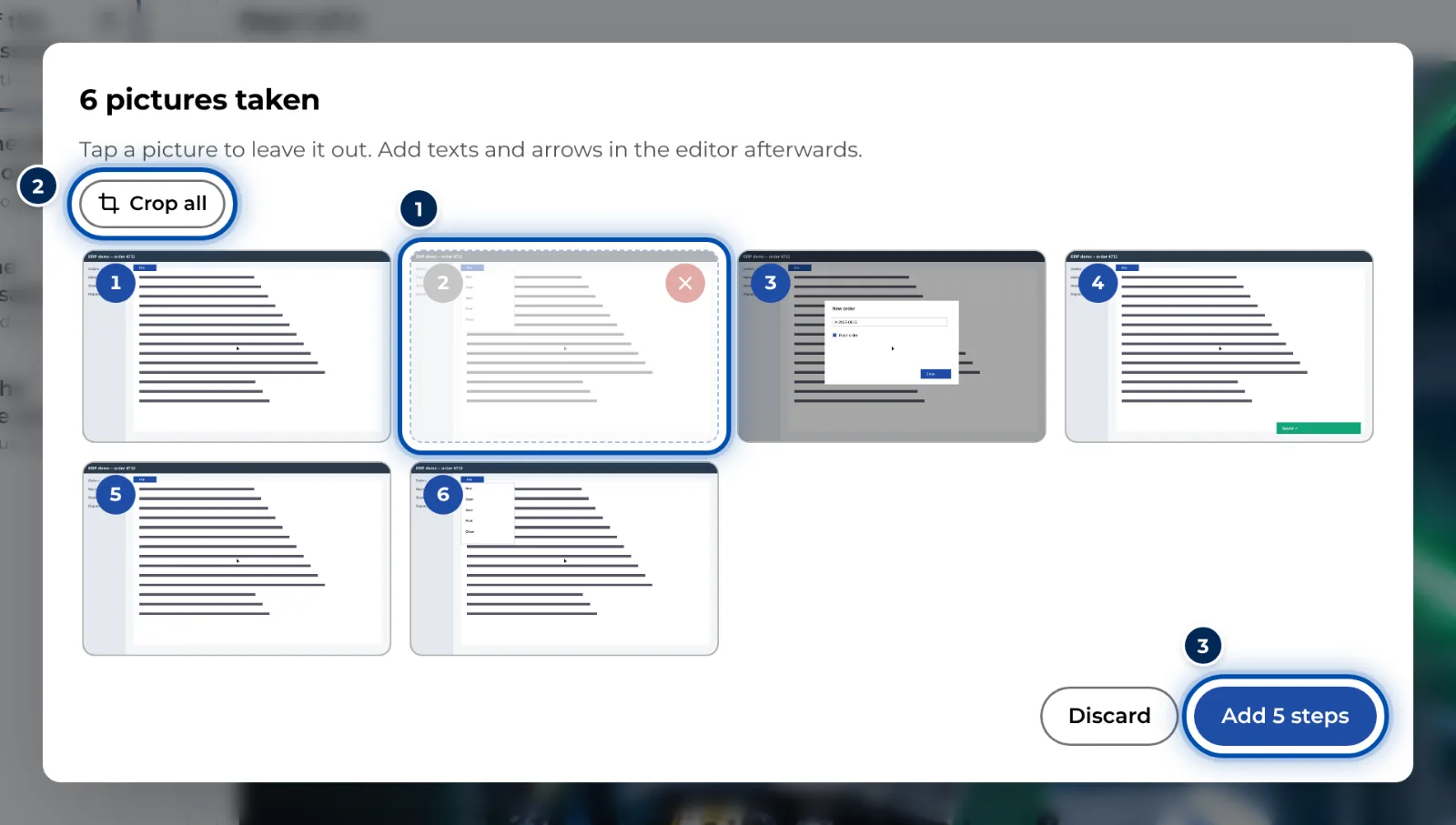
The review after recording: leave pictures out, crop all, add them as steps -
Click Add 12 steps. The pictures become photo steps at the end of the list. Now add texts, arrows and markings as on any photo.
Tips
- Other browsers have no control window. A bar then appears at the top of GIRI with the time, the count, Automatic and Done. Take picture is only there when you record a window or a tab, not the entire screen.
- One recording can hold at most 150 pictures. For long processes, record in several parts.
- The recording produces photos, not a video, and no sound. The pictures have up to 1,920 pixels on the long side so that small print stays legible.
- Anything in the chosen area may end up in the pictures. Close confidential windows and notifications beforehand. Leave out pictures you don’t need during the review.
- Hide the browser’s screen-sharing notice so that it doesn’t get in the way.
Common problems
- GIRI shows Screen sharing is blocked. A setting made by your IT prevents screen sharing. GIRI names the policy, and Copy text for IT copies a message for your IT. Until then, take screenshots (Windows: Win+Shift+S, Mac: ⇧+⌘+4) and add them via Photos / videos. See For IT.
- On a Mac GIRI shows Your Mac doesn’t allow recording yet. Allow screen recording for your browser in System Settings and restart it. GIRI shows you the way.
- The Screen button is missing. Screen recording isn’t available on phones and tablets, nor in browsers that can’t share the screen. Record on a PC with an up-to-date browser.
- A click is missing from the pictures. The change was too small. Click Take picture at moments like that. Without the control window, the button is only there when you record a window or a tab.
- GIRI says Screen sharing cancelled. You closed the browser’s selection dialog. Start the recording again.