Guide
Preview: what workers see
The preview shows the current state exactly like the worker view. It does not count views or save checklists.
What for?
Before an instruction goes to the line, you want to see how it reaches the worker: order, videos, markings, chapters, checklist and languages. The preview opens full screen for this. Approvers use it to check an instruction before they approve it.
Before you start
- You are signed in and can see the instruction. Any role will do.
- Any status works: Draft, In review or Published.
Step by step
On a PC
-
Open the instruction and click Preview at the top right.

The Preview button at the top right of the instruction -
If the instruction is published and you may share it, Link & QR code sits in that spot instead. In that case, go via the list.
On a phone
-
In the step list, tap the eye at the bottom left (Preview as a worker sees it).
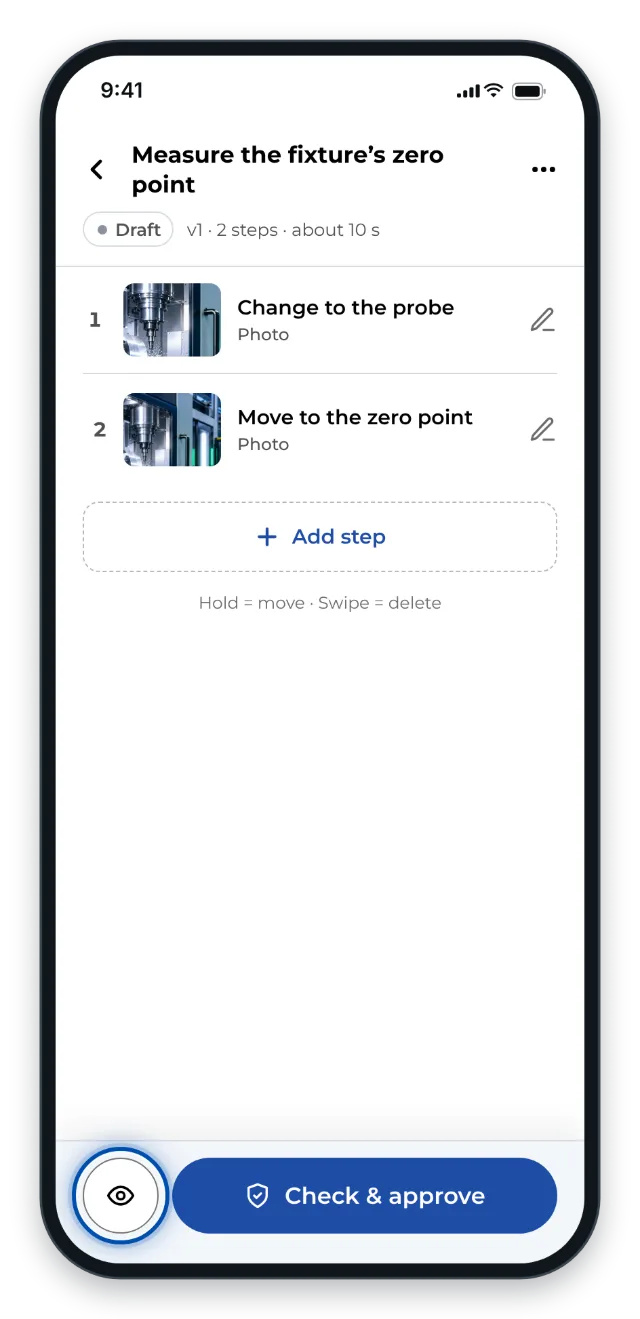
On a phone, the eye at the bottom of the step list opens the preview
From the list
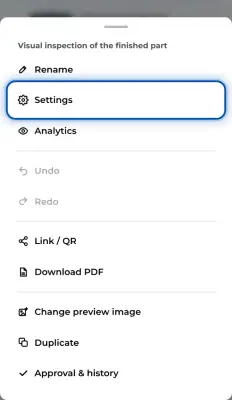
- Open ⋯ on the instruction’s card and choose Preview. This works with any role, on a PC and on a phone.
In the preview
-
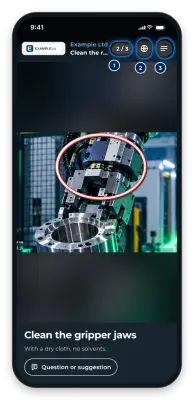
Move through the steps just as a worker would. If the instruction has several chapters, the Chapter overview comes first. The globe (Language) lets you check other languages.
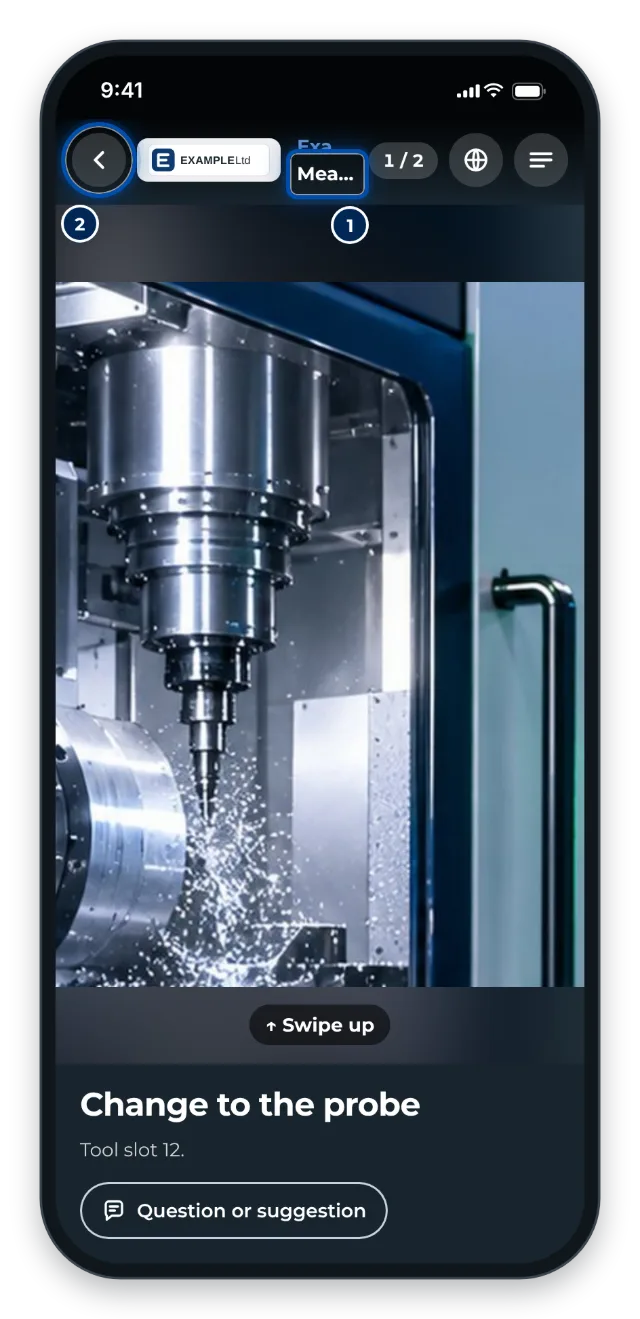
The preview on a phone, with Preview added to the title -
The arrow at the top left takes you back to wherever you opened the preview.
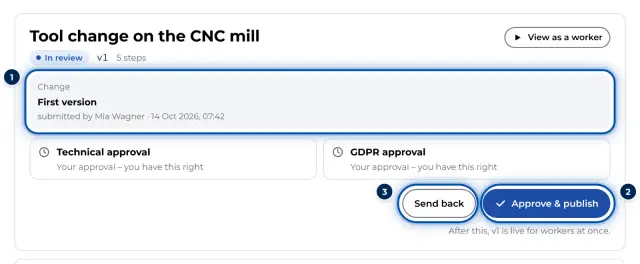
Approvers open the same view from the review page with View as a worker.
What is different in the preview
- You see the current working state, including changes that are not approved yet. Until the next approval, workers see the approved version.
- GIRI counts no views. Checklist answers and feedback are not saved. When you answer, and also when you send feedback, the message Preview – checklist is not saved appears.
- There is no start card asking for a name, and no lock: you can move past open steps.
- With a signature or a training, a note replaces the signature field at the end. If the instruction is published, you can start the real run from there, for a checklist with Start the real checklist.
Tips
- Look at the preview on the device the workers use, ideally a phone. That shows you whether pictures and texts are easy to read.
- Check before you submit: is the order right? Are the clips short enough? Are the markings in the right place?
- To test the real flow of a published instruction, open its link. The view then counts, and with a checklist your run ends up in the job-done log.
- Pick the most important languages once in the preview. GIRI stores the translations, so workers won’t have to wait later.
Common problems
- The Preview button is missing at the top. The instruction is published, so Link & QR code is there now. Use ⋯ on the card in the list and Preview.
- Workers see something different from the preview. Your changes are not approved yet. Workers see the most recently approved version.
- The checklist is not saved. That is intended in the preview. For a real run, open the link.
- Pictures or videos are missing on another device. The recordings have not been uploaded yet. Wait until the device they were made on has finished uploading.