Guide
Install GIRI as an app (PC, iPhone, Android)
Put GIRI on your home screen or in its own window on the PC: full screen, starts without a connection, and saved instructions stay on the device.
What for?
GIRI is a web app. You do not download it from an app shop; you install it straight from the browser. On a phone you then get an icon on the home screen, and GIRI opens full screen. On a PC, GIRI opens in its own window. The installed app also starts without a connection, and saved instructions stay on the device. This matters most on an iPhone: in the browser, iOS clears the storage of a website that has not been used for 7 days.
Before you start
- iPhone or iPad: Safari.
- Android: Chrome.
- PC: Chrome or Edge.
- An internet connection for the installation.
- You do not need an account. Workers who never sign in can install GIRI too.
Step by step
-
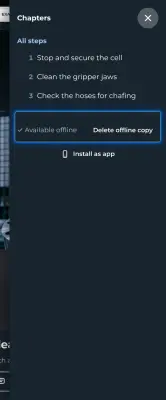
Open the installation guide in GIRI: in the menu under Install as app, on a PC via ≡ at the top right, on a phone via your profile picture. On a PC it is also on the start page under Help & training. Workers find Install as app inside an open instruction in the Menu ≡ at the top right.
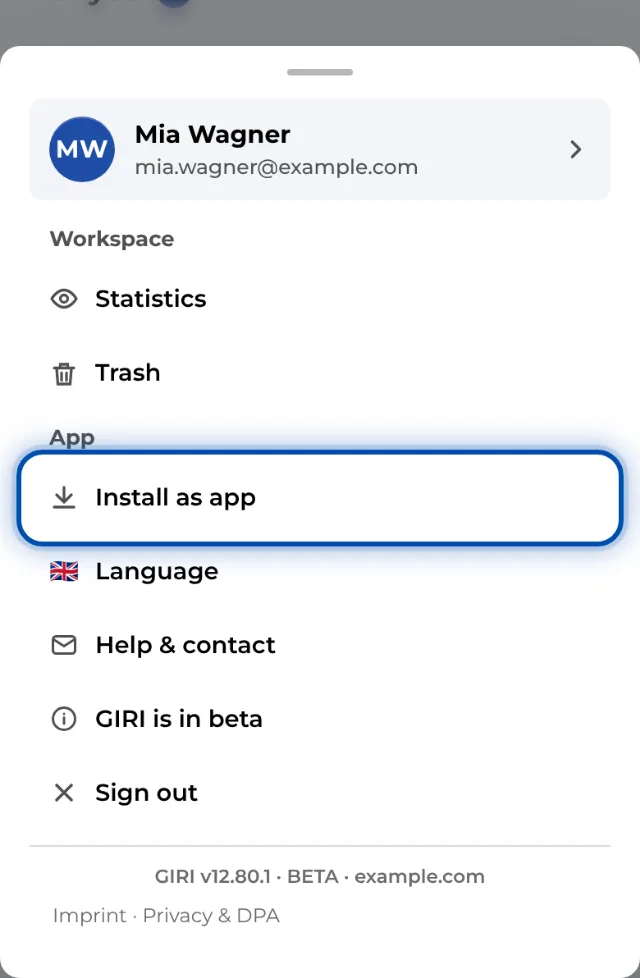
Install as app in the menu on a phone -
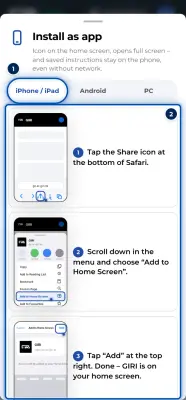
Choose your device at the top: iPhone / iPad, Android or PC. GIRI has usually picked the right one already. The pictures show every move.
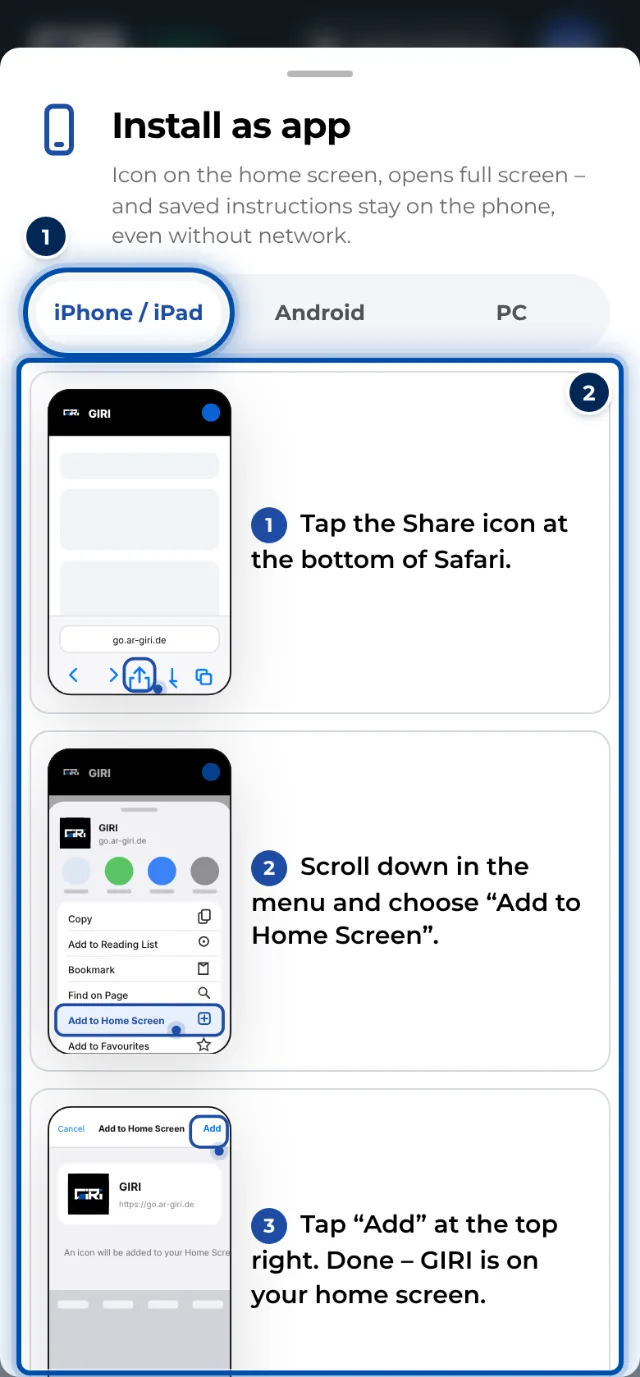
The installation guide in GIRI, here for the iPhone
On an iPhone or iPad
- Open GIRI in Safari and tap the Share icon at the bottom.
- Scroll down in the menu and choose Add to Home Screen.
- Tap Add at the top right. GIRI is now on your home screen.
On an Android phone
-
In Chrome, tap the three dots at the top right.
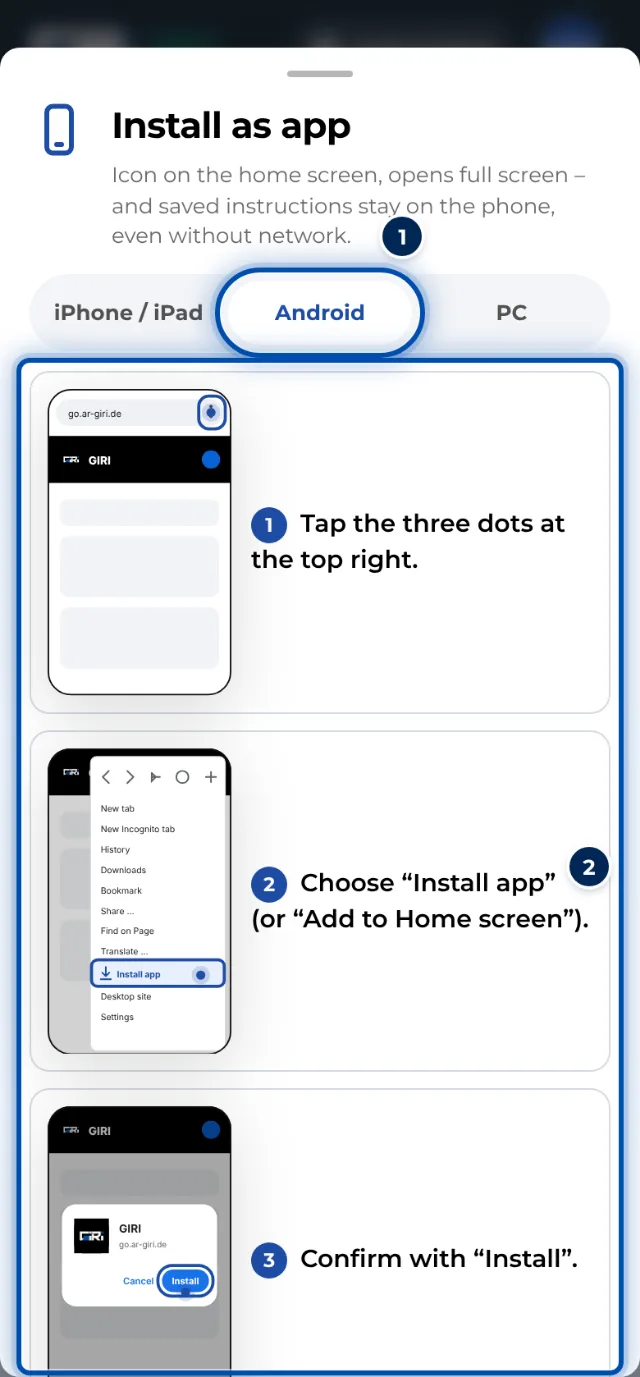
The installation guide in GIRI for Android -
Choose Install app. On some devices the entry is called “Add to Home screen”.
-
Confirm with Install. If Chrome offers the installation directly, GIRI shows the Install now button and it takes one tap.
On a PC
-
In Chrome or Edge, click the install icon at the right of the address bar.
-
Confirm with Install. GIRI opens in its own window.
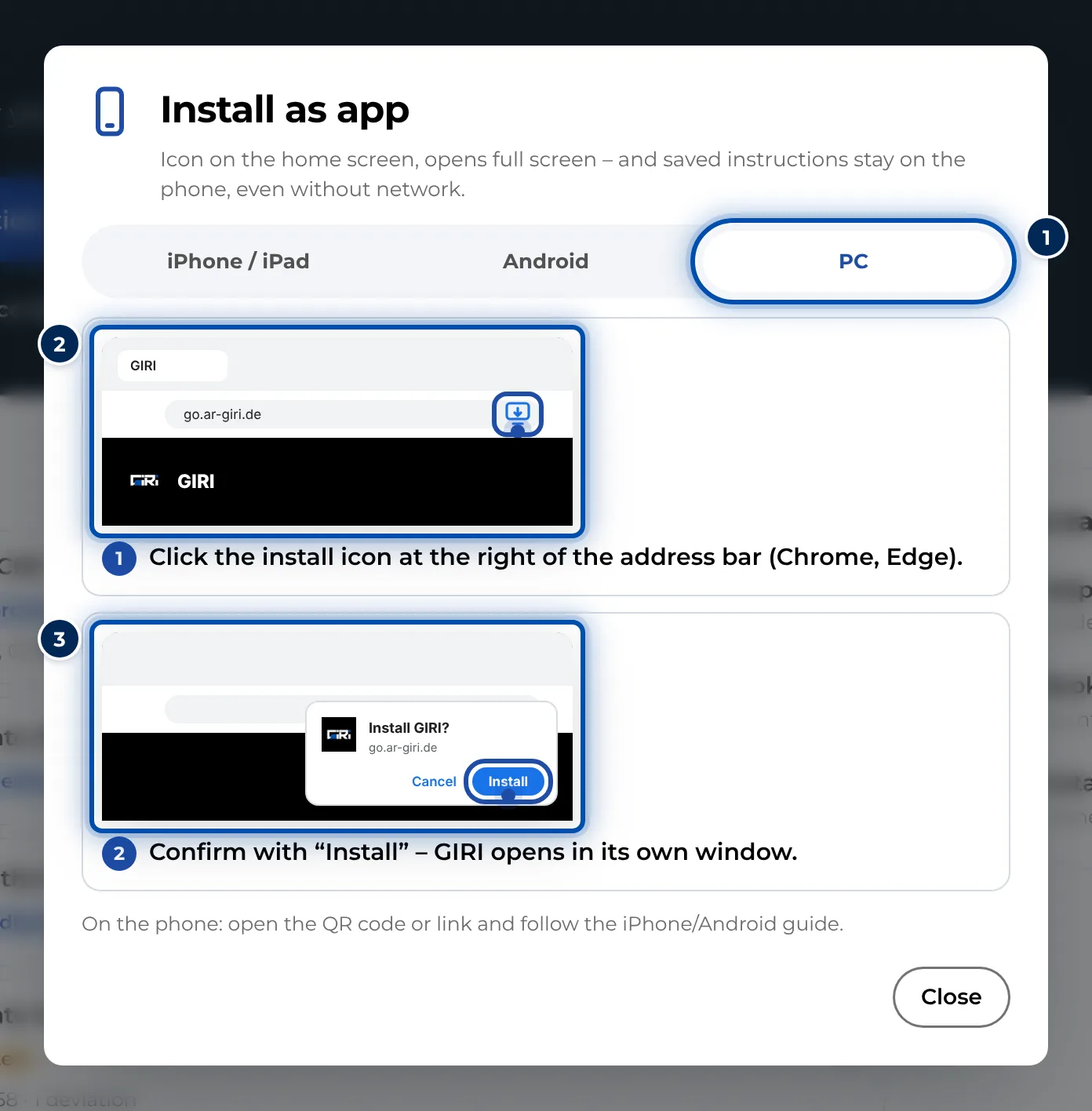
The installation guide for the PC: the icon in the address bar, then confirm
Tips
- From now on, always open GIRI from the new icon, not from a link.
- On an iPhone, a QR code you scan with the camera app opens the instruction in Safari, not in the installed app.
- Updates arrive on their own, in the installed app too. See How updates arrive.
- If GIRI is already running as an installed app, the Install as app menu item is missing. That is how it should be.
Common problems
- On the iPhone, Add to Home Screen is missing. Open the link in Safari first. Other browsers do not reliably offer the entry. Scroll right down in the share menu.
- On the PC, the install icon is missing. Only Chrome and Edge offer it. Open go.ar-giri.de in one of these browsers.
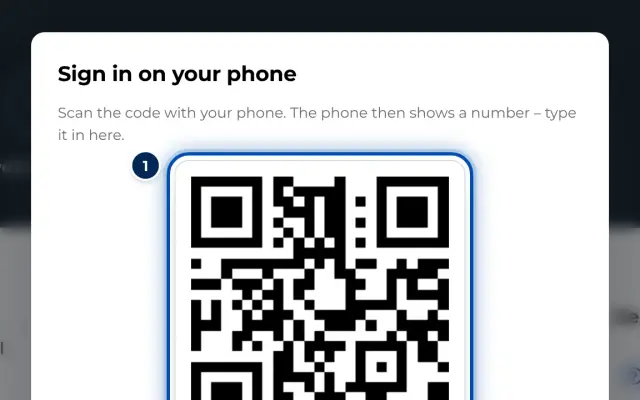
- After installing, you are signed out on the iPhone. On an iPhone, Safari and the home-screen app are kept apart, including the sign-in. Sign in once more inside the app, most easily with Scan QR code from the PC. See Sign in on your phone with a QR code.
- On the iPhone, saved instructions are missing in the app. Whatever you saved in Safari stays in Safari. Open the instructions once in the installed app while online. See Using instructions without a connection.