Guide
Sign in with an email code or Google
How to sign in to GIRI: no password, just a code sent by email or your Google account. With help for when the code does not work.
What for?
With no password there is nothing to remember and nothing to reset. If you are new and have no invitation, your first sign-in creates your own workspace with a 7-day trial.
Before you start
- An email address whose inbox you can open right now. For Google: a Google account.
- An internet connection. Without one, the sign-in page shows No internet connection.
- If you were invited, sign in with exactly the address the invitation went to. See Accept an invitation.
Step by step
With an email code
-
Open go.ar-giri.de or the installed app.
-
Enter your address under Email. If you are here for the first time, tap New here? Add your name and enter your name under Name.
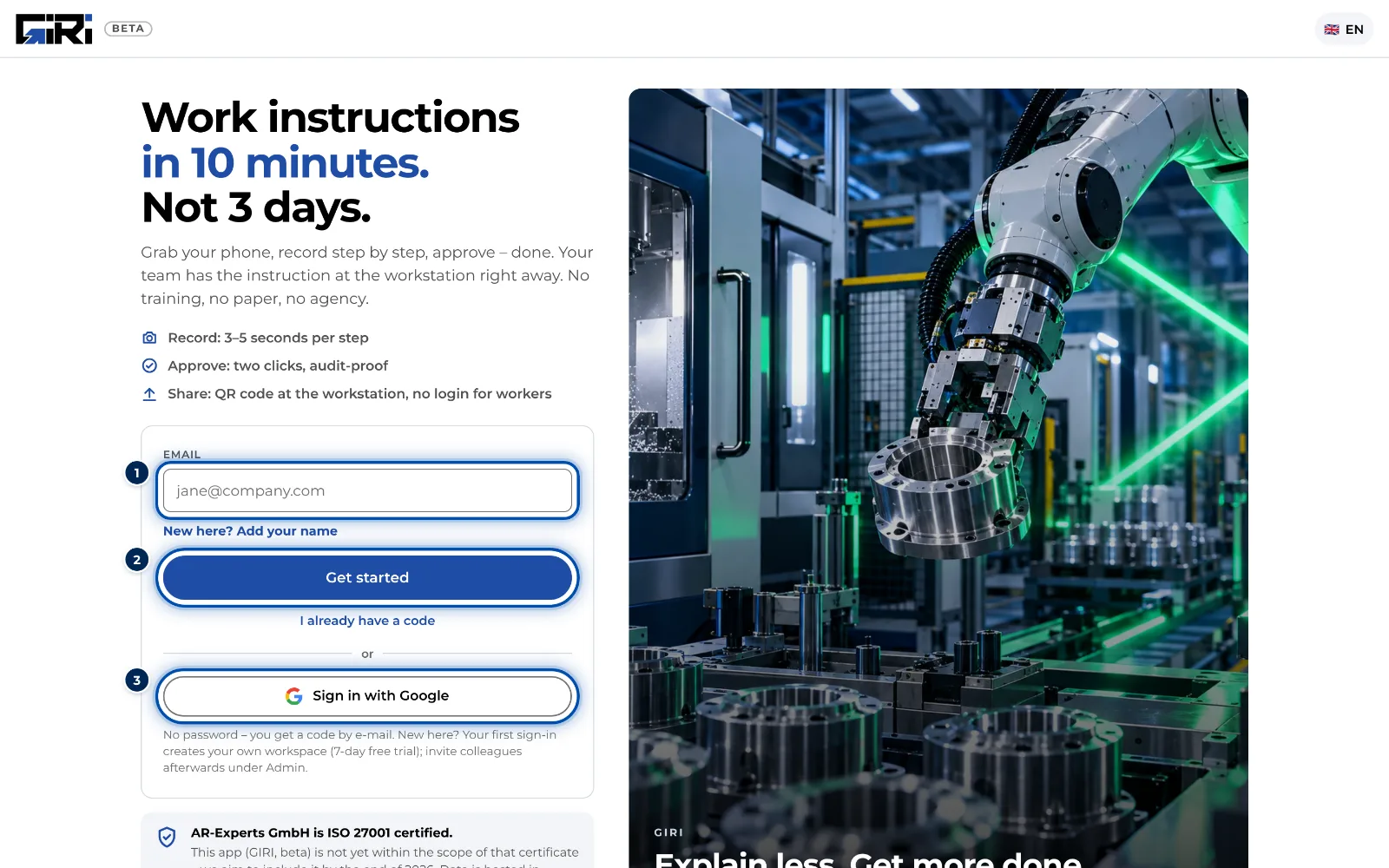
The sign-in page with the email field, Google sign-in and the note that no password is needed -
Tap Get started. GIRI sends you a code and shows the Code from the e-mail field.
-
Open the email from GIRI. The code is in the subject line and in large type in the email.
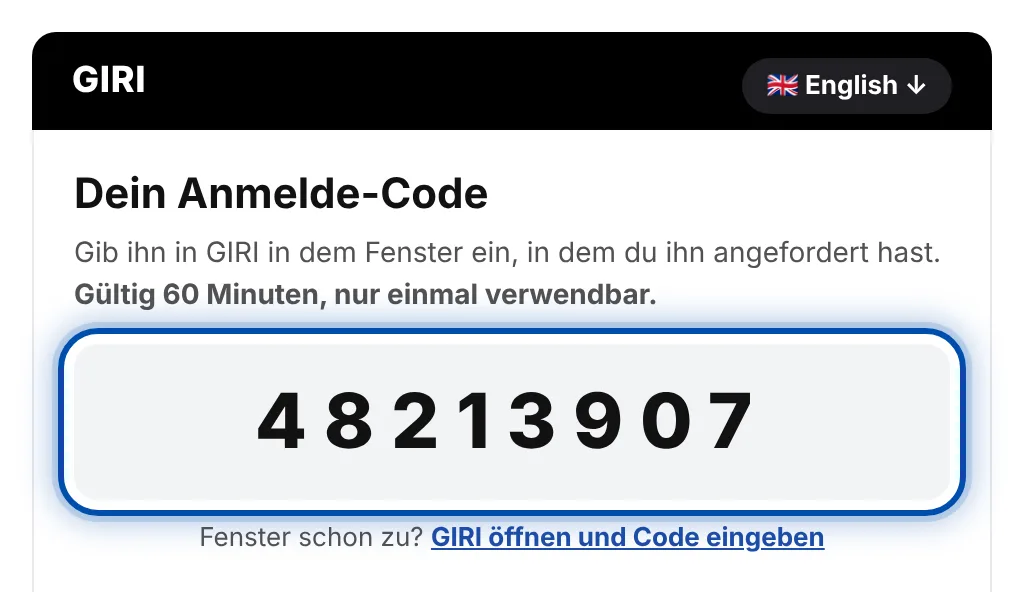
The email from GIRI with the sign-in code in large digits – German at the top, the English text follows below -
Enter the code. With 8 digits GIRI signs you in straight away; otherwise tap Sign in. You land on the start page.
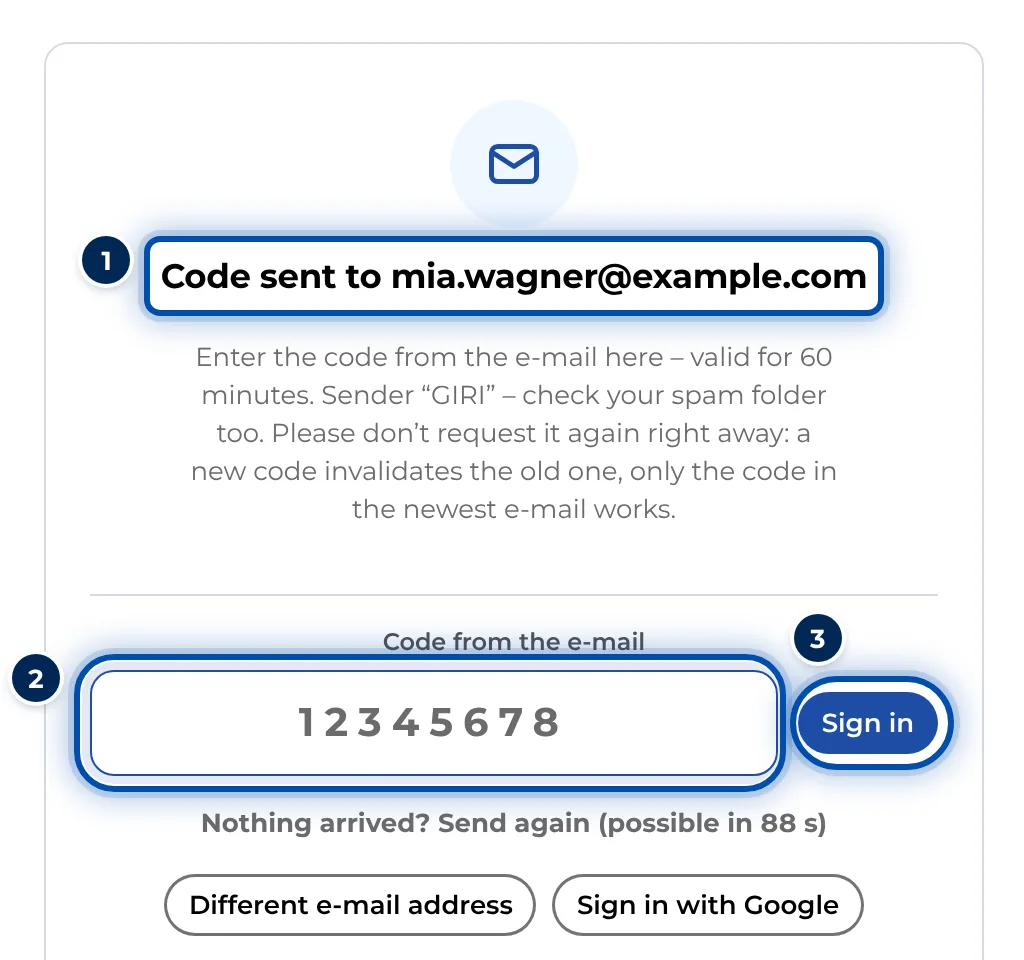
After sending, GIRI waits for the code from the email
With Google
-
On the sign-in page, tap Sign in with Google.
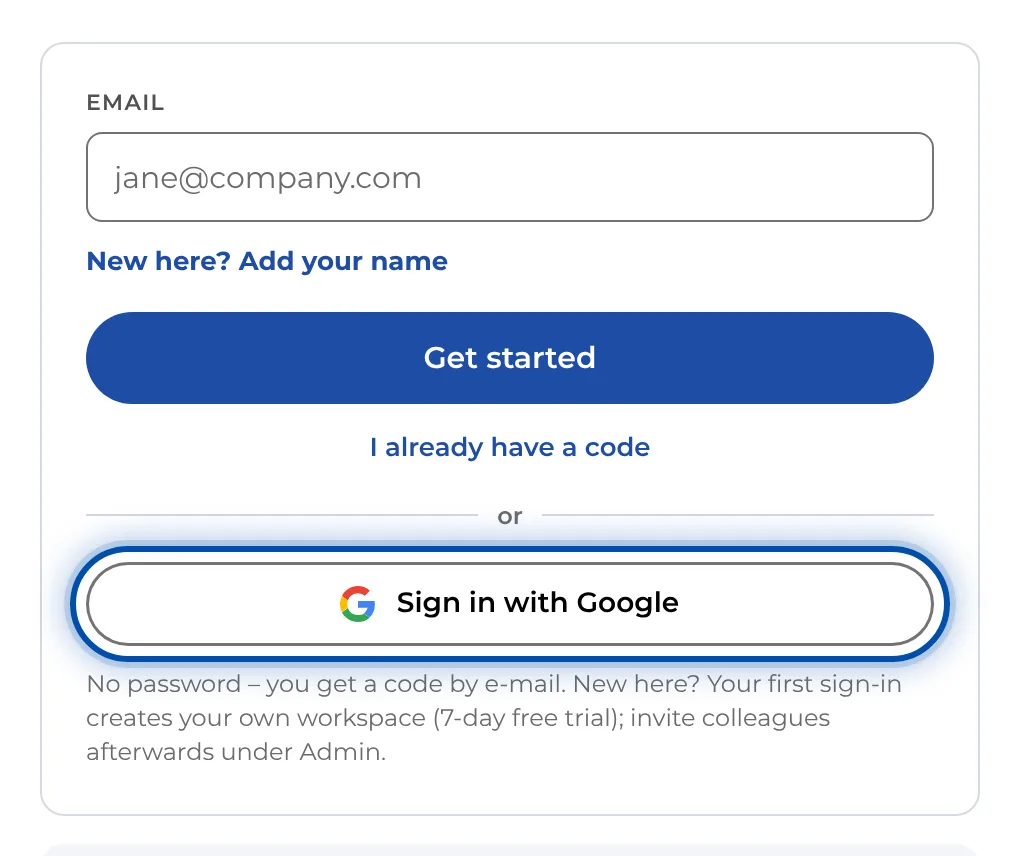
The sign-in page with the button for signing in with Google -
Choose your Google account. GIRI signs you in with that account’s address and uses your Google profile picture.
On a phone, when you are signed in on the PC
On the sign-in page, tap Scan QR code from the PC and scan the QR code your PC shows. That way you need no second email. See Sign in on your phone with a QR code.
Tips
- The code is valid for 60 minutes and works once. If you requested several codes, only the one in the newest email works.
- Window already closed? The email has a link that opens GIRI with the code field. Or enter your address and tap I already have a code.
- You stay signed in, by default for 14 days. Your workspace admin can set anything from 1 to 365 days. See Stay signed in: session length.
- Always use the same address. A different address without an invitation creates a new workspace.
Common problems
- No code arrived. Check your spam folder; the sender is “GIRI”. Only request a new code with Send again after a pause. See The sign-in code does not arrive.
- The code is not accepted. Usually there is a newer email. Only the code in the newest email works, and only for 60 minutes. If it has expired, request a new one with Send again.
- GIRI sends no new email. GIRI says Email limit reached – no new email was sent. Wait a few minutes. If you already have a code from an earlier email, enter it with I already have a code.
- You land in a new workspace instead of with your colleagues. You used a different address from the one in the invitation. Sign out and sign in again with the invited address.
- You are suddenly signed out. The session has expired. Your workspace decides how long it lasts. Simply sign in again.