Guide
Protect instructions with a link password
Protect the links and QR codes of a folder or team with a password. How to set it up and what workers see.
What for?
A link to a published instruction opens without signing in. That is convenient, but links can be passed on. With a link password, only people who know the password can open it. It always applies to all instructions in a folder or a team.
Before you start
- For a folder: you hold the folder right in that folder, so you are a Creator, Team Admin or Workspace Admin.
- For a team: you are a Workspace Admin.
- There is no password for individual instructions.
Step by step
For a folder
-
Open Instructions and click the folder’s tile.
-
Click Folder at the top and choose Link password.
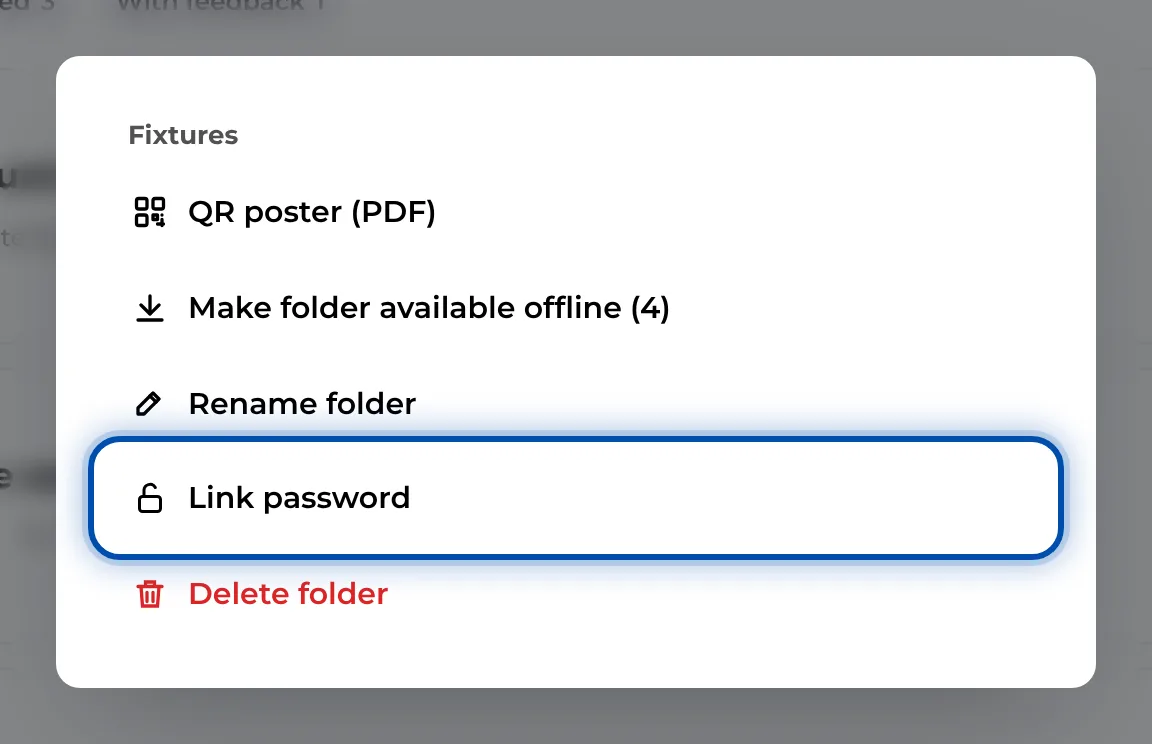
The folder menu with the Link password entry -
Enter the password under Password and click Save. The folder tile now shows a padlock.
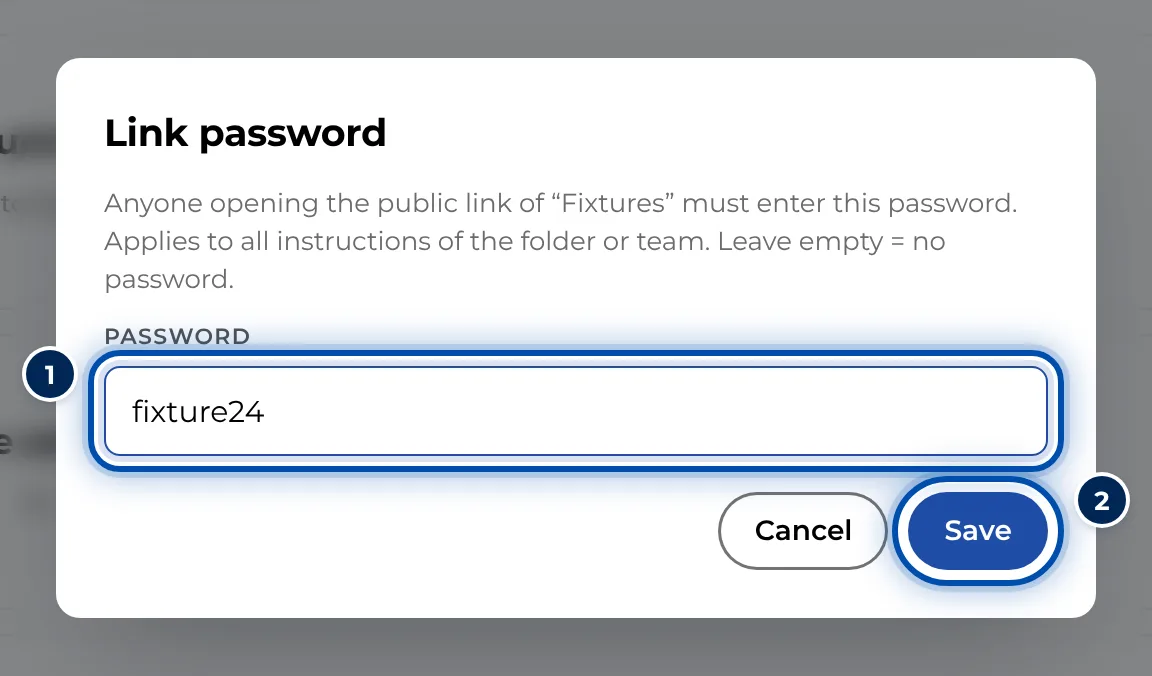
The Link password dialog for a folder
For a team
-
Open the menu and choose Users & teams.
-
Under Teams, expand the team and click Password.
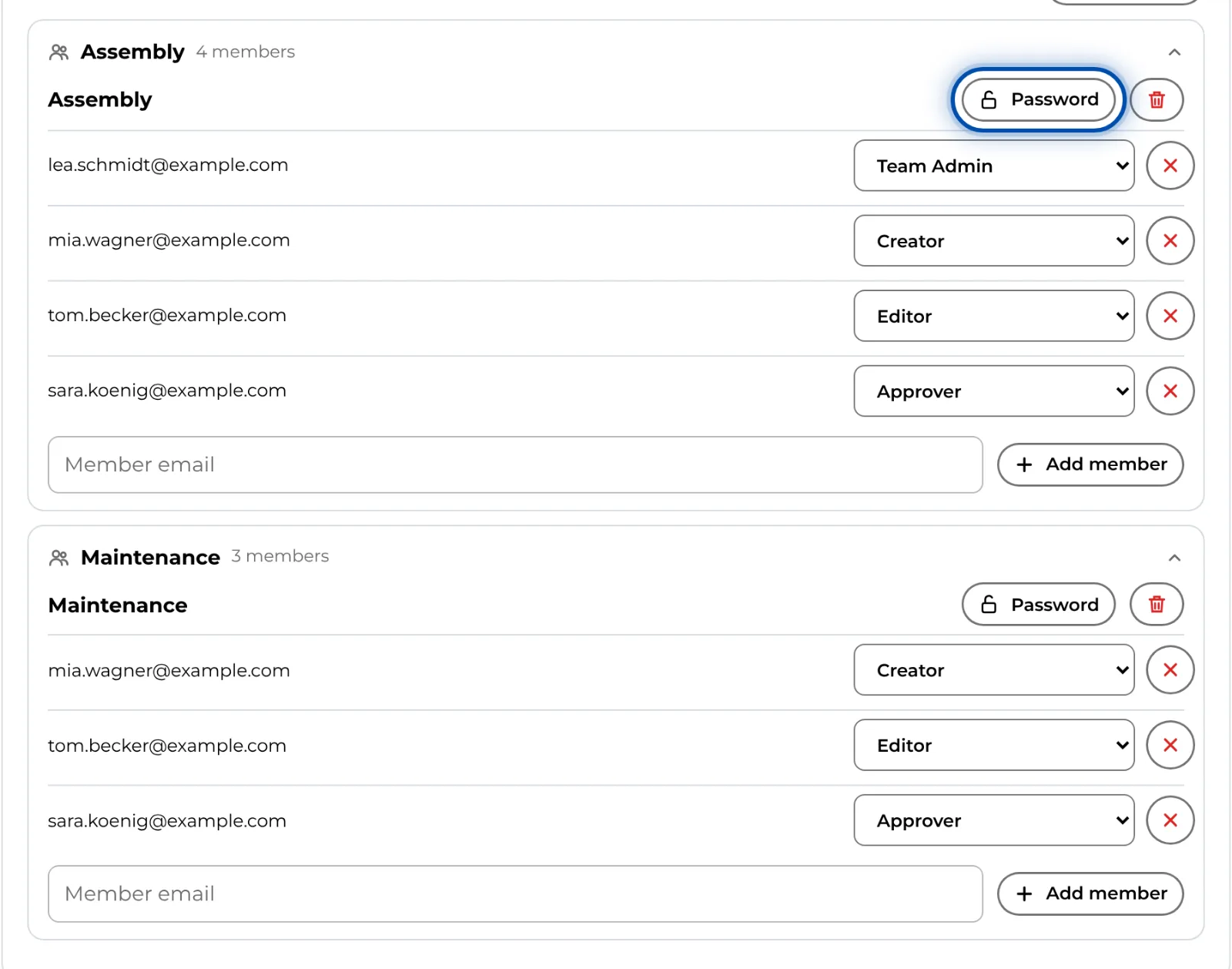
In the admin area, every team has a button for its password -
Enter the password and click Save.
A team password applies to every instruction that is restricted to that team: through its folder or through Access in the instruction’s settings. If several passwords apply to one instruction, any of them opens the link.
What workers see
-
When they open the link, Password required appears. Workers enter the password and tap Open.
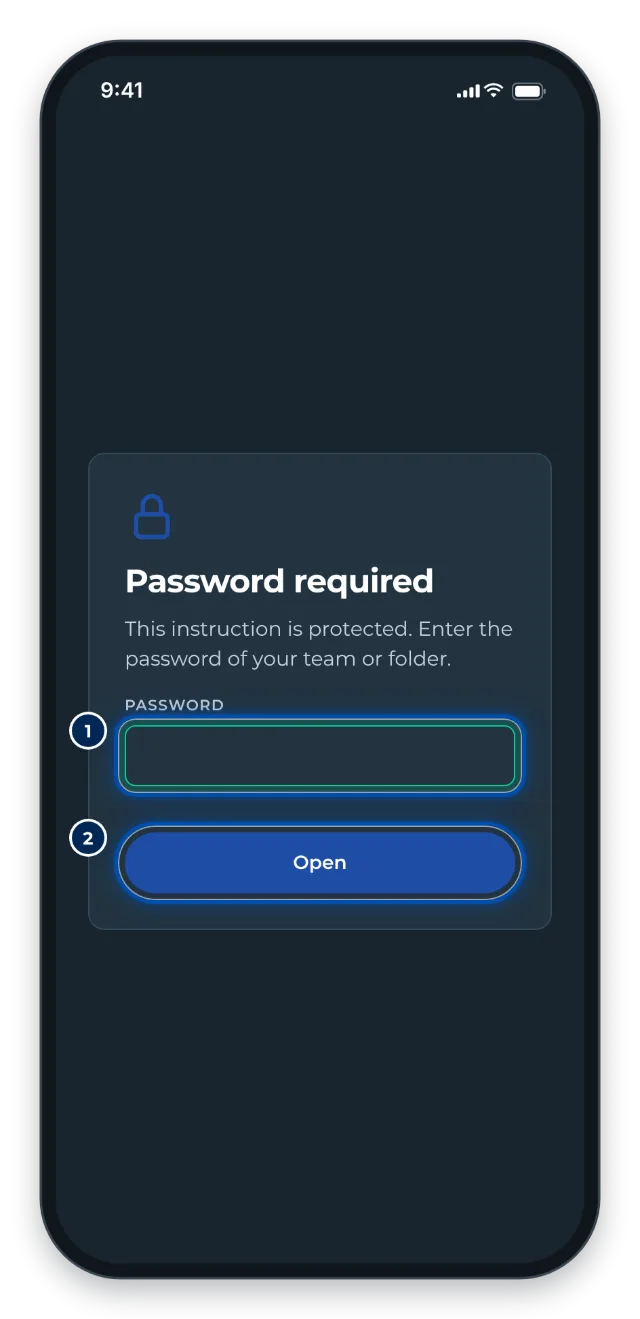
Workers are asked for the password before a protected instruction opens -
The browser remembers the password for this instruction. For each further protected instruction, GIRI asks once more.
Tips
- To change the password, open the dialog again. The field shows (leave unchanged). Enter a new password or click Remove password. If you leave the field empty, the old password stays. After a change, GIRI asks for the new password the next time the link is opened with a connection.
- Passwords are case-sensitive. Choose one that is easy to type at the workstation.
- Do not put the password up next to the QR code. Pass it on some other way.
- Anyone who is signed in to GIRI and allowed to see the instruction does not need the password.
- According to the note in the Share dialog, workers enter the password once per device. In fact GIRI asks once per instruction and browser.
Common problems
- The password is not accepted. GIRI says Wrong password. This also appears when there is no connection. Check the connection first, then upper and lower case. The password may also have been changed.
- Workers have to enter the password again and again. It applies per instruction. In a private window or after clearing the browser data, GIRI asks again.
- Link password is missing from the folder menu. You do not hold the folder right for this folder. Only the Workspace Admin sets team passwords.