Guide
Print PIN cards
For signing in with number + PIN, each person gets a business-card-sized card with their number, PIN and a QR code to My trainings.
What for?
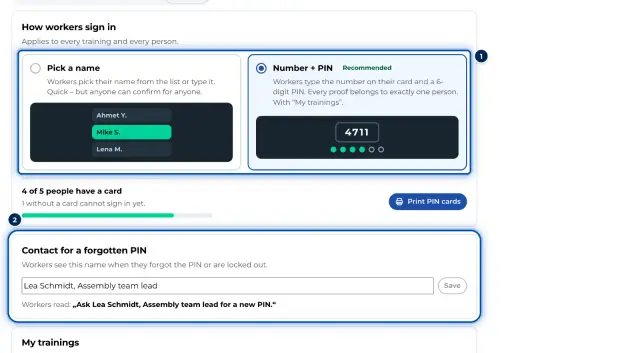
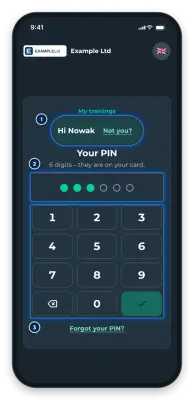
With the Number + PIN sign-in, nobody can sign in without a card. GIRI creates every PIN itself and shows it only once: on the printed card or, for a single person, in large digits on the screen. The QR code on the card opens My trainings with the number filled in, so only the PIN is left to type. GIRI activates training per workspace; ask at giri@ar-giri.de.
Before you start
- Training is activated for your workspace.
- You are a Workspace Admin.
- The people are on the list, see Add and import people.
- A printer. Business-card sheets with 10 cards per A4 work best; plain paper is fine too.
Step by step
-
Open the Menu at the top right, choose Training and the People tab. Pick a department at the top if you only want its cards. Click Print PIN cards. Before switching to Number + PIN, the button is only in the Settings tab.
-
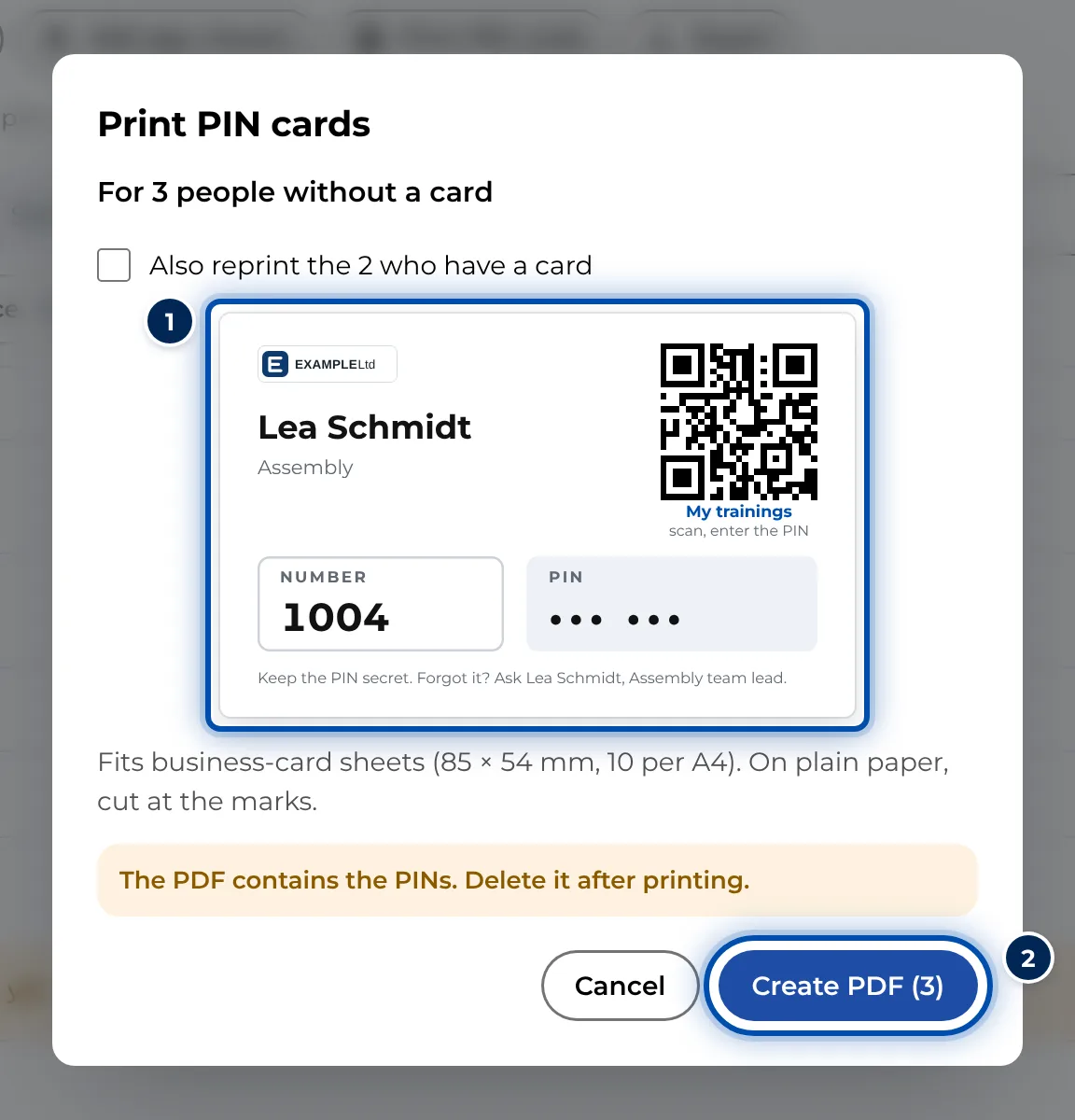
The dialog says who the cards are for. If some people already have a card, GIRI only prints for the others. If they should get new cards as well, tick the box below, for example Also reprint the 2 who have a card. The preview shows the first card.
Print PIN cards dialog with a preview of the first card -
Click Create PDF (3). If people with a card get a new one, GIRI asks once more. Their old cards stop working at once, and anyone currently signed in is signed out.
-
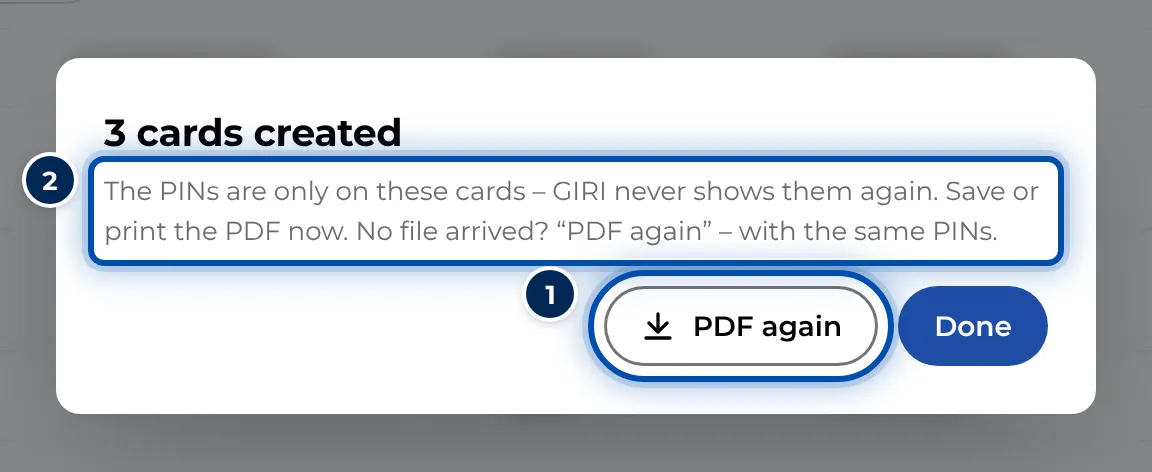
GIRI creates the PINs and saves the PDF pin-karten-‹date›.pdf. The 3 cards created window stays open until you click Done. If no file arrived, click PDF again. You get the same PINs again.
3 cards created window with PDF again and Done -
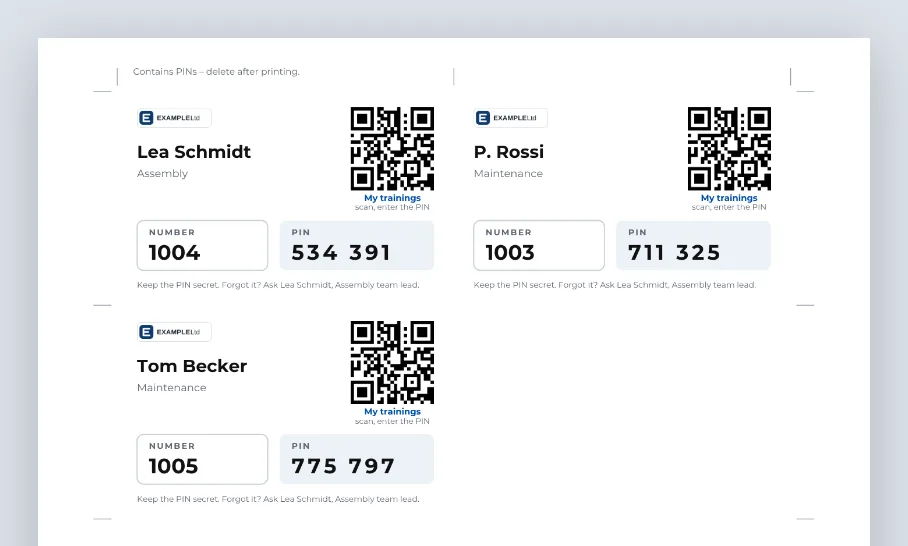
Print the PDF at actual size. On plain paper, cut along the marks in the margin. Each card is 85 × 54 mm and shows your logo or company name, name and department, the QR code, Number, PIN and whom to ask about a forgotten PIN.
The PDF with the PIN cards: name, department, QR code, number and PIN on each card -
Hand the cards out in person and delete the PDF afterwards. It contains every PIN, and GIRI never shows them again.
-
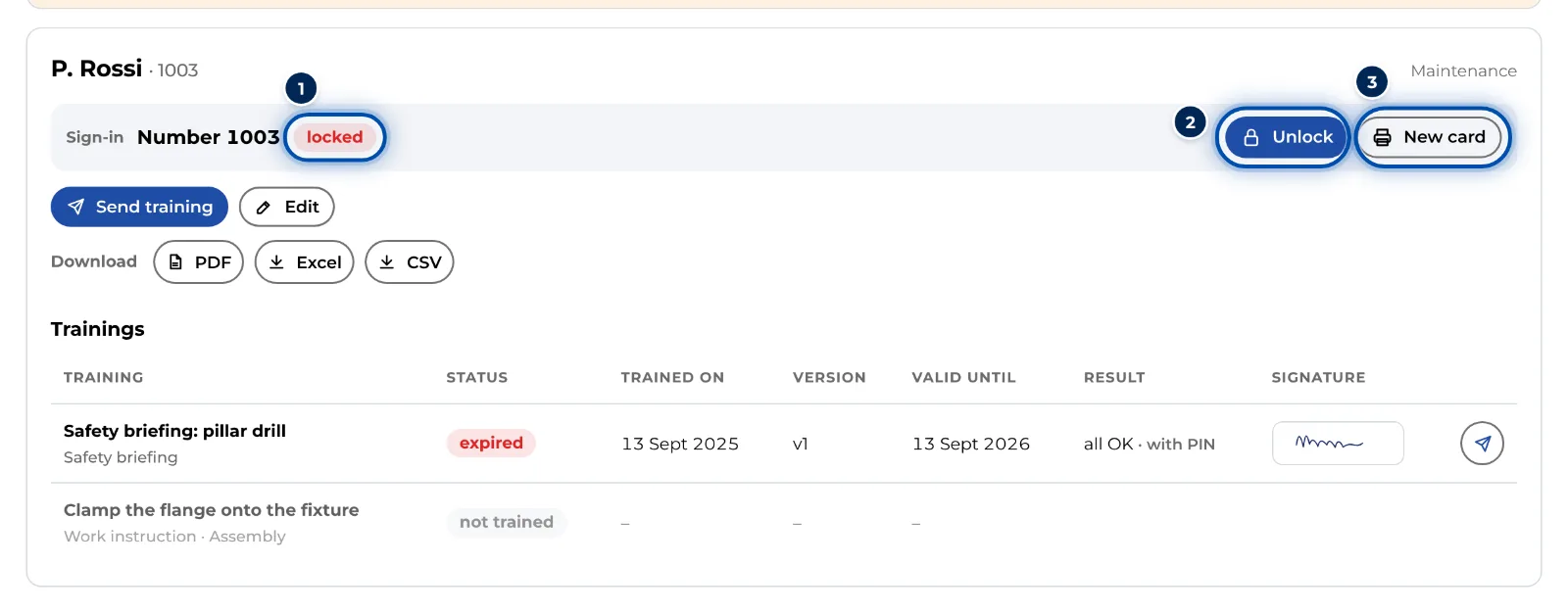
For a single person, click their name in the People tab. Under Sign-in you see their number and the state of the PIN. Print card or New card creates a new PIN. GIRI shows it in large digits and prints the card if you want.
Detail of a person with sign-in number, locked PIN, Unlock and New card
Tips
- The PIN column in the list of people shows the state: no PIN, new, active, paused or locked.
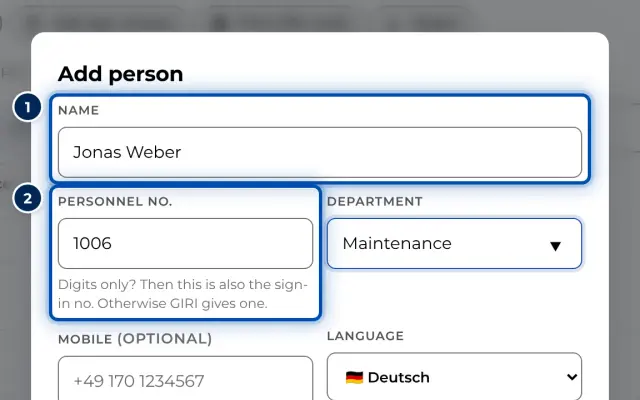
- The Sign-in no. is the personnel number if it consists of digits only. Otherwise GIRI assigns a four-digit number. If a personnel number made of digits changes, the Sign-in no. changes too. GIRI points this out, and the person needs a new card.
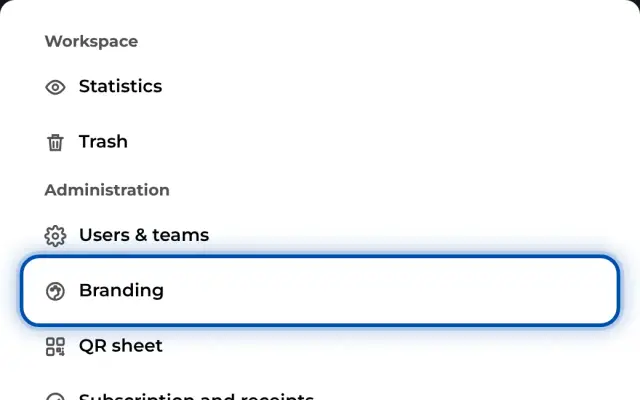
- The card’s logo and colour come from your branding.
- When you add people or import them, GIRI asks straight away about their cards.
Common problems
- Card lost. In the person’s detail, create a new one with New card. The old card stops working at once.
- PIN locked. In the person’s detail, Unlock lifts the lock. The PIN stays the same.
- The PDF is gone before it was printed. The PINs cannot be shown again. Print new cards, which creates new PINs.
- The QR codes on the cards no longer work. Someone chose Create a new link in the Settings tab. After that, the old link to My trainings and the QR codes on all printed cards stop working. Number and PIN keep working; workers sign in via the new link or its QR code. The confirmation shown when creating the link recommends reprinting the cards with “Card only” so the PINs stay. That option does not exist: every newly printed card gets a new PIN.