Guide
Open an instruction via QR code or link
Scan the QR code or tap the link: how to open an instruction on your phone. No account and no sign-in needed.
What for?
The instruction shows you how the job is done, with pictures and short videos. Step by step, right at your workstation. You always see the current version.
Before you start
- A phone or tablet. For the QR code you need its camera.
- Internet the first time you open the instruction.
- Sometimes a password. Your team gives it to you.
Step by step
-
Open the camera and point it at the QR code. Tap the link that appears. If you were sent a link, just tap it.
-
If you see Password required, enter the password and tap Open.
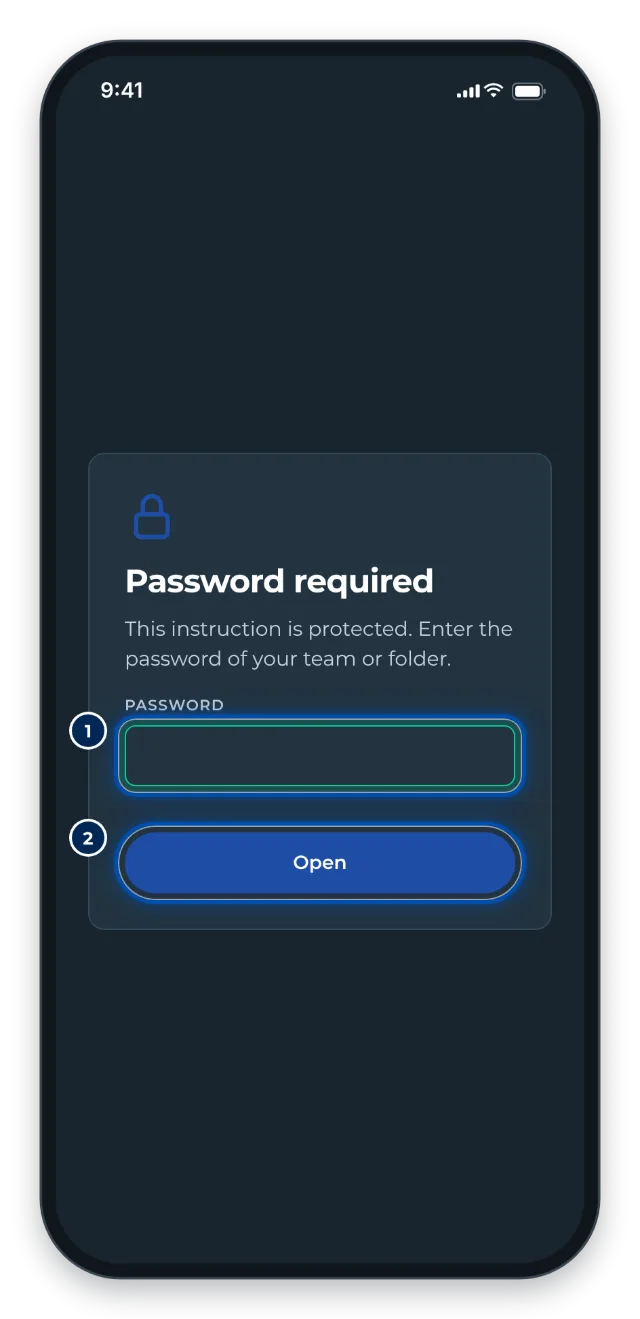
Before a protected instruction opens, GIRI asks for the password -
Now the start appears. It looks different depending on the instruction:
- The title and a picture: tap Let’s go.
- An overview of the chapters: tap a chapter or tap Start.
- Ready? with the field Your name: this is a checklist, see Complete and sign a checklist.
- For a training, GIRI first asks who you are.
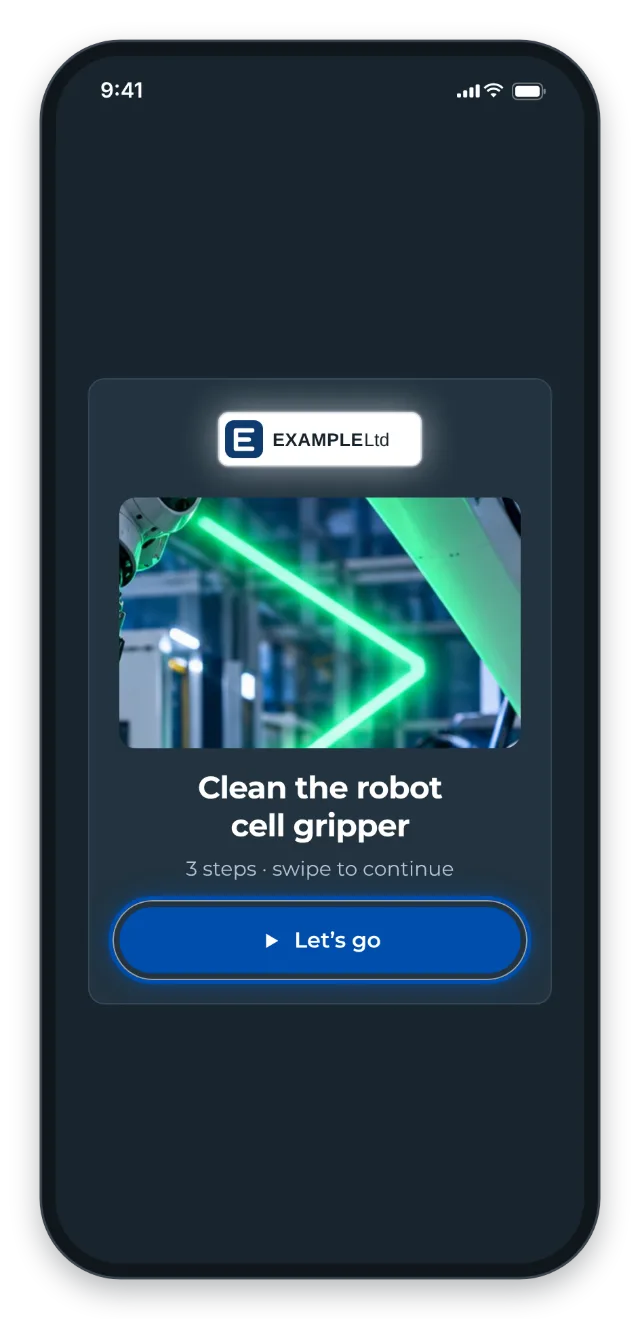
The start of an instruction with its title, a picture and the Let’s go button -
Swipe up and the next step appears. Videos play by themselves and have no sound. At a marking, the video stops for a moment.
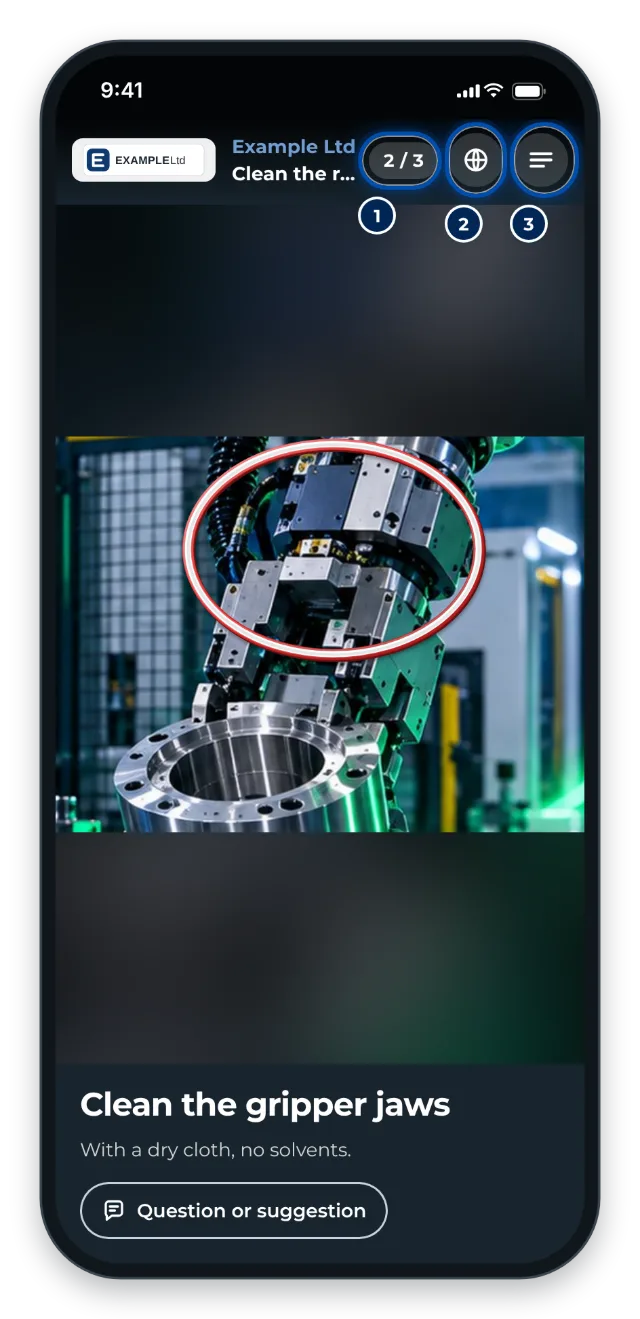
A step of the instruction, at the top the step count, the globe and the menu -
At the top you see which step you are on, for example 3 / 6. To the right, the globe changes the Language. The Menu shows all steps. Tap a step to jump to it.
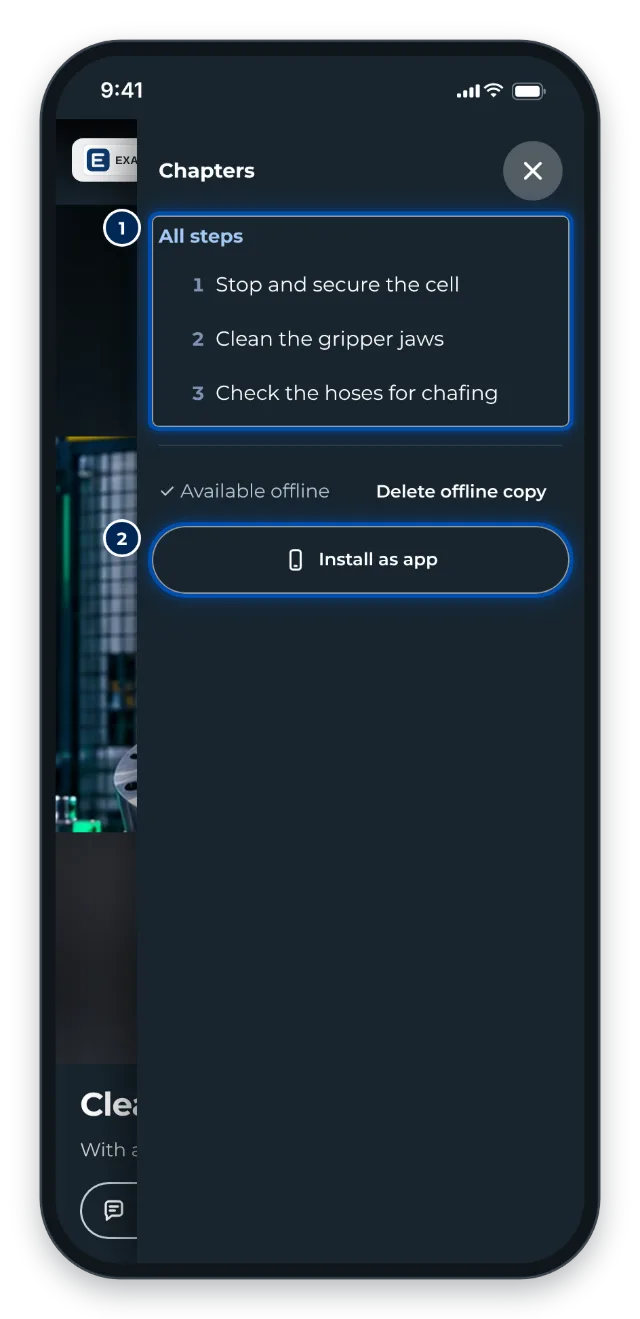
The menu with all steps and the Install as app button -
At the end you see a tick. Restart takes you back to the beginning.
Tips
- Install GIRI as an app: Menu, then Install as app. When it starts, the app shows the instructions saved on your phone. See Install GIRI as an app.
- Text too small? Spread two fingers on the screen to zoom in.
- At the start of a chapter, the large Continue button takes you on. It also works with gloves.
- Something unclear? Tap Question or suggestion. See Send a question or suggestion.
Common problems
- GIRI says the instruction has not been published yet. It has not been approved yet. Tell the person who made it. No connection right now? Then only instructions that were opened on this phone before will open. See Using instructions without a connection.
- GIRI says the link is outdated. Use the QR code at the workstation or ask for the new link.
- The password is wrong. Check that you have a connection. Without one, GIRI shows this message too. Check upper and lower case. Ask your team for the current password.
- The camera does not pick up the code. Hold the phone still and a little further away. Make sure there is enough light.