Guide
Duplicate an instruction
A copy as a new draft: all steps, pictures and settings, but without approvals and with its own link and QR code.
What for?
Similar machines, variants or a second line: instead of recording everything again, you start from a copy of a finished instruction and change only what is different. The copy has its own approval and analytics, and the template stays as it is.
Before you start
- The edit right for the instruction you copy.
- An internet connection: GIRI copies the pictures and videos on the server.
- If your package has a maximum number of instructions, the copy counts towards it.
Step by step
-
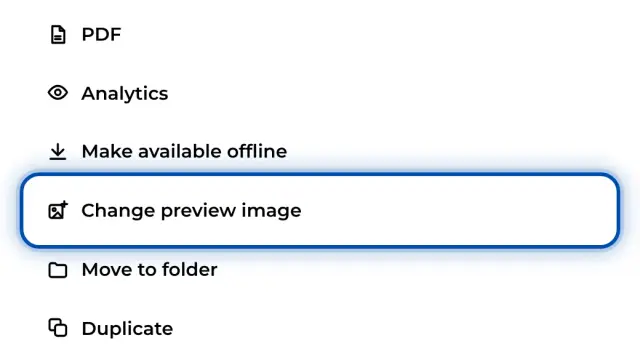
Open the menu: in the list, ⋯ on the card and then Duplicate; with the instruction open, ⋯ and then Duplicate.
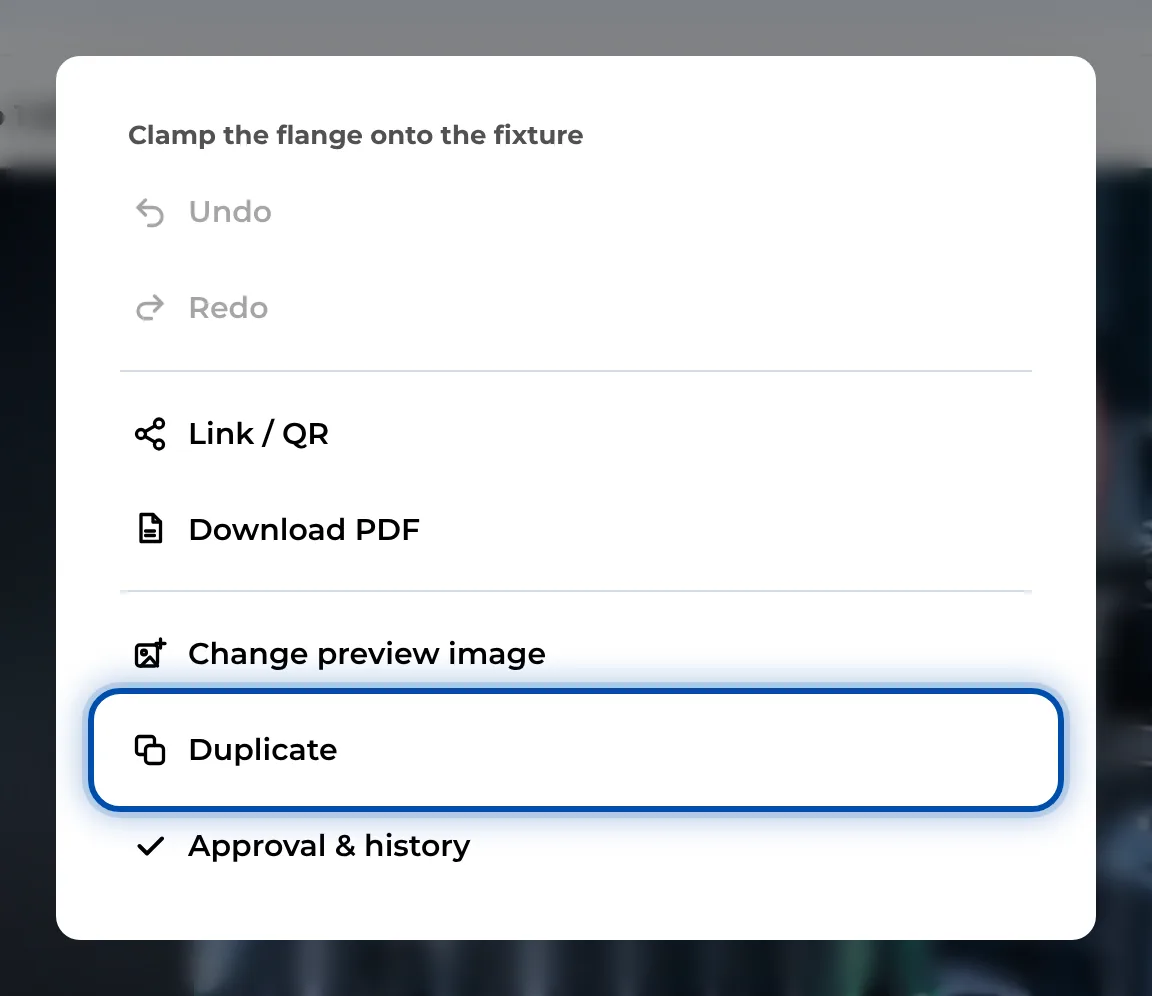
Duplicate in the ⋯ menu of an open instruction -
GIRI copies the files and shows the progress (Copying files 3/6 …).
-
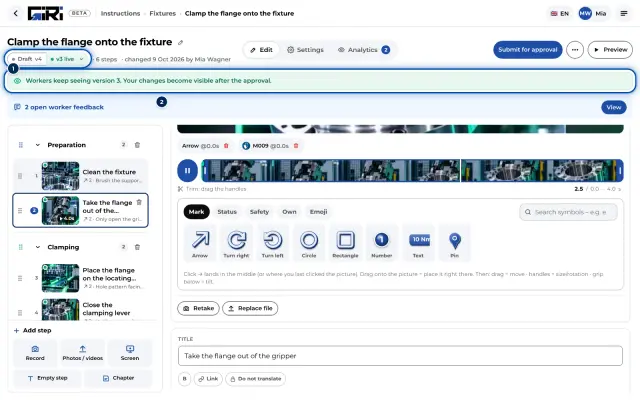
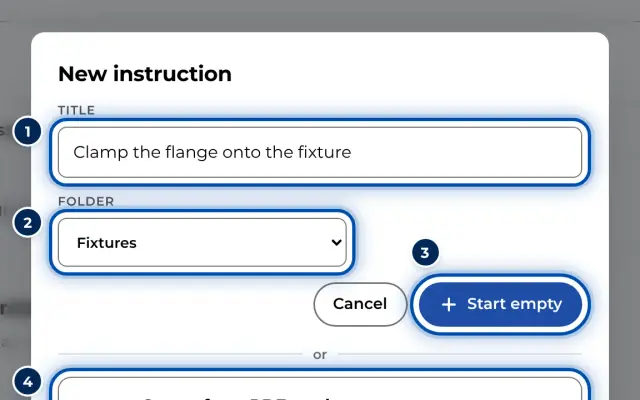
GIRI then reports Copy created – as a draft, without approvals and opens the copy in the editor. It is called Copy of Clamp the flange onto the fixture.
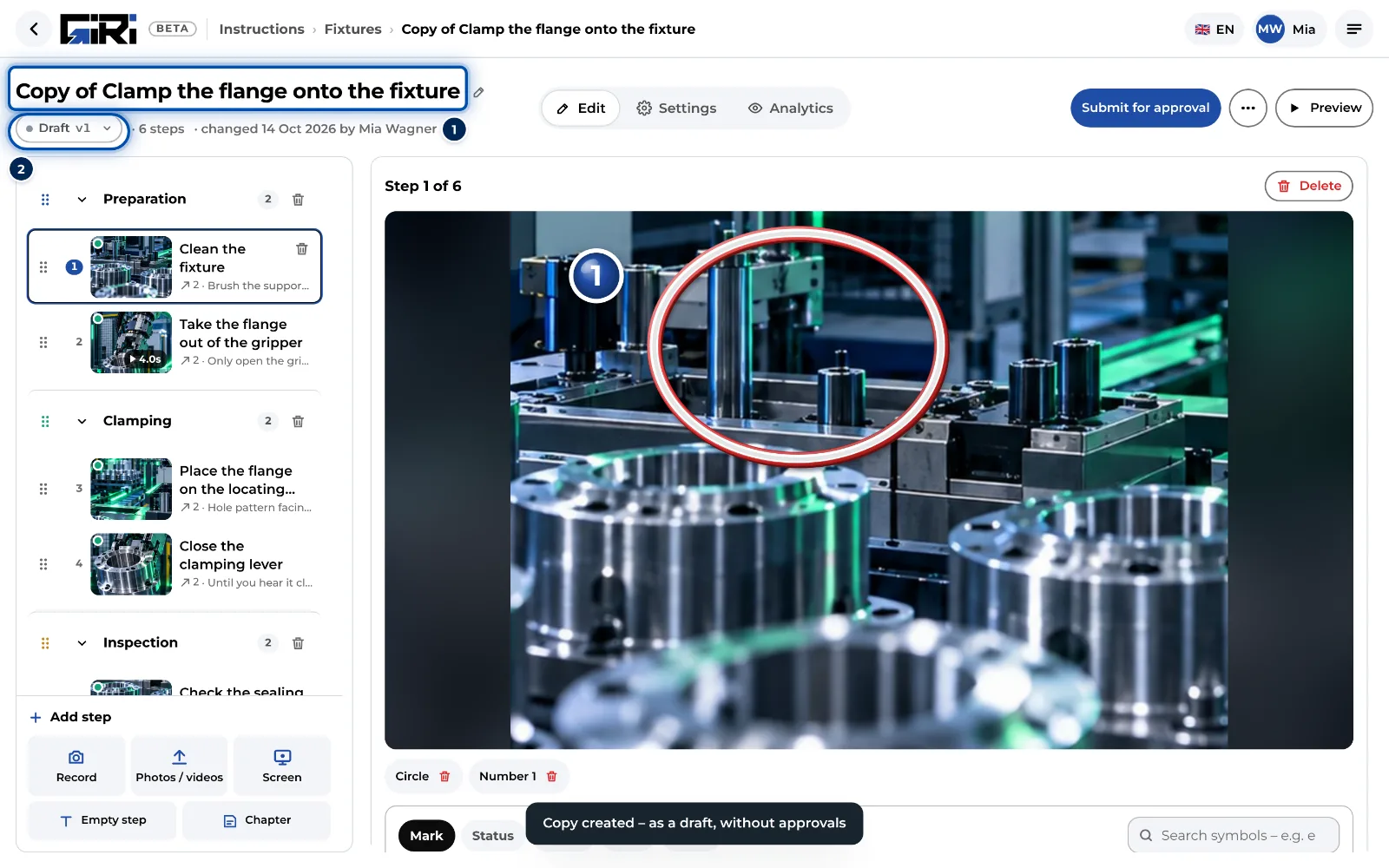
The copy opens in the editor as a draft -
Give the copy a title of its own straight away. Adapt the steps, texts and pictures.
-
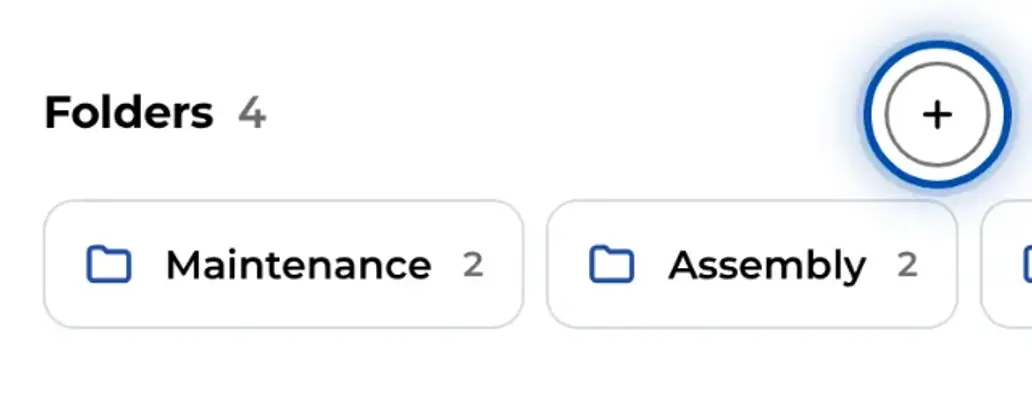
If needed, move it to another folder (Move to folder, see folders).
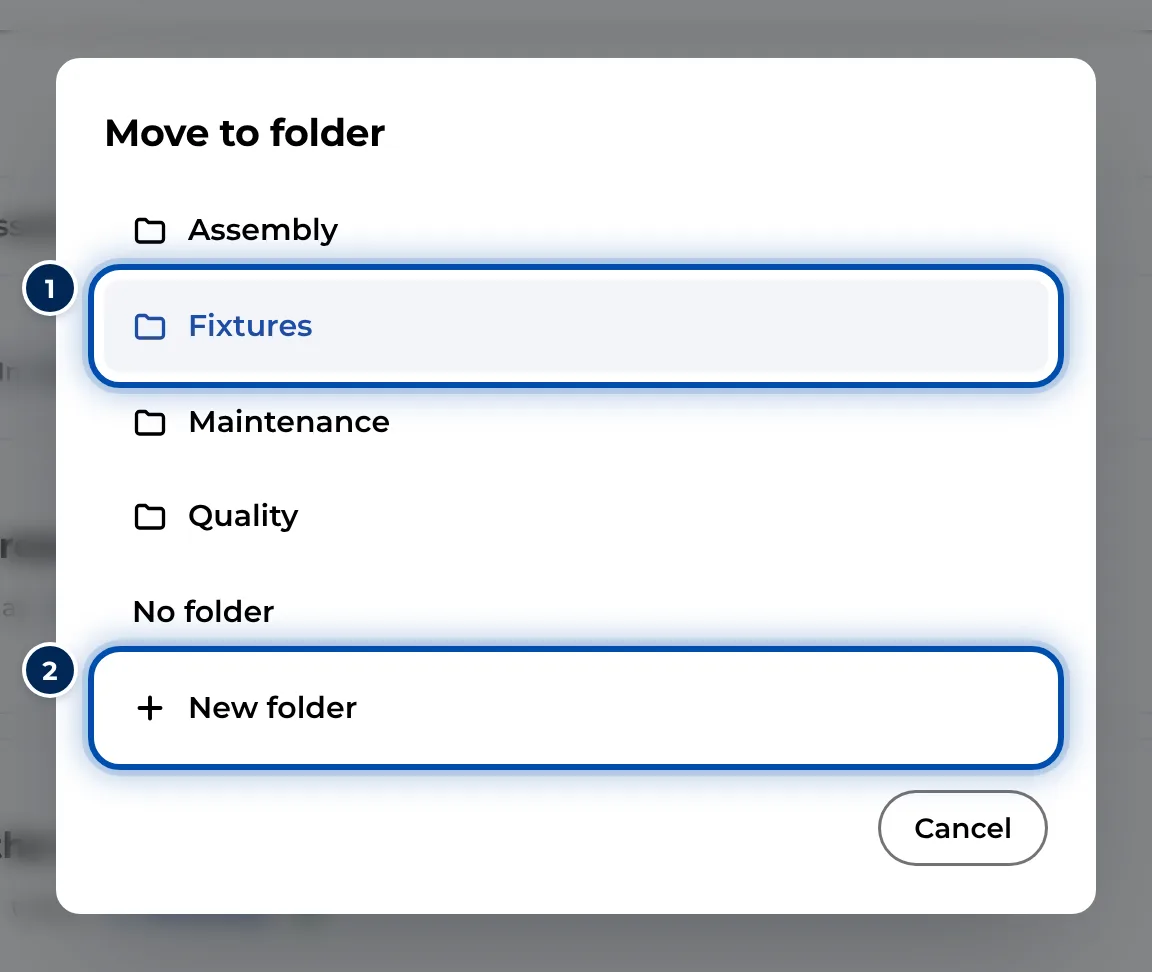
Moving the copy to another folder -
Submit the copy for approval. Its link and QR code work once it is approved.
What the copy keeps
- Kept: all steps and chapters with their texts, pictures, videos and markings, plus the folder, team access, checklist with mode and signature, and the feedback settings. The copy gets its own copies of the pictures and videos.
- Starting afresh: status and version. The copy is a Draft with no approvals and no versions. It has its own link and QR code.
- Not copied: deleted steps, views, the job-done log and feedback, and any training requirement (Record as training).
Tips
- For a new version of the same instruction, don’t duplicate; revise the instruction instead. The link and QR code then stay the same, and the versions remain traceable. See Update a published instruction.
- The template’s QR code keeps opening the template. For the copy, print a QR sheet of its own once it is approved.
- On a phone you can also copy a single step: open the step, tap ⋯ and then Duplicate.
Common problems
- Package limit reached appears instead of a copy. Your package has reached its maximum number of instructions. Delete old instructions or talk to your admin about a larger package.
- Duplicating stops partway. Usually the connection dropped. Try again with a connection.
- The copy shows a different preview image. If you had chosen a step picture as the preview image of the template, the copy shows the first picture again. An image you uploaded yourself is kept. Choose the picture again if needed.
- Duplicate is missing from the menu. You don’t have the edit right for this instruction.