Guide
Invite people and assign roles
Invite colleagues to your workspace by e-mail, choose their role, send invitations again or withdraw them, and change roles later.
What for?
Anyone who should read, create or approve instructions in GIRI needs an account in your workspace. They get one through your invitation. Workers who only open instructions via link or QR code do not need an invitation.
Before you start
- You are a Workspace Admin. Only admins see the Administration section in the menu.
- You know the person’s e-mail address. The domain does not matter; external addresses work too.
- The person does not already use GIRI in another workspace.
Step by step
-
Open Menu → Users & teams. At the top is the Users card with everyone in the workspace.
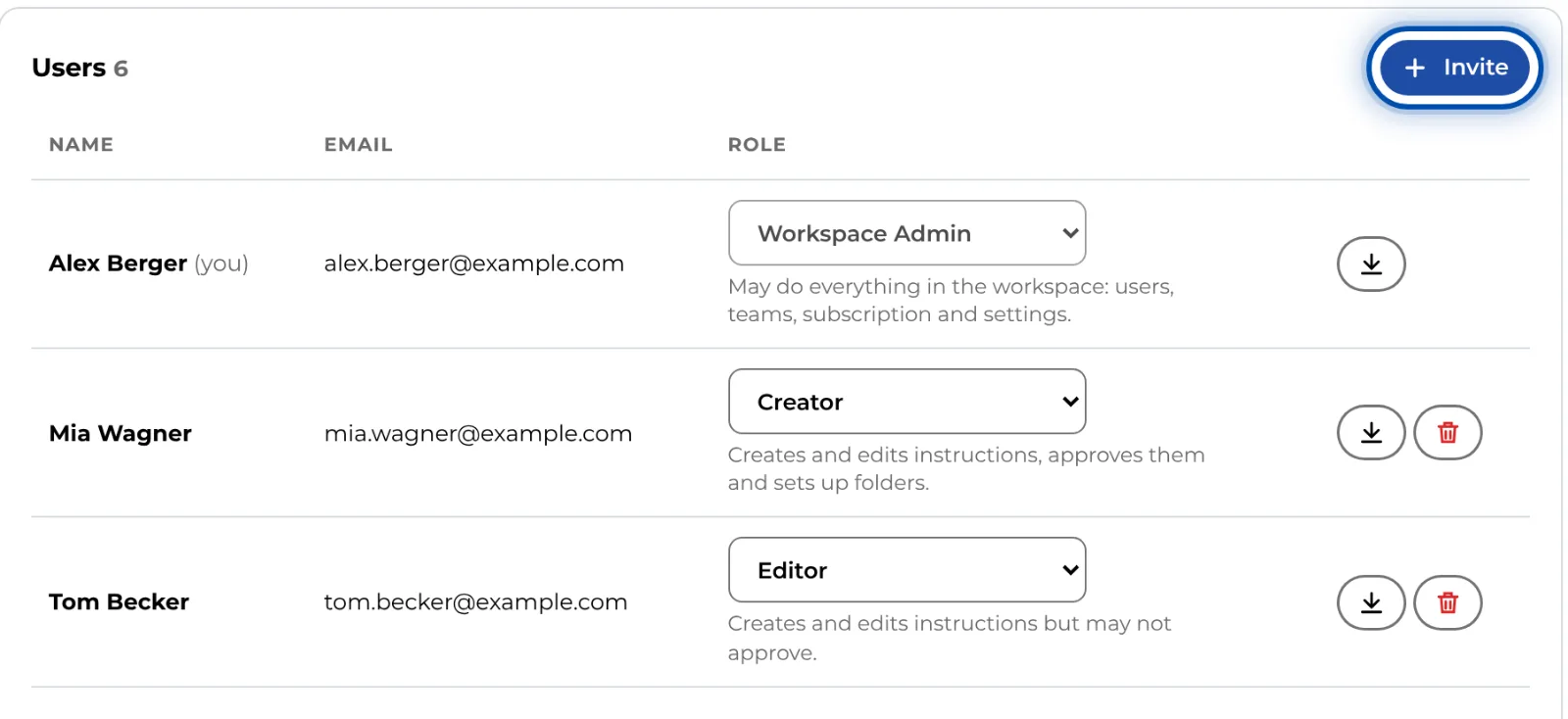
The Users card with the Invite button -
Click Invite. The Invite user dialog opens.
-
Enter the person’s Email.
-
Choose the Role. Creator is preselected. Each role has one sentence explaining what it may do. You will find Team Admin, Editor and the separate approval roles under More roles. Roles and permissions helps you choose.
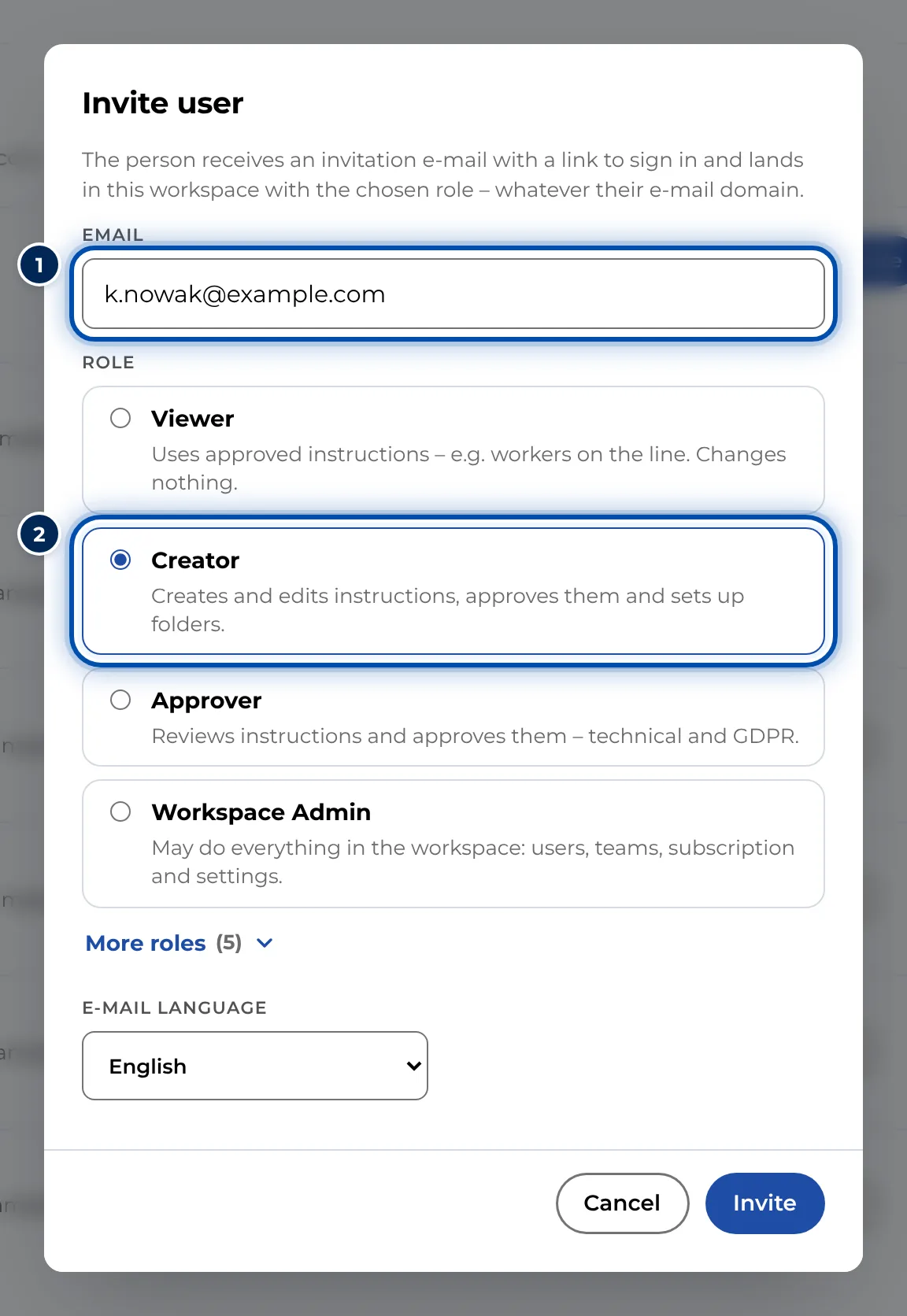
The Invite user dialog with an e-mail address and the preselected Creator role -
Choose the E-mail language. The e-mail contains English and German; the language you choose comes first.
-
Click Invite. GIRI sends the invitation e-mail. The person now appears under Pending invitations, with their role, the date of the invitation and when the last e-mail went out.

Pending invitations with the buttons to send again and withdraw -
The person opens the e-mail, signs in with a code and lands in your workspace with the chosen role. From then on they appear in the Users list. What this looks like for them is described in Accept an invitation.
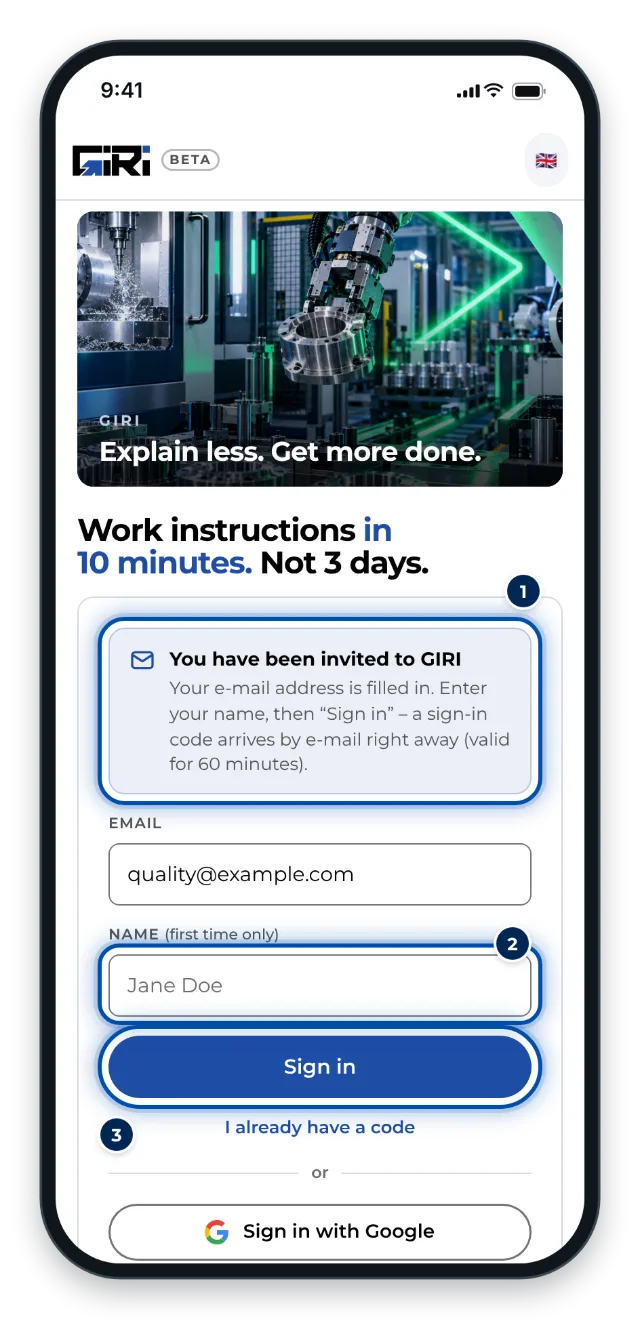
What the invited person sees: the sign-in page with the address already filled in
Change a role later
-
In the Users list, pick a different Role for the person. GIRI saves right away and shows the sentence for the new role underneath. Your own role is locked; another admin changes it.
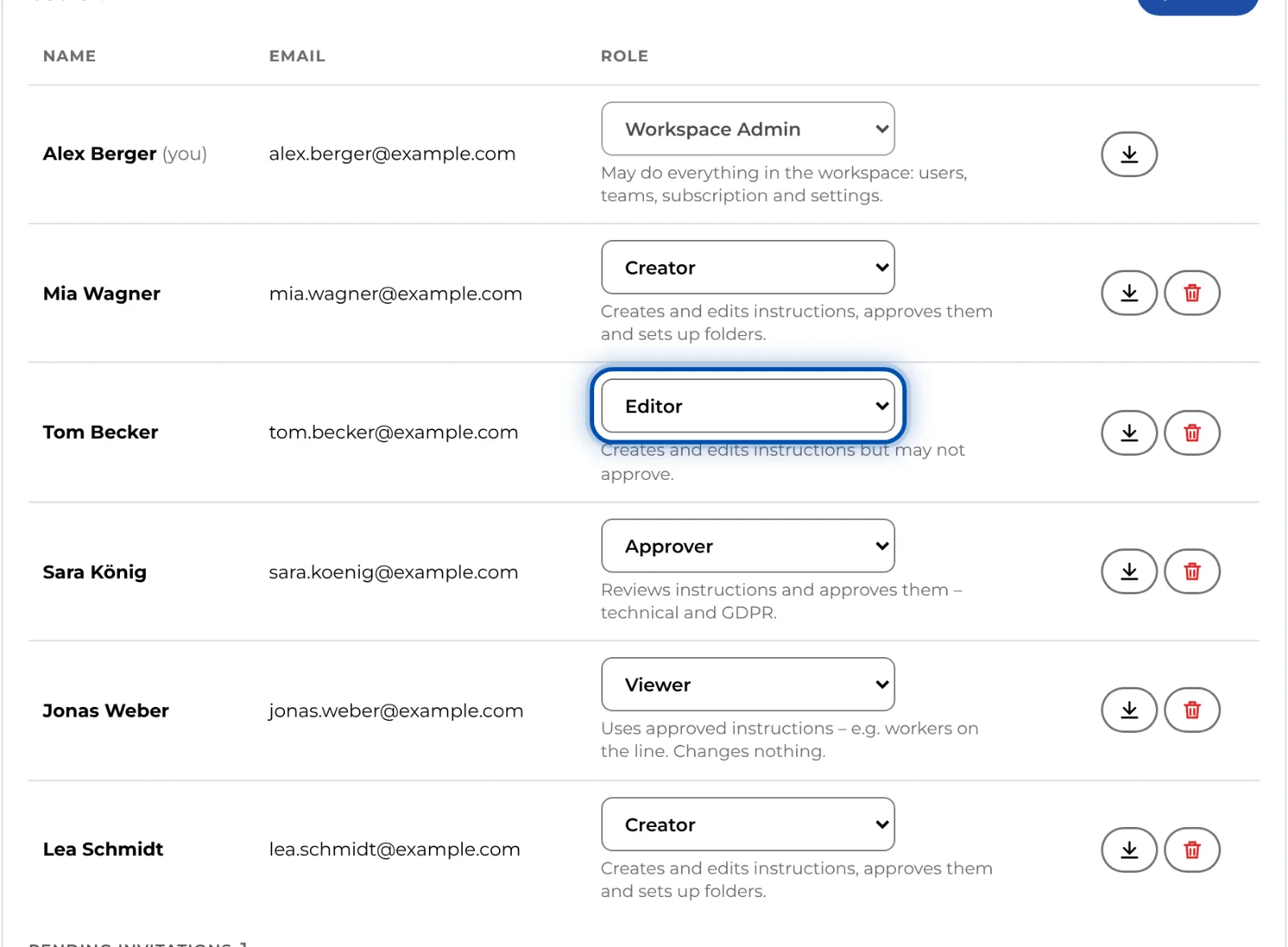
The users list with a role selector for each person
Send an invitation again or withdraw it
- If the e-mail did not arrive, click Send again next to the invitation. GIRI sends it once more.
- To withdraw it, click the × next to the invitation (Withdraw invitation) and confirm. If the person signs in afterwards anyway, they will not land in your workspace.
Tips
- Invitations do not expire. They stay open until the person signs in or you withdraw them. The sign-in code the person requests when signing in is valid for 60 minutes.
- To change the role of a pending invitation, invite the same address again with the new role. The new invitation replaces the old one.
- Teams are assigned separately, see Teams and folder access.
- If you bought a package by card, GIRI keeps count: accounts and pending invitations with the role Workspace Admin, Team Admin, Creator or Editor count as creators, everyone else as readers. When the package is full, Package limit reached appears.
- Each address gets at most one e-mail per minute and five in 24 hours. Each workspace can send 30 invitation e-mails in 24 hours; customers and trial accounts set up by GIRI can send 200.
Common problems
- The address already uses GIRI in another workspace. Each address belongs to exactly one workspace. GIRI then sends no e-mail, and the invitation in the list has no effect. Write to giri@ar-giri.de and we will move the account to you.
- The person is already in the workspace. GIRI does not invite them twice. Change their role in the list instead.
- The e-mail does not arrive. The invitation comes from giri@ar-giri.de, the sign-in code from giri-go@ar-giri.de. Ask the person to check their spam folder, and ask your IT to allow both senders. See The sign-in code does not arrive.
- Just sent, or limit reached. Wait a minute, or up to 24 hours. If you need more invitations at once, write to giri@ar-giri.de.
- Someone should no longer have access. There is no way to remove someone from the workspace. Erase user (GDPR) deletes the person for good, see GDPR data export and erasure. With the Viewer role they can no longer change anything, but they can still sign in and read.