Guide
Accept an invitation
Invited to GIRI? How to join your colleagues' workspace without a password, with the role from the invitation. Even if someone else is signed in.
What for?
With the invitation you work in your colleagues’ workspace, with their instructions, folders and teams. If you sign in with a different address instead, you get a workspace of your own on a trial.
Before you start
- The invitation email from GIRI with the subject “… invited you to GIRI” or “… hat dich zu GIRI eingeladen”. It contains English and German in one email.
- Access to the inbox of the invited address, because the code goes there too.
- You are not yet in another GIRI workspace with this address. Otherwise see below.
Step by step
-
Open the invitation email and tap “Sign in now”. GIRI opens with the note You have been invited to GIRI. Your address is already filled in.
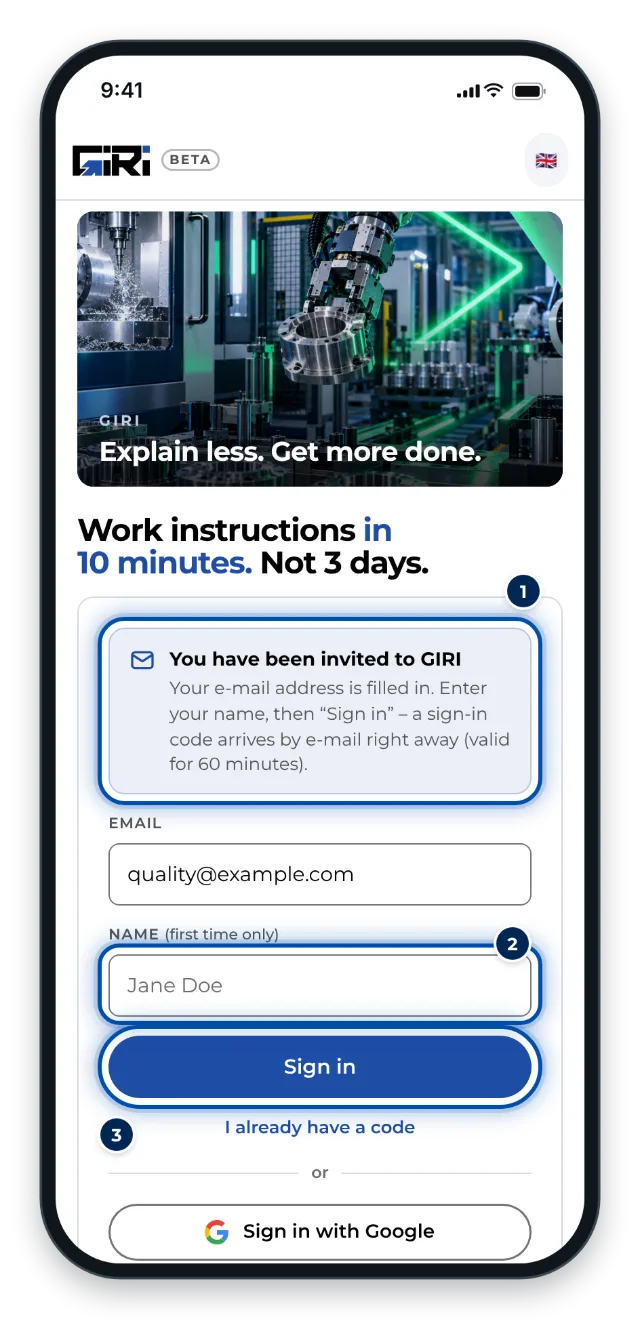
The sign-in page after tapping the button in the invitation email, with the address already filled in -
Enter your name under Name and tap Sign in.
-
A second email with your sign-in code arrives straight away. Enter it under Code from the e-mail. With 8 digits GIRI carries on by itself; otherwise tap Sign in.
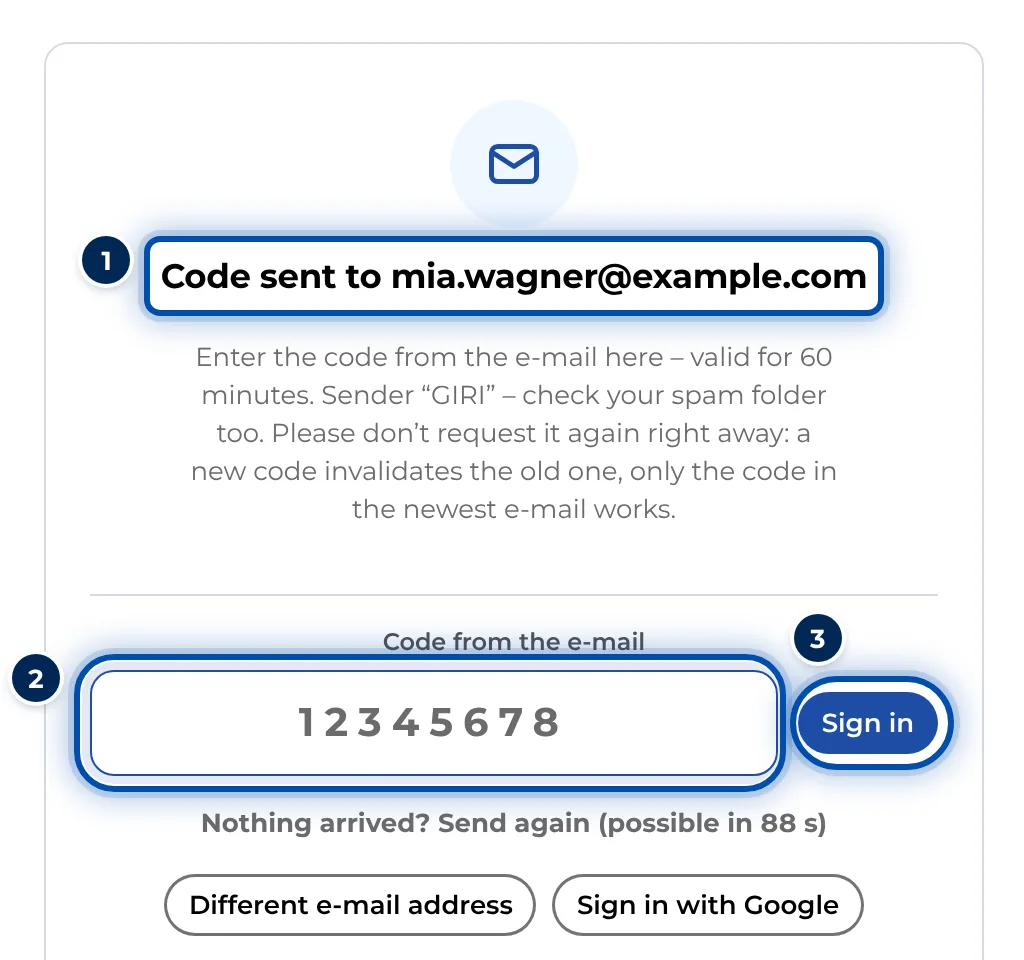
After sending, GIRI waits for the code from the email -
You are in your colleagues’ workspace, with the role from the invitation. You see your role in your profile at the top right.
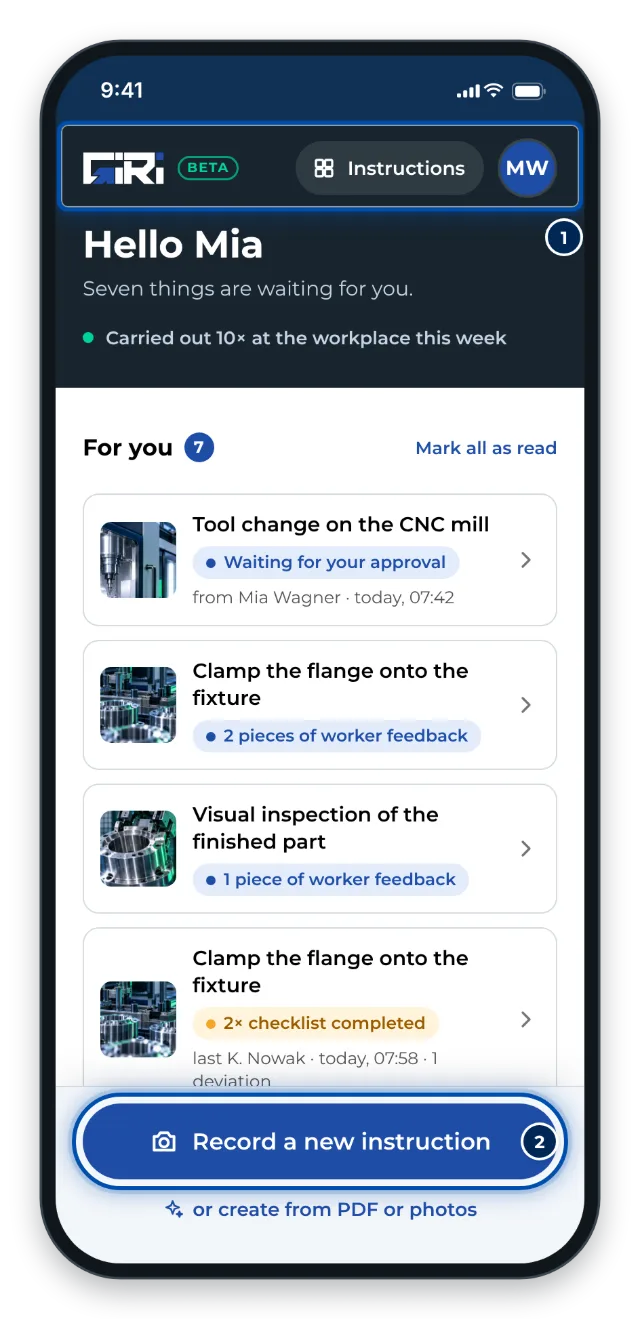
The start page on a phone once you are in the workspace
If someone is already signed in on the device
If you open the invitation on a device where another account is signed in, GIRI shows Invitation for another account.
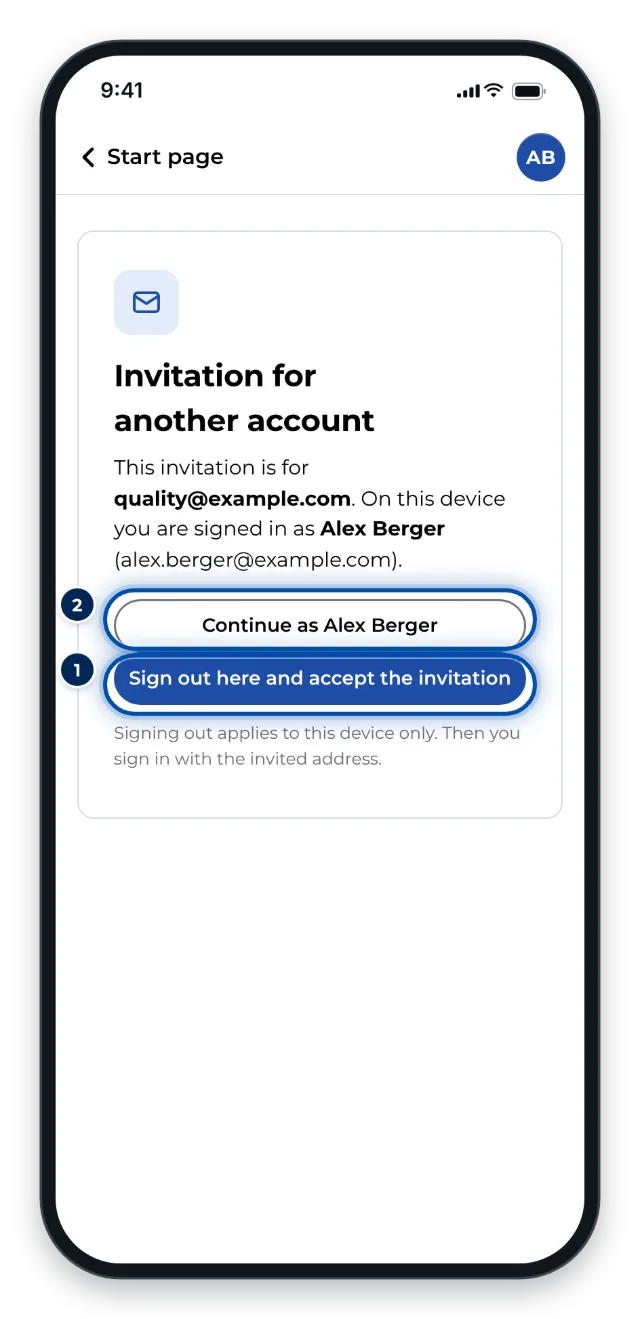
- Tap Sign out here and accept the invitation. This signs out this device only.
- Sign in with the invited address as described above.
If you would rather carry on with the current account, tap Continue as …. If you are already signed in with the invited address, GIRI takes you straight to the start page and says: You are already signed in as ….
Tips
- The invitation does not expire. It stays open until you sign in or the admin withdraws it. Only the code in the second email is limited to 60 minutes.
- The button in the email does not work? Open go.ar-giri.de and sign in with the invited address. The invitation still applies.
- If the invited address is a Google account, the Sign in with Google button works too.
- On a phone, GIRI as an app is worth it afterwards. There you can sign in without a second email, with a QR code from the PC.
Common problems
- You land in a new workspace instead of with your colleagues. You signed in with a different address. Sign out and sign in with the address the invitation went to.
- The address already uses GIRI in another workspace. Then the invitation does not take effect: no invitation email is sent, and the admin sees a notice. The invitation is still listed under Pending invitations, but it does nothing. Write to giri@ar-giri.de. GIRI moves your account to the right workspace.
- No invitation email arrived. Check your spam folder. The admin can send the invitation again under Pending invitations. See Invite people and assign roles.
- The code has expired. Tap Send again and you get a new one straight away.